1
93-6016N-00 rev 1 IFU_93-6016N-00 rev 1 9/30/14 1:54 PM Page 10
same time each day give a more comprehensive blood pressure history.
Always be sure to note the date and time when recording blood
pressure and pulse measurements. For best results, and with time
permitting, 3 successive measurements may be taken daily. Make sure to
allow at least 1 minute between measurements. Discard any reading that
appears suspect and record the average of the remaining readings.
7.2 Installing and Using Microsoft® Healthvault™ on your ADC®
Advantage™ Blood Pressure Monitor
The Advantage™ Ultra digital blood pressure monitors are compatible
with the Microsoft HealthVault™ software application. HealthVault™
allows you to easily store, use, and share your health information
online and on your mobile devices.
To use HealthVault™ with your unit, follow the steps below:
3.8. How is Blood Pressure Measured?
Healthcare professionals traditionally use a device known as a
sphygmomanometer along with a stethoscope - essentially a
professional version of the very same instrument you have purchased.
The sphygmomanometer is a system consisting of an inflatable bladder
contained within a cuff, inflation bulb with air control valve, and
pressure measuring manometer (gauge). The gauge may be mechanical,
electronic, or mercurial. The cuff is wrapped around the limb and inflated
to constrict blood flow to the artery. As pressure is released from the
cuff through the deflation valve, blood flow returns to the artery
producing pulse beats known as Korotkoff sounds, which are detected
with the stethoscope. Systolic pressure is recorded at the onset of these
sounds. Diastolic pressure is generally recorded when the sounds
disappear (when blood flow to the artery returns to normal).
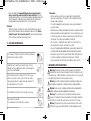
3.9. How should I record my blood pressure?
Record your blood pressure by setting up a simple chart in a spiralbound notebook as shown below, or use the included record book.
Date
4/24
Time
7:50AM
Reading
128/83
Pulse
72
4/25
8:00AM
135/77
77
4/26
7:45AM
130/75
71
4/27
2:00PM
153/89
80
If you like you can add a column for comments about your condition at the
time of measurement, or a listing of any factors that may have influenced
10
1. Create a user account at www.healthvault.com.
2. Once logged in, click on “Apps & Devices.”
3. Download the “HealthVault Connection Center” app and follow the
prompts on screen to guide you through installation.
4. Once installed, select “Select a Task -> Add Device” from within
the HealthVault application.
5. Plug in your ADC BP monitor to your computer using the supplied
USB cable. HealthVault™ will automatically install the device
drivers and associate your device to the HealthVault software.
At this point, you can start taking readings with your device. Once
you have collected a reading, you can now upload the data using the
“HealthVault Connection Center” app.
6. Click “Go online to HealthVault” and sign into your account.
7. Click the box of the user you would like to associate with this
device and click “Allow Access.”
8. Then, click “Upload Now.” Your readings will then upload from
your device to the HealthVault™ service.
9. You can the click “View Data in HealthVault” to see your readings.
Once you have approved a device, you will not need to perform these
actions again. You can just connect your device and start with step 11.
For more information on how to use HealthVault™, click “Help” at the top
right-hand corner of the page. There, you will find a detailed help document
as well as an FAQ section to help with any issues you may have.
19