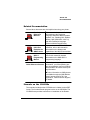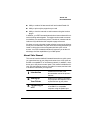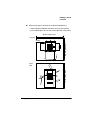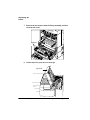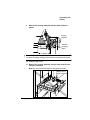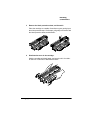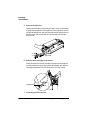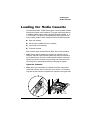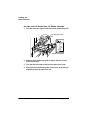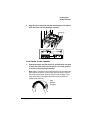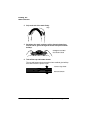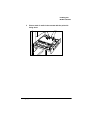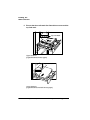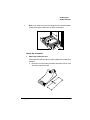
1
406 785%2 3ULQW6\VWHP *HWWLQJ6WDUWHG ® ' 7UDGHPDUNV The following are tradem ar ks or registered trademarks of their respective owners. Other pr oduct names mentioned in this manual may also be trademarks or registered trademarks of their respective owner s. Register ed tradem ar ks are registered in the United States Patent and Trademark Office; some tradem ar ks may also be registered in other countries. QMS, the QMS logo, Crown, and the Crown seal are registered trademarks of QMS, Inc.,and QUIC, CrownNet, Stackler, ColorDepth, and Im ageServer ar e trademarks of QMS, Inc. PostScript is a trademar k of Adobe Systems Incorporated for a page descr iption language and may be register ed in cer tain jurisdictions. Throughout this manual, “PostScr ipt Level 2” is used to refer to a set of capabilities defined by Adobe Systems for its PostScr ipt Level 2 page description language. These capabilities, am ong others, are im plemented in this product through a QMS-developed emulation that is compatible with Adobe's PostScript Level 2 language. Adobe, Adobe PhotoShop, Adobe PageMaker/Adobe Systems Incorporated. Intellifont/Agfa Division, Miles, Inc. 3 Com, 3+Open/3Com Corporation. Aldus, Pr ePrint/Aldus Cor poration. Apple, AppleShare, AppleTalk, EtherTalk, LaserWriter, LaserPrep, LocalTalk, Macintosh, TrueType/Apple Computer, Inc. Banyan, VINES/Banyan. Centronics/ Centronics Data Computer Corporation. CompuSer ve /H & R Block. DEC, DECnet, LN03, VMS/Digital Equipment Cor poration. PhoneNET/Farallon Computing, Inc. Hewlett-Packard, HP, PCL, HP- GL, LaserJet/Hewlett-Packard Co. IBM PC, Token-Ring/ International Business Machines Cor poration. Intel/Intel Corporation. Aldus FreeHand/ Macromedia, Microsoft, MS-DOS, Windows/Micr osoft Cor poration. Gothic Medium BBB and Ryumin Light KL/Mor isawa and Company, Ltd. Novell and NetWare/Novell, Inc. Quar kXPr ess/Quark, Inc. TOPS/Sun Microsystem s, Inc. TypeBank/TypeBank, Ltd. The ENERGY STAR logo/United States Environmental Protection Agency. The ENERGY STAR emblem does not r epresent EPA endorsement of any product or service. UNIX/ UNIX System s Laboratories. Ether net/Xerox Cor poration. 3URSULHWDU\6WDWHPHQW The digitally encoded software included with your QMS 2425/2425 TURBO Print System is Copyr ighted © 1997 by QMS, Inc. All Rights Reserved. This softwar e may not be repr oduced, modified, displayed, transfer red, or copied in any for m or in any manner or on any media, in whole or in part, without the express wr itten per mission of QM S, Inc. &RS\ULJKW1RWLFH This m anual is Copyr ighted © 1997 by QMS, Inc., One Magnum Pass, Mobile, AL 36618. All Rights Reser ved. This manual may not be copied in whole or in par t, nor transferred to any other media or language, without the express written per mission of QMS, Inc. &RQWHQWV ,QWURGXFWLRQ About the Printer .......................................................................... 1-2 Printer Options 1-2 About the Documentation ........................................................... 1-4 Standard Product Documentation 1-4 Related Documentation 1-7 Manuals on the CD-ROMs 1-7 About This Manual 1-9 Typographic Conventions 1-11 Printer Features .......................................................................... 1-12 QMS Crown Technology 1-12 Media Flexibility 1-15 PostScript Level 2 Compatibility 1-15 Multiple Resolutions 1-16 State-of-the-Art-Controllers 1-16 Multi-protocol Support 1-17 Advanced Paper-Handling Options 1-17 Advanced Document Handling Capabilities 1-18 Convenient Control Panel Operation 1-18 Four Resident Emulations 1-19 Resident Typefaces, Fonts, and Symbol Sets 1-20 Software Loadable System 1-20 Printer Job Accounting 1-21 Energy Star Compliance 1-22 Plug-and-Play Compatibility 1-22 Toner Savings 1-22 QMS CrownAdmin 3 1-23 Printer Options 1-23 What's Next? .............................................................................. 1-29 6HWWLQJ8S<RXU3ULQWHU Introduction .................................................................................. 2-2 Finding a Good Location ............................................................ 2-2 The Printer Must Be Placed... 2-2 Power Requirements 2-4 Checking Shipment Contents .................................................... 2-5 Registering the Printer ................................................................ 2-7 Unpacking the Printer ................................................................. 2-7 Installing Consumables ............................................................ 2-12 Installing the Toner Cartridge 2-12 Loading the Media Cassette ..................................................... 2-15 Connecting the Power Cord ..................................................... 2-23 Printing a Start-up Page ............................................................ 2-25 Enabling/Disabling the Start-up Page 2-26 Installing Options ...................................................................... 2-26 What's Next? .............................................................................. 2-27 LL 406785%23ULQW6\VWHP*HWWLQJ6WDUWHG &RQQHFWLQJWRD3& Introduction .................................................................................. 3-2 Connecting to a PC ...................................................................... 3-2 Making a Parallel Connection ..................................................... 3-3 What You Need for a Parallel Interface 3-3 Making the Connection ................................................................ 3-4 PC Printing Software ................................................................... 3-5 Installing a PostScript Printer Driver 3-6 Installing the QMS Level 2 Windows Driver 3-6 Installation Notes 3-10 Notes on Installing Printer Description Files 3-11 If You Have Trouble ................................................................... 3-16 Printing from the PC .................................................................. 3-16 What's Next? .............................................................................. 3-17 &RQQHFWLQJWRDQ(WKHUQHW 1HWZRUN Introduction .................................................................................. 4-2 What's Included in CrownNet 4-2 Setting up the CrownNet Interface 4-3 Connect to the Network ............................................................... 4-4 Install the CrownNet Software .................................................... 4-5 Configure the Interface ................................................................ 4-6 EtherTalk Interface Configuration 4-6 OS/2 LAN Manager/LAN Server and Microsoft Windows Network Interface Configuration 4-7 NetWare Interface Configuration (Netware 3.x) 4-7 NetWare Interface Configuration (Netware 4.x) 4-10 TCP/IP Interface Configuration 4-12 Configure the Network ............................................................... 4-13 TCP/IP NetWork Configuration 4-13 &RQWHQWV LLL Install the QMS CrownNet Print Utility or the QMS Network Print Monitor ......................................................... 4-14 Where To Go From Here ........................................................... 4-14 If You Have Trouble ................................................................... 4-15 What's Next? .............................................................................. 4-15 &RQQHFWLQJWRD0DFLQWRVK Introduction .................................................................................. 5-2 Connecting to a Macintosh ......................................................... 5-2 Macintosh Printing Software ...................................................... 5-3 Installing PS Executive Series Utilities 5-3 Installing Macintosh Printer Drivers 5-5 Installing the QMS GX Driver 5-5 Installing the QMS 2425 4.1 PPD 5-8 Macintosh Printer Description Files for Quark and Adobe Applications 5-9 If You Have Trouble ................................................................... 5-10 Printing from the Macintosh ..................................................... 5-10 What's Next? .............................................................................. 5-10 &RQWURO3DQHO Introduction .................................................................................. 6-2 Control Panel Indicators ............................................................. 6-3 Message Window ......................................................................... 6-4 Setting the Message Window Language 6-4 Control Panel Keys ...................................................................... 6-5 Online, Tray Select, Copy, Print Status, and Cancel Keys 6-5 Menu, Select, Previous, and Next Keys 6-8 What's Next? ................................................................................ 6-9 LY 406785%23ULQW6\VWHP*HWWLQJ6WDUWHG $ 406&XVWRPHU6XSSRUW Sources of Support ..................................................................... A-2 Your QMS Vendor A-2 Your Application Vendor A-2 Q-FAX A-2 The QMS Corporate Bulletin Board System A-3 CompuServe A-3 Internet A-3 QMS Customer Response Center (CRC) A-4 QMS World-wide Offices ............................................................ A-5 % &RQILJXUDWLRQ 0HQX Introduction ................................................................................. B-2 Menu Chart Conventions B-2 Installation Menu B-3 Operator Control Menu B-4 Administration Menu B-5 CrownNet Menu B-6 ,QGH[ &RQWHQWV Y ,QWURGXFWLRQ ,Q7KLV&KDSWHU “About the Printer” on page 1 - 2 “About the Documentation” on page 1 - 4 “Printer Features” on page 1 - 12 $ERXWWKH 3ULQWHU $ERXWWKH3ULQWHU The QMS 2425/2425 TURBO Print System (base model) is a powerful, but easy-to-use 24-page per-minute monochrome laser printer offering The next-generation Crown operating system High-performance processing Innovative network features Flexible emulations support Toner conservation and energy efficiency An assortment of printer fonts The QMS 2425 EX/2425 TURBO EX Print System (executive model) comes with additional features, such as an internal hard disk, printer based job accounting, and either 24 MB of memory (2425 EX) or 32 MB of memory (2425 TURBO EX). 3ULQWHU2SWLRQV The printer and some of its options (shown in the following diagrams) are briefly introduced in the “Printer Features” section of this chapter. Each option is fully described in the Options manual. 406785%23ULQW6\VWHP*HWWLQJ6WDUWHG $ERXWWKH 3ULQWHU 4063ULQW6\VWHP 4063ULQW 6\VWHPZLWK2SWLRQDO,QSXW 3DSHU'HFN(QYHORSH)HHGHU DQG6WDFNOHU ,QWURGXFWLRQ 4063ULQW6\VWHP ZLWK2SWLRQDO,QSXW3DSHU 'HFN 4063ULQW6\VWHPZLWK 2SWLRQDO,QSXW3DSHU'HFNDQG 0RGHO6WDFNHU $ERXWWKH 'RFXPHQWDWLRQ $ERXWWKH'RFXPHQWDWLRQ The documentation provides a window into the many capabilities of your printer. The more familiar you are with the documentation, the easier it’ll be for you to achieve the results you want from your printer. Several pieces of documentation accompany your printer. This section gives you an idea of how we’ve organized information and which documents you’ll probably refer to the most. » Note: The procedures throughout this documentation refer to applications, utilities, and print drivers being located on CD-ROM. If you need alternate media, please contact your QMS vendor for media availability and purchase information. You can also download some of these files via ftp from our World Wide Web Server at http:/www.qms.com, our Bulletin Board at (334) 633-3632, or CompuServe at go qmsprint. See the “QMS Customer Support” section of your QMS printer documentation, for sales and support locations and telephone numbers. 6WDQGDUG3URGXFW'RFXPHQWDWLRQ You received the following documentation with your product: You’re looking at this manual right now. QMS 2425 The section called “About This Print System Manual,” later in this chapter, tells you Getting Started what’s included in this manual. QMS 2425 Print System Operation Document CD-ROM This manual guides you through the day-to-day operation of your printer. It includes information on printing files; adding print media; selecting input and output bins; duplexing; collating; replacing print media and toner; handling, cleaning, and maintaining your printer; improving print quality; and troubleshooting printer problems. 406785%23ULQW6\VWHP*HWWLQJ6WDUWHG $ERXWWKH 'RFXPHQWDWLRQ QMS 2425 Print System Reference Document CD-ROM QMS 2425 Print System Options Refer to this manual for information on installing QMS printer options. It describes how to install and use the envelope feeder; optional emulations; security key; duplexer; high-capacity input paper deck; pedestal stand; memory upgrades; optional fonts, 1200x1200 dpi resolution daughterboard; optional interfaces; CrownCopy and the copy stand, hard disks, ImageServer II, BuzzBox Lite, and system software updates. QMS Crown Remote Console User’s Guide This manual describes how to use the Remote Console software to access printer information and change printer configuration settings from anywhere on the network. Document CD-ROM Software Utilities CD-ROM ,QWURGXFWLRQ Refer to this manual as you configure the printer initially and when you change configuration. The instructions guide you through the steps for setting default values for many printer features, including printer-host communication. Also, it provides information on typefaces and fonts, job accounting, job recovery, printer memory, printer options, and other advanced printer features. The system administrator should get the most use from this manual. $ERXWWKH 'RFXPHQWDWLRQ QMS Crown Network Notes Software Utilities CD-ROM Refer to this manual for network tips. It discusses 3Com 3+Open, Banyan VINES, LAN Manager-based LANs, Novell NetWare, TCP/IP, UNIX, DECnet, and VMS. In most cases, only advanced network users and system administrators need this information. » Note: This manual is provided on CD-ROM in encapsulated PostScript (EPS) form. Refer to the README file for information on printing a hard copy of the manual. QMS CrownNet Refer to this manual when connecting to an Ethernet or Token-Ring network. Setup Guide Document CD-ROM QMS CrownNet System Administrator’s Guide Refer to this manual when configuring the printer’s Ethernet (CrownNet) or optional Token-Ring interface, using the CrownAdmin 3 software. Document CD-ROM QMS Crown Document Option Commands Document Option Commands (DOCs) are software codes you can insert in documents to enable printer features that cannot be accessed by your application or page description language. This manual lists and explains all of the commands. The DOCs supported by your printer are listed in appendix C, “Document Option Commands,” of the Reference. In most cases only advanced users or system administrators need this information. 406785%23ULQW6\VWHP*HWWLQJ6WDUWHG $ERXWWKH 'RFXPHQWDWLRQ 5HODWHG'RFXPHQWDWLRQ Several other documents are also helpful when using your printer: PostScript Reference Manuals Other manuals that contain PostScript information are the PostScript Language Reference Manual (Adobe Systems, Inc., Reading, MA: AddisonWesley, 1990, ISBN-0201-18127-4), and other PostScript Language Reference Manual supplements. LN03 Plus Emulation for QMS Printers If you purchase the QMS LN03 Plus emulation, refer to this manual for information on the features and capabilities of the LN03 Plus emulation. QUIC II Programming Manual If you purchase the QUIC II emulation, refer to this manual for detailed information on the QMS QUIC II programming language. Other Reference Sources Don’t forget that your application documentation, your host operating system documentation, and your network documentation all contain useful printing information. Further information on QMS printers is available through the QMS Bulletin Board, Internet, and Q-FAX. See appendix A, “QMS Customer Support,” for details. 0DQXDOVRQWKH&'520V The manuals included on the CD-ROMs are in Adobe Acrobat PDF format. The Acrobat Reader program is also on the CD-ROMs. The CD-ROM insert provides instructions on installation of the Reader. ,QWURGXFWLRQ $ERXWWKH 'RFXPHQWDWLRQ When you use Acrobat to view your manuals, keep the following tips in mind for using some of the navigation features built into Acrobat and your manuals. You may view the document in three different styles: page only, with bookmarks, or with thumbnails. Try each to see which you like best. Viewing with bookmarks will enable you to use a quick table of contents to move around the document. The toolbar also gives you quick access to page navigation features. For example, you may click a button to advance (>) or reverse (<) one page, go to the start (|<) or end (>|) of the document, or use the history button (<<) to go to the previous pages you viewed. There are other buttons in the toolbar to change view or magnification of the document. As you browse through the document the open hand tool will sometimes turn into a pointing hand. You have discovered an embedded link in the manual. You will find these links in the table of contents, index, www addresses, and cross references. Click on the link to jump to a new location. Use the Acrobat Reader Online Help for a more complete explanation of these features. 8VLQJWKH$FUREDW5HDGHUZLWK\RXU0DQXDOV Your manuals are stored in PDF format on the QMS Software Utilities CD-ROM. Use the Adobe Acrobat Reader, also included on the CDROM, to open them. PDF-formatted manuals give you more flexibility and convenience than do hardcopy manuals when you have to access needed information. Here’s a list of some of the advantages of PDF formatted manuals: Ability to store the PDF manuals in a central location for access by anyone on the network Ability to view and print the manuals on any of the supported platforms (Windows, Macintosh, UNIX) Ability to view the manuals on-screen in different formats (sideby-side or two-up, one page at a time, scrolling two-up, article flow, and zooming capability up to 800%) 406785%23ULQW6\VWHP*HWWLQJ6WDUWHG $ERXWWKH 'RFXPHQWDWLRQ Ability to conduct full-text search built into Acrobat Reader 3.0 Ability to print only the pages that you need Ability to view the manuals on web browsers using the Acrobat plug-in In addition, your PDF-formatted manuals have been enhanced for onscreen viewing and navigation. Throughout each manual are numerous hotlinks to cross-reference points. The table of contents and the index are fully hotlinked to their respective page references. We hope you enjoy using the Acrobat software to access the information in your user manuals. They will never become dog-eared and yellowed or collect dust on some forgotten shelf with quick on-line access. Your PDF-formatted manuals will empower you to take full advantage of all the capabilities of your QMS printer. $ERXW7KLV0DQXDO This manual contains detailed, illustrated instructions to guide you as you unpack and set up your printer and connect it to a host (such as an IBM or compatible PC or an Ethernet network). In addition, it introduces you to the printer’s control panel. This manual is divided as follows. Use the following summary, the table of contents, and the index to locate the information you may need: Introduction Presents an overview of the documentation and of the printer’s features. Setting Up Your Printer Guides you in selecting a location for your printer and explains how to unpack and set up your printer. Connecting to a PC Explains how to connect the printer to an IBM PC or compatible computer using the parallel port. ,QWURGXFWLRQ $ERXWWKH 'RFXPHQWDWLRQ Connecting to an Ethernet Network Explains how to connect the printer to an Ethernet network using the built-in Ethernet (CrownNet) network port. Connecting to a Macintosh Explains how to connect the printer to a Macintosh using the built-in Ethernet (CrownNet) port, install the software, and configure both the interface and the network. Using the Control Panel Introduces the parts of the printer control panel. $ QMS Customer Support Provides product sales and support telephone numbers and describes how to communicate with QMS through the QMS Bulletin Board, CompuServe, the Internet, and Q-FAX. % Configuration Menu Provides a menu chart that shows the Configuration menus. 406785%23ULQW6\VWHP*HWWLQJ6WDUWHG $ERXWWKH 'RFXPHQWDWLRQ 7\SRJUDSKLF&RQYHQWLRQV The following typographic conventions are used in this manual: » Mixed-Case Courier Text you type, and messages and information displayed on the screen Mixed-Case Italic Courier Variable text you type; replace the italicized word(s) with information specific to your printer or computer UPPERCASE COURIER Information displayed in the printer message window lowercase bold PostScript operators and DOS commands lowercase italic Variable information in text UPPERCASE File and utility names ↵ Press the Enter key (PC) or Return key (Macintosh) ^ Press and hold down the Ctrl key (PC) Note: Notes contain tips, extra information, or important information that deserves emphasis or reiteration. ▲ Caution Cautions present information that you need to know to avoid equipment damage, process failure, or extreme annoyance. 0 WARNING! Warnings indicate the possibility of personal injury if a specific procedure is not performed exactly as described in the manual. ACHTUNG! Bitte halten Sie sich exakt an die im Handbuch beschriebene Vorgenhensweise, da sonst Verletzungsgefahr bestehen könnte. ,QWURGXFWLRQ 3ULQWHU )HDWXUHV 3ULQWHU)HDWXUHV The QMS 2425/2425 TURBO Print System provides 24 pages-perminute of letter/A4-size paper at 600 dpi resolution. In addition, it handles a variety of other paper weights and sizes, including 11'' x 17'' (279 x 432 mm) wide-format paper. This overview outlines your printer’s major features and their benefits. Specific chapters contain more information on each feature. Consult the index or table of contents for guidance in locating this information. 406&URZQ7HFKQRORJ\ QMS Crown technology is a proprietary multitasking printer operating system, which allows QMS to adapt advanced printer software to the evolving printing needs of users in many different environments. 0XOWLWDVNLQJ Your printer receives, compiles, processes, and prints multiple documents simultaneously instead of sequentially—true multitasking. The printer has a variety of resources that it uses to print the page. Memory, emulations, and the laser printer engine (the mechanical parts that actually put toner on the page) are all resources of the printer. User Benefit —With multitasking, your jobs are printed more quickly, and the host and network is free sooner. This improves printer throughput and increases your productivity. (PXODWLRQ6HQVLQJ3URFHVVRU(637HFKQRORJ\ Many printers can recognize only their native command language. Your QMS printer, however, has ESP (Emulation Sensing Processor) technology, which works with most popular commercially available applications. Using a form of artificial intelligence, ESP technology analyzes incoming file data and selects the appropriate printer emulation from those installed on the printer, and processes the print job. 406785%23ULQW6\VWHP*HWWLQJ6WDUWHG 3ULQWHU )HDWXUHV User Benefit—When your printer is in ESP mode, you can easily print PostScript, HP PCL 5e, HP-GL, or Lineprinter documents without changing printer switch settings or sending software commands to accommodate different printer languages. Other optional emulations are also available. The QMS 2425/2425 TURBO Print System prints almost any file sent in a language ESP technology understands, whether you have one, two, or more hosts, and whether you are communicating through an Ethernet, Centronics or bidirectional IEEE 1284 parallel, or other network interface. Most users never have to change from ESP mode to another mode. 6LPXOWDQHRXV,QWHUIDFH2SHUDWLRQ6,2 Although many other printers have multiple interface ports and automatically designate a “hot port,” only one port actively receives data at a time. Your printer is unique because SIO allows all of its interface ports—Ethernet, parallel (Centronics and bidirectional IEEE 1284), the optional serial interface, and one other optional interface (Ethernet, Token-Ring, DECnet-TCP/IP, or LocalTalk)—to be active at the same time. You can have more than one host computer printing to the printer. Each interface has an input buffer that receives data while another interface is being used to print. The standard interfaces let you connect to any Ethernet network or directly to an IBM PC or compatible. The printer also works in many minicomputer, mainframe computer, Macintosh, and network environments. User Benefit—You can have more than one computer sending print jobs to the printer. Each interface has an input buffer (which may be expanded with additional memory or an optional hard disk) that receives data while another interface is being used to print. This frees the host computer faster, reduces network traffic, and increases throughput. ,QWURGXFWLRQ 3ULQWHU )HDWXUHV &RPSLOH$KHDG7HFKQRORJ\ Pioneered by QMS, compile-ahead technology makes use of temporary storage of page images in a proprietary compressed data format. It makes maximum use of the memory resource. While the engine is busy printing a page, compile-ahead technology uses the available printer memory to prepare the subsequent pages of the document (or the next job). These page images are available as soon as the current page is printed. For example, while the QMS 2425/2425 TURBO Print System is actually printing the third page of a five-page document, pages four, five, and the next job in the queue are already compiled into the compressed data format. User Benefit—With compile-ahead technology you spend less time waiting for documents to print. This increases your productivity. &RPSUHVVHG'DWD)RUPDWV Crown printers convert data received by the input buffers into intermediate, compressed blocks until the data is needed for printing. These compressed blocks of data are designed to be processed rapidly by the printer, and many more can be stored in memory at one time than can traditional bitmapped images. User Benefit—This increases the speed of the printer and allows for advanced document features such as collation and automatic jam recovery. $XWRPDWLF-DP5HFRYHU\ Crown technology also provides automatic jam recovery. With most printers, if a media jam occurs, you must remove the jammed media and then re-send the job. On your printer, if a media jam occurs, once you clear the jam, the printer reprints the jammed page and continues with the print job. This is possible because compressed data formats allow more pages to be stored in memory. The printer remembers the last page printed, pulls the necessary intermediate blocks from memory, and automatically reprints any lost pages. User Benefit—This saves time and conserves print media. 406785%23ULQW6\VWHP*HWWLQJ6WDUWHG 3ULQWHU )HDWXUHV &RQWH[W6ZLWFKLQJ This feature allows Crown printers to preserve the “state” of a language or emulation — including downloaded fonts, forms, logos, macros, overlays, and other data —when you switch from one printer language or emulation to another. Other printers require repeated downloading of these capabilities each time they are needed, consuming valuable input, processing, and printing time. User Benefit—This saves time and improves performance. 0HGLD)OH[LELOLW\ The printer supports print media in a variety of media sizes (A3, A4, A5, B4, Statement, Executive, 11"x17'', Legal, Letter, and Universal) and 5 different envelope sizes (Envelope, Com-10, Monarch, DL, and C5) in both portrait and landscape orientations from standard cassettes. The multipurpose tray also supports custom print media in sizes from 3.87" x 7.50" (98.425 x 190.5 mm) to 11.7" x 17.69" (297 x 449.5 mm). User Benefit—You have the option of printing on a variety of standard and non-standard media sizes in both portrait and landscape orientations, as well as printing on envelopes, postcards, and other custom print media. 3RVW6FULSW/HYHO&RPSDWLELOLW\ The QMS 2425/2425 TURBO Print System provides PostScript Level 2 page description capabilities via QMS-developed emulations that are compatible with Adobe’s Level 2 language, while providing additional capabilities. PostScript controls the appearance of text, geometric shapes, and images at the printer. It can rotate, scale, clip, and orient graphic objects on all or part of a page. The printer produces solid blacks and crisp fonts regardless of the point size. ,QWURGXFWLRQ 3ULQWHU )HDWXUHV The PostScript Level 2 emulation supports the capabilities of the second generation of Adobe’s PostScript software. PostScript Level 2 features include device-independent color, improved memory and resource management, built-in data compression/decompression filters to speed up transmission times and save disk space, optimized graphics and text operators, and patterns and forms support, including pattern and form caching. 0XOWLSOH5HVROXWLRQV Your printer supports three print resolutions: 300x300, 600x600, and if an optional multi-resolution daughterboard is installed, 1200x1200. Edge-smoothing is available at 600x600 dpi when the Multi-Res daughterboard is installed. See chapter 3, “Interfaces and Daughterboards,” of the Options manual for details on the multi-resolution upgrade to 1200x1200 dpi. » Note: Printing at 600x600 and 1200x1200 dpi resolution on certain media sizes may require additional memory. See the “HighResolution Printing” section in chapter 3, “Advanced Printing Features,” of the Operation manual for details. User Benefit—Three different resolutions allow you to customize the quality of your output according to its use: 300x300 dots per inch (dpi) resolution for most everyday office needs, 600x600 for PostScript and PCL print jobs that require finer detail, such as good camera-ready copy or for CAD drawings that demand tighter angles, and 1200x1200 dpi for better camera-ready copy and enhanced gray scales (depending on your application). 6WDWHRIWKH$UW&RQWUROOHUV The QMS 2425/2425 TURBO Print System delivers 24 simplex letter/A4-size pages-per-minute (ppm) at 600x600 dpi resolution using the new NEC 4300 processor operating at 100 MHz internally with a 50 MHz external bus speed. 406785%23ULQW6\VWHP*HWWLQJ6WDUWHG 3ULQWHU )HDWXUHV 0XOWLSURWRFRO6XSSRUW In addition to the Centronics and IEEE 1284 parallel interface, your printer provides a standard Ethernet (CrownNet) interface that allows you to connect to EtherTalk, LAN Manager/LAN Server, NetWare, and TCP/IP networks. The following optional interface cards are available: LocalTalk (to connect to a single Macintosh or a LocalTalk network) Ethernet DECNet-TCP/IP Token-Ring Serial Check with your QMS vendor for current availability of optional interfaces. See appendix A, “QMS Customer Support,” for locations and telephone numbers. You can connect a computer directly to the printer’s parallel interface or use the Ethernet interface to connect to a wide variety of microcomputers, workstations, minicomputers, and mainframe computers on four different networks simultaneously. User-Benefit—This support increases printer flexibility and allows for cost and resource sharing across multiple environments. $GYDQFHG3DSHU+DQGOLQJ2SWLRQV Your printer comes standard with the following input trays. Optional input trays increase the media capacity to 3,100 sheets (including the multipurpose tray). Also, the duplexing and envelope options give you additional document-handling capabilities. Upper Cassette Holds approximately 500 sheets of Letter/A4 to Legal/B4 paper. Lower Cassette Holds approximately 500 sheets of Letter/A4 to 11''x17''/A3 paper. ,QWURGXFWLRQ 3ULQWHU )HDWXUHV Multipurpose Tray Holds approximately 100 sheets of a variety of print media in sizes from 3.87" x 7.50" (98.425 x 190.5 mm) to 11.69" x 17.7" (297 x 449.5 mm). Optional Envelope Feeder Holds approximately 100 envelopes in the following sizes: Envelope 9.76'' x 6.93'', COM 10 (9.5'' x 4.125"), Monarch (7.5"x 3.875"), DL size (8.66'' x 4.33'') 229 mm x 162 mm, and C5 size (9.02'' x 6.38'') 229 mm x 162 mm. Optional Paper Deck Holds approximately 2000 sheets of Letter/A4 to 11'' x 17''/A3 paper. User Benefit—You can load up to 3100 sheets of a single media size or have several different media sizes available at one time. $GYDQFHG'RFXPHQW+DQGOLQJ&DSDELOLWLHV Your printer offers automatic collation of a complete document, highvolume duplexing, printer-based page layout (number-up/n-up and booklet printing), “sessions,” and overlays water marks printing. “Sessions” allows multiple documents, including documents from different emulations to be combined in one large document. User Benefit—Advanced document handling, such as automatic collation for complete document processing increases workflow and reduces user intervention; n-up and background printing offer flexible page formatting to allow for short in-house production runs. &RQYHQLHQW&RQWURO3DQHO2SHUDWLRQ Use the control panel to configure your printer. The printer also uses the control panel to communicate with you by providing messages about its status, including any conditions that require your attention. These messages can be displayed in a user-selectable language (English, French, German, or Spanish). See chapter 6, “Control Panel,” in this manual for complete information on using the control panel. 406785%23ULQW6\VWHP*HWWLQJ6WDUWHG 3ULQWHU )HDWXUHV User Benefit—The control panel provides easy access to printer configuration options. )RXU5HVLGHQW(PXODWLRQV Your printer supports printing in HP PCL 5e, HP-GL, Lineprinter, and PostScript emulations. User Benefit—Most applications can print directly to the printer. » Note: In some of the following emulations using 600x600 and 1200x1200 dpi resolution with certain media sizes may require additional memory. See the “High-Resolution Printing” section in chapter 3, “Advanced Printing Features,” of the Operation guide for details. +33&/H(PXODWLRQ The printer simultaneously emulates the Hewlett-Packard LaserJet 4Si (with HP-GL/2 and without PJL) and the HP PaintJet 1200C Color Printer (the output is grayscaled on your QMS 2425/2425 TURBO Print System). These printers are emulated at 300x300 dpi and 600x600 dpi symmetric resolution (bitmap and scalable fonts). +3*/(PXODWLRQ The printer provides the HP-GL plotter emulation (7475A, 7550A, Color Pro, and Draftmaster) at 300x300, 600x600, and 1200x1200 dpi (optional Multi-Res daughterboard) symmetric resolution. /LQHSULQWHU(PXODWLRQ The Lineprinter emulation prints simple, unformatted text files at 300x300 and 600x600 dpi. 3RVW6FULSW/HYHO(PXODWLRQ The QMS 2425/2425 TURBO Print System’s Level 2 emulation allows you to take full advantage of your printer's high print resolution (up to 1200x1200 dpi, if optionally purchased). The Level 2 emulation is compatible with Adobe’s PostScript Level 2 language while providing additional capabilities. The QMS Level 2 emulation supports ,QWURGXFWLRQ 3ULQWHU )HDWXUHV extensive graphics capabilities to control the appearance of text, geometric shapes and images, and improves memory and resource management. 5HVLGHQW7\SHIDFHV)RQWVDQG6\PERO6HWV 5HVLGHQW3RVW6FULSW)RQWV Your printer comes with 40 PostScript fonts from 12 typeface families. An OCR-B font is also included for use with the QMS ImageServer II option. All resident PostScript typeface families have multilingual character sets. Your printer supports Type 1 and Type 3 downloaded PostScript fonts. PostScript supports Truetype downloaded fonts only in Type 42 format. The fonts in all of these typeface families can be scaled from 4 points upward, rotated to any angle in 1° increments, pattern filled, halftoned, shaded, shadowed, and cropped, depending on your application software. 5HVLGHQW3&/H)RQWV Your printer has 57 (51 scalable) resident PCL 5e fonts (including Intellifonts) in 16 resident PCL 5e typefaces, many in up to 32 symbol sets. See chapter 3, “Professional Printing,” in the Reference for a complete list of the resident fonts. 5HVLGHQW+3*/)RQWV Your printer has 40 resident scalable HP-GL fonts. See chapter 3, “Professional Printing,” in the Reference for a complete list of the resident fonts. 6RIWZDUH/RDGDEOH6\VWHP Your printer has a software loadable system, which allows you to replace or upgrade its system software from a Macintosh or a PC, or over an Ethernet or Token-Ring network. Further enhancements to 406785%23ULQW6\VWHP*HWWLQJ6WDUWHG 3ULQWHU )HDWXUHV the system software can be easily installed as they become available from QMS. » Note: The software loadable system mentioned in this section does not modify the code used by the QMS CrownNet interface card. User Benefit—This protects your capital equipment investment. 3ULQWHU-RE$FFRXQWLQJ Your QMS printer supports printer based job accounting when a hard disk is installed and virtual memory is enabled. Job accounting provides information such as paper utilization per user, time consumed servicing print jobs per user, usage of different emulations, connectivity options, frequency of jams, times of peak use, features and options most commonly used (such as duplexing or finishing options), and number, complexity, and size of jobs per user. The accounting feature provides the information you need to assess printer use. The accounting is performed by the printer rather than a host, and the extracted information can be uploaded to any host by copying via the FTP get command (if your host supports this command) or by the QMS Crown Printer Auditor (CPA) utility. This information is useful for billing, report generation, and site resource planning. For further information see chapter 4, “Printer Configuration,” in the Reference manual, and the QMS Crown Printer Auditor on-line help. User Benefit—You have access to billing and printer management information for cost sharing and resource allocation. ,QWURGXFWLRQ 3ULQWHU )HDWXUHV (QHUJ\6WDU&RPSOLDQFH The QMS 2425/ 2425 TURBO Print System (base model) is compliant with US Environmental Protection Agency (EPA) Energy Star regulations. After a specified length of inactivity, the printer changes to a low-power state (the engine remains on, but the fuser turns off). When a print job is received the printer returns to normal power within 90 seconds. User Benefit—The EPA Energy Star Computers program promotes the use of energy-efficient personal computers, monitors, and printers and the reduction of air pollution caused by power generation. 3OXJDQG3OD\&RPSDWLELOLW\ Plug-and-play is the name of a technology that lets PC hardware and attached devices work together automatically. This technology is implemented in your QMS 2425/2425 TURBO Print System only when using a Microsoft Windows 95 or Microsoft Windows NT operating system. You simply connect your printer to your PC (“plug it in”) and begin working (“begin playing”). Plug and play automatically selects the correct printer driver for you. User Benefit—Plug and play reduces the time wasted on technical problems and increases your productivity. 7RQHU6DYLQJV The Conserve Toner option allows you to increase the life of the printer’s toner cartridge. You can set Conserve Toner on a per-job basis or for all print jobs. User Benefit—A choice of printing modes allows you to lower printing costs by reducing the amount of toner on the printed page when printing draft copies of documents. 406785%23ULQW6\VWHP*HWWLQJ6WDUWHG 3ULQWHU )HDWXUHV 406&URZQ$GPLQ Provided in Macintosh, DOS, Windows, SunOS, Solaris, HP-UX, and AIX formats, the QMS CrownAdmin 3 software is a point-and-click tool that allows you to easily configure QMS printers and perform network operations on printers connected to Ethernet or Token-Ring networks. Some functions that can be performed through CrownAdmin 3 include the following: Configure NetWare, EtherTalk, NetBEUI/NetBIOS, and TCP/IP parameters on the printer’s CrownNet interface. Use SNMP (where available) for retrieving and setting up printer information. Define groups of printers with common characteristics so you can easily make global configuration changes. Perform PCONSOLE functions in NetWare 3 environments. Download printer system software or fonts. Control PostScript files through PostScript Utilities software. Format and print files (ASCII and other files). Check printer status. Use Remote Console. Create and edit group configuration templates. 3ULQWHU2SWLRQV The QMS 2425/2425 TURBO Print System offers many options to expand its capabilities. Contact your QMS vendor for purchase information. See appendix A, “QMS Customer Support,” for locations and telephone numbers. See the Options manual for detailed printer option information. &URZQ&RS\2SWLRQ The CrownCopy option doubles the functionality of the QMS 2425/ 2425 TURBO Print System, allowing it to be a monochrome copier as well as a printer. » Note: See the Options manual for complete information. ,QWURGXFWLRQ 3ULQWHU )HDWXUHV %X]]%R[/LWH2SWLRQ BuzzBox Lite is an optional printer accessory that warns you with a buzzer and/or a blinking light any time the printer goes off line, alerting you to print job interruptions such as empty media trays. 'XSOH[3ULQWLQJ2SWLRQ The optional duplexer allows the printer to automatically print on both sides of a page. Since the paper stays inside the printer during duplex printing, no extra room is required to accommodate the paper during the duplex process. (QYHORSH)HHGHU2SWLRQ The optional envelope feeder is for high-volume envelope printing, and It holds about 100 envelopes (a stack height of about 2.875" (73 mm)). The envelope feeder supports the following sizes: Envelope (9.76'' x 6.93'') 248 mm x 176 mm, COM 10 (9.5'' x 4.125”) 241 mm x 105 mm, Monarch (7.5” x 3.875”) 191 mm x 98 mm, DL size (8.66'' x 4.33'') 229 mm x 162 mm, and C5 size (9.02'' x 6.38'') 229 mm x 162 mm. +DUG'LVN([SDQGDELOLW\2SWLRQV The QMS 2425/2425 TURBO Print System supports an optional internal IDE hard disk (optional with base model only) and up to three optional external SCSI hard disks. Hard disks provide virtual memory capabilities as well as storage for downloaded character bitmaps, job spooling, outline fonts, forms, and other files. » Note: See FAQ 7181 for a list of each approved Hard Disk, its manufacturers and part numbers, and the QMS products on which it can be used. You can access QMS FAQs through the Internet at http:/www.qms.com/support/supportbase/ or through Q-FAX. (See appendix A, “QMS Customer Support,” to find out how to access QFAX documents). FAQ numbers may be subject to change, so you may want to obtain a directory of Q-FAX documents before requesting a specific document. User Benefit—An internal hard disk decreases printing time and reduces costs of critical on-demand forms applications. 406785%23ULQW6\VWHP*HWWLQJ6WDUWHG 3ULQWHU )HDWXUHV +LJK&DSDFLW\,QSXW3DSHU'HFN2SWLRQ This option is for high-volume printing. It includes a high-capacity input bin which accommodates 2,000 sheets of up to 11"x17" (279 mm x 432 mm) paper. ,PDJH6HUYHU2SWLRQ The QMS ImageServer Option is a collection of printer emulations and printer system code designed to provide an interface between document imaging applications and QMS Crown print systems. It enables the QMS 2425/2425 TURBO Print System to print images at or near the rated engine speed and eliminates the need for a PC dedicated to rasterizing images. ,QWHUIDFH2SWLRQV Your QMS 2425/2425 TURBO Print System has one I/O slot to support an optional interface: A second CrownNet interface that allows you to connect to another Ethernet network or to a Token-Ring network running multiple protocols. User Benefit—Network interfaces provide flexibility and fast data transfer in complex network environments. They also provide a DECnet-TCP/IP interface that allows your printer to connect to either a DECnet or a TCP/IP network. A LocalTalk interface that allows your printer to connect directly to a single Macintosh or to a LocalTalk network. User Benefit—Any Macintosh not on an Ethernet (EtherTalk) network can be connected directly to the printer. A serial interface that allows your printer to connect directly to a single PC. User Benefit—Optional interfaces allow you to use your printer in a number of different environments. ,QWURGXFWLRQ 3ULQWHU )HDWXUHV 2SWLRQDO)RQWV Optional fonts are available in several different formats. Special PostScript and PCL downloadable fonts may be available from your QMS vendor. See appendix A,“QMS Customer Support,” for locations and telephone numbers. Kanji fonts Ryumin Light-KL and Gothic BBB Medium licensed to QMS by Morisawa and Company, Ltd. and the fonts Mincho Medium, Mincho Heavy, Gothic Bold, and Gothic Heavy licensed to QMS by TypeBank are on a pre-formatted external hard disk. They can be printed at a variety of point sizes and in different styles and resolutions. Kanji fonts Ryumin Light-KL and Gothic BBB Medium licensed to QMS by Morisawa and Company, Ltd. are available on a SIMM. They can be printed at a variety of point sizes and in different styles and resolutions. Contact your QMS vendor for a complete list of available fonts. See appendix A,“QMS Customer Support,”” for locations and telephone numbers. User Benefit—Optional fonts increase the printer’s functionality and allow you to create more distinctive documents. 2SWLRQDO(PXODWLRQV Optional emulations, such as CGM, LN03 Plus and QUIC II, are contained on floppy disks and must be downloaded to an optional printer hard disk. » Note: Extra memory may be required. Refer to the documentation that comes with the emulation for complete information. Contact your QMS vendor for a complete list of available emulations. See appendix A, “QMS Customer Support,” for locations and telephone numbers. User Benefit—Extra emulations allow you to print documents created in printer languages other than those resident on the printer. 406785%23ULQW6\VWHP*HWWLQJ6WDUWHG 3ULQWHU )HDWXUHV 3HGHVWDO2SWLRQ The pedestal is a sturdy metal cabinet in the same color as the printer, with storage space for supplies. It supports the printer’s 106 lb (48 kg) weight on rollers for ease of movement. 4)2502SWLRQ QFORM is a forms-printing software utility that allows you to produce on-demand electronic forms from QMS Crown cut-sheet laser printers without changing existing lineprinter forms data streams. User Benefit—Provides an easy migration path for users of legacy line printers to new laser print systems. 8SJUDGDEOH5$05DQGRP$FFHVV0HPRU\ Your QMS 2425/2425 TURBO Print System comes in three configurations: 8 MB of RAM (the base model), 24 MB of RAM (the executive model), and 32 MB of RAM (the 2425 TURBO EX). However, it’s upgradable to 128 MB of RAM through the installation of SIMMs (single-in-line memory modules). Additional RAM Allows you to print at higher resolutions on certain media sizes, download and cache fonts. Increases the printer’s buffer (the area where data sent from the host computer is stored), allowing you to send large data-intensive files to the printer without tying up the host for long periods. Allows you to attach and use multiple SCSI drives. User Benefit—Your printer’s memory can be upgraded as your needs grow. » Note: See FAQ 7191 for a list of each approved SIMM, its manufacturers and part numbers, and the QMS products on which it can be used. You can access QMS FAQs through the Internet at http://www.qms.com/support/supportbase/, or through Q-FAX. (See appendix A, “QMS Customer Support,” to find out how to access QFAX documents). FAQ numbers may be subject to change, so you may want to obtain a directory of Q-FAX documents before requesting a specific document. ,QWURGXFWLRQ 3ULQWHU )HDWXUHV 6HFXULW\.H\2SWLRQ An optional security interface allows you to password-protect the printer’s configuration menu. An optional security key can be plugged into the security-key interface on the back of the printer. User Benefit—This feature allows you to restrict access to printer configuration information to those users with valid passwords, saving time and money and ensuring that default settings are not changed inappropriately. 6WDFNOHU2SWLRQ The QMS Stackler option offers print job stacking, offset, and stapling. Refer to appendix B of the Reference manual for stack capacity. The Stackler is equipped with three addressable output stacking bins. Each bin can be configured to support stapled, stacked, or offset output User Benefit—The Stackler makes print jobs easy to manage and retrieve in large workgroup environments. In addition to its superior document finishing features, the Stackler option handles media sizes up to 11x17/A3. 0XOWL5HV'DXJKWHUERDUG 2SWLRQ The multi-resolution option allows your printer to support 1200x1200 dpi resolution (additional memory required) or 600x600 dpi with edgesmoothing (no additional memory required). User Benefit—You can upgrade your printer’s capabilities as your print resolution requirements change. 1200x1200 dpi provides better camera-ready output than 600x600 or 300x300 output. » Note: Printing at 600x600 and 1200x1200 dpi resolution with certain media sizes may require additional memory. See the “HighResolution Printing” section in chapter 3, “Advanced Printing Features,” of the Reference for details. 406785%23ULQW6\VWHP*HWWLQJ6WDUWHG :KDW V1H[W" :KDW V1H[W" Chapter 2, “Setting Up Your Printer,” explains how to find a good location for the printer, unpack the printer, install a toner cartridge, and load and install the standard paper cassette. ,QWURGXFWLRQ 6HWWLQJ8S<RXU 3ULQWHU ,Q7KLV&KDSWHU “Finding a Good Location” on page 2-2 “Unpacking the Printer” on page 2-7 “Installing Consumables” on page 2-12 “Loading the Media Cassette” on page 2-15 “Connecting the Power Cord” on page 2-23 “Printing a Start-up Page” on page 2-25 ,QWURGXFWLRQ ,QWURGXFWLRQ This chapter explains how to set up your QMS 2425/2425 TURBO Print System for the first time. It includes information on finding a good location for the printer, unpacking and checking the shipment contents, installing a toner cartridge, loading the cassettes, turning the printer on, and printing a start-up page. )LQGLQJD*RRG/RFDWLRQ Your QMS 2425/2425 TURBO Print System operates in any computing environment with the following requirements. 7KH3ULQWHU0XVW%H3ODFHG Away from cooling and heating sources, extreme temperature changes, direct sunlight, excessive dust, corrosive chemicals or vapors, water pipes, refrigerators, any strong electromagnetic field (such as that created by an air conditioner), and excessive vibration. Don’t connect it to the same electrical outlet as noisegenerating equipment. In an area with a temperature range of 50° - 90.5° F/10° - 32.5°C and relative humidity range of 5% - 90% with no condensation. On a hard, level surface capable of supporting the 106 lb (48 kg.) printer. Near your computer—6 feet (1.8 meters) or less for a parallel connection. Close to an easily accessible power supply. In a well-ventilated room. 406785%23ULQW6\VWHP*HWWLQJ6WDUWHG )LQGLQJD*RRG /RFDWLRQ With enough space, as shown in the following diagrams, to — allow adequate ventilation and easy servicing of the printer. — prevent blockage of the air vent on the right-side of the printer. PP PP 7RS9LHZ PP )URQW 9LHZ 6HWWLQJ8S<RXU3ULQWHU )LQGLQJD*RRG /RFDWLRQ PP )URQW 9LHZ 3RZHU5HTXLUHPHQWV Your printer requires a properly grounded AC outlet with a power range of ±10% of the rated line voltage (100/120 V or 200/240 V). Make sure that the capacity of the electrical outlet is at least 1.2 times that used by the printer. Noise-generating equipment should not be connected to the same electrical outlet as the printer. The recommended frequency is 50-60 Hz for a 100/120 V system and 50 Hz for a 200/240 V system. 0 WARNING: This product is equipped with a 3-wire grounding type plug (it has a third [grounding] pin). This plug will only fit into a grounding-type power outlet. This is a safety feature. If you are unable to insert the plug into the outlet, contact your electrician to replace your obsolete outlet. Do not defeat the purpose of the grounding-type plug. ACHTUNG! Das Netzanschlub dieses Garäts is eine geprütte Leitung zu verwenden. Für einen Nennstrom bis 6A ist eine Leitung nicht leichter als H05VV-F3G 0,75 mm² oder HO5VVH2-F3G 0,75 mm² einzusetzen. 406785%23ULQW6\VWHP*HWWLQJ6WDUWHG &KHFNLQJ 6KLSPHQW &RQWHQWV (QHUJ\6WDU&RPSOLDQFH The base model printer is compliant with US Environmental Protection Agency (EPA) Energy Star regulations. After a specified period of inactivity, the printer changes to a low-power state (the engine remains on, but the fuser turns off). When a print job is received, the printer returns to normal power within 90 seconds. &KHFNLQJ6KLSPHQW&RQWHQWV In addition to this manual, your shipment consists of the following items: QMS 2425/2425 TURBO Print System (with face-up tray) 500-sheet upper cassette (maximum B4/legal size) 500-sheet lower cassette (maximum A3/11'' x 17'' size) Two paper-size card and label sheets Note: If you need alternate media, please contact your QMS vendor for media availability and purchase information. You can also download some of these files via ftp from our World Wide Web Server at http:/www.qms.com, our Bulletin Board at (334) 633-3632, or CompuServe at go qmsprint. See the “QMS Customer Support” section of your QMS printer documentation, for sales and support locations and telephone numbers. » QMS Print System Documentation CD-ROM —QMS 2425/2425 TURBO Print System Getting Started —QMS 2425/2425 TURBO Print System Operation —QMS 2425/2425 TURBO Print System Options —QMS 2425/2425 TURBO Print System Reference 6HWWLQJ8S<RXU3ULQWHU &KHFNLQJ 6KLSPHQW &RQWHQWV QMS Software Utilities CD-ROM —Printer Drivers and PPDs for Windows 95, Windows NT, and Macintosh —CrownAdmin software (for Windows, Windows NT, SunOS, Solaris, AIX, HP-UX, Macintosh, DOS, and OS/2) —CrownNet Manager software for OS/2 —CrownNet Print Utility for Windows —Windows 95 and Windows NT Print Monitors and PPDs —QMS UNIX Host Software —QMS CrownNet Setup Guide —QMS CrownNet System Administrator’s Guide —QMS Crown Network Notes —QMS Crown Remote Console User’s Guide —QMS Crown Document Option Commands » Documentation binder and binder inserts Power cord Toner cartridge Warranty and registration card Note: Interface cables aren’t included in the shipment. If you need cables, contact your QMS vendor or a local computer store. Chapters 3, “Connecting to a PC,” 4, “Connecting to an Ethernet Network,” or 5, “Connecting to a Macintosh,” of this manual specify the type of cable you need. Make sure that all items are included in your shipment before setting up your printer. If any items are missing or damaged, contact your shipping company or your QMS vendor. See appendix A, “QMS Customer Support,” for product sales and support information. 406785%23ULQW6\VWHP*HWWLQJ6WDUWHG 5HJLVWHULQJ WKH3ULQWHU 5HJLVWHULQJWKH3ULQWHU QMS is committed to developing print systems that offer you flexible, efficient solutions, so we’re interested in knowing how you plan to use your printer. Registration may be accomplished via the World-Wide Web site, http://www.qms.com. To register by mail, fill out and send in your warranty card. To register by telephone, in the US call QMS toll-free at (800) 637-8049. In other countries, refer to appendix A,“QMS Customer Support,” for the appropriate telephone number. 8QSDFNLQJWKH3ULQWHU The packing materials that protect your printer during shipment— cardboard, polystyrene, tape, and shipping spacers—must be removed before you can use the printer. Use the following procedure to unpack the printer. To ensure that your printer was not damaged during shipment, follow the entire procedure, including printing the start-up page. » Note: Save the packing materials in case you ever have to move or ship the printer to a new location. ▲ Caution: Remove all packing materials (explained below) before turning on the printer, or you may damage it. 0 WARNING! The printer weighs approximately 106 lbs (48 kg). Do not attempt to lift or move it by yourself. ACHTUNG! Der Drucker wiegt ca. 48 kg; bitte versuchen Sie niemals, das Gert alleine anzuheben oder zu tragen. 1 Remove everything except the printer from the shipping carton. 6HWWLQJ8S<RXU3ULQWHU 8QSDFNLQJWKH 3ULQWHU 2 Get someone to help you with this step and the next. Put your hand into the carrying grips on the bottom of the left and right sides of the printer. 3 Lift both sides up and out of the box at the same time and carry the printer to the selected location. ▲ Caution: When moving the printer, please keep in mind that the back is heavier than the front. 0 WARNING! The printer is heavy, so two people should lift it. ACHTUNG! Der Drucker ist schwer und solte von 2 Personen getragen werden. 4 Remove all tape from the printer body. 406785%23ULQW6\VWHP*HWWLQJ6WDUWHG 8QSDFNLQJWKH 3ULQWHU 5 Lift the latch to pull open the left cover and gently lower it until it stops. /HIW &RYHU 6 Remove the cardboard from the fixing assembly area. &DUGERDUG 6HWWLQJ8S<RXU3ULQWHU 8QSDFNLQJWKH 3ULQWHU 7 Remove the two spacers from the fixing assembly, and then close the left cover. 6SDFHUV 8 Lift the top cover open as far as it will go. 7RS&RYHU 406785%23ULQW6\VWHP*HWWLQJ6WDUWHG 8QSDFNLQJWKH 3ULQWHU 9 Remove the packing materials and tape from inside the printer. 3DFNLQJ 0DWHULDO 7UDQVIHU &KDUJLQJ 5ROOHU ▲ Caution: When removing the packing material from inside the printer, do not touch the transfer charging roller because it may affect print quality. 10 Close the top cover. 11 Remove the packing materials and tape from inside the two universal cassettes. » Note: Do not touch the black part of the paper cassettes. %ODFN3DUWRI 3DSHU&DVVHWWH 6HWWLQJ8S<RXU3ULQWHU ,QVWDOOLQJ &RQVXPDEOHV ,QVWDOOLQJ&RQVXPDEOHV You must install the toner cartridge, load the paper cassettes, connect the power cord, and print the start-up page before you can install any options. ,QVWDOOLQJWKH7RQHU&DUWULGJH In your laser printer, characters and images are created through a process that applies toner (made of carbon particles) to the page in the printer’s fusing unit. When an image is formed, heat and pressure are applied to transfer the image to the page. The toner cartridge contains the toner and photosensitive drum needed to operate the laser printer. You may purchase additional toner cartridges from your QMS vendor. » » Note: The toner cartridge is sensitive to bright light. Do not remove the cartridge from its protective bag until you are ready to install it. Store the cartridge in an environment that is not subject to extreme heat or humidity, salty air, or corrosive gases, such as aerosols. Keep the toner cartridge away from your computer. The magnets in the cartridge can damage data, particularly on your floppy disks. 1 Open the printer’s top cover. 2 Lift the toner cartridge out of its shipping carton, open the aluminum protective bag, and remove the cartridge. Note: After taking the toner cartridge from its protective bag, do not open the cover or touch the OPC drum of the toner cartridge because it may deteriorate the drum and reduce print quality. 406785%23ULQW6\VWHP*HWWLQJ6WDUWHG ,QVWDOOLQJ &RQVXPDEOHV 3 Remove the black protective sheet, and discard it. Place the cartridge on a stable, flat surface to get a good grip on the white protective tape. Lift the tape, pull gently to remove it with the black protective sheet, and discard it. 4 Distribute the toner in the cartridge. Hold the cartridge with both hands, and gently rock it from sideto-side five or six times to distribute the toner. 6HWWLQJ8S<RXU3ULQWHU ,QVWDOOLQJ &RQVXPDEOHV 5 Remove the tape seal. Holding the cartridge in place with one hand, use your other hand to grasp the orange tab on the right side of the tape seal. Pull the orange tab straight out, and then discard both the orange tab and the tape seal. If the ring breaks off from the tape, pull the tape from its end. 7DSH6HDO 6 Slide the toner cartridge in the printer. Grasp the tabs on the toner cartridge and place the cartridge on the rails inside the printer. Then lift the tabs slightly, and slide the cartridge straight back into the printer until it is firmly seated. *XLGH5DLOV 7 Close the printer’s top cover. 406785%23ULQW6\VWHP*HWWLQJ6WDUWHG /RDGLQJWKH 0HGLD&DVVHWWH /RDGLQJWKH0HGLD&DVVHWWH The QMS 2425/2425 TURBO Print System comes standard with two 500-sheet universal media cassettes. The upper tray holds letter/A4 or legal/B4 media, and the lower tray holds letter/A4, legal/B4, or 11” x 17”/A3 media. The printer automatically pulls paper from the cassette. Loading media in either cassette involves the following steps: Open the cassette Set the correct media size for the cassette Load media in the cassette Close the cassette Each of these steps are described in detail, later in this procedure. » Note: Ensure that the media size matches the cassette size (for example, letter/A4 media must be loaded only when the cassette is set to letter/A4 size). Since the media cassette sends a media size signal to the printer controller, using a wrong size media will cause your image to be positioned incorrectly on the page or clipped. 2SHQWKH&DVVHWWH » Note: When you load media, the cassette should be opened and closed like a drawer, but not removed. If you remove it, remember it may take several minutes to reposition the cassette on the guide rails. 6HWWLQJ8S<RXU3ULQWHU /RDGLQJWKH 0HGLD&DVVHWWH 6HWWKH&RUUHFW0HGLD6L]HIRU0HGLD&DVVHWWH 1 Turn the dial to the right to unlock the front media size guide. 7XUQWKHGLDOWRWKH OHIW LGL B4 LTR A4 0HGLD6L]H0DUNHU 2 Slide the front media size guide to align it with the correct media size marker. 3 Turn the dial to the left to lock the front paper size guide. 4 Remove the left media size guide, if necessary, by pushing in and lifting it from its paper size slot. 406785%23ULQW6\VWHP*HWWLQJ6WDUWHG /RDGLQJWKH 0HGLD&DVVHWWH 5 Align the tip of the guide with the desired paper size marker, then insert the rest into the paper cassette. *XLGH7LS B4 LGL 1 LTR A4 2 LTR/A4 LGL/B4 /RDG0HGLDLQWKH&DVVHWWH 1 » Unwrap the paper, pull the stack out, and then with one hand at each end of the stack, lift and hold it in a curved position as shown in the following illustration. Note: Paper is packed in reams of 500 sheets. Do not unpack the paper above the printer as this might cause particles to fall into the printer components. Note the arrows on the wrapper. They show which side of the paper should be on the top when it is loaded in the cassette. +ROG :LWKRXW *ULSSLQJ 6HWWLQJ8S<RXU3ULQWHU /RDGLQJWKH 0HGLD&DVVHWWH 2 Grip each end of the stack firmly. *ULS 3 Straighten the stack, and then roll the fanned sheets from side to side to get air through the sheets and prevent static buildup. 6WUDLJKWHQDQG5ROO IURP6LGHWR6LGH 4 Take off the top and bottom sheets The top and bottom sheets sometimes have residual glue buildup that could cause the printer to jam. 5HPRYH7RS6KHHW 5HPRYH%RWWRP 406785%23ULQW6\VWHP*HWWLQJ6WDUWHG /RDGLQJWKH 0HGLD&DVVHWWH 5 Place a stack of media in the cassette with the print side facing down. 6HWWLQJ8S<RXU3ULQWHU /RDGLQJWKH 0HGLD&DVVHWWH 6 Ensure that the media stack lies flat and does not exceed the top limit mark. 7RS/LPLW0DUN 8SSHU&DVVHWWH /HJDO%/HWWHU$VL]HSDSHU 7RS/LPLW0DUN /RZHU&DVVHWWH /HJDO%/HWWHU$[$VL]HSDSHU 406785%23ULQW6\VWHP*HWWLQJ6WDUWHG /RDGLQJWKH 0HGLD&DVVHWWH Note: If you need to remove excess paper from a media cassette, simply push up the metal panel to lift the media stack. » 0HWDO &ORVHWKH&DVVHWWH 1 Attach the media size card. The media size card reminds you which media size is loaded in a cassette. a Remove two of the media size labels and place one on each side of the media size card. 6HWWLQJ8S<RXU3ULQWHU /RDGLQJWKH 0HGLD&DVVHWWH b After the media is loaded in a media cassette, insert the media size card into the slot. 0HGLD6L]H&DUG c 2 Ensure that the correct media size label is showing. Slide the cassette back into the printer until it’s firmly seated. 406785%23ULQW6\VWHP*HWWLQJ6WDUWHG &RQQHFWLQJ WKH3RZHU&RUG 3 Flip up the paper stop, and slide it to the correct media size. 3DSHU 6WRS » Note: When printing different-sized media in the face-down tray, set the paper stop to the largest paper size. If the paper stop is set to a smaller paper size, large-size paper will curl, block the opening (when delivered to the output tray), and cause a media jam. &RQQHFWLQJWKH3RZHU&RUG Connect the power cord as follows. ▲ Caution: Make sure that the printer power switch is turned off (sticks out). 6HWWLQJ8S<RXU3ULQWHU &RQQHFWLQJ WKH3RZHU&RUG 1 Plug the female end of the power cord in the connector on the rear of the printer on the lower left-side. 2 Plug the opposite end of the power cord in a grounded AC outlet. 3 Turn on the printer. The power switch is located at the front of the printer on the lower-left side. When the printer is on, the switch remains pressed, and when it is off, the switch sticks out. After a brief warm-up (less than 2 minutes) the printer produces a start-up page. 3RZHU6ZLWFK 406785%23ULQW6\VWHP*HWWLQJ6WDUWHG 3ULQWLQJD 6WDUWXS3DJH 3ULQWLQJD6WDUWXS3DJH When you turn on the printer, a start-up page prints. This page gives you an overview of your QMS 2425/2425 TURBO Print System. The following information prints on the start-up page: » Printer product name, firmware level number, software version, revision, and release numbers. Cumulative page count for all page sizes, separate 11 x 17"/A3 page count, amount of resident RAM (in megabytes), number of PostScript typefaces in ROM, default resolutions, and disk online notification (if attached). CrownCopy logo, if this option is installed. ImageServer logo, if this option is installed. Paper source lists the type of paper in each input bin. Options list all installed printer options. Interfaces lists all standard and optional interfaces Note: When a font SIMM is installed, the following appears in the Options section of the start-up page even though you have only one installed: %Cartridge1% %cartridge% Also, Serial RS-232C always appears on the start-up page, even when the serial option isn’t installed. Remember that the serial interface is an optional interface which must be purchased through your QMS vendor. See appendix A, “QMS Customer Support,” for a list of locations and telephone numbers. If a start-up page does not print, see chapter 6, “Troubleshooting,” of the Operation guide for more information on printing a start-up page. 6HWWLQJ8S<RXU3ULQWHU ,QVWDOOLQJ 2SWLRQV 0 WARNING!Turn the printer off and unplug the power cord before checking for correct printer installation. ACHTUNG! Schalten Sie bitte den Drucker aus und ziehen Sie auch den Netzstecker heraus, bevor Sie die korrekte Installation des Druckers überprüfen. (QDEOLQJ'LVDEOLQJWKH6WDUWXS3DJH A start-up page automatically prints when you turn on your print system. However, you can save time, paper, and toner by disabling the start-up page. If you need the information included on the start-up page after you have disabled the page (for example, to provide to the QMS Customer Response Center staff when you need technical support), then you must enable the start-up page and turn the printer off and then on again. To disable (and enable) the start-up page, use the printer control panel (Administration/Startup Options/Do Start Page menu). See “Enabling/Disabling the Start-up Page” in chapter 4, “Printer Configuration,” of the Reference guide for complete information. ,QVWDOOLQJ2SWLRQV If you purchased any printer options, such as extra memory (SIMMs), emulations, a network interface card, or an internal hard disk, then install them now. If installation instructions are included with the option, follow them. If not, installation instructions are included in the Options guide. 406785%23ULQW6\VWHP*HWWLQJ6WDUWHG :KDW V1H[W" :KDW V1H[W" Now that you’ve set up your printer, go to chapter 3, “Connecting to a PC,” chapter 4, “Connecting to an Ethernet Network,” or chapter 5, “Connecting to a Macintosh,” to connect your printer to a host computer or a network. 6HWWLQJ8S<RXU3ULQWHU &RQQHFWLQJWRD 3& ,Q7KLV&KDSWHU “Making a Parallel Connection” on page 3-3 “PC Printing Software” on page 3-5 “Printing from the PC” on page 3-16 ,QWURGXFWLRQ ,QWURGXFWLRQ This chapter explains what an interface is, and describes how to connect your printer to a PC via the parallel port. &RQQHFWLQJWRD3& To connect to a PC you must do the following: 1 Turn the power off to both the printer and the PC. 2 Connect the printer to the PC. If you’re connecting your printer to a network. Connect the printer to the network as described in chapter 5, “Connecting to an Ethernet Network.” In addition to the Ethernet interface, you have the option of using one optional interface to connect your printer to a second Ethernet network or a Token-Ring network. If you’ve purchased an optional interface for your printer, see the Options manual as well as the documentation that comes with the interface for installation instructions. If you’re connecting to your PC via the parallel interface. Connect the printer to the PC as described in “Making a Parallel Connection” on page 2-3 and in “Making the Connection” on page 2-4. If you’re connecting to your PC via the optional serial interface. Refer to the instructions in chapter 3, “Interfaces and Daughterboards,” of the Options guide. 3 Turn on both the printer and the PC. 406785%23ULQW6\VWHP*HWWLQJ6WDUWHG 0DNLQJD 3DUDOOHO &RQQHFWLRQ 4 Install a printer driver. See “PC Printing Software” on page 2-5. 5 Now you’re ready to print. 0DNLQJD3DUDOOHO&RQQHFWLRQ If you have a new PC and it has not been set up yet, before connecting the printer to the PC, you should follow the manufacturer’s instructions for setting up the PC and installing (if necessary) any operating system software, such as DOS and/or Windows. :KDW<RX1HHGIRUD3DUDOOHO,QWHUIDFH Interface cables are not included with your printer. If you’re replacing a printer, you may already have the necessary cables. If not, you’ll need to purchase the cables from your QMS vendor or a local computer store. To connect your printer to a single PC, you need a parallel cable with a 36-pin male and a 25-pin male connector. » Note: See the “Cable Pinouts” section of appendix B, in the Referenceguide,for cable pinout information. +RZWR&KRRVHD3DUDOOHO&DEOH Your printer supports both Centronics parallel, and IEEE 1284 bidirectional parallel communication. The type of parallel cable you use depends on the type of parallel communication your computer supports (check your computer user’s guide if you’re unsure). If your computer supports IEEE 1284 bidirectional parallel communication, you need an IEEE 1284 bidirectional parallel cable (IEEE 1284 is indicated on the cable). This cable must be 6.5 feet/2 meters or less in length. &RQQHFWLQJWRD3& 0DNLQJWKH &RQQHFWLRQ If your computer supports only Centronics parallel unidirectional communication, you may use either a Centronics parallel cable (unmarked on cable) or an IEEE 1284 bidirectional parallel cable (IEEE 1284 is indicated on the cable). However, we recommend an IEEE 1284 cable. The IEEE 1284 cable must be 6.5 feet/2 meters or less in length while the Centronics cable may be longer. 0DNLQJWKH&RQQHFWLRQ ▲ Caution: If you’re connecting the printer to a single PC via the parallel interface, turn off both systems first. 3DUDOOHO3RUW 1 Connect the PC and the printer using a parallel cable. a Connect the 25-pin end of the cable to the PC’s parallel port. b Tighten the screws on the cable. c Attach the 36-pin end of the cable to the printer’s parallel port (it’s labeled “PARALLEL”). 406785%23ULQW6\VWHP*HWWLQJ6WDUWHG 3&3ULQWLQJ 6RIWZDUH d Fasten the clips. 7R&RPSXWHU 7R3ULQWHU SLQ 0DOH 2 SLQ 0DOH Turn on both the printer and the PC. A start-up page should print. If it doesn’t, see the “Printer Problem Checklist” in chapter 6, “Troubleshooting,” of the Operation guide. 3 Test communication between the printer and the PC. You can do this by sending a file from one of your applications, or you can see “Testing Communication” in chapter 6, “Troubleshooting,” of the Operation guide. 3&3ULQWLQJ6RIWZDUH If you're replacing a PostScript printer, you can probably start printing now with the printing software already in place. Refer to your application documentation for instructions on sending documents to the printer. However, if you want to be able to use all your printer’s special features (like collation, 600x600 dpi and 1200x1200 dpi printing), or if you’ve never printed to a PostScript printer before, we recommend you take a few minutes to make sure you have the following printing software installed: A PostScript or PCL printer driver Printer description files (if you use QuarkXPress 3.3, PageMaker, or Photoshop) &RQQHFWLQJWRD3& 3&3ULQWLQJ 6RIWZDUH ,QVWDOOLQJD3RVW6FULSW3ULQWHU'ULYHU If you're using Windows, we recommend that you install the QMS-developed Windows driver, which is on the disk called Windows Drivers (shipped with the printer). See “Installing the QMS Level 2 Windows Driver,” below. If you're using a non-Windows application, read the printing section of the application documentation for information on choosing a PostScript or PCL driver. If the application does not provide a PostScript driver, contact the application manufacturer to see if one has become available since you bought the program. Also, PostScript drivers for some applications are available through the QMS bulletin board and through CompuServe; see appendix A ,“QMS Customer Support,” for information. Also, check to see if application notes (tips for printing from specific applications) are available for your application from Q-FAX, the QMS bulletin board, or CompuServe. Appendix A, “QMS Customer Support,” explains how to use these QMS information services. ,QVWDOOLQJWKH406/HYHO:LQGRZV'ULYHU :LQGRZV:LQGRZVDQG:LQGRZVIRU :RUNJURXSV System Requirements The QMS Level 2 Windows printer drivers require the following hardware and software: An IBM or compatible computer with 386 or higher processor A hard disk with at least 1 MB of free space At least 4 MB of RAM Windows 95 or either Windows 3.1 or Windows for Workgroups 3.11with MS-DOS 5.0 The QMS level 2 Windows driver supports all the printers features. Use one of the following sets of instructions to install the QMS Level 2 Windows Driver. 406785%23ULQW6\VWHP*HWWLQJ6WDUWHG 3&3ULQWLQJ 6RIWZDUH CD-ROM 1 With your computer on and Windows running, insert the QMS Software Utilities CD-ROM in the appropriate drive on your computer. 2 Open Explorer (Windows 95) or File Manager (Windows 3.1 or Windows for Workgroups 3.11). Note: Running the installation program outside of Windows will automatically start Windows and run the program. » 3 Change to the Platform\Windows\Drivers\PSLVL2 directory, and then double-click SETUP.EXE to open the installation program. 4 Follow the instructions on the screen. ▲ Caution: Windows limits the total number of installed printers to 16. If you use (or plan to use) Microsoft Word 7.0, do not use the characters " on " (the word "on" with a space before and after it) when prompted to name the printer. Word will not display the printer properties of any printer with these characters in its name. 5 When the “Setup is complete” message box appears, choose OK. The installation program copies the driver-related files into the \WINDOWS\SYSTEM\directory and updates the Registry (Windows 95) and WIN.INI (Windows 3.1 or Windows for Workgroups 3.11) accordingly. Consequently, the specified printers do not need to be installed using Start>Settings>Printers (Windows 95) or Control Panel (Windows 3.1 or Windows for Workgroups 3.11). Now you can set printer options from your application by choosing Print Setup from the application’s File menu and then choosing the Options button. Choose the Help button in any of the driver dialog boxes for information on driver options. &RQQHFWLQJWRD3& 3&3ULQWLQJ 6RIWZDUH :LQGRZV17 Minimum System Requirements The QMS Level 2 printer drivers for Windows NT 4.0 require the following hardware and software: —An IBM or compatible computer with a 386 processor —Hard disk with 128 MB free disk space —16 MB RAM (32 MB recommended) —Windows NT 4.0 CD-ROM » Note: If you want to be able to print to a QMS CrownNet port, the QMS CrownNet Print Utility for Windows must be installed on your Windows NT workstation or server, and a port must be created before continuing with this installation procedure. See the readme file in the \PLATFORM\WINDOWS\PRNTUTIL directory of the QMS Software Utilities CD-ROM for details on installing and setting up this utility. » Note: If a WIndows NT 4.0 or a QMS Level 2 Windows NT 4.0 printer driver has been previously installed, you must use the “Reinstallation” procedure, later in this section. 1 Insert the QMS Software Utilities CD-ROM in the appropriate drive on your workstation. 2 In the WIndows NT Start>Settings menu, choose Printers. 3 Choose Add Printer. The Add Printer Wizard opens. 4 Choose Next. 5 When prompted, choose the appropriate radio button to identify how the printer is attached to your workstation (Local Printer or Network Printer), and then choose Next. 6 When prompted to select a port to use with the printer, select the appropriate port, and then choose Next. 406785%23ULQW6\VWHP*HWWLQJ6WDUWHG 3&3ULQWLQJ 6RIWZDUH 7 When prompted to select a manufacturer and model of printer, choose Have Disk. 8 In the Install from Disk dialog box, type the full path name of the directory in which the QMS Windows NT 4.0 printer driver files are located, or choose Browse and locate the directory. 9 Choose OK. A list of QMS printers displays. 10 Select the printer you want to install, and choose Next. 11 When prompted, choose Replace Existing Driver, and then choose Next. 12 When prompted for a printer name, either accept the displayed name or type a new one, and then choose Next. 13 When prompted for sharing information, choose either Shared (and type a Share Name) or Not Shared, and choose Next. 14 When prompted, select the operating systems of ALL computers that will be printing to the printer, and then choose Next. 15 When asked if you’d like to print a test page, choose either Yes or No, and then choose Finish. Re-installation Procedure If a Microsoft Windows NT 4.0 or a QMS Level 2 Windows NT 4.0 printer driver has been previously installed, you must use the following procedure to delete the files before installing a new printer driver. 1 Open the WIndows NT Explorer (from the Start>Programs menu choose Windows NT Explorer). 2 Delete the printers(s) you want to replace or upgrade. 3 Install the new printers using the “Initial Installation” procedure at the beginning of this section. 4 Reboot your workstation. &RQQHFWLQJWRD3& 3&3ULQWLQJ 6RIWZDUH ,QVWDOODWLRQ1RWHV &RPSUHVV2XWSXW The QMS Level 2 Windows driver has the Compress Output setting enabled by default. This feature decreases the time the file stays out on the network because the data is compressed at the host, transferred to the printer, and then decompressed. However, for users who are not on a network, this feature slows printing via the parallel port. To disable this feature, select the Output tab, choose Options, and click Compress Output. 6SHFLDO)LOHVDQGRU&RQILJXUDWLRQV In some instances, special files and/or configurations may be required by an application to produce correct output on a QMS print system. These files may be used to produce proper color output or to add support for a specific printer within an application. In addition, certain applications may require the use of a specific PostScript driver such as the case with PageMaker 5.0, which requires the Microsoft v3.56 or greater PostScript driver. In such cases, you may need to use special files, such as PPDs or WPDs, to add support for your QMS print system. (Check your applications’s documentation to determine if you need to use one or more of these files.) $SSOLFDWLRQVDQG3RVW6FULSW*HQHUDWLRQ In some cases, applications take full control for the generation of PostScript code and may conflict with the QMS Level 2 Windows Driver. To handle this situation the QMS Level 2 Windows Driver features an “Allow Application to EmitPostScript” option on the Options tab. Since all applications work somewhat differently, the “Application Notes” below will assist you in getting the best possible output from your QMS print system. 406785%23ULQW6\VWHP*HWWLQJ6WDUWHG 3&3ULQWLQJ 6RIWZDUH 1RWHVRQ,QVWDOOLQJ3ULQWHU'HVFULSWLRQ)LOHV The QMS Level 2 Windows Driver install program SETUP.EXE copies PPD and PDF files into separate subdirectories under the specified installation directory. See the QMS Level 2 Windows Driver for more detailed driver information. Online help is provided via the QMS Level 2 Windows driver. You may delete the PPD and/or PDF files if you don’t use applications that require them. Applications may require special files, drivers, and/or configurations to produce correct output on your QMS 2425/2425 TURBO Print System. Check your application’s documentation to determine if you need to use one or more of these files. $GREH,OOXVWUDWRU For best output quality and accurate screening, install the QMS-developed Windows driver as described in “Installing the QMS Level 2 Windows Driver” on page 2-6. Then do the following to change the default resolution: 1 In Adobe Illustrator, enable 600 dpi by choosing Document Setup from the File menu. Note: Adobe Illustrator 5.5 has a default setting of 300 dpi. » 2 Click on Use Printer’s Default Screens to enable it. 3 Go to Output Resolution and enter the resolution (600 dpi or 1200 dpi, if it is in installed). $GREH3KRWRVKRS For best output quality and accurate screening, install the QMS-developed Windows driver as described in “Installing the QMS Level 2 Windows Driver” on page 2-6. Then do the following: 1 From Page Setup dialog box of the Photoshop application, select Screens. 2 Then click the Use Printer’s Default Screen box to enable it. &RQQHFWLQJWRD3& 3&3ULQWLQJ 6RIWZDUH $OGXV3DJH0DNHU[$GREH3DJH0DNHU[ Follow this procedure to install the WPD. We recommend that you install a Windows Printer Description (WPD) file instead of the QMS Level 2 Windows driver with PageMaker 5.x and 6.x, because PageMaker requires a Microsoft 3.56 or higher Windows driver. » Note: Keep in mind that many of the QMS Level 2 Windows driver features are not be available from within PageMaker using the Microsoft Windows Driver. 1 In the Windows Main group, double-click the Control Panel icon. 2 Double-click the Printers icon. The Printers dialog box displays the list of installed printers. If no printer is installed, the install button and the list of available Windows 3.1 printers displays. If no printer is installed, skip to step 4: otherwise continue at step 3. 3 Click the Add button to install a new printer. 4 In the List of Printers dialog box, select Install Unlisted or Updated Printer. 5 Click the Install button and the Install Driver window displays. 6 Insert the QMS Windows Driver disk or QMS Software Utilities CD-ROM. Use Browse to select the path to the Windows 95, Windows 3.1, or Windows Nt PPD directory, and then choose OK. The list of available QMS printers displays. 7 Select the QMS 2425/2425 TURBO printer, then choose OK. If Windows does not ask for an updated driver, the QMS 2425/ 2425 TURBO printer will appear in the list of installed printers. If Windows asks for an updated driver, place PageMaker disk #6 in the drive, then enter the letter of that drive. 406785%23ULQW6\VWHP*HWWLQJ6WDUWHG 3&3ULQWLQJ 6RIWZDUH 8 Choose OK. The name of the printer appears in the list of installed printers. PPD files are also to be used with PageMaker. They were copied into the PPD subdirectory of the QMS Level 2 Windows driver directory during the installation process. If you’re using PageMaker 5.0, you must copy the PPD files to the \ALDUS\USENGLISH\PPD4 directory. This directory is typically found in the \WINDOWS directory, but PageMaker allows you to install it anywhere on your system. If you’re using PageMaker 6.0, you must copy the PPD files to the \RSRC\USENGLISH/PPD4 directory. This directory is typically found in the \PM6 directory. If you aren’t sure where the \ALDUS or \RSRC directory is, in Windows 95 use Start>Find>Files or Folders to search your C:\ drive (make sure to select the “Include Subfolders” check box) or in Windows 3.1/Windowsfor Workgroups 3.11 File Manager, from the File menu choose the Search command to search your C:\ drive (make sure to select “Search All Subdirectories” option.) $OGXV3HUVXDVLRQ This application will not print EPS (Encapsulated PostScript) images if the PostScript driver is not the Windows PSCRIPT.DRV. &RUHO'5$: This application provides a feature to control whether a PostScript driver is actually treated as a PostScript driver or not. In the CORELPRN.INI file under the [PSDRIVERS] section, specify which driver by either of the following statements: QMSPS=1↵ (PostScript driver) QMSPS=0↵ (Non-PostScript driver) )UDPH0DNHU If you send a file at 300 dpi resolution/2bits per pixel and then send a file at 600 dpi resolution/8 bits per pixel, the second printout will be shrunk in half and centered on the page. to solve this FrameMaker problem, exit from and then restart FrameMaker. &RQQHFWLQJWRD3& 3&3ULQWLQJ 6RIWZDUH Because FrameMaker interprets a \ symbol in a pathname as an escape character, certain character combinations (such as \r) do not print on header and trailer pages. Driver settings changed via the File/Printer Setup command are valid only in FrameMaker. The printer driver default settings are not changed. To change the printer driver default settings, from the Windows 95 Start menu choose Settings>Printers, select the driver, form the File menu choose Properties and then change and save the settings. 0LFURVRIW([FHO If your using this application with color cell backgrounds in a sparse dot pattern, the background may not always print in all resolutions and/or orientations. Interference between the bit pattern and the PostScript halftoning for color causes this inconsistency. Change the resolution to one that does work for the background and use a darker shade of back for the pattern color, or enable the All Colors to Black option from within the Excel Images dialog box. 0LFURVRIW:RUG Printer Name: If you use (or plan to use) Microsoft Word 7.0, you cannot use the characters " on " (the word "on" with a space before and after it) in the printer name. Word will not display the printer properties of any printer with these characters in its name. Collation: If you choose Collate in the Microsoft Word printer driver (that is, in the Print dialog box, which appears when you choose Print from the File menu), Word sends the file multiple times until the selected number of copies is printed. This causes two problems: (1) printing speed is slowed by the repeated transfer of information from the computer to the printer, and (2) if you’re using a printer that provides stapling and stapling is enabled, the printer sees these multiple copies as a single job and staples them together. Use the following procedure to select collation in the QMS Level 2 printer driver. This procedure increases print speed (since the printer is generating the multiple copies, not the computer), and it allows 406785%23ULQW6\VWHP*HWWLQJ6WDUWHG 3&3ULQWLQJ 6RIWZDUH each copy of the document to be stapled separately, if stapling is enabled. 1 From the File menu choose Print. 2 In the Word Print dialog box make sure that Collate is NOT enabled (the Collate check box is empty). 3 Choose the Properties button next to the name of the selected printer. This opens the QMS Level 2 printer driver Setup dialog box. 4 On the Paper tab select the Collated radio button. 5 Choose the OK button. This returns you to the Word Print dialog box. 6 Choose the OK button to send the document to the printer. 1RWHSDG Microsoft Notepad may generate unexpected results with regards to horizontal and/or vertical positioning at resolutions greater than 300 dpi. If you set left and/or top margins in Notepad to less than 1 inch, the printed output may be clipped. As a workaround, change the resolution to 300 dpi, or set the left and/or top margin to at least 1 inch. 4XDUN;3UHVV Follow this procedure to install the PDF: » Note: All PDF’s are copied into a PDF subdirectory during the QMS Level 2 Windows Driver installation process. 1 After you install the QMS driver for Windows, close the QuarkXPress application on your PC. 2 Copy the QuarkXPress PDF from its installation directory to the QuarkXPress directory on your PC. 3 Restart QuarkXPress. 4 Check the Page Setup menu to verify that your printer is in the list of available printers. See your QuarkXPress documentation for detailed information on installing PDFs. &RQQHFWLQJWRD3& ,I<RX+DYH 7URXEOH » Note: The Q2425STD.PDF must be used to achieve Standard halftoning in QuarkXPress. If this PDF is not present, you won’t be able to use Standard halftoning even though the printer supports it. Likewise, the Q2425ENH.PDF and the Q2425BAS.PDF must be used to achieve Enhanced and Basic halftoning respectively in QuarkXPress. See your printer documentation for more information on halftones. 2WKHU$SSOLFDWLRQV The scaling factor set in the driver is independent of any scaling factor set in an application. While the application’s scaling factor is likely to affect the size and placement of image elements, the driver scaling factor simply scales the resultant image from the center of the page. ,I<RX+DYH7URXEOH If you have trouble connecting and configuring your PC interface, refer to the “Output Problems” section of chapter 6 of the Operation guide for troubleshooting tips. 3ULQWLQJIURPWKH3& You're now ready to print from your PC. From this point, you'll probably perform most printing tasks from your application. For specific information, check the printing section in your application documentation. For information on print media types and sizes, see chapter 2, “Print Media,” in the Reference guide. 406785%23ULQW6\VWHP*HWWLQJ6WDUWHG :KDW V1H[W" :KDW V1H[W" Now that you’ve connected your printer to a PC, continue with chapter 6, “Control Panel,” to learn about the printer’s control panel keys, indicators, and message window. &RQQHFWLQJWRD3& &RQQHFWLQJWR DQ(WKHUQHW 1HWZRUN ,Q7KLV&KDSWHU “What's Included in CrownNet” on page 4-2 “Setting up the CrownNet Interface” on page 4-3 “Connect to the Network” on page 4-4 “Setting up the CrownNet Interface” on page 4-3 “NetWare Interface Configuration (Netware 3.x)” on page 4-7 “TCP/IP NetWork Configuration” on page 4-13 “What's Next?” on page 4-15 ,QWURGXFWLRQ ,QWURGXFWLRQ The Ethernet port, also referred to as the QMS CrownNet network interface, is a combination of hardware and host software that allows your QMS 2425/2425 TURBO print system to be connected to an Ethernet network that supports the following: Operating System AppleTalk LAN Manager/LAN Server NetWare TCP/IP Windows 3.1/Windows 95/ Windows NT Protocol EtherTalk NetBIOS/NetBEUI IPX/SPX, TCP/IP TCP/IP TCP/IP/NetBIOS/NetBEUI/EtherTalk This chapter guides you through setting up the QMS CrownNet network interface. The QMS CrownNet System Administrator’s Guide discusses the CrownNet interface configuration options and explains how to use the CrownNet software (CrownAdmin, CrownAdmin 3, CrownNet Manager, and the CrownNet Print Utility for Windows). :KDW V,QFOXGHGLQ&URZQ1HW CrownNet consists of the items listed below. If your printer came standard with an Ethernet network interface, these items accompanied your printer. If you ordered an Ethernet or Token-Ring network interface card (NIC) separately, these items accompanied the NIC. QMS Software Utilities CD-ROM with the following software: CrownAdmin for DOS CrownAdmin 3 and on-line help for AIX, HP-UX, Macintosh, OS/2, Solaris, SunOS, and Windows/Windows 95/Windows NT/Windows for Workgroups CrownNet Manager for OS/2 QMS Network Print Monitor for Windows NT 406785%23ULQW6\VWHP*HWWLQJ6WDUWHG ,QWURGXFWLRQ QMS Network Print Monitor for Windows 95 CrownNet Print Utility for Windows QMS UNIX Host Software QMS Software Utilities CD-ROM with the following PDF manuals QMS CrownNet Setup Guide QMS CrownNet System Administrator’s Guide QMS Network Print Monitor Administrator’s Guide QMS Network Print Monitor for Windows 95 Administrator’s Guide QMS Crown Remote Console User’s Guide $OWHUQDWH0HGLD QMS provides these software utilities and manuals on other media as well as on CD-ROM. Contact your QMS vendor for media availability and purchase information. You can also download them via our World Wide Web Server at http://www.qms.com, our Bulletin Board at (334) 633-3632, our FTP server at ftp.qms.com, or CompuServe at go qmsprint. 6HWWLQJXSWKH&URZQ1HW,QWHUIDFH Setting up the CrownNet interface consists of the following steps: 1 Connect the printer to the network. 2 Install the CrownNet software. 3 Configure the CrownNet interface. 4 Configure the Network. 5 Install the QMS CrownNet Print Utility or a QMS Network Print Monitor. The instructions given in the rest of this chapter are the minimum steps needed to get your printer up and running. For complete information, refer to the QMS CrownNet Setup Guide. &RQQHFWLQJWRDQ(WKHUQHW1HWZRUN &RQQHFWWRWKH 1HWZRUN &RQQHFWWRWKH1HWZRUN The method you use to connect your printer to the network depends on whether you’re using a thin-wire, thick-wire, or twisted-pair Ethernet connection. For thin-wire Ethernet (10Base2, BNC connector) see the next section. For twisted-pair Ethernet (10BaseT, RJ45 connector) see page 4-6. 7KLQ:LUH(WKHUQHW&RQQHFWLRQ Thin-wire Ethernet connections use BNC connectors. %1&2KP 7HUPLQDWRU s %1&o7p &RQQHFWRU Caution: Unless the BNC “T” connector is already installed on the thin-wire Ethernet cable, your network’s operation is disrupted during the connection process. 1 Turn off the printer, and unplug the power cord. 2 If the BNC “T” connector is already installed, go to step 3. Otherwise, attach one section of thin-wire Ethernet cable to one end of the BNC “T” connector. 3 Attach another section of thin-wire Ethernet cable or a 50 ohm terminator to the other end of the BNC “T” connector. 4 Attach the BNC “T” connector to the BNC port on the CrownNet interface. 5 Plug in the printer, and turn it on. 406785%23ULQW6\VWHP*HWWLQJ6WDUWHG ,QVWDOOWKH &URZQ1HW 6RIWZDUH 7ZLVWHG3DLU(WKHUQHW&RQQHFWLRQ Twisted-pair Ethernet connections use RJ45 connectors. %DVH7&RQFHQWUDWRU 5-3RUW 5- &RQQHFWRU 1 Turn off the printer, and unplug the power cord. 2 Connect one end of the twisted-pair Ethernet cable to the RJ45 port on the CrownNet interface. 3 Connect the other end of the cable to the 10BaseT concentrator. 4 Plug in the printer, and turn it on. ,QVWDOOWKH&URZQ1HW6RIWZDUH For complete instructions, refer to the QMS CrownNet Setup Guide on the QMS Software Utilities CD-ROM. &RQQHFWLQJWRDQ(WKHUQHW1HWZRUN &RQILJXUHWKH ,QWHUIDFH &RQILJXUHWKH,QWHUIDFH This section briefly describes the configuration procedure for the printer interface. For a complete discussion of all of the configuration options available through the Administration/Communications/Networkx/CrownNet menu, see chapter 2, “Interface Configuration,” of the QMS CrownNet System Administrator’s Guide. You can make these configuration changes through any of the following means: Printer Control Panel—For information on using the printer control panel to change configuration menu settings, refer to chapter 4, “Printer Configuration,” of the Reference manual. CrownAdmin (for DOS and Macintosh 3), CrownAdmin 3 (for AIX, HP-UX, Solaris/SunOS, and Windows/Windows NT/Windows for Workgroups), or CrownNet Manager (for OS/2)—For more information on using this software, refer to the appropriate chapter in the QMS CrownNet System Administrator’s Guide or to the software’s on-line help. Remote Console—For information on accessing Remote Console, refer to the appropriate chapter in the QMS CrownNet System Administrator’s Guide. For information on using Remote Console, refer to the QMS Crown Remote Console User’s Guide. (WKHU7DON,QWHUIDFH&RQILJXUDWLRQ 1 » If your network has more than one zone, use the Administration/Communications/Network x/CrownNet/EtherTalk/Zone Name/Zone Part 1 and Zone Part 2 menus to enter the name of the zone to which the printer is attached. Note: The two Zone Part x menus allow you to identify 1 zone with a name up to 32 characters long. (Up to 16 characters can be entered in each of the two menus). You cannot use these two menus to identify two zones. Trailing spaces are not considered part of the zone name. All standard printable ASCII characters are valid except the @ and ' symbols. The names are case sensitive. 406785%23ULQW6\VWHP*HWWLQJ6WDUWHG &RQILJXUHWKH ,QWHUIDFH 2 You’re now ready to print. From this point, you’ll probably perform most printing tasks from your application. For specific information, check the printing section in your application documentation. For information on print media types and sizes, see chapter 2, “Print Media,” in the Reference guide. 26/$10DQDJHU/$16HUYHUDQG0LFURVRIW :LQGRZV1HWZRUN ,QWHUIDFH&RQILJXUDWLRQ 1 One unique printer name is broadcast to the network. Use the Administration/Communications/Networkx /CrownNet/ LAN Manager/Printer Name menu to enter the name of the printer. Note: The name can be up to 16 characters long. Spaces and lowercase characters are not allowed. Underscore characters ( _ ) are allowed to simulate multiword names (for example, PRODUCT_MKTG). » 2 You’re now ready to print. From this point, you’ll probably perform most printing tasks from your application. For specific information, check the printing section in your application documentation. For information on print media types and sizes, see chapter 2, “Print Media,” in the Reference guide. 1HW:DUH,QWHUIDFH&RQILJXUDWLRQ1HWZDUH[ Unless you want to use the default settings, use the following procedure to name the file and print servers. These names must be unique. » Note: In CrownAdmin, the printer shows up as QMS_xxxx_Print_ System_hardwareaddress, where xxxx is the printer model number and hardwareaddress is the printer’s hardware address as found on the printer start-up page. This address will be blank until the interface has been reset following installation. &RQQHFWLQJWRDQ(WKHUQHW1HWZRUN &RQILJXUHWKH ,QWHUIDFH 1 In the Administration/Communications/Networkx/CrownNet/ NetWare/Config PServer/File Srv Name[1], File Srv Name[2], and File Srv Name[3] menus, enter the name of the target file server (primary 3.x configuration server). Note: The three File Srv Name[x] menus allow you to identify 1 file server with a name up to 47 characters long. (Up to 16 characters can be entered in each of the 3 menus). You cannot use these 3 menus to identify 3 file servers. Up to 16 file servers are supported. To enter the 15 other file server names, use CrownAdmin 3. » Spaces and lowercase characters are not allowed within file server names. However, underscore characters ( _ ) are allowed to simulate multiword names (for example, PUBS_SERVER). At the printer control panel only, a space must be used following the last character of the file server name to end the name. For example, the file server name FIRSTGROUP_GROUPS_BLUE_TEAM_TEAMS_CRC_QMS is 42 characters long, and must be entered as follows: FILE SRV NAME[1] FIRST_GROUP_GROU FILE SRV NAME[2] PS_BLUE_TEAM_TEA FILE SRV NAME[3] MS_CRC_QMS<space> where <space> is the space character. 2 » In the Administration/Communications/Networkx/CrownNet/ NetWare/Config PServer/PServer Name[1], PServer Name[2], and PServer Name[3] menus, enter the name of the bindery print server. Note: The three PServer Name[x] menus allow you to identify one print server with a name up to 47 characters long. (Up to 16 characters can be entered in each of the 3 menus). You cannot use these 3 menus to identify 3 print servers. 406785%23ULQW6\VWHP*HWWLQJ6WDUWHG &RQILJXUHWKH ,QWHUIDFH Spaces and lowercase characters are not allowed in print server names. However, underscore characters ( _ ) are allowed to simulate multiword names (for example, PUBS_PSERVER). At the printer control panel only, a space must be used following the last character of the print server name to end the name. For example, the print server name FIRSTGROUP_GROUPS_BLUE_TEAM_TEAMS_CRC_QMS is 42 characters long, and must be entered as follows: FILE SRV NAME[1] FIRST_GROUP_GROU FILE SRV NAME[2] PS_BLUE_TEAM_TEA FILE SRV NAME[3] MS_CRC_QMS<space> where <space> is the space character. 3 Note: This number must match the slot number chosen in the Printer Configuration submenu of the Print Server Configuration menu in the NetWare PCONSOLE utility. » 4 » In the Administration/Communications/Networkx/CrownNet/ NetWare/RN Printer#1/Printer Slot # menu, enter the printer slot number. In the Administration/Communications/Networkx/CrownNet/ NetWare/RN Printer#1/PServer Name[1], PServer Name[2], and PServer Name[3] menus, enter the name of the print server. Note: The three PServer Name[x] menus allow you to identify 1 print server with a name up to 47 characters long. (Up to 16 characters can be entered in each of the 3 menus). You cannot use these 3 menus to identify 3 print servers. Spaces and lowercase characters are not allowed. However, underscore characters (_) are allowed to simulate multiword names (for example, PUBS_PSERVER). At the printer control panel only, a space must be used following the last character of &RQQHFWLQJWRDQ(WKHUQHW1HWZRUN &RQILJXUHWKH ,QWHUIDFH the print server name to end the name. For example, the print server name FIRSTGROUP_GROUPS_BLUE_TEAM_TEAMS_CRC_QMS is 42 characters long, and must be entered as follows: FILE SRV NAME[1] FIRST_GROUP_GROU FILE SRV NAME[2] PS_BLUE_TEAM_TEA FILE SRV NAME[3] MS_CRC_QMS<space> where <space> is the space character. 5 Reset the CrownNet interface by using the Administration/ Communications/Network x/CrownNet/Common/Soft Reset menu. 6 You’re now ready to print. From this point, you’ll probably perform most printing tasks from your application. For specific information, check the printing section in your application documentation. For information on print media types and sizes, see chapter 2, “Print Media,” in the Reference guide. 1HW:DUH,QWHUIDFH&RQILJXUDWLRQ1HWZDUH[ Unless you want to use the default settings, use the following procedure to name the file and print servers. These names must be unique. » Note: In CrownAdmin, the printer shows up as QMS-xxxx-PrintSystem-hardwareaddress, where xxxx is the printer model number and hardwareaddress is the printer’s hardware address as found on the printer start-up page. 406785%23ULQW6\VWHP*HWWLQJ6WDUWHG &RQILJXUHWKH ,QWHUIDFH 1 In the Administration/Communications/Networkx/CrownNet/ NetWare/Config PServer/PServer Context[1], PServer Context[2], and PServer Context[3] menus, enter the name of the configuration file server and print server context. Note: The three PServer Context[x] menus allow you to identify the name of the NDS configuration file server and the print server context. » The format for the option is File server name Space Print server context For example, if the configuration file server name is QMS-4 and the print server context is PRINTSERV2.SALES.QMS, you would enter: QMS-4 PRINTSERV2.SALES.QMS Note: Make sure to put a space between the file server name (QMS-4) and the print server context (PRINTSERV2.SALES.QMS). » Up to 16 characters can be entered in the Pserver Context[1] field, an additional 16 characters in Pserver Context[2] field, and 16 characters in the Pserver Context[3] field. Note: If you want to assign more than 14 characters to the file server name you must use CrownAdmin 3 to enter the name. » 2 Reset the CrownNet interface by using the Administration/ Communications/Network x/CrownNet/Common/Soft Reset menu. 3 You’re now ready to print. From this point, you’ll probably perform most printing tasks from your application. For specific information, check the printing section in your application documentation. For information on print media types and sizes, see chapter 2, “Print Media,” in the Reference guide. &RQQHFWLQJWRDQ(WKHUQHW1HWZRUN &RQILJXUHWKH ,QWHUIDFH 7&3,3,QWHUIDFH&RQILJXUDWLRQ 1 If necessary, in the Administration/Communications/Networkx /CrownNet/TCPIP/Internet Address menu, enter the printer’s Internet address. The factory default Internet address is 161.033.128.024. Note: Only the IP address needs to be entered. It is not necessary to enter the subnet mask. » 2 If necessary, in the Administration/Communications/Networkx/CrownNet/TCPIP/Default Router menu enter the Internet address of the default router. The factory default router address is 000.000.000.000. 3 If necessary, in the Administration/Communications/Networkx/CrownNet/TCPIP/Subnet Mask menu enter the printer’s subnet mask. The default subnet mask is 000.000.000.000. This setting provides automatic sensing of gateways. If you identify a subnet mask, automatic sensing is disabled. 4 You’re now ready to print. From this point, you’ll probably perform most printing tasks from your application. For specific information, check the printing section in your application documentation. For information on print media types and sizes, see chapter 2, “Print Media,” in the Reference guide. 406785%23ULQW6\VWHP*HWWLQJ6WDUWHG &RQILJXUHWKH 1HWZRUN &RQILJXUHWKH1HWZRUN Unless you are using TCP/IP, it is not necessary to do this right now. You can configure the network after the printer is up and running. For complete instructions, refer to the QMS CrownNet Setup Guide. 7&3,31HW:RUN&RQILJXUDWLRQ 1 Log on the UNIX system as root. 2 Edit the system host table by adding the following line to the /etc/hosts file: internetaddress hostname where internetaddress is the Internet address of the printer (Administration/Communications/Networkx/CrownNet/TCPIP/ Internet Address menu) and hostname is the name of the host. 3 s If necessary, set the hardware address. Caution: We strongly recommend that you do not change the hardware address. If you’re working on a system other than a UNIX system, set the hardware address through the printer control panel. If you’re working on a UNIX system, send the hardware address to the print server by typing arp -s hostname hardwareaddress temp↵ ping hostname↵ where hostname is the name of the host and hardwareaddress is the hardware address of the printer (in the form ##.##.## .## as found on the printer start-up page). » Note: You can also send the hardware address of a UNIX system through the BOOTP and RARP utilities. &RQQHFWLQJWRDQ(WKHUQHW1HWZRUN ,QVWDOOWKH406 &URZQ1HW3ULQW 8WLOLW\RUWKH 4061HWZRUN ,QVWDOOWKH406&URZQ1HW 3ULQW8WLOLW\RUWKH406 1HWZRUN3ULQW0RQLWRU Use of these utilities is not required to print. For complete instructions, refer to the QMS CrownNet Setup Guide, QMS Nwtwork Print Monitor for Windows NT Administrator’s Guide, or QMS Network Print Monitor for Windows 95 Administrator’s Guide. :KHUH7R*R)URP+HUH In addition to this chapter, the following documentation contains information you may need: QMS CrownNet Setup Guide—Contains detailed setup information. QMS CrownNet System Administrator’s Guide—Provides detailed configuration and utility information. CrownAdmin 3 on-line help—Contains detailed information on using CrownAdmin 3. Choose Contents from the Help menu in the main CrownAdmin 3 window (or choose any Help button) to access the on-line user’s guide. CrownNet Print Utility on-line help—Contains detailed information on using CrownNet Print Utility. QMS Crown Remote Console User’s Guide—Explains how to use Remote Console to control printing from a workstation anywhere on the network. Your network documentation—Contains information on printing. QMS Network Print Monitor Administrators Guide—Contains detailed information on using the QMS Network Print Monitor for Windows NT. 406785%23ULQW6\VWHP*HWWLQJ6WDUWHG ,I<RX+DYH 7URXEOH QMS Network Print Monitor Online Help —Contains detailed information on using the QMS Network Print Monitor for Windows NT. Network Print Monitor for Windows 95 Administrator’s Guide— Contains detailed information on using the QMS Network Print Monitor for Windows 95. Network Print Monitor for Windows 95 Online Help—Contains detailed information on using the QMS Network Print Monitor for Windows 95. ,I<RX+DYH7URXEOH If you have trouble connecting and configuring your Ethernet interface, refer to the “CrownNet Problems” section of chapter 6, “Troubleshooting,” of the Operation guide for troubleshooting tips. :KDW V1H[W" Now that you’ve connected your printer to an Ethernet network, skip to chapter 6, “Control Panel,” of this manual to learn about the printer’s control panel keys, indicators, and message window. &RQQHFWLQJWRDQ(WKHUQHW1HWZRUN &RQQHFWLQJWRD 0DFLQWRVK ,Q7KLV&KDSWHU “Connecting to a Macintosh” on page 5-2 “Macintosh Printing Software” on page 5-3 ,QWURGXFWLRQ ,QWURGXFWLRQ This chapter describes how to connect your printer to a Macintosh via the Ethernet or an optional LocalTalk port. &RQQHFWLQJWRD0DFLQWRVK To connect to a Macintosh you must do the following: 1 Turn the power off to both the printer and the Macintosh. 2 Connect the printer to the Macintosh. If you’re connecting your printer to a network, use the Ethernet port that comes installed on your printer’s controller board. Refer to the QMS CrownNet Setup guide and your Macintosh documentation for information on connecting it to the printer’s Ethernet port. In addition to the Ethernet interface, you have the option of using one optional interface to connect your printer to a second Ethernet network, a Token-Ring network, a single Macintosh, or a LocalTalk network. If you’ve purchased an optional interface for your printer, see chapter 2, of the Options as well as any documentation that comes with the interface for installation instructions. If your Macintosh doesn’t have an Ethernet connection, you need to order the optional LocalTalk interface card for this printer. See the “Interfaces and Daughterboards” section of chapter 3 in the Options manual for information on installing the interface card in the printer and connecting the printer to a Macintosh. 3 Turn on both the printer and the Macintosh. 4 Install a printer driver and, if necessary, other related files. See “Macintosh Printing Software” on page 5-3. 5 Now you’re ready to print. 406785%23ULQW6\VWHP*HWWLQJ6WDUWHG 0DFLQWRVK 3ULQWLQJ 6RIWZDUH 0DFLQWRVK3ULQWLQJ6RIWZDUH If you’re replacing a PostScript printer, you can probably start printing now with the printing software already in place. Refer to your application documentation for instructions on sending documents to the printer. However, if you want to be able to use all your printer’s special features (like collation, 600x600 dpi and 1200x1200 dpi printing, if installed), or if you've never printed to a PostScript printer before, we recommend you take a few minutes to make sure you have the following printing software installed: PS Executive Series Utilities A PostScript printer driver Application-specific printer files ,QVWDOOLQJ 36([HFXWLYH6HULHV8WLOLWLHV QMS PS Executive Printer Utilities (PS Exec) is a utilities program for controlling the printer from the Macintosh. It is included on the QMS Software Utilities CD-ROM shipped with your printer. Many of the procedures described in this manual involve using PS Exec. 1 With the Macintosh on, insert the QMS Software Utilities CDROM in your Macintosh’s CD-ROM drive. 2 If necessary, double-click the CD-ROM icon to display the CD-ROM contents. 3 Double-click the PLATFORM folder icon to display the folder contents. 4 Double-click the MAC folder icon to display the folder contents. 5 Double-click the UTILS folder icon to display the folder contents. 6 Double-click the UTILS icon. &RQQHFWLQJWRD0DFLQWRVK 0DFLQWRVK 3ULQWLQJ 6RIWZDUH 7 In the dialog box that appears, verity the Install location. To change the Install Location you can either use the drop-down list box to display and select the appropriate disk, or you can choose the Switch Disk button to scroll through the available disks. 8 Also in the dialog box, choose Easy Install or Custom Install. Easy Install automatically installs all of the utilities, including the PDF, PDX, and PPD files and the screen fonts. Custom Install allows you to choose the options you want to install. The amount of available space on your Macintosh hard disk and the amount of space necessary for all of the selected options are indicated near the bottom of the window. Note: If you’re using Custom Install, you can click the small icon (it looks like a capital I inside a square) to the right of each install option for more information about the option. » 9 Click the Install button to begin. Installation takes approximately one minute. The Installer places all the options inside a newly created PSExec folder in the hard disk window. Also inside this folder is the Installer log file, which you can view to verify the installation. » Note: All Macintosh users on a network must use the same version of the LaserWriter and Laser Prep files to run correctly. For example, if the network has a mixture of LaserWriter 6.x, 7.x, and/or 8.x, the printer will experience frequent reinitialization problems. To check the version number, select the LaserWriter icon and then hold down the Command key and press the I (letter I) key. The driver version number appears in the Info window on the second-to-last line. LaserWriter 7.x and 8.x do not require a Laser Prep file to work correctly with your printer. The Laser Prep information is located within the LaserWriter driver itself. 10 When the installation is finished, you’re prompted to choose either Continue to install additional options from the Custom installation option or Quit to exit the Installer program. 406785%23ULQW6\VWHP*HWWLQJ6WDUWHG 0DFLQWRVK 3ULQWLQJ 6RIWZDUH ,QVWDOOLQJ0DFLQWRVK3ULQWHU'ULYHUV To be able to use all your printer’s special features, you need to take a few minutes to load the following software from the software utilities CD we shipped with your printer: If QuickDraw GX is installed on your Macintosh, load the GX driver for the QMS 2425/2425 TURBO Print System. Go to “Installing the QMS GX Driver” on page 4-4. If QuickDraw GX is not installed on your Macintosh, install the following: PS Executive Series printer utilities See “Installing PS Executive Series Utilities” on page 5-3 for information. LaserWriter 8.x and the QMS 2425 PPD file See“Installing the QMS 2425 4.1 PPD” on page 5-8 for information. Printer files for Aldus/Adobe PageMaker, Aldus/MacroMedia FreeHand, Adobe PrePrint, Adobe Separator, or QuarkXPress See “Macintosh Printer Description Files for Quark and Adobe Applications” on page 5-9 for information. ,QVWDOOLQJWKH406*;'ULYHU If you have QuickDraw GX, Apple’s new imaging technology, installed on your Macintosh, you should install the QMS GX driver for your printer. QuickDraw GX provides innovative typographic, graphic, and printing features. The QMS GX driver allows your QMS printer to take full advantage of all of these features. » Note: You cannot use the GX driver and the LaserWriter driver at the same time. &RQQHFWLQJWRD0DFLQWRVK 0DFLQWRVK 3ULQWLQJ 6RIWZDUH 6\VWHP5HTXLUHPHQWV To be able to use the GX drivers, you must have QuickDraw GX and at least System 7.1 (preferably 7.5) installed on your Macintosh. See your Macintosh documentation for more information. » Note: To avoid losing any data, make sure you close any open files or applications before installing the QMS GX driver because the Macintosh reboots when installation is complete. Use one of the following sets of instructions to install the QMS GX Driver. &'520 1 Insert the QMS Software Utilities CD-ROM in your CD-ROM drive. 2 If necessary, double-click the CD-ROM icon to display the CD-ROM contents. 3 Double -click the MAC folder icon to display the folder contents. 4 Double-click the GX folder icon to display the folder contents. 5 Double-click the MAC_GX folder icon to display the folder contents. 6 Double-click the gx_insta icon to open the Installer. 7 In the QMS GX Drivers Installer dialog box, verify the Install Location. To change the Install Location you can either use the drop-down list box to display and select the appropriate disk, or you can choose the Switch Disk button to scroll through the available disks. 8 Choose Easy Install or Custom Install. Easy Install automatically installs all of the GX drivers available on the CD-ROM for QMS printers. Custom Install allows you to select the GX driver(s) for the specific QMS printer(s) you want to install. 406785%23ULQW6\VWHP*HWWLQJ6WDUWHG 0DFLQWRVK 3ULQWLQJ 6RIWZDUH 9 Click Install to begin the installation. When the installation is complete, a dialog box prompts you to choose Continue to install additional drivers from the Custom Install option or to choose Quit to exit from the Install program. &UHDWLQJD3ULQWHU,FRQ Before you can print, you must create a desktop printer icon. 1 Make sure the printer is on and on line. 2 From the Apple menu choose Chooser. 3 In the Chooser window, select the 2425 GX Driver icon. Note: If your printer is connected to a network with multiple zones, rather than connected directly to your Macintosh, in the AppleTalk Zones box select the zone in which your printer is located. » 4 Click Create. The printer icon for the selected printer is created and is placed on the desktop. 5 Exit the Chooser. 6 Click the desktop printer icon you just created to select it. A new Printing menu is added to the Finder at the top of the desktop. This menu appears every time you select the desktop printer icon. 7 Use the commands in the Finder’s Printing menu to set up the printer defaults. Now, when you open an application, you can print using these default settings, or you can customize them for a particular print job by accessing the QMS printing options within the application (choose Options in the application’s Print dialog box). You can also print by dragging a document to the printer icon. &RQQHFWLQJWRD0DFLQWRVK 0DFLQWRVK 3ULQWLQJ 6RIWZDUH ,QVWDOOLQJWKH40633' Although the QMS 2425/2425 TURBO supports LaserWriter 6, 7, and 8, we recommend using LaserWriter 8. The QMS 2425 PPD (a printer description file) is provided with your printer so you can take advantage of special features. 1 If you haven't already, follow the instructions given above in “Installing the PS Executive Series Utilities,” on page 5-3. 2 Create a Printer Descriptions folder: System 7 users—Create a folder called Printer Descriptions inside the Extensions folder inside the System Folder. System 6 users—Create a folder called Printer Descriptions inside the System Folder. 3 Open the PPDs folder inside the Drivers folder in the PSExec 3.xx Folder. 4 Open the Ver 4.1 folder inside the PPDs folder. 5 Select the QMS 2425 printer description file in the Ver 4.1 folder and drag it to the Printer Descriptions folder you created in step 4. 6 From the Apple menu, choose Chooser. 7 In the Chooser window, select the LaserWriter 8.x icon and select the QMS 2425. 8 Choose the Setup button. This causes the LaserWriter to query the printer and automatically choose the appropriate PPD. 9 Exit the Chooser. Now, when you go into your application, you can access QMS printing options by choosing Options in your application's Print dialog box. 406785%23ULQW6\VWHP*HWWLQJ6WDUWHG 0DFLQWRVK 3ULQWLQJ 6RIWZDUH 0DFLQWRVK3ULQWHU'HVFULSWLRQ)LOHVIRU4XDUN DQG$GREH$SSOLFDWLRQV If you use any of these applications, install the appropriate printer description file (PPD, PDX, and/or PDF) as described below: 1 If you haven't already, follow the instructions given in “Installing LaserWriter 8.x and the QMS 2425 4.1 PPD” on page 5-7. 2 Install the appropriate printer description file(s) for your application from the Drivers folder in the PS Exec folder: If you use Adobe Separator, install the PPD file. Your Separator documentation explains where to put it. If you use Adobe PageMaker 5.x, install the version 4.1 PPD in the Printer Descriptions folder. If you use Aldus PageMaker 4.x, install the version 3.0 PPD and PDX files in the PPDs folder in the Adobe folder in the System Folder. If you use Macromedia FreeHand 4.x, install the version 4.1 PPD in the Printer Descriptions folder. If you use Aldus FreeHand 3.x, install the version 3.0 PPD and PDX files in the PPDs folder in the Adobe folder in the System Folder. If you use Adobe PrePrint, install the version 3.0 PPD and PDX files in the PPDs folder in the Adobe folder in the System Folder. If you use QuarkXPress, install the QMS 2425 PDF in the QuarkXPress folder in the PDF folder. To select the PDF, go to Quark's Page Setup dialog box. Under Printer Type, select the QMS 2425 PDF and select the Use Printer Default Screen Angles checkbox. Also in Quark’s Page Setup dialog box, make sure None is selected for the EFI Color profile option. &RQQHFWLQJWRD0DFLQWRVK ,I<RX+DYH 7URXEOH ,I<RX+DYH7URXEOH If you have trouble connecting and configuring your Macintosh interface, refer to the “Output Problems” section of chapter 5 of the Operation guide for troubleshooting tips. 3ULQWLQJIURPWKH0DFLQWRVK Your now ready to print from your Macintosh. From this point, you’ll probably perform most printing tasks from your application. For specific information, check the printing section in hour application documentation. For information on print media types and sizes, see chapter 2, “Print Media,” in the Reference guide. :KDW V1H[W" Now that you’ve connected your printer to a Macintosh interface, continue with chapter 6, “Control Panel,” to learn about the printer’s control panel keys, indicators, and message window. 406785%23ULQW6\VWHP*HWWLQJ6WDUWHG &RQWURO3DQHO ,Q7KLV&KDSWHU “Control Panel Indicators” on page 6-3 “Message Window” on page 6-4 “Control Panel Keys” on page 6-5 ,QWURGXFWLRQ ,QWURGXFWLRQ The control panel, located on the front of the printer, allows you to direct the printer’s operation. In addition, it displays the current status of the printer, including any condition that needs your attention. The control panel consists of the following parts: Six indicators to provide printer status information. A message window to display status and configuration information. Nine keys to allow you to control the printer. 406785%23ULQW6\VWHP*HWWLQJ6WDUWHG &RQWURO3DQHO ,QGLFDWRUV &RQWURO3DQHO,QGLFDWRUV Six indicators on the control panel display printer status information. The Ready light is on when the system is on line and ready. blinking when the printer is warming up. off when the system is off line or not ready or both. The Error light is on when the printer requires operator intervention. This indicator is usually accompanied by a status message in the message window. The Data light is on when the printer is receiving data from one or more of the simultaneous interfaces. The Disk light is on when any optional printer hard disk is being accessed. The Online light is on when the printer is on line and ready to accept and process new print jobs. Press it once to take the printer off line (the indicator is not lighted) and make the printer ready for configuration. The Copy light is on when the CrownCopy option being used. &RQWURO3DQHO 0HVVDJH :LQGRZ 0HVVDJH:LQGRZ The control panel message window provides status and configuration information. Status messages are listed in chapter 6, “Troubleshooting,” of the Operation guide. Printer configuration is explained in chapter 4, “Printer Configuration,” of the Reference guide. 6HWWLQJWKH0HVVDJH:LQGRZ/DQJXDJH Status messages and configuration menus can be displayed in the message window in English, French, German, or Spanish. If you need to change the message window language, use the Administration/Miscellaneous/Keypad Language menu. If you’re not familiar with using the configuration menu, refer to chapter 4, “Printer Configuration,” of the Reference guide for complete information. Menu Administration/Miscellaneous/Keypad Language Choices English, French, German, Spanish Default English Notes The printer must be restarted for changes to this menu to take effect. You can either let the printer restart automatically after you save the change and exit from the configuration menu, or you can wait for the change to take effect the next time you manually turn on the printer. 406785%23ULQW6\VWHP*HWWLQJ6WDUWHG &RQWURO3DQHO .H\V &RQWURO3DQHO.H\V 2QOLQH7UD\6HOHFW&RS\3ULQW6WDWXVDQG &DQFHO.H\V The Online, Tray Select, Print Status, and Cancel keys access frequently used printer options. The Copy key is available when the CrownCopy option is installed. The Online key switches the printer from on line to off line status. Press the key once to take the printer off line when it is on line and once to return the printer to on line when it is off line. When the printer goes off line, the communication ports are closed, so no new data is accepted. The printer continues printing, when possible, until it has finished all jobs in process. Although jobs continue to compile and print using the data already received, a job may be interrupted, causing it to wait for more incoming data before printing resumes. If a remote console has taken the printer off line, pressing the Online key on the control panel will not take effect until the console puts the printer back on line. » &RQWURO3DQHO Note: You must take the printer off line before using all other keys except the Print Status, Cancel keys and Copy key if CrownCopy is installed. &RQWURO3DQHO .H\V The Tray Select key allows you to select the active media input source: multipurpose (multipurpose tray) upper (upper cassette) lower (lower cassette) envelope (optional envelope feeder, if installed) optional (optional high-capacity input deck, if installed) The printer must be off line for you to use the Tray Select key. Use the Copy key to print a copy via CrownCopy, if that option is installed. If it is installed this key will give you access to the copy menu to configure CrownCopy and make copies. Use the Print Status key to print a listing of the current printer settings. See the “Special Pages” section of chapter 4, “Printer Configuration,” in the Reference guide for information on the status page contents. You can print a status page whether the printer is on line or off line. 406785%23ULQW6\VWHP*HWWLQJ6WDUWHG &RQWURO3DQHO .H\V Press the Cancel key and select the Yes option to cancel all print jobs with a printing, interpreting, terminating, or spooled status, or select the End Job option to send an end-of-job indicator to jobs waiting for incoming data. After all jobs with the above status are canceled or after the current job is ended, dependent on your selection, the printer resumes printing other jobs that are in the queue. (See chapter 3, “Advanced Printing Features,” of the Operation guide for complete information.) You can use this key while the printer is on line. » Note: If you press the Cancel key by mistake, or if you decide not to cancel a print job after pressing this key, press the Menu key to “cancel” the Cancel key’s function. &RQWURO3DQHO &RQWURO3DQHO .H\V 0HQX6HOHFW3UHYLRXVDQG1H[W.H\V The Menu, Select, Previous, and Next keys are used in printer configuration (explained in detail in chapter 4, “Printer Configuration,” of the Reference guide). Before using any of these keys, press the Online key to take the printer off line. The Menu key gives you access to the configuration menu. First press the Online key to take the printer off line, and then press the Menu key to access the configuration menu. When you’re changing the printer configuration, press this key to cancel a change (before pressing the Select keys), to return to a previous menu, or to return to a previous character when entering character information. Press the Select key to access a menu or to choose a displayed menu option. Press the Previous key to return to the previous selection or option for the current menu. When changing character information, use this key to return to the previous choice for the current input character. Press the Next key to advance to the next selection or option in the current menu. When changing character information, use this key to advance to the next choice for the current input character. 406785%23ULQW6\VWHP*HWWLQJ6WDUWHG :KDW V1H[W" :KDW V1H[W" Now you’re ready to print. For more information on the day-to-day operation of your printer, refer to the Operation guide. For more technical information, refer to the Reference guide. To install options, see the Options guide. &RQWURO3DQHO $ 406&XVWRPHU 6XSSRUW ,Q7KLV$SSHQGL[ Sources of customer support on page 2 QMS world-wide offices on page 5 6RXUFHVRI 6XSSRUW 6RXUFHVRI6XSSRUW Several sources of help and information are available, depending on the type of help you need: <RXU4069HQGRU Your local vendor (the one from whom you bought the printer) may be best equipped to help you. Your vendor has specially trained service technicians available to answer questions, and the equipment to analyze your printer problems. <RXU$SSOLFDWLRQ9HQGRU Often, “printing” problems have more to do with the application being used than with the printer. In this case, the application manufacturer is the best source of help. 4)$; Q-FAX, a QMS information retrieval service, provides application notes, technical support notes on common printing problems, and information about printer specifications, options, accessories, consumables, and prices. In the United States and Canada, call (800) 633-7213 to reach QFAX. In all other countries, call (334) 633-3850. Have your fax number handy when you call (or place the call from your fax machine's handset). You can choose to have either a directory (a list of currently available documents) or a specific document sent to you. The first time you call, request the directory (press 2 on your phone or fax keypad when prompted). Then call back to request specific documents. You can order up to three documents per call. » $ Note: FAQ numbers may be subject to change, so you may want to obtain a directory of Q-FAX documents before requesting a specific document. 406785%23ULQW6\VWHP*HWWLQJ6WDUWHG 6RXUFHVRI 6XSSRUW 7KH406&RUSRUDWH%XOOHWLQ%RDUG6\VWHP The QMS Corporate Bulletin Board System (BBS) contains technical support notes, application notes, drivers, patches, and utilities, and you may leave technical questions not requiring an immediate response on electronic mail for the Sysop (System Operator). The bulletin board [(334) 633-3632] operates at 1200, 2400, 9600, and 14400 baud, 8 data bits, no parity, 1 stop bit, with XMODEM, YMODEM, and ZMODEM capabilities. Contact the QMS Customer Response Center (CRC) for more information about the bulletin board. &RPSX6HUYH Through CompuServe, you ask general (non-technical) questions, share information with other users, and access printing information and programs. When you use CompuServe, type go qmsprint↵ to go directly to the forum where QMS is located. The QMS library section contains application notes, printer drivers, utilities, technical information, and announcement files. ,QWHUQHW The QMS server provides access to technical reports, new product announcements, a trade show schedule, and other general information about QMS. If you have access to the World Wide Web, you can view the QMS home page at http://www.qms.com/. The QMS ftp resource is ftp.qms.com. 406&XVWRPHU6XSSRUW $ 6RXUFHVRI 6XSSRUW 406&XVWRPHU5HVSRQVH&HQWHU&5& You can contact the QMS Customer Response Center (CRC) in three different ways: Telephone—You can call the CRC at (334) 633-4500 (US) Monday–Friday, 7:00 am–6:00 pm, Central Time. Note: If you call for assistance, have the following information ready so our technicians can help you more quickly: » ; Your phone number, fax number, and shipping address ; A description of the problem ; The printer model ; The type of host computer you’re using ; The type and version of operating system you’re using ; The interface you’re using, and, if serial, the protocol (for example, XON/XOFF) ; The application and version you’re using ; The emulation you’re using ; Your printer firmware version (listed on the status/start-up pages) $ Fax—You can fax questions to the CRC at (334) 633-3716 (US). Provide the same information as listed above, and indicate whether you would like a faxed or a phoned reply. Internet—If you have access to the World Wide Web, you can access the CRC through the QMS home page at http://www.qms.com/ 406785%23ULQW6\VWHP*HWWLQJ6WDUWHG 406:RUOG ZLGH2IILFHV 406:RUOGZLGH2IILFHV 4068QLWHG6WDWHVDQG/DWLQ$PHULFD General Contact 1 (334) 633-4300 Fax 1 (334) 633-4866 Email [email protected] Internet http://www.qms.com Customer Response Center (CRC) Technical Assistance 1 (334) 633-4500 7:00 am–6:00 pm Central Time Fax 1 (334) 633-3716 Internet http://www.qms.com Bulletin Board Service 1 (334) 633-3632 Latin America Fax 1 (334) 639-3347 National Service Service Information, Installation, and Maintenance Pricing 1 (800) 762-8894 On-Site Service and Depot Repair Information 1 (800) 858-1597 7:00 am–7:00 pm Central Time Spare Parts Ordering and Information 1 (334) 633-4300 x2530 8:00 am–5:00 pm Central Time 406&DQDGD General Contact 1 (514) 333-5940 Fax 1 (514) 333-5949 Supplies and Accessories 1 (800) 268-0343 x223 National Service On-Site Service and Depot Repair Information 1 (800) 268-4969 8:30 am–7:00 pm Eastern Time Spare Parts Ordering and Information 1 (905) 206-9234 x238 8:30 am–5:00 pm Eastern Time Bulletin Board Service 1 (905) 206-0084 406&XVWRPHU6XSSRUW $ 406:RUOG ZLGH2IILFHV 406LQ-DSDQ General Contact (+81)- 3 3779-9600 Fax (+81)-3 3779-9650 Internet http://www.qmsj.co.jp 406LQ/DWLQ$PHULFD General Contact Cra 43 DD#8-42 Officina 201 Medellin, Colombia (+57) (4) 312 13 70 Fax (+57) (4) 268 92 97 406(XURSH $XVWUDOLD Anitech Sydney Business & Tech. Centre 52/2 Railway Parade 2141 Lidcombe NSW Australia (+61) 2–9901 3235 Fax (+61) 2–9901 3273 %HQHOX[ Planetenbaan 60 ‘Corner Plaza’ 3606 AK Maarssen Belgium, NetherThe Netherlands lands, and all (+31) 346–551333 unlisted countries Fax (+31) 346–550170 Internet http://www.qms.nl )UDQFH *0%+ Germany and Austria $ Vélizy Plus 1 Bis, Rue du Petit Clamart 78142 Vélizy Cedex France (+33) 1–410 79 393 Fax (+33) 1–408 30 110 Willstätterstrasse 10 40549 Düsseldorf Germany (+49) 211–596 1333 Fax (+49) 211–596 1397 406785%23ULQW6\VWHP*HWWLQJ6WDUWHG ,WDO\ Via della Repubblica 56 43100 Parma Italy (+39) 52–1231 998 Fax (+39) 52–1232 902 1RUGLF Arenavägen 41, 6th floor 121 77 Johanneshov Sweden, Finland, Sweden Norway, and (+46) 8–600 01 30 Denmark Fax (+46) 8–600 01 33 6RXWK$IULFD 6SDLQ 8. United Kingdom and Ireland Saskay House Unit 24 Sunninghill Business Park Peltier Road, Sunninghill, Johannesburg Republic of South Africa (+27) 11–807 6957 Fax (+27) 11–807 6960 Josefa Valcárcel 8 28027 Madrid Spain (+34) 1– 742 5013 Fax (+34) 1–742 3152 Old Bridge House, The Hythe Staines, Middlesex TW18 3JF United Kingdom (+44) 1784–442255 Fax (+44) 1784–461641 406&XVWRPHU6XSSRUW $ % &RQILJXUDWLRQ 0HQX ,Q7KLV$SSHQGL[ Configuration menu charts ,QWURGXFWLRQ ,QWURGXFWLRQ You may use this section as a quick reference for understanding and navigating the menu structure of the QMS 2425/2425 TURBO Print System.The following menu charts are provided in this section: Installation Menu Shows the configurations available when the security key is used to access the Installation Menu. Operator Control Menu Shows the operator printer configurations. Administration Menu Shows the printer administration configurations. 0HQX&KDUW&RQYHQWLRQV The following conventions are used in the menu charts: % Some menu selections are marked with an asterisk (*). These selections will only appear on your print system if the specified option is installed. These menu charts show only the top-level menus. See chapter 4, “Printer Configuration,” of the Reference guide for detailed information on a menu selections’s options. 406785%23ULQW6\VWHP*HWWLQJ6WDUWHG ,QVWDOODWLRQ 0HQX ,QVWDOODWLRQ0HQX Idle Installation* Operator Control Operator Passwrd (Enter password) Use Operator Pwd Off or On Admin Password (Enter password) Use Admin Pwd Off or On Administration *Optional &RQILJXUDWLRQ0HQX % 2SHUDWRU &RQWURO0HQX 2SHUDWRU&RQWURO0HQX Idle Operator Control Copies Administration Installation* 001-999 Off, On, Tumble Duplex* Staple/Offset Output Finishing Chain Outputbins Off / On Collation Orientation Portrait or Landscape Inputbin Inputbin 1 Inputbin 2 Inputbin 3 Outputbin *Upper Face-up Face-up Order Reverse *Normal Top-Stack Bottom-Stack Center-Stack Chain Inputbins On, Off, On Any Chain Option Multipurpose Upper Lower Paperdeck Letter Legal Executive 11x17 A3 A4 A5 Multipurpose Sz Envelope Size Accounting* % Inputbin4* Inputbin5* Envelope COM10 DL Monarch Mode Disk Space Resetaccounting File Segment B4 B5 Universal Statement C5 *Optional 406785%23ULQW6\VWHP*HWWLQJ6WDUWHG $GPLQLVWUDWLRQ 0HQX $GPLQLVWUDWLRQ0HQX Idle Administration Communications Emulations Configuration Timeouts Serial* Parallel Network1* Network2 ESP Default QUIC* CALS* LN03* Special Pages Calibration Page Header Page Header Inputbin Trailer Page Trailer Inputbin Status Page Type Startup Options Do Start Page Do Sys Start Do Error Handler Memory Engine Miscellaneous Disk Operations* &RQILJXUDWLRQ0HQX Installation* See CrownNet menus on following pages PCL 5E HP-GL LinePrinter PostScript *TIFF *CGM Quick Config Manual Config Enable Disk Swap* Image Alignment Default Paper Inputbin 1 Name Inputbin 2 Name Inputbin 3 Name *Inputbin 4 Name *Inputbin 5 Name Outputbin 1 Name Outputbin 2 Name Page Recovery Energy Saver Print Quality Toner Density Letterhead Man Feed Timeout Rotate Simplex Def. Resolution Toner Low Act. Restore Defaults Reboot System New System Keypad Language Save Defaults Format Disk *Optional % $GPLQLVWUDWLRQ 0HQX &URZQ1HW0HQX &RPPRQ0HQX This menu gives you choices common to all of the CrownNet communications interfaces. Idle Administration Communications Network1* CrownNet Common EtherTalk LanManager Spooling HW Address Config Page Factory Reset On On Input Idle On Idle Address No Yes No Yes NetWare Soft Reset No Yes TCP/IP Ring Speed 4 Mbps 16 Mbps Source Routing Auto Single All Off *Some printers may have a Network 1 and a Network 2 interface menu. % 406785%23ULQW6\VWHP*HWWLQJ6WDUWHG $GPLQLVWUDWLRQ 0HQX (WKHU7DON0HQX Idle Administration Communications Network1* CrownNet Common EtherTalk Protocol Disabled Enabled LanManager Network Ident LaserWriter QMS RC Res HP Zoner Res NetWare TCP/IP Connection Zone Name Conventional Spooling Both Zone Part 1 Zone Part 2 Default *Some printers may have a Network 1 and a Network 2 interface menu. &RQILJXUDWLRQ0HQX % $GPLQLVWUDWLRQ 0HQX /DQ0DQDJHU0HQX Idle Administration Communications Network1* CrownNet Common EtherTalk Protocol Disabled Enabled LanManager NetWare Printer Name Default TCP/IP Yes No *Some printers may have a Network 1 and a Network 2 interface menu. % 406785%23ULQW6\VWHP*HWWLQJ6WDUWHG $GPLQLVWUDWLRQ 0HQX 1HW:DUH0HQX Idle Administration Communications Network1* CrownNet Common Protocol Disabled Enabled EtherTalk Config PServer File Srv Name 1 File Srv Name 2 File Srv Name 3 Default PServer Name 1 PServer Name 2 PServer Name 3 Job Check Delay Conf Check Delay Burst Mode PServer Context 1 PServer Context 2 PServer Context 3 LanManager R/N Printer #1- 8 Printer Slot # PServer Name 1 PServer Name 2 PServer Name 3 Default NetWare Printer Name Printer Name 1 Printer Name 2 Printer Name 3 Default TCP/IP Frame Type 802.3 IPX Addr Ether 2 IPX Addr 802.2 IPX Addr SNAP IPX Addr 802.5 IPX Addr *Some printers may have a Network 1 and a Network 2 interface menu. &RQILJXUDWLRQ0HQX % $GPLQLVWUDWLRQ 0HQX 7&3,30HQX Idle Administration Communications Network1* CrownNet Common EtherTalk Internet Address Protocol Remove Passwords Default Router Subnet Mask Disabled Enabled LanManager NetWare Accnting/Rev Chan Secure Files Remove Hosts No Yes TCP/IP Port Assignment Accnting Timeout LPD Banner Disabled Enabled No Yes No Yes SNMP NMS 1-5 Disabled Enabled Community Internet Address Access Read Write Trap Write-Trap Read-Trap None *Some printers may have a Network 1 and a Network 2 interface menu. % 406785%23ULQW6\VWHP*HWWLQJ6WDUWHG ,QGH[ $ Accessories Optional 1-23 Adobe Illustrator 5-9 Aldus PageMaker 5-9 Application Notes, QMS 3-6 PC 3-6 Automatic jam recovery 1-14 % Bulletin board, QMS 3-6, A-3 BuzzBox Lite Option 1-24 & Cabling PC interface 3-3 Cancel key 6-5 Cassette Loading 2-15 Common Menu B-6 Compile-ahead processing 1-14 Compressed Data Formats 1-14 Config PServer 4-8 Configuration menu Menu Chart B-2 Configuration menu charts B-1 Context switching 1-15 Control panel 1-18, 6-5 Cancel key 6-5 Data light 6-3 Disk light 6-3 Error light 6-3 Menu key 6-8 Message window 6-3 Next key 6-8 Online/Offline key 6-5 Previous key 6-8 Ready light 6-3 Select key 6-8 Status page key 6-5 Tray Select key 6-5 Controllers 1-16 Crown technology 1-12 Automatic jam recovery 1-14 Compile-ahead processing 1-14 Context switching 1-15 Emulation Sensing Processor 1-12 Error recovery 1-14 CrownAdmin 2 on-line help 4-14 CrownCopy Option 1-23 CrownNet 4-3 Alternate Media 4-3 What is included 4-3 What’s included 4-3 Customer Response Center (CRC), QMS A-4 Customer support, QMS A-2 ' Data light 6-3 Disk light 6-3 Document handling 1-17 Documentation Overview of this manual 1-9 Standard Product 1-4 Driver GX, installing 5-5 PC 3-5, 5-3 PostScript emulation 3-6 Windows 3-6 Duplex Printing Option 1-24 ( Emulation HP-GL 1-19 Lineprinter 1-19 Optional 1-25 , PCL 5 1-19 PostScript Levels 1 and 2 1-15 Resident 1-19 Emulation Sensing Processor 1-12 Energy star 1-22, 2-5 Envelope Feeder Option 1-24 Error Indicator 6-3 Error recovery 1-14 ESP 1-12 Ethernet Thin-wire 4-4 Twisted Pair 4-5 Ethernet port Troubleshooting 4-15, 5-10 EtherTalk Interface Configuration 4-6 Menu B-7 ) Features Document handling 1-17 Optional 1-23 RAM 1-27 Resolution 1-16 File Srv Name 4-8 Fonts 1-20 Optional 1-25 + Hard Disk Expandability Options 1-24 High-Capacity Input Paper Deck Option 1-25 Hot ports 1-13 , ImageServer Option 1-25 Installation Cassette 2-15 GX drivers, Macintosh 5-5 Toner cartridge 2-12 406785%23ULQW6\VWHP*HWWLQJ6WDUWHG Installation Menu B-3 Interface Configuration EtherTalk 4-6 NetWare 3.xx 4-7 NetWare 4.x 4-10 Printer Control Panel 4-6 Remote Console 4-6 TCP/IP 4-12 Interfaces Standard 1-17 Internet A-3 Internet address 4-3 WWW address 4-3 / Lan Manager Menu B-8 Laser Prep 5-8 LaserWriter 5-8 Loading the Media Cassette 2-15 Location requirements 2-2 0 Macintosh GX drivers, installing 5-5 Laser Prep 5-8 LaserWriter 5-8 PrintMonitor 5-8 System 6 5-8 System 7 5-8 Manual Contents 1-9 Overview 1-9 Typographic conventions 1-11 Media Automatic jam recovery 1-14 Flexibility 1-15 Media cassette Loading 2-15 Memory 1-27 Resident 1-27 Menu Chart Conventions B-2 Menu key 6-8 ,QGH[ Message window 6-3 MultiRes Daughterboard 1-28 Multitasking 1-12 1 Naming File and Print Servers 4-7 NetWare 3.xx Interface Configuration 4-7 NetWare 4.x Interface Configuration 4-10 NetWare Menu B-9 Network Configuration TCP/IP 4-13 Network Connection Ethernet Thin-wire 4-4 Ethernet Twisted-Pair 4-5 Network connection 4-4 Next key 6-8 2 Online 6-5 Operator Control Menu B-4 Optional accessories 1-23 Advanced paper handling 1-25 Hard disk expandability 1-24 Optional Emulations 1-26 Optional Fonts 1-26 Optional interface 1-25 Options See Printer Options 2-26 OS/2 LAN Manager/LAN Server Interface Configuration 4-7 3 Paper Automatic jam recovery 1-14 Paper jams Automatic jam recovery 1-14 PC Application 3-6 Driver 3-5, 5-3 , Software 3-6 Software, printing 3-5 PDF 5-9 PDX 5-9 Pedestal Option 1-27 Plug and Play Compatibility 1-22 PostScript 1-20 PostScript Level 2 Emulation and Level 1 1-19 Power cord, connecting 2-23 Power requirements 2-4 Energy star, compliance 2-5 PPD file 5-9 Previous key 6-8 Printer Features 1-12 Location requirements 2-2 Power requirements 2-4 Printer Control Panel 4-6 Printer driver See driver Printer Name Windows 4-7 Printing Automatic jam recovery 1-14 PrintMonitor 5-8 PS Executive Series Utilities Installing 5-3 PServer Name 4-8 4 Q-FAX 3-6, A-2 QFORM Option 1-27 QMS Bulletin board 3-6 Customer Response Center (CRC) A4 Q-FAX 3-6 Registration, printer 2-7 World-wide offices A-5 QMS Crown Crown technology 1-12 , QuarkXPress 5-9 5 Ready light 6-3 Registration,printer 2-7 Remote Console 4-6 Remote Printers 4-9 Resident emulations 1-19 RN Printer 4-9 6 Security key 1-25 Option 1-28 Select key 6-8 Service United States A-4 Set up 4-3 Shipment 2-7 Contents 2-5 Simultaneous Interface Operation (SIO) 1-13 Soft Reset Common Menu B-6 NetWare 3.x 4-10 NetWare 4.x 4-11 Software PC 3-6 Stackler Option 1-28 Standard interfaces 1-17 Start-up page Disabling 2-26 Enabling 2-26 Information 2-25 Printing 2-25 Status page key 6-5 Support, QMS Bulletin board A-3 Customer A-2 Internet A-3 Technical A-4 World-wide A-5 406785%23ULQW6\VWHP*HWWLQJ6WDUWHG 7 TCP/IP Interface Configuration 4-12 TCP/IP Menu B-10 TCP/IP NetWork Configuration 4-13 Technical support, QMS A-4 Toner cartridge Installing 2-12 Tray Select key 6-5 Troubleshooting Ethernet port 4-15, 5-10 Typeface PostScript 1-20 Resident 1-20 Rotation 1-20 Scaling 1-20 8 Unpacking 2-7 Printer 2-7 Upgradable RAM 1-27 Using Soft Reset Common Menu B-6 NetWare 3.x 4-10 NetWare 4.x 4-11 : Web address 4-3 Windows Driver 3-6 Windows Network Interface Configuration 4-7 Windows NT 3-8 WWW address 4-3 ,QGH[ ,