1
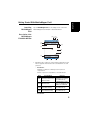
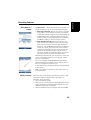
Logging a Line or
Polygon Feature
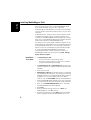
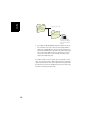
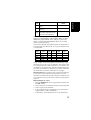
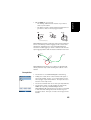
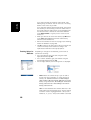
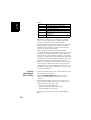
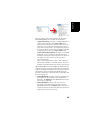
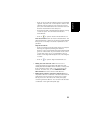
Left
d
Right
d
d= Horizontal Distance
• Stand at the beginning of the line or polygon you want to
log.
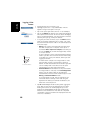
• Tap Log (or press the “–” key underneath). A menu
appears listing all the layers in the job.
• Tap on the desired layer name (“Lines” or “Areas” in our
example).
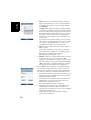
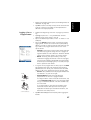
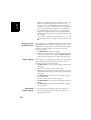
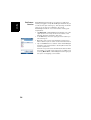
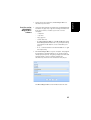
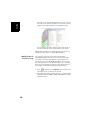
• Tap on the Settings tab and check or change the vertex
logging mode. As the last chosen mode is prompted by
default, you may not have to view this tab every time you
log a new line or polygon feature. Choose one of the
options below:
– Automatic: Selecting this option means the receiver will
automatically log points along the line or polygon at
regular intervals of time or distance. Enter the desired
value for this interval, either in seconds or meters.
– Manual: Selecting the option means you are only
interested in logging the vertices of the line or polygon,
and not points regularly distributed along the feature.
Enter the position averaging time, in seconds, that you
wish to spend on each vertex.
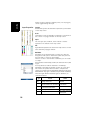
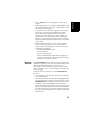
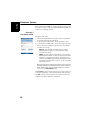
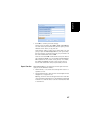
• To log the line or polygon with an offset, tap on the Offset
tab (otherwise skip this step) and enter the following
parameters (for no offset, just check that the horizontal
distance is 0 on this tab and proceed to the next step):
– Direction: this parameter tells the program whether the
real feature is on your left or right.
– Horizontal Distance field: Horizontal distance
perpendicular to the line or polygon feature.
If a range finder is used to measure this distance, tap
on the Read Range Finder button once the range finder
has got a valid measurement. This will automatically
fill in the field.
If no range finder is used, type an estimate of the
horizontal distance directly in the field using the
keyboard. The better you estimate the distance, the
better the collected positions.
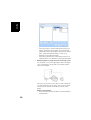
• Tap OK. MobileMapper Field instantly starts logging the
feature.
27
English
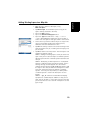
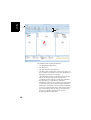
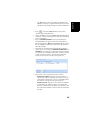
• Define each attribute for the point (see Entering Values for
Attributes on page 28).
• Tap OK to return to the map screen, which now shows the
location of the point according to the representation
defined in the layer properties.