1
CyberLink YouCam
Viewing Webcam Video
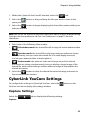
When CyberLink YouCam is launched manually from the start menu, desktop
shortcut or from the icon in the system tray, you can view webcam video in stand
alone mode.
Note: if you are using a touch enabled device, touch and slide the webcam image to flip it
horizontally or vertically.
Previewing at Full Screen
While viewing your webcam video in stand alone mode, select
to preview the
video at full screen. Use the controls on the YouCam tool bar at the bottom of the
window to apply effects, take photo snapshots or record video.
Note: mouse movements and the YouCam tool bar are not displayed in photo snapshots
or recorded videos.
Select
to hide/show the YouCam tool bar, which provides access to all of the
available effects and controls. Select
or the press the Esc key on your keyboard
to exit full screen mode.
Enhancing the Video Image
Before you begin capturing photo snapshots and your webcam videos, select the
button on the YouCam tool bar to enhance the video image, as follows:
• Auto lighting: select this option for CyberLink YouCam to automatically adjust
the lighting of your webcam video image.
• Noise reduction: use the slider to reduce the video noise or static on your
webcam video. Use the slider to adjust the level of reduction to achieve a
clearer video image.
• Brightness: use the slider to adjust the brightness/darkness of the webcam
video image.
• Contrast: use the slider to adjust the difference in proportion between lights
and darks in the webcam video image.
10