1
STEP 1: INSTALL THE PAPERPORT SOFTWARE
5
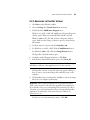
Note: If the CD does not automatically start, make sure the CD
drive’s door is completely shut. If the CD still doesn’t start, click the
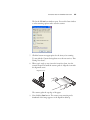
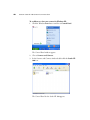
Windows icon that shows the drives on your computer. (Usually, the
icon is named My Computer.) The window shows the drives available
on your computer. Double-click the icon for your CD-ROM drive to
see the list of files on the CD. Double-click the file named
START32.EXE. The CD starts.
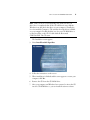
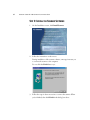
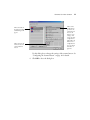
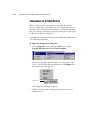
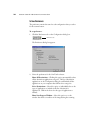
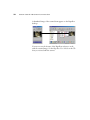
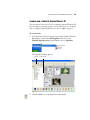
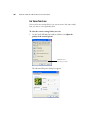
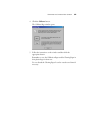
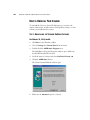
The Installation screen appears.
3. Select Install ScanSoft PaperPort.
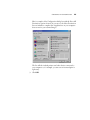
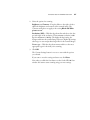
4. Follow the instructions on the screen.
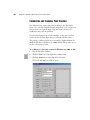
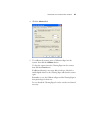
5. When installation is finished and the screen appears to restart your
computer, click Yes.
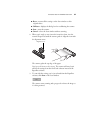
6. Remove the CD from the CD-ROM drive.
7. After your computer and Windows have restarted, re-insert the CD
into the CD-ROM drive so you can install the scanner software.