1
SCANNING FROM THE PAPERPORT SOFTWARE
31
■
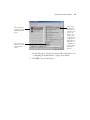
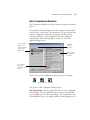
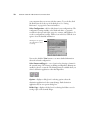
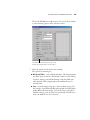
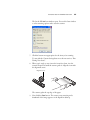
Reset—returns all the settings on the Scan window to their
original values.
■
Calibrate—displays the dialog box for recalibrating the scanner.
■
Scan—starts the scanner.
■
Cancel—closes the Scan window without scanning.
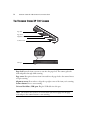
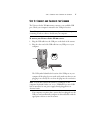
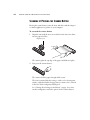
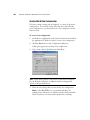
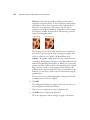
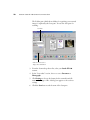
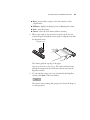
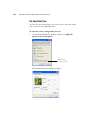
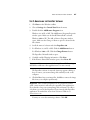
8. When you’re ready to scan, insert the item, face down, into the
scanner’s Paper Feed until the scanner grabs it. Align the item with
the alignment arrow.
Alignment arrow
The scanner grabs the top edge of the paper.
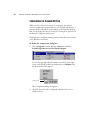
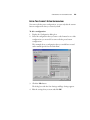
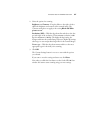
Don’t press the button on the scanner. The scanner will scan, but it
will use the settings from the OneTouch software instead of the
PaperPort software.
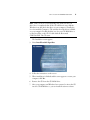
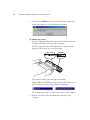
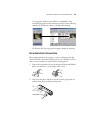
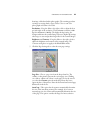
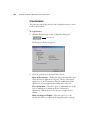
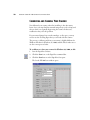
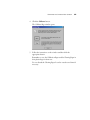
9. To scan with the settings you’ve just selected from the PaperPort
software, click Scan on the Scan window.
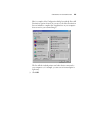
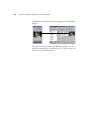
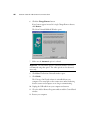
The scanner starts scanning and a progress box shows the image as
it is being scanned.