1
– Learn from Twitter: Log in to let your device learn your
Twitter style.
– Learn from Contacts: Allow your device to learn your
Contacts style.
– Clear remote data: Delete your anonymous data stored
on the personalization server.
– Clear personal data: Remove all personalized data
entered.
– Privacy Policy: Read the privacy policy regarding
Predictive Text and the use of your personalization data.
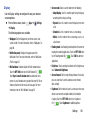
• Auto replacement: Complete or replace the word you are
typing with the most probable word when you touch the space
.
bar. Touch the OFF/ON button to turn it ON
• Auto capitalization automatically capitalizes the first letter of
the first word in each sentence (standard English style).
• Keyboard swipe:
– None: Disable the keyboard swipe feature.
– SwiftKey Flow: Type words by swiping between letters.
– Cursor control: Move the cursor by sliding your finger
across the keyboard.
• Key-tap feedback:
– Sound: Enable or disable auditory feedback when you
touch an onscreen key.
– Vibration: Enable or disable vibration when you touch
an onscreen key.
– Character preview: Provide an automatic preview of
the current character selection within the text string.
This is helpful when multiple characters are available
within one key.
• More settings:
• Auto spacing: automatically inserts spaces between words.
– Pen detection: Change to Handwriting recognition
• Auto punctuate automatically inserts a full stop in a sentence
by touching the space bar twice when using the onscreen
QWERTY keyboard.
– Help: Access help information for using the Samsung
mode when the pen is detected.
keyboard.
– Reset settings: Reset Samsung keyboard settings.
137