1
XV-HTD340.book 38 ページ 2003年12月27日 土曜日 午前10時30分
05
Listening to your system
Listening in surround sound
You can listen to any source—stereo or
multichannel, analog or digital—in surround
sound. Surround sound is generated from
stereo sources using one of the Dolby Pro
Logic decoding modes.
• When listening in Dolby Digital / DTS
mode, two-channel material will
automatically be played in surround sound
using Dolby Pro Logic II decoding.
• Dolby Digital / DTS sources that use only
the center channel cannot be played back
in surround sound.
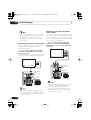
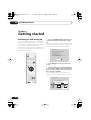
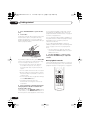
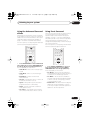
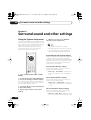
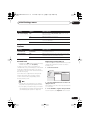
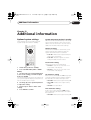
SURROUND
Dolby Pro Logic II Music settings
When listening in Dolby Pro Logic II Music
mode, there are three further parameters you
can adjust: Center Width, Dimension, and
Panorama.
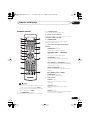
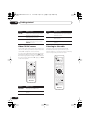
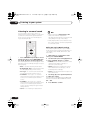
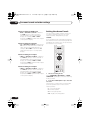
• Press SURROUND repeatedly to select a
listening mode (or press SURROUND then
use the / (cursor up/down) buttons).
The listening mode choices that appear in the
display will vary according to the type of source
that’s playing.
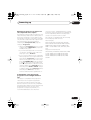
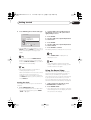
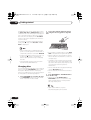
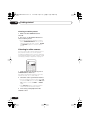
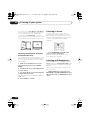
1 With Dolby Pro Logic II Music mode
active, press SOUND MODE.
2 Use the / (cursor left/right) buttons
to select ‘C Width’, ‘Dimen.’ or ‘Pnrm.’
• C Width (Center Width): Makes the center
channel wider (higher settings) or
narrower (lower settings)
• Dimen. (Dimension): Makes the sound
more distant (minus settings), or more
forward (positive settings)
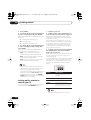
• Auto – See Auto listening mode above.
• Dolby Digital / DTS – Dolby Digital or DTS
decoding (depending on the source).
• Pnrm. (Panorama): Creates more spacious
surround sound
• Pro Logic – 4.1 channel surround sound
for use with any two-channel source
• PL II Movie – Pro Logic II 5.1 channel
surround sound, especially suited to movie
sources, for use with any two-channel
source
• PL II Music – Pro Logic II 5.1 channel
surround sound, especially suited to music
sources, for use with any two-channel
source (see also Dolby Pro Logic II Music
settings below)
• Stereo – See Listening in stereo below
38
En
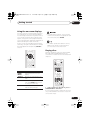
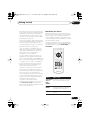
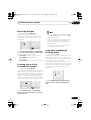
3 Use the / (cursor up/down) buttons
to adjust the setting.
Center Width is adjustable between 0 and 7;
Dimension between –3 and +3. Panorama is
On or Off.
4
Press ENTER to confirm.