1
Using the Configuration Utility (continued)
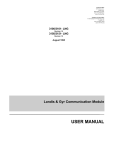
Allows you to make a backup
image and restore the backup
copy to the DSA-3100. This
page also enables you to
restore the DSA-3100 back
to the factory default settings.
Tools > System
Create Backup Image:
Make a backup image file.
Restore Setting From File:
Browse the hard drive to locate
and restore the backup image
file. (Important:The image must
be created by the DSA-3100.)
Reset To Factory Default:
Click Reset to restore the
DSA-3100 back to the factory
default settings.
Tools > Firmware
Please click the link in the
configuration screen shown
here to check for firmware
upgrades on the D-Link
website. After you download
the new firmware file to your
hard drive, click Browse and
then click Apply to upgrade
the firmware.
Caution:
Firmware upgrades
might result in
configuration data loss.
Some other restrictions
might also apply. Please
refer to the release notes of
new firmware upgrades.
When the system is
upgrading its firmware, the
Status LED blinks until
done. When finished, the
web interface will display a
successful message.
Please restart the DSA-3100 using the
administration interface. Do not directly
power it off and on. Restarting the
DSA-3100 in this way, after a firmware upgrade,
might result in corruption of the DSA-3100
firmware. (Online user sessions will be
terminated when the system restarts.)
48