1
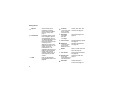
Entering Text
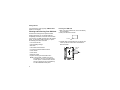
2 Select the text input mode you want to use. A
checkmark appears next to the current mode.
You can enter text into your phone using the
traditional method of pressing a key several times
for each character, or by pressing a key once for
each letter while words likely to be the one you want
are chosen from a database. You can also enter
symbols and numbers into a text field.
Using Alpha Mode
l Alpha — Press a key several times for each
• Press any key on the keypad to enter the letters,
numbers, and symbols on that key. For example,
to enter the letter Y, press 9 three times.
• Type a letter then scroll up to make that letter
uppercase, or type a letter then scroll down to
make that letter lowercase.
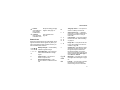
• See “Special Function Keys” on page 34 for more
information on adding spaces, capitalization, and
punctuation.
j Word — Press a key once for each letter while
Using Word Mode
i Symbols — Enter punctuation and other
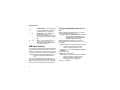
In Word mode, T9 Text Input analyzes the letters on
the keypad button you press and arranges them to
create words. As you type, T9 Text Input matches
your keystrokes to words in its database and
displays the most commonly used matching word.
You can add you own words to this database.
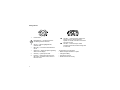
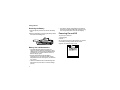
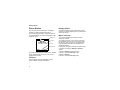
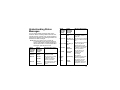
In screens that require you to enter text, you see the
following icons. These icons tell you which text input
mode you are using:
character.
words likely to be the one you want are chosen
from a database.
symbols.
k Numeric — Enter numbers.
When you access a screen that requires you to
enter text, you start in the mode last used.
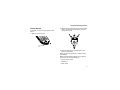
To choose a text input mode:
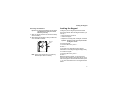
1 At a screen that requires you to enter text, press
m.
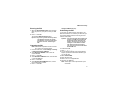
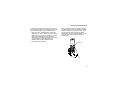
Entering a Word
1 Select Word as your text input mode.
2 Type a word by pressing one key for each letter.
For example, to type “test” press 8 3 7 8.
33