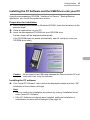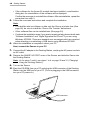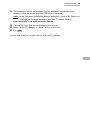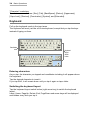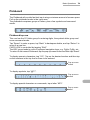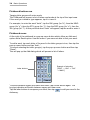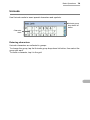
1
Basic Operations
67
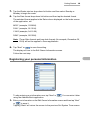
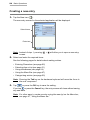
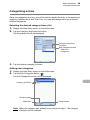
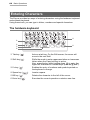
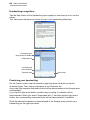
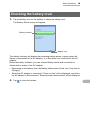
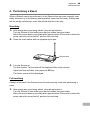
You can confirm your performance in the area above the input area showing the
matched rate (%) of the character you wrote and the matched rate of similar
characters to the character you wrote.
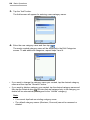
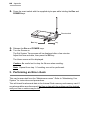
Tap to close the
Handwriting Help
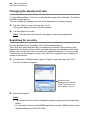
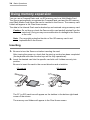
Setting up your preferences
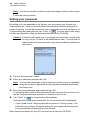
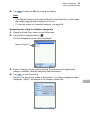
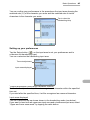
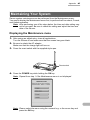
Tap the Setup button (
) on the input area to set your preferences and to
customize the handwriting input.
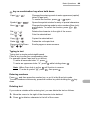
You can customize the handwriting input area.
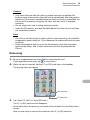
Timeout adjustment
Input areas displayed
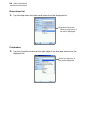
Timeout adjustment (Multi-stroke character timeout)
Set the timeout (in seconds) of how to recognize one character within the specified
time set.
If you start after the specified time, it will be recognized as a second character.
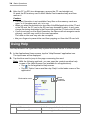
Input areas displayed
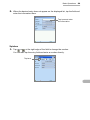
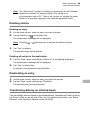
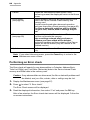
You can customize the input area shown in the handwriting mode (see below).
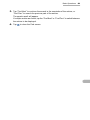
If you want to have both an uppercase input area and a lowercase input area, select
“Upper and lower case areas” by tapping the radio button.