1
Printing Your Index Sheet
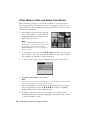
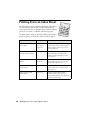
Follow these steps to print an index sheet.
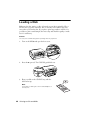
1. Load several sheets of plain paper in the front tray (one sheet for every 30
photos to be printed on the index).
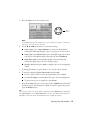
2. Press the Memory Card button.
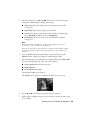
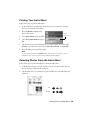
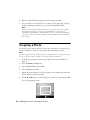
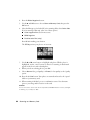
You see this screen:
Select
Index Sheet
3. Select Index Sheet then press OK.
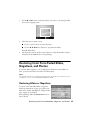
4. Select Print Index Sheet then press
OK.
5. On the next screen, select which photos you want to print: all of them (All
Photos) or just the most recent ones (Latest 30, Latest 60, or Latest 90).
6. Press the OK button to print the index.
Note:
To cancel printing, press the y Stop button. If there are a lot of photos on your
card, allow time for them to be processed before printing begins.
Selecting Photos From the Index Sheet
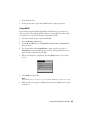
Follow these steps to print selected photos from the index sheet.
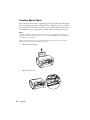
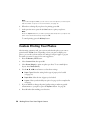
1. Load the type of paper you want to print on in the rear sheet feeder. You can
choose any type of paper listed on page 38.
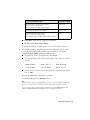
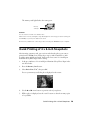
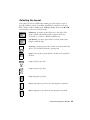
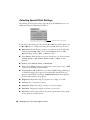
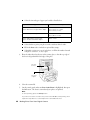
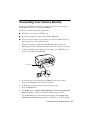
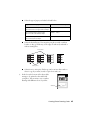
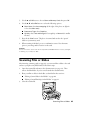
2. On the index sheet, use a dark pen or pencil to fill in the ovals and make your
selections.
OK:
Not OK:
Printing From an Index Sheet 39