1
•
•
6 ••
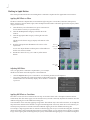
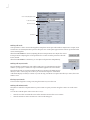
Click to hide/display the filter
Load/Save Controls
Parameter Group
Parameters
Working with Locks
Some parameters’ values can be locked together to keep their values equal when either is adjusted. For example, Scale
X and Scale Y are locked by default to preserve the aspect ratio. A lock option appears before each set of parameters that
can be locked together.
When the Lock checkbox is selected, adjusting the Þrst locked parameter also adjusts the second
locked parameter. Adjusting the second parameter has no affect on either parameter when the
lock is selected.
When the Lock checkbox is deselected, you can adjust each parameter independently.
Working with Layer Controls
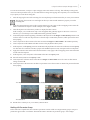
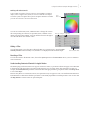
Many of the Þlters include image wells which enable you to use information from other
media in your project to control some aspect of the Þlter applied to the source media.
Drag media here
Drag the desired clip or sequence from the File Browser window to the Media Pane in
the Layers Pane. or the Layer pane to the Layer control in the Inspector. A thumbnail
of the media displays in the layer control. If you do not drag a media Þle or sequence into the Layer control, the source
media is used.
Clearing Layer Controls
To clear media assigned to an image well, drag the media away from the well.
Working with Point Controls
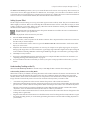
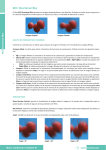
Many Boris Continuum Complete Þlters use point controls to specify locations along the X and Y axis in the source
image.
You can enter and edit point control values in two ways:
•
•
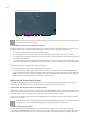
Click the cross-hair and click the mouse at the desired location in the Canvas window.
Click the numerical values and enter new values in the dialog box.