1
Powering the Coordinator
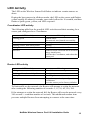
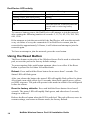
Power the Coordinator first. Connect one and only one Coordinator to a USB
Type A port on the NetBotz appliance. Make a note of the port to which the
Coordinator is attached, for example USB-A.
Configuring the Coordinator
The Coordinator must be configured as a serial device in the Wireless Sensor
Setup task in the Advanced View on the host appliance.
After connecting the Coordinator:
1.
Log in to the host appliance using the Advanced View.
2. Select the Configuration tab and double-click the Wireless Sensor Setup
icon.
3. Click Add to enter the extended address of the Wireless Sensor Pod that
will be the Coordinator.
Note: You can also add the extended addresses of any other Wireless
Sensor Pods you are adding to the wireless sensor network.
4. Click Apply to apply the commission list to save it to the NetBotz
appliance.
5. Click Configure Coordinator. Find the serial port ID for the Wireless
Sensor Pod. It appears as “FTDI FT232BM Compatible (Port A)” or
similar.
6.
Select “Wireless Sensor Pod 180” in the Device Type Installed dropdown list, and specify the Port Label.
7. In the Navigation pane of Advanced View (the upper left), the Wireless
Sensor is listed as “Sensor Pod 180 C” (the “C” denotes that it is the
Coordinator). Wait for the pod to complete its configuration; when it is
finished, the extended address of the pod will appear as the name of the
device.
Once the Coordinator is running, the other pods in the wireless sensor network
will join the network automatically as long as their extended addresses are in
the commission list, and they are powered.
To allow multiple wireless sensor networks to exist independently in the same
area, the extended addresses in a commission list must not exist in another
NetBotz Appliance commission list.
NetBotz Wireless Sensor Pod 180 Installation Guide
9