1
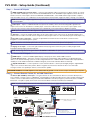
j IR control port — Connect the wiring from the IR Out port on rear of the MLC to this connector. IR signals on this
connector are passed to the connected PVT wallplate for control of devices, such as BluRay or DVD players.
k Ethernet connectors — Connect LAN cables to these three ports for 10/100 Ethernet connectivity as follows:
1. TCP/IP network (owner furnished), 2. MLC MediaLink controller, 3. Optional network device
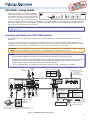
Step 4 — Connect power
l DC power connector — When all other cables have been connected, plug the cable with the orange captive screw
connector (supplied with the power supply) from the 12 VDC power source into this receptacle and apply power. The front
panel power LED and an input LED illuminates when the switcher is receiving power.
NOTE: Use only the supplied 12 V, 4 A power supply for this switcher. The PVS 405D power supply can support a typical
system: for example, a PVS 405D, 2 PVT Wallplates, 2 or 4 speakers, an MLC 104 IP Plus with an IRCM DV+, and
a VoiceLift Microphone system. If an additional SCP 104 is used, the MLC 104 IP Plus MUST have its own power
supply.
SIG
3/4
LINK
SIG
+V
HDMI
LINK
INPUT 5
L
PVT IN
PAGING
SENSOR
PVS 405D
AMPLIFIED AUDIO OUT
L
DO NOT
GROUND
OR SHORT
SPEAKER 4/8
OUTPUTS Ω
CLASS 2 WIRING
VOICELIFT
AUX
OVER PVT
R
PVT IN
Included power supply is used for both
PVS 405D and MLC 104 IP Plus
LAN 1
R
LAN 2
LAN 3
REMOTE
IR
RS-232
S G
Tx Rx G
A B
MLS
+12V IN
1/2
POWER
12V
3A MAX
R
Tx
L
Rx
AUDIO OUT
GROUND
OUTPUT
GROUND
INPUTS
MLC 104 IP Plus right side panel
MLS and Power ports
PWR
RS-232 12V
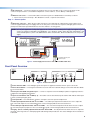
Figure 3. Power Supply Connections to PVS 405D and MLS 104 IP Plus
Front Panel Overview
PVS 405D
INPUTS
SELECT
R
CONFIG
POLEVAULT SWITCHER
AUDIO LEVEL ADJUST
1
3
2
4
AUDIO
5
PEAK
INPUT
AUX
VOICELIFT
PEAK
NORMAL
NORMAL
SIGNAL
SIGNAL
PAGING
SENSOR
SENSITIVITY
Heat Shrink
Over Drain Wires
1
2
3
4
5
6
7
8
9
10
11
12
Figure 4. Front Panel Features
a Power indicator LED — This LED lights green when power is supplied, and amber when in power save mode.
b Device Reset button — Pressing this inset button resets the switcher to default settings. See the PVS 405D User Guide
for reset mode details.
c Front panel mini USB configuration port — Connect a computer to this mini USB port (cable not supplied), for device
configuration and upgrading the firmware.
d Input selection button and e LEDs (1-5) — The button selects and switches inputs and the LEDs indicate which input
is active (current input lights green).
f Aux input LED — This LED indicates when the aux input is active for input level adjustment.
g Audio input adjustment knobs and h level LEDs — The audio input adjustment knob allows the user to adjust the
level of the audio input. The associated LEDs (peak, normal, and signal) indicate the active audio level.
i VoiceLift input adjustment knobs and j level LEDs — The VoiceLift level adjustment knob allows the user to adjust
the VoiceLift (microphone) input level. The associated LEDs (peak, normal and signal) indicate the active audio level.
k Paging Sensor sensitivity adjustment knob and l Status LED — The adjustment knob allows the user to adjust the
sensitivity of the Page Sensor to interrupt program audio during facility broadcasts. The status LED lights when a broadcast
is detected.
3