1
Messaging
4. Select "Forward".
5. Press "Send".
6. Enter the number.
7. Press "Send".
Receive a Message with Request for Answer
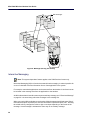
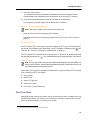
In the status bar, a message with request for answer is indicated the same way as an ordinary
message, see “Receive a Message” on page 26.
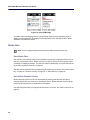
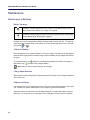
In the message list, the message with request for answer is indicated by the
icon.
Accept/Reject a Message
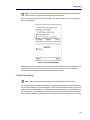
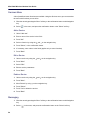
Press the soft key “Accept” or “Reject”.
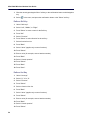
When an acknowledged message has been replied to, the icon
is shown in the message
list. The text “Accepted” or “Rejected”, and time and date is also added to the acknowledged
message.
Note: The option “Delete” is not available for a message with request for answer. An
unacknowledged message can be deleted only from the message list.
Message Queuing and Message Priority
Note: This feature applies to the 5604 Services license only.
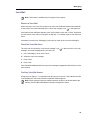
The default settings is that each message will be displayed without being interrupted by another
message, except if the new message is of higher priority. Messages that are not shown yet are
placed in a queue and the priority and time of reception determine the position in the queue.
There are 9 levels of the priority. 1 is highest priority and 9 is lowest priority.
If several of the messages have the same priority the message that was received first is shown
first.
If a new message with a higher priority is received while another message is read the new
message will replace the old message in the display. The old message will be placed in the
queue. If a new message with equal or lower priority is received while another message is read
the new message will be placed in the queue.
You can specify how long a message will be displayed. See the Mitel 5604 Wireless Handset
Configuration Guide.
29