1
83
Search and web browser
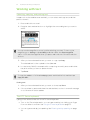
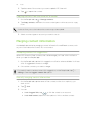
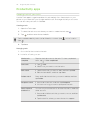
Not seeing your bookmark?
and select All bookmarks. HTC One mini will
On the Bookmarks screen, tap
display all your bookmarks, including those which are synced with an online
account.
Syncing your bookmarks with Google Chrome
Create bookmarks from your computer's Google Chrome™ browser and sync them on
HTC One mini. For more information about Google Chrome, visit http://
support.google.com/chrome.
§ Using your Google Chrome desktop browser, you need to sign in to your Google
Account and set up Google Chrome sync.
§ Be sure that you are logged in to your Google Account every time you save
Google Chrome bookmarks on your computer.
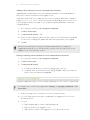
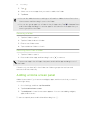
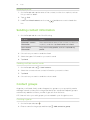
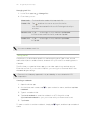
1. Go to Settings, and then tap Account & sync.
2. Tap Google.
3. Tap your Google Account.
4. Select the Internet option.
Using your browsing history
HTC One mini keeps a record of webpages you've visited.
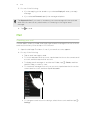
If you don't want HTC One mini to keep your browsing history, browse using an
incognito tab. See Private browsing on page 84.
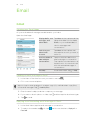
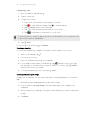
1. While viewing a webpage, tap
> History.
2. Swipe to the History or Most visited tab.
3. Navigate to the webpage that you want to view, and then tap it.