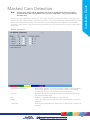
1
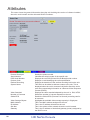
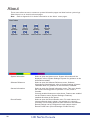
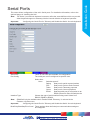
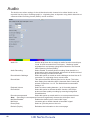
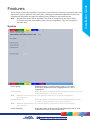
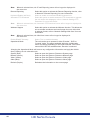
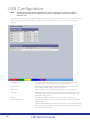
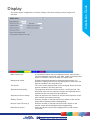
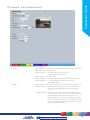
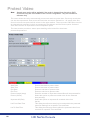
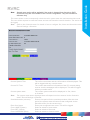
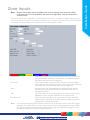
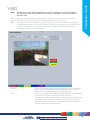
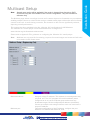
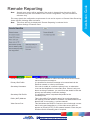
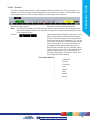
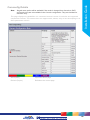
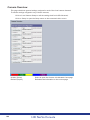
Video Output mode
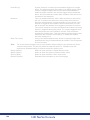
Select the display output that best suits the viewing monitor.
Typically PAL Default is most suited for a CRT monitor, PAL
Reduced for a TFT monitor.
Select from:
PAL Default
PAL Reduced
HD Default
HD 4x3
Note: It will be necessary to reboot the unit to implement any change to the Video Output Mode.
The unit can be rebooted via the Reset (Red) option.
Note: If there is no suitable standard configuration to suit the monitor in use, refer to ‘Appendix F Monitor Output’ for details on enabling more options.
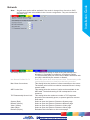
Decoder Mode
Select from Normal Display or Decoder Mode. Normal Display
allows cameras to be accessed and controlled via the Viewer
menu. In Decoder Mode, connected cameras can be accessed,
viewed or controlled via Dedicated Micros Pick-a-Point system.
Note: For further information regarding Dedicated Micros Pick-a-Point system, please contact
Dedicated Micros customer services in your region.
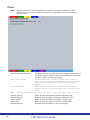
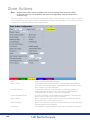
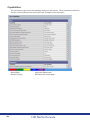
Mouse Sensitivity
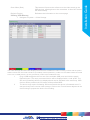
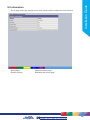
Applet Location
Set Location
Reset (Red)
Save (Purple)
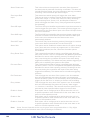
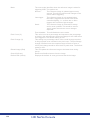
The sensitivity settings of the mouse can be adjusted from the
least sensitive (1) to the most sensitive (10). The setting can be
adjusted via the slidebar or a number entered directly into the
accompanying textbox. The default setting is 4.
The location of the unit’s Viewer menu applet is displayed. The
default location will always be the applet installed on the unit.
If accessing multiple units via a remote connection, all can be
assigned the same Viewer applet. This will lessen the load time
required when accessing different DVRs/Servers.
For example, if a local unit and a remote DVR are to be accessed, it
is possible to set the Applet location for both DVRs as the local unit.
If viewing the unit remotely, Dedicated Micros provide a remote
applet. This remote applet can be selected via the ‘Set Location’
option. The applet is located on the website (www.dedicatedmicros.
com/software_release/index_firmware.php). Due to possible bandwith
restrictions on the network the DVR is located, using this remote
applet may improve data transfer speeds.
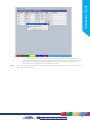
Select the applet location. Choose from ‘Default location’ i.e. the
applet installed on the unit; or the ‘website’ option i.e. the
remote applet.
Select to reset the unit and implement any changes made to the
‘Video Output mode’ or ‘Applet Location’ fields.
Select to save current unit settings to the selected media.
62
62
HD NetVu Console