1
Printer error recovery
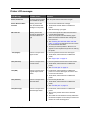
The printer’s LCD panel background color changes to red when the printer
has an error. The LCD panel displays text that describes the error.
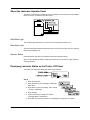
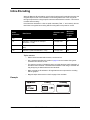
Hopper jam
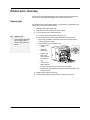
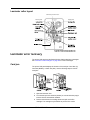
If a card jams in the card hopper section, “Jam (Hopper)” is displayed on the
LCD panel. To remove the jammed card:
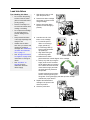
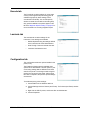
1
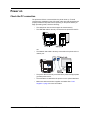
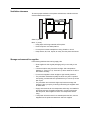
Slide the card hopper latch open.
2
Slide the card cover up and remove any cards.
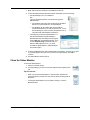
3
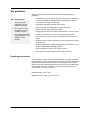
Try the following in the order presented:
a
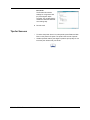
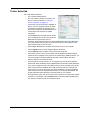
Tips – Hopper jam
•
If you can reach the jammed card, pull it out.
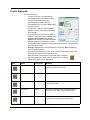
b On the printer front panel, press the Reset key and then the
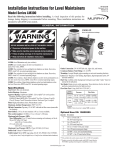
Some internal parts may
be hot. Wear a glove
when reaching into the
printer.
Return key. If possible, the printer moves the card and ejects it
from the reject card outlet.
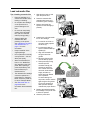
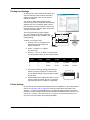
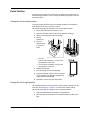
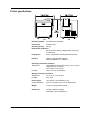
c If the printer does not eject the card:
— Power off the
printer.
— Open the
printer door.
— Place a Jog
Dial on the
lower shaft of
the cleaning
unit.
— Turn the Jog
Dial clockwise
to move the card unit you can see it in the hopper.
— Remove the card, return the Jog Dial to the home location, and
close the printer.
72
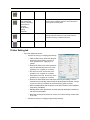
4
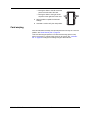
Replace cards and the card cover.
5
Press the Reset, Next and then Return to initialize the printer.
SR200 & SR300 Printer and LM200 & LM300 Laminator User Guide