1
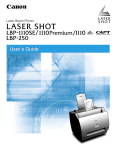
Laser Beam Printer
User's Guide
ENG
LBP-1120
Laser Printer
User's Guide
Manuals for the Printer
The manuals for this printer are divided as follows. Please refer to them for detailed information.
Guides with this symbol are book manuals.
• Installing and Setting Up the Printer
• Connecting the Printer to a PC
• Installing the Printer Driver
• Using the Printer
• Printer Settings
• Maintenance and Troubleshooting
The printer illustration on the cover may differ slightly from your printer.
CD-ROM
Guides with this symbol are PDF manuals included on the
attached CD-ROM.
Getting Started Guide
CD-ROM
User's Guide
(This Document)
CD-ROM
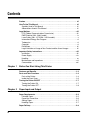
How This Manual Is Organized
Chapter 1
Before You Start Using This Printer
Chapter 2
Paper Input and Output
Chapter 3
Using the Canon Advanced Printing Technology
Chapter 4
Maintenance
Chapter 5
Troubleshooting
Chapter 6
Appendix
Includes the main specifications, glossary, and index.
• Some of the data contained herein may not exactly reflect the current model of the particular product with which this manual has been included. If you
have a need for an exact specification, please contact Canon for the current specification.
• No part of this document may be photocopied, reproduced, or translated into another language without prior written consent of Canon Inc.
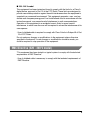
Contents
Preface . . . . . . . . . . . . . . . . . . . . . . . . . . . . . . . . . . . . . . . . . . . . . . . . . . . . . . . . . vii
How To Use This Manual . . . . . . . . . . . . . . . . . . . . . . . . . . . . . . . . . . . . . . . . . . . vii
Symbols Used in This Manual . . . . . . . . . . . . . . . . . . . . . . . . . . . . . . . . . . . . . vii
Abbreviations Used in This Manual . . . . . . . . . . . . . . . . . . . . . . . . . . . . . . . . . vii
Legal Notices . . . . . . . . . . . . . . . . . . . . . . . . . . . . . . . . . . . . . . . . . . . . . . . . . . . . viii
FCC (Federal Communications Commission) . . . . . . . . . . . . . . . . . . . . . . . . . viii
EMC Directive (220 - 240 V model) . . . . . . . . . . . . . . . . . . . . . . . . . . . . . . . . . . ix
Laser Safety (100 - 127 V/220 - 240 V models) . . . . . . . . . . . . . . . . . . . . . . . . . x
International Energy Star-Program . . . . . . . . . . . . . . . . . . . . . . . . . . . . . . . . . . xi
Trademarks. . . . . . . . . . . . . . . . . . . . . . . . . . . . . . . . . . . . . . . . . . . . . . . . . . . . . xi
Copyright . . . . . . . . . . . . . . . . . . . . . . . . . . . . . . . . . . . . . . . . . . . . . . . . . . . . . . xi
Disclaimers. . . . . . . . . . . . . . . . . . . . . . . . . . . . . . . . . . . . . . . . . . . . . . . . . . . . xii
Legal Limitation on Usage of Your Product and the Use of Images . . . . . . . . . xii
Important Safety Instructions . . . . . . . . . . . . . . . . . . . . . . . . . . . . . . . . . . . . . . . xiii
Installation . . . . . . . . . . . . . . . . . . . . . . . . . . . . . . . . . . . . . . . . . . . . . . . . . . . . xiii
Power Supply . . . . . . . . . . . . . . . . . . . . . . . . . . . . . . . . . . . . . . . . . . . . . . . . . . xiv
Handling . . . . . . . . . . . . . . . . . . . . . . . . . . . . . . . . . . . . . . . . . . . . . . . . . . . . . . xv
Maintenance and Inspections . . . . . . . . . . . . . . . . . . . . . . . . . . . . . . . . . . . . . xvi
Consumables . . . . . . . . . . . . . . . . . . . . . . . . . . . . . . . . . . . . . . . . . . . . . . . . . xvii
Chapter 1
Before You Start Using This Printer
Features and Benefits . . . . . . . . . . . . . . . . . . . . . . . . . . . . . . . . . . . . . . . . . . . . .1-2
Parts and Their Functions . . . . . . . . . . . . . . . . . . . . . . . . . . . . . . . . . . . . . . . . . .1-4
Parts of the Printer . . . . . . . . . . . . . . . . . . . . . . . . . . . . . . . . . . . . . . . . . . . . . 1-4
Inside the Front Cover . . . . . . . . . . . . . . . . . . . . . . . . . . . . . . . . . . . . . . . . . . 1-6
Turning the Printer ON/OFF . . . . . . . . . . . . . . . . . . . . . . . . . . . . . . . . . . . . . . . .1-7
Turning the Printer ON . . . . . . . . . . . . . . . . . . . . . . . . . . . . . . . . . . . . . . . . . . 1-7
Turning the Printer OFF . . . . . . . . . . . . . . . . . . . . . . . . . . . . . . . . . . . . . . . . . 1-8
Chapter 2
Paper Input and Output
Paper Requirements . . . . . . . . . . . . . . . . . . . . . . . . . . . . . . . . . . . . . . . . . . . . . .2-2
Printable Paper. . . . . . . . . . . . . . . . . . . . . . . . . . . . . . . . . . . . . . . . . . . . . . . . 2-2
Paper You Cannot Use . . . . . . . . . . . . . . . . . . . . . . . . . . . . . . . . . . . . . . . . . . 2-6
Storing Paper . . . . . . . . . . . . . . . . . . . . . . . . . . . . . . . . . . . . . . . . . . . . . . . . . 2-7
Handling Paper. . . . . . . . . . . . . . . . . . . . . . . . . . . . . . . . . . . . . . . . . . . . . . . . 2-7
Paper Delivery . . . . . . . . . . . . . . . . . . . . . . . . . . . . . . . . . . . . . . . . . . . . . . . . . . .2-8
iv
Selecting Paper Delivery . . . . . . . . . . . . . . . . . . . . . . . . . . . . . . . . . . . . . . . . .2-8
Face-Down Delivery. . . . . . . . . . . . . . . . . . . . . . . . . . . . . . . . . . . . . . . . . . . . .2-9
Face-Up Delivery . . . . . . . . . . . . . . . . . . . . . . . . . . . . . . . . . . . . . . . . . . . . . . .2-9
Printing from the Multi-Purpose Tray. . . . . . . . . . . . . . . . . . . . . . . . . . . . . . . . 2-11
Loading Paper . . . . . . . . . . . . . . . . . . . . . . . . . . . . . . . . . . . . . . . . . . . . . . . .2-11
Printing Envelopes from the Multi-Purpose Tray . . . . . . . . . . . . . . . . . . . . . . 2-14
Preparing Envelopes . . . . . . . . . . . . . . . . . . . . . . . . . . . . . . . . . . . . . . . . . . .2-14
Loading Envelopes . . . . . . . . . . . . . . . . . . . . . . . . . . . . . . . . . . . . . . . . . . . .2-16
Printing from the Manual Feed Slot . . . . . . . . . . . . . . . . . . . . . . . . . . . . . . . . . 2-19
Chapter 3
Using the Canon Advanced Printing Technology
Installing the CAPT . . . . . . . . . . . . . . . . . . . . . . . . . . . . . . . . . . . . . . . . . . . . . . . 3-3
For Windows 98/Me . . . . . . . . . . . . . . . . . . . . . . . . . . . . . . . . . . . . . . . . . . . . .3-3
For Windows 2000 . . . . . . . . . . . . . . . . . . . . . . . . . . . . . . . . . . . . . . . . . . . . .3-19
For Windows XP . . . . . . . . . . . . . . . . . . . . . . . . . . . . . . . . . . . . . . . . . . . . . .3-29
Using the Printer on Your Network. . . . . . . . . . . . . . . . . . . . . . . . . . . . . . . . . . 3-38
Connecting the LBP-1120 as a Network Printer . . . . . . . . . . . . . . . . . . . . . .3-38
Connecting to the LBP-1120 Already on Your Network . . . . . . . . . . . . . . . . .3-42
Canon LASER SHOT LBP-1120 Group . . . . . . . . . . . . . . . . . . . . . . . . . . . . . . 3-43
Uninstalling the CAPT. . . . . . . . . . . . . . . . . . . . . . . . . . . . . . . . . . . . . . . . . . . . 3-45
Printing a Document . . . . . . . . . . . . . . . . . . . . . . . . . . . . . . . . . . . . . . . . . . . . . 3-47
Cancel the Print Job . . . . . . . . . . . . . . . . . . . . . . . . . . . . . . . . . . . . . . . . . . . . . 3-48
Accessing the Properties Dialog Box . . . . . . . . . . . . . . . . . . . . . . . . . . . . . . . 3-49
For Windows 98/Me . . . . . . . . . . . . . . . . . . . . . . . . . . . . . . . . . . . . . . . . . . . .3-49
For Windows 2000/XP . . . . . . . . . . . . . . . . . . . . . . . . . . . . . . . . . . . . . . . . . .3-49
Using the Printing Options . . . . . . . . . . . . . . . . . . . . . . . . . . . . . . . . . . . . . . . . 3-51
For Windows 98/Me . . . . . . . . . . . . . . . . . . . . . . . . . . . . . . . . . . . . . . . . . . . .3-51
For Windows 2000/XP . . . . . . . . . . . . . . . . . . . . . . . . . . . . . . . . . . . . . . . . . .3-57
Printing Multiple Pages on One Sheet . . . . . . . . . . . . . . . . . . . . . . . . . . . . . .3-65
Scaling a Document. . . . . . . . . . . . . . . . . . . . . . . . . . . . . . . . . . . . . . . . . . . .3-67
Selecting the Custom Paper Size Setting . . . . . . . . . . . . . . . . . . . . . . . . . . .3-69
Using the Overlay Printing . . . . . . . . . . . . . . . . . . . . . . . . . . . . . . . . . . . . . . .3-70
Specifying the Print Quality . . . . . . . . . . . . . . . . . . . . . . . . . . . . . . . . . . . . . .3-73
Specifying the Toner Density . . . . . . . . . . . . . . . . . . . . . . . . . . . . . . . . . . . . .3-74
Using the Automatic Image Refinement . . . . . . . . . . . . . . . . . . . . . . . . . . . .3-76
Using Profiles for Printing . . . . . . . . . . . . . . . . . . . . . . . . . . . . . . . . . . . . . . .3-77
Viewing the Printer Settings/Restoring the Default Settings . . . . . . . . . . . . .3-80
Checking the Status of a Print Job . . . . . . . . . . . . . . . . . . . . . . . . . . . . . . . . . 3-81
Using the Status Window . . . . . . . . . . . . . . . . . . . . . . . . . . . . . . . . . . . . . . . .3-81
Opening the Status Window. . . . . . . . . . . . . . . . . . . . . . . . . . . . . . . . . . . . . .3-83
Closing the Status Window . . . . . . . . . . . . . . . . . . . . . . . . . . . . . . . . . . . . . .3-83
Status Options . . . . . . . . . . . . . . . . . . . . . . . . . . . . . . . . . . . . . . . . . . . . . . . .3-84
Network Printer Status. . . . . . . . . . . . . . . . . . . . . . . . . . . . . . . . . . . . . . . . . .3-86
v
Chapter 4
Maintenance
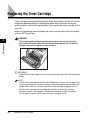
Replacing the Toner Cartridge . . . . . . . . . . . . . . . . . . . . . . . . . . . . . . . . . . . . . .4-2
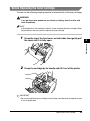
Before Replacing the Toner Cartridge . . . . . . . . . . . . . . . . . . . . . . . . . . . . . . 4-3
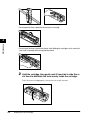
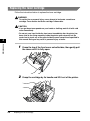
Replacing the Toner Cartridge . . . . . . . . . . . . . . . . . . . . . . . . . . . . . . . . . . . . 4-6
Cleaning . . . . . . . . . . . . . . . . . . . . . . . . . . . . . . . . . . . . . . . . . . . . . . . . . . . . 4-10
Handling Toner Cartridges . . . . . . . . . . . . . . . . . . . . . . . . . . . . . . . . . . . . . . 4-11
Storing Toner Cartridges . . . . . . . . . . . . . . . . . . . . . . . . . . . . . . . . . . . . . . . 4-13
Cleaning and Handling the Printer . . . . . . . . . . . . . . . . . . . . . . . . . . . . . . . . . .4-14
Cleaning the Printer . . . . . . . . . . . . . . . . . . . . . . . . . . . . . . . . . . . . . . . . . . . 4-14
Handling the Printer . . . . . . . . . . . . . . . . . . . . . . . . . . . . . . . . . . . . . . . . . . . 4-16
Chapter 5
Troubleshooting
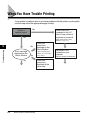
When You Have Trouble Printing. . . . . . . . . . . . . . . . . . . . . . . . . . . . . . . . . . . . .5-2
Problems and Solutions Without Messages . . . . . . . . . . . . . . . . . . . . . . . . . . .5-4
Print Quality Problems . . . . . . . . . . . . . . . . . . . . . . . . . . . . . . . . . . . . . . . . . . 5-4
Printer Problems. . . . . . . . . . . . . . . . . . . . . . . . . . . . . . . . . . . . . . . . . . . . . . . 5-5
CAPT Problems . . . . . . . . . . . . . . . . . . . . . . . . . . . . . . . . . . . . . . . . . . . . . . . 5-7
Clearing Paper Jams . . . . . . . . . . . . . . . . . . . . . . . . . . . . . . . . . . . . . . . . . . . . . .5-9
Before Removing Paper Jams Inside the Printer . . . . . . . . . . . . . . . . . . . . . 5-12
Paper Jam in the Paper Feed Area . . . . . . . . . . . . . . . . . . . . . . . . . . . . . . . 5-13
Paper Jams Near the Imaging Area . . . . . . . . . . . . . . . . . . . . . . . . . . . . . . . 5-15
Paper Jam in the Face-Down Delivery Area. . . . . . . . . . . . . . . . . . . . . . . . . 5-17
Paper Jam in the Face-Up Delivery Area . . . . . . . . . . . . . . . . . . . . . . . . . . . 5-18
Using the Trouble Shooter . . . . . . . . . . . . . . . . . . . . . . . . . . . . . . . . . . . . . . . .5-19
Features of the Trouble Shooter . . . . . . . . . . . . . . . . . . . . . . . . . . . . . . . . . . 5-19
Starting the Trouble Shooter. . . . . . . . . . . . . . . . . . . . . . . . . . . . . . . . . . . . . 5-19
Responding to Error Messages . . . . . . . . . . . . . . . . . . . . . . . . . . . . . . . . . . . .5-21
Chapter 6
Appendix
Specifications . . . . . . . . . . . . . . . . . . . . . . . . . . . . . . . . . . . . . . . . . . . . . . . . . . .6-2
Glossary . . . . . . . . . . . . . . . . . . . . . . . . . . . . . . . . . . . . . . . . . . . . . . . . . . . . . . . .6-4
Index . . . . . . . . . . . . . . . . . . . . . . . . . . . . . . . . . . . . . . . . . . . . . . . . . . . . . . . . . .6-14
vi
Preface
Thank you for purchasing the Canon LBP-1120. Please read this manual thoroughly before
operating the printer in order to familiarize yourself with its capabilities, and to make the most
of its many functions. After reading this manual, store it in a safe place for future reference.
How To Use This Manual
Symbols Used in This Manual
The following symbols are used in this manual to explain procedures, restrictions,
handling precautions, and instructions that should be observed for safety.
WARNING
Indicates a warning concerning operations that may lead to death or
injury to persons if not performed correctly. In order to use the printer
safely, always pay attention to these warnings.
CAUTION
Indicates a caution concerning operations that may lead to injury to
persons or damage to property if not performed correctly. In order to use
the printer safely, always pay attention to these cautions.
IMPORTANT
Indicates operational requirements and restrictions. Be sure to read
these items carefully in order to operate the printer correctly, and to
avoid damage to the printer.
NOTE
Indicates a clarification of an operation, or contains additional
explanations for a procedure. Reading these notes is highly
recommended.
Abbreviations Used in This Manual
In this manual, product names and model names are abbreviated as follows:
Microsoft® Windows® operating system is referred to as Windows.
Canon LASER SHOT LBP-1120 is referred to as the LBP-1120.
vii
Legal Notices
FCC (Federal Communications Commission)
■ 100 - 127 V model
Laser Beam Printer, Model L10577
This equipment has been tested and found to comply with the limits for a Class B
digital device, pursuant to Part 15 of the FCC Rules. These limits are designed to
provide reasonable protection against harmful interference when the equipment is
operated in a residential environment. This equipment generates, uses and can
radiate radio frequency energy, and if not installed and used in accordance with the
operator's manual, may cause harmful interference to radio communications.
However, there is no guarantee that interference will not occur in a particular
installation. If this equipment does cause harmful interference to radio or television
reception, which can be determined by turning the equipment off and on, the user is
encouraged to try to correct the interference by one or more of the following
measures:
• Reorient
or relocate the receiving antenna.
• Increase the separation between the equipment and receiver.
• Connect the equipment into an outlet on a different circuit than the one to which
the receiver is connected.
• Consult your local authorized Canon dealer or an experienced radio/TV technician
for help.
Use of shielded cable is required to comply with class B limits in Subpart B of Part
15 of FCC Rules.
Do not make any changes or modifications to the equipment unless otherwise
specified in the manual. If such changes or modifications should be made, you
could be required to stop operation of the equipment.
Canon U.S.A. Inc.
One Canon Plaza, Lake Success, NY 11042, U.S.A.
Tel No. (516)328-5600
viii
■ 220 - 240 V model
This equipment has been tested and found to comply with the limits for a Class A
digital device, pursuant to Part 15 of the FCC Rules. These limits are designed to
provide reasonable protection against harmful interference when the equipment is
operated in a commercial environment. This equipment generates, uses, and can
radiate radio frequency energy and if not installed and used in accordance with the
instruction manual, may cause harmful interference to radio communications.
Operation of this equipment in a residential area is likely to cause harmful
interference, in which case the user will be required to correct the interference at his
own expense.
• Use of shielded cable is required to comply with Class A limits in Subpart B of Part
15 of FCC Rules.
Do not make any changes or modifications to the equipment unless otherwise
specified in the manual. If such changes or modifications should be made, you
could be required to stop operation of the equipment.
EMC Directive (220 - 240 V model)
"This equipment has been tested in a typical system to comply with the technical
requirements of EMC Directive."
• Use
of shielded cable is necessary to comply with the technical requirements of
EMC Directive.
ix
Laser Safety (100 - 127 V/220 - 240 V models)
Laser radiation could be hazardous to the human body. For this reason, laser
radiation emitted inside this printer is hermetically sealed within the protective
housing and external cover. No radiation can leak from the printer in the normal
operation of the product by the user.
This printer is classified as a Class 1 laser product under EN 60825-1: 1994, and
as for the U.S.A., it is classified as Class 1 under the Code of Federal Regulations,
1040.10 of Title 21.
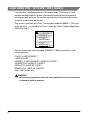
DANGER
- Invisble laser radiation when open.
AVOID DIRECT EXPOSURE TO BEAM.
CAUTION - INVISIBLE LASER RADIATION WHEN OPEN.
AVOID EXPOSURE TO BEAM.
ATTENTION - RAYONNEMENT LASER INVISIBLE EN CAS D’OUVERTURE.
EXPOSITION DANGEREUSE AU FAISCEAU.
VORSICHT - UNSICHTBARE LASERSTRAHLUNG, WENN ABDECKUNG GEÖFNET.
NICHT DEM STRAHL AUSSETZEN.
ATTENZIONE - RADIAZIONE LASER INVISIBLE IN CASO DI APERTURA.
EVITARE L’ESPOSIZIONE AL FASCIO.
PRECAUTION - RADICION LASER INVISIBLE CUANDO SE ABRE.
EVITAR EXPONERSE AL RAYO.
VARO!
- AAVATTAESSA OLET ALTTIINA NÄKYMÄTTÖMÄLLE
LASERSÄTEILYLLE. ÄLÄ KATSO SÄTEESEEN.
VARNING!
- OSYNLIG LASERSTRÅLNING NÄR DENNA DEL ÄR ÖPPNAD.
BETRAKTA EJ STRÅLEN.
ADVARSEL! - USYNLIG LASER STRÅLING, NÅR DENNE ER ÅBEN.
UNDGÅ BESTRÅLING.
ADVARSEL - USYNLIG LASERSTRÅLING, NÅR DEKSEL ÅPNES.
UNNGÅ EKSPONERING FOR STRÅLEN.
RS5-8169
This printer has been classified under EN60825-1: 1994 and conforms to the
following classes:
CLASS 1 LASER PRODUCT
LASER KLASSE 1
APPAREIL A RAYONNEMENT LASER DE CLASSE 1
APPARECCHIO LASER DI CLASSE 1
PRODUCTO LASER DE CLASE 1
APARELHO A LASER DE CLASSE 1
(220 - 240 V model only)
WARNING
Performance of procedures other than those specified in this manual may result
in hazardous radiation exposure.
x
International Energy Star-Program
As an ENERGY STAR® Partner, Canon USA, Inc. has determined
that this product meets the ENERGY STAR® Program for energy
efficiency.
The International ENERGY STAR® Office Equipment Program is
an international program that promotes energy saving through the
use of computers and other office equipment. The program backs
the development and dissemination of products with functions that
effectively reduce energy consumption. It is an open system in
which business proprietors can participate voluntarily. The
targeted products are office equipment such as computers,
displays, printers, facsimiles, and copiers. Their standards and
logos are uniform among participating nations.
Trademarks
LBP, Canon, LASER SHOT, and the Canon Logo are trademarks of Canon Inc.
Microsoft®, Windows® is registered trademark or trademark of Microsoft
Corporation in the United States and/or in other countries.
Other brand and product names are trademarks or registered trademarks of their
respective companies.
Copyright
Copyright 2002 by Canon Inc. All rights reserved.
No part of this publication may be reproduced or transmitted in any form or by any
means, electronic or mechanical, including photocopying and recording, or by any
information storage or retrieval system without the prior written permission of
Canon Inc.
xi
Disclaimers
The information in this document is subject to change without notice.
CANON INC. MAKES NO WARRANTY OF ANY KIND WITH REGARD TO THIS
MATERIAL, EITHER EXPRESS OR IMPLIED, EXCEPT AS PROVIDED HEREIN,
INCLUDING WITHOUT LIMITATION, THEREOF, WARRANTIES AS TO
MARKETABILITY, MERCHANTABILITY, FITNESS FOR A PARTICULAR
PURPOSE OF USE OR AGAINST INFRINGEMENT OF ANY PATENT. CANON
INC. SHALL NOT BE LIABLE FOR ANY DIRECT, INCIDENTAL, OR
CONSEQUENTIAL DAMAGES OF ANY NATURE, OR LOSSES OR EXPENSES
RESULTING FROM THE USE OF THIS MATERIAL.
Legal Limitation on Usage of Your Product and the Use of
Images
Using your product to scan, print or otherwise reproduce certain documents, and
the use of such images as scanned, printed or otherwise reproduced by your
product, may be prohibited by law and may result in criminal and/or civil liability. A
non-exhaustive list of these documents is set forth below. This list is intended to be
a guide only. If you are uncertain about the legality of using your product to scan,
print or otherwise reproduce any particular document, and/or of the use of the
images scanned, printed or otherwise reproduced, you should consult in advance
with your legal advisor for guidance.
xii
•
Paper Money
•
Travelers Checks
•
Money Orders
•
Food Stamps
•
Certificates of Deposit
•
Passports
•
Postage Stamps
(canceled or uncanceled)
•
Immigration Papers
•
Identifying Badges or Insignias
•
Internal Revenue Stamps (canceled
or uncanceled)
•
Selective Service or Draft Papers
•
Bonds or Other Certificates of
Indebtedness
•
Checks or Drafts Issued by
Governmental Agencies
•
Stock Certificates
•
Motor Vehicle Licenses and
Certificates of Title
•
Copyrighted Works/Works of Art
without Permission of Copyright
Owner
Important Safety Instructions
Please read these "Important Safety Instructions" thoroughly before operating the
printer. As these instructions are intended to prevent injury to the user or other
persons or destruction of property, always pay attention to these instructions. Also,
since it may result in unexpected accidents or injuries, do not perform any operation
unless otherwise specified in the manual. Improper operation or use of this printer
could result in personal injury and/or damage requiring extensive repair that may
not be covered under your Limited Warranty.
Installation
WARNING
• Do not install the printer near alcohol, paint thinner, or other flammable
substances. If flammable substances come into contact with electrical parts
inside the printer, it may result in a fire or electrical shock.
• Do not place the following items on the printer. If these items come into contact
with a high-voltage area inside the printer, it may result in a fire or electrical
shock.
• If these items are dropped or spilled inside the printer, immediately turn OFF the
power switch, and unplug the power plug from the outlet. Then, contact your
local authorized Canon dealer.
- Necklaces and other metal objects
- Cups, vases, flowerpots, and other containers filled with water or liquids
CAUTION
• Do not install the printer in unstable locations, such as unsteady platforms or
inclined floors, or in locations subject to excessive vibrations, as this may
cause the printer to fall or tip over, resulting in personal injury.
xiii
• Never block the ventilation slots and louvers on the printer. These openings are
•
•
•
•
provided for proper ventilation of working parts inside the printer. Blocking
these openings can cause the printer to overheat. Never place the printer on a
soft surface, such as a sofa or rug.
Do not install the printer in the following locations:
- A damp or dusty location.
- A location exposed to smoke and steam, such as near stoves and humidifiers.
- A location exposed to rain and snow.
- A location near water faucets and water.
- A location which is exposed to direct sunlight.
- A location subject to high temperatures.
- A location that is subject to open flames.
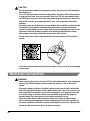
To avoid damaging the printer or personal injury, carry the printer in the manner
shown in the illustration below. Hold it firmly, with one hand on each side.
When connecting the interface cable, connect it properly according to the
instruction in this manual. If not connected properly, it may result in a
malfunction or electrical shock.
When moving the printer, follow the instructions in this manual to hold it
correctly. Failure to do so may cause you to drop the printer, resulting in
personal injury.
Power Supply
WARNING
• Do not damage or modify the power cord. Also, do not place heavy objects on
•
•
•
•
•
xiv
the power cord, or pull on or excessively bend it, as this could cause electrical
damage and result in a fire or electrical shock.
Keep the power cord away from a heat source; failure to do so may cause the
cord coating to melt, resulting in a fire or electrical shock.
Do not insert or unplug the power plug with wet hands, as this may result in
electrical shock.
Do not plug the printer into a multi-plug power strip, as this may cause a fire or
electrical shock.
Do not bundle up or tie the power cord in a knot, as this may result in a fire or
electrical shock.
Insert the power cord completely into the outlet, as failure to do so may result in
a fire or electrical shock.
• As a general rule, do not use extension cords. Using an extension cord may
result in a fire or electrical shock. If an extension cord must be used, however,
use one rated for voltages of AC 230 V and over and untie the cord binding and
insert the power plug completely into the extension cord outlet to ensure a firm
connection between the power and extension cord.
CAUTION
• Do not use power supplies with voltages other than those specified herein, as
this may result in a fire or electrical shock.
• Always grasp the plug when unplugging the power plug. Pulling on the power
cord may expose or snap the core wire, or otherwise damage the power cord. If
the cord is damaged, this could cause a current to leak, resulting in a fire or
electrical shock.
• Leave sufficient space around the power plug so that it can be unplugged easily.
If objects are placed around the power plug, you will be unable to unplug it in an
emergency.
Handling
WARNING
• Do not attempt to disassemble or modify the printer. There are high-temperature
•
•
•
•
•
•
and high-voltage components inside the printer which may cause a fire or
electrical shock.
Electrical equipment can be hazardous if not used properly. To avoid injury, do
not allow children access to the interior of any electrical product, and do not let
them touch any electrical contacts or gears that are exposed.
If the printer makes strange noises, or gives off smoke, heat or unusual smells,
immediately turn OFF the power switch, and unplug the power plug from the
outlet. Then, contact your local authorized Canon dealer. Continued use of the
printer in this condition may result in a fire or electrical shock.
Do not use highly flammable sprays near the printer. If gas from these sprays
comes into contact with the electrical components inside the printer, it may
result in a fire or electrical shock.
To avoid damage to the power cord and creating a fire hazard, always turn the
main power switch to OFF, and unplug the interface cable when moving the
printer. Otherwise the power cord and interface cable may be damaged,
resulting in a fire or electrical shock.
Do not drop paper clips, staples or other metal objects inside the printer. Also,
do not spill water, liquids or flammable substances (alcohol, benzene, paint
thinner, etc.) inside the printer. If these items come into contact with a
high-voltage area inside the printer, it may result in a fire or electrical shock. If
these items are dropped or spilled inside the printer, immediately turn the main
power switch to OFF and unplug the power plug from the outlet. Then contact
your local authorized Canon dealer.
When unplugging the USB cable while the power switch is turned ON, do not
touch the metal part of the connector. This may lead to electrical shock.
xv
CAUTION
• Do not place heavy objects on the printer, as they may tip over or fall resulting in
personal injury.
• Turn OFF the main power switch for safety when the printer will not be used for
a long period of time, such as overnight. Also, turn OFF the main power switch
on the back of the printer and unplug the power plug for safety when the printer
will not be used for an extended period of time, such as during consecutive
holidays.
• The laser beam can be harmful to human bodies. Since radiation emitted inside
the product is completely confined within protective housings and external
covers, the laser beam can not escape from the printer during any phase of user
operation. Read the following remarks and following instructions for safety.
• Never open covers other than those instructed in this manual.
• Do not remove the caution label attached to the laser scanner unit inside the
printer.
• If the laser beam escapes from the printer, exposure may cause serious damage
to your eyes.
Maintenance and Inspections
WARNING
• When cleaning the printer, first turn OFF the main power switch, then unplug the
power plug. Failure to observe these steps may result in a fire or electrical
shock.
• Unplug the power plug from the outlet regularly, and clean the area around the
base of the plug's metal pins and the power outlet with a dry cloth to ensure all
dust and grime is removed. If the printer is plugged in for a long period of time
in a damp, dusty, or smoky location, dust can build up around the plug and
become damp. This may cause a short circuit and result in a fire.
• There are some areas inside the printer which are subject to high voltages.
When removing jammed paper or when inspecting the inside of the printer, do
not allow necklaces, bracelets, or other metal objects to touch the inside of the
printer, as this may result in burns or electrical shock.
xvi
• Do not throw used toner cartridges into open flames. The remaining toner inside
the cartridges will ignite and may cause burns or a fire.
CAUTION
• Never attempt to service this printer yourself, except as explained in this
manual. There are no user serviceable parts inside the printer. Adjust only those
controls that are covered in the operating instructions. Improper adjustment
could result in personal injury and/or damage requiring extensive repair that
may not be covered under your Limited Warranty.
• The fixing unit and its surroundings inside the printer may become hot during
use. When removing jammed paper or when inspecting the inside of the printer,
do not touch the fixing unit and its surroundings, as this may result in burns or
electrical shock.
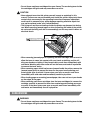
注意高温
CAUTION HOT SURFACE AVOID CONTACT ACHTUNG! HEISSER BEREICH
PRECAUCION / ATTENZIONE! ALTA TEMPERATURA
ATTENTION TEMPERATURE ELEVEE
• When removing jammed paper or replacing the toner cartridge, take care not to
allow the toner to come into contact with your hands or clothing, as this will
dirty your hands or clothing. If they become dirty, wash them immediately with
cold water. Washing with warm water will set the toner, and make it impossible
to remove the toner stains.
• When removing paper which has become jammed inside the printer, remove the
jammed paper gently to prevent the toner on the paper from scattering and
entering your eyes or mouth. If toner enters your eyes or mouth, wash them
immediately with cold water and immediately consult a physician.
• When loading paper or removing jammed paper, take care not to cut your hands
on the edges of the paper.
• When removing used toner cartridges from the toner cartridge slot, remove the
cartridge carefully to prevent the toner from scattering and entering your eyes
or mouth. If the toner enters your eyes or mouth, wash them immediately with
cold water and immediately consult a physician.
Consumables
WARNING
• Do not throw used toner cartridges into open flames. The remaining toner inside
the cartridges will ignite and may cause burns or a fire.
xvii
• Do not store toner cartridges or copy paper in places exposed to open flames,
as this may cause the toner or paper to ignite, resulting in burns or a fire.
CAUTION
Keep toner and other consumables out of the reach of small children. If these
items are ingested, consult a physician immediately.
xviii
Before You Start Using This
Printer
1
CHAPTER
This chapter describes the major features, the functions of the printer and how to turn the
printer ON and OFF.
Features and Benefits. . . . . . . . . . . . . . . . . . . . . . . . . . . . . . . . . . . . . . . . . . . . . . . . . . . . 1-2
Parts and Their Functions. . . . . . . . . . . . . . . . . . . . . . . . . . . . . . . . . . . . . . . . . . . . . . . . . 1-4
Parts of the Printer . . . . . . . . . . . . . . . . . . . . . . . . . . . . . . . . . . . . . . . . . . . . . . . . . . . . . . . . . . . .1-4
Inside the Front Cover . . . . . . . . . . . . . . . . . . . . . . . . . . . . . . . . . . . . . . . . . . . . . . . . . . . . . . . . .1-6
Turning the Printer ON/OFF . . . . . . . . . . . . . . . . . . . . . . . . . . . . . . . . . . . . . . . . . . . . . . . 1-7
Turning the Printer ON . . . . . . . . . . . . . . . . . . . . . . . . . . . . . . . . . . . . . . . . . . . . . . . . . . . . . . . . .1-7
Turning the Printer OFF . . . . . . . . . . . . . . . . . . . . . . . . . . . . . . . . . . . . . . . . . . . . . . . . . . . . . . . .1-8
1-1
Features and Benefits
The LBP-1120 combines the following features to form a versatile printing system:
1
Before You Start Using This Printer
Quick startup
The printer is ready to print soon after it is turned on (no start-up time), and has a
first print time of less than 17 seconds. This means that you can print documents
quickly and efficiently.
Impressive output
Thanks to CAPT (Canon Advanced Printing Technology), the 600 dpi resolution
gives you crisp, clean, laser-sharp output at 10 pages per minute.
Lower power consumption
The printer comes with an efficient power management system. Power
consumption is very low, particularly when idle.
Stylish, compact design
The printer provides compact, lightweight, easy-to-use functionality in a smooth,
stylish design. The small footprint gives you more work space to help you meet your
needs.
CAPT Printing Software
The CAPT is easy to install, and with it you can set custom paper sizes, overlay
bitmaps on documents (for example, you can print your logo on each page), tile up
to nine pages on one sheet of paper, and switch easily between complicated setups
using user-defined profiles. The Status Window gives you written and spoken
feedback about your print jobs, even over a network.
Quiet operation
Its quiet operation makes this printer an ideal output device, even in an open-office
environment.
1-2
Features and Benefits
Flexible paper handling
Both the multi-purpose tray and the manual feed slot accept plain paper of various
sizes—Letter, Legal, A4, B5, or Executive—as well as transparencies, labels,
envelopes, postcards and other special paper. The multi-purpose tray handles up to
125 sheets of 64 g/m2 plain paper with a maximum stack height of 12.5 mm. For
manual feeding, sheets are fed one at a time. Delivery can be face down (for plain
paper) or face up (for all paper types).
Before You Start Using This Printer
Network Connection
You can connect to the LBP-1120 over a network, going through a server.
Features and Benefits
1
1-3
Parts and Their Functions
The following section describes the parts of the printer, and their various functions,
so that you can make full use of all the features of your printer.
Before You Start Using This Printer
1
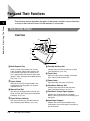
Parts of the Printer
Front View
0
9
8
7
1
2
3
6
5
4
a Multi-Purpose Tray
Holds a variety of print media such as plain
paper, envelopes, labels, transparencies and
non-standard size paper. The capacity of the
tray is approximately 125 sheets of plain paper
(64 g/m2). (See "Printing from the Multi-Purpose
Tray," on p. 2-11.)
b Paper Guides
Adjust to the size of the paper loaded in the
multi-purpose tray. The guides can easily be
adjusted by hand.
c Manual Feed Slot
Use when you load print media manually, one
sheet at a time. (See "Printing from the Manual
Feed Slot," on p. 2-19.)
d Paper Delivery Selector
Use to choose face-up or face-down delivery.
(See "Selecting Paper Delivery," on p. 2-8.)
1-4
Parts and Their Functions
e Face-Up Delivery Slot
Printouts come out from the slot face up. (See
"Face-Up Delivery," on p. 2-9.)
f Front Cover
Open to install the toner cartridge, clear paper
jams, and for printer maintenance.
g Power Lamp
Lights blue when the printer is turned on.
h Face-Down Delivery Slot
Printouts come out from the slot face down.
(See "Face-Down Delivery," on p. 2-9.)
i Face-Down Output Paper Support
Supports the printouts from the face-down
delivery slots to prevent them from drooping and
being bent.
j Input Paper Support
Supports the stack of paper loaded into the
multi-purpose tray so that paper can be fed into
the slot correctly.
Rear View
4
5
1
3
a Ventilation Slots
Slots ventilating the air blown by the fan cooling
the printer's interior. Avoid blocking these slots
when you install the printer.
b Rating Label
The serial number is indicated to identify the
printer. Refer to this number when calling a
service technician. This label also shows the
current and average power consumption.
c USB Port Interface Connector
Connects to a USB interface cable. Use this port
when connecting the printer to a computer with
the printer cable.
d Power Switch
Press to turn the printer ON/OFF. (See "Turning
the Printer ON/OFF," on p. 1-7.)
e Power Socket
Connects to an AC outlet.
Parts and Their Functions
1-5
Before You Start Using This Printer
1
2
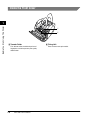
Inside the Front Cover
Before You Start Using This Printer
1
1
2
a Transfer Roller
This delicate roller should be kept free of
fingerprints and oil to prevent print quality
deterioration.
1-6
Parts and Their Functions
b Fixing Unit
Fixes the toner onto print media.
Turning the Printer ON/OFF
This section describes how to turn the printer ON and OFF.
1
Before You Start Using This Printer
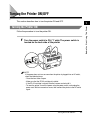
Turning the Printer ON
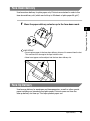
Follow the procedure to turn the printer ON.
1
Turn the power switch to ON ("I" side). The power switch is
located on the back side of the printer.
NOTE
If the power does not turn on even when the printer is plugged into an AC outlet,
check the following items:
- Close the front cover if open.
- Make sure that the EP-22 cartridge is installed.
- If the EP-22 cartridge is already installed, remove and reinstall it.
- To reset the printer, turn off the power using the power switch, and unplug the
power cord. Wait two seconds or more, then connect the printer to the AC outlet
again.
Turning the Printer ON/OFF
1-7
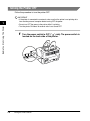
Turning the Printer OFF
Follow the procedure to turn the printer OFF.
IMPORTANT
• If the printer is connected to a network, make sure that the printer is not printing data
from another personal computer before turning OFF the power.
• Do not turn OFF the power to the printer while it is printing.
• Turn the printer ON about 10 seconds after it was turned OFF.
Before You Start Using This Printer
1
1
1-8
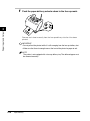
Turn the power switch to OFF (" " side). The power switch is
located on the back side of the printer.
Turning the Printer ON/OFF
Paper Input and Output
2
CHAPTER
This chapter explains the types of paper available for this printer, and how to load and print out
paper.
Paper Requirements . . . . . . . . . . . . . . . . . . . . . . . . . . . . . . . . . . . . . . . . . . . . . . . . . . . . . 2-2
Printable Paper. . . . . . . . . . . . . . . . . . . . . . . . . . . . . . . . . . . . . . . . . . . . . . . . . . . . . . . . . . . . . . .2-2
Paper You Cannot Use . . . . . . . . . . . . . . . . . . . . . . . . . . . . . . . . . . . . . . . . . . . . . . . . . . . . . . . . .2-6
Storing Paper . . . . . . . . . . . . . . . . . . . . . . . . . . . . . . . . . . . . . . . . . . . . . . . . . . . . . . . . . . . . . . . .2-7
Handling Paper . . . . . . . . . . . . . . . . . . . . . . . . . . . . . . . . . . . . . . . . . . . . . . . . . . . . . . . . . . . . . .2-7
Paper Delivery . . . . . . . . . . . . . . . . . . . . . . . . . . . . . . . . . . . . . . . . . . . . . . . . . . . . . . . . . 2-8
Selecting Paper Delivery . . . . . . . . . . . . . . . . . . . . . . . . . . . . . . . . . . . . . . . . . . . . . . . . . . . . . . .2-8
Face-Down Delivery . . . . . . . . . . . . . . . . . . . . . . . . . . . . . . . . . . . . . . . . . . . . . . . . . . . . . . . . . . .2-9
Face-Up Delivery . . . . . . . . . . . . . . . . . . . . . . . . . . . . . . . . . . . . . . . . . . . . . . . . . . . . . . . . . . . . .2-9
Printing from the Multi-Purpose Tray. . . . . . . . . . . . . . . . . . . . . . . . . . . . . . . . . . . . . . . . 2-11
Loading Paper . . . . . . . . . . . . . . . . . . . . . . . . . . . . . . . . . . . . . . . . . . . . . . . . . . . . . . . . . . . . . .2-11
Printing Envelopes from the Multi-Purpose Tray . . . . . . . . . . . . . . . . . . . . . . . . . . . . . . . 2-14
Preparing Envelopes . . . . . . . . . . . . . . . . . . . . . . . . . . . . . . . . . . . . . . . . . . . . . . . . . . . . . . . . .2-14
Loading Envelopes. . . . . . . . . . . . . . . . . . . . . . . . . . . . . . . . . . . . . . . . . . . . . . . . . . . . . . . . . . .2-16
Printing from the Manual Feed Slot . . . . . . . . . . . . . . . . . . . . . . . . . . . . . . . . . . . . . . . . 2-19
2-1
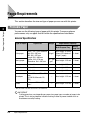
Paper Requirements
This section describes the size and type of paper you can use with this printer.
Printable Paper
You can use the following types of paper with this printer. To ensure optimum
performance, only use paper that falls within the specifications listed below.
Paper Input and Output
2
General Specifications
Type of Paper
Paper Size
Weight
Paper Source Capacity
Multi-Purpose Tray
Manual
Feed Slot
76.2 × 127 - 216 × 356 mm
A4: 210 × 297 mm
64 g/m2
B5: 182 × 257 mm
Legal: 216 × 356 mm
91 - 135
Letter: 216 × 279 mm
g/m2
Executive: 184 × 267 mm
Max. height: 12.5 mm
(About 125 sheets of
64 g/m2 paper)
1 sheet
Max. height: 12.5 mm
1 sheet
Transparencies
Letter, A4
—
Max. height: 12.5 mm
1 sheet
Label sheets
Letter, A4
—
Max. height: 12.5 mm
1 sheet
Postcards
100 × 148 mm
—
Max. height: 12.5 mm
1 sheet
Envelopes
98 × 162 mm - 176 × 250
mm
(COM 10, Monarch, DL,
C5)
—
Max. height: 12.5 mm
1 sheet
Others
Index card: 76.2 × 127
mm*
—
Max. height: 12.5 mm
1 sheet
Plain paper
Heavy paper
* Only use index cards that are 0.18 mm to 0.28 mm thick.
IMPORTANT
Printing speed may vary depending on: paper size, paper type, or number of pages to be
printed. This is due to protective functions working in order to prevent troubles such as
breakdown caused by heating.
2-2
Paper Requirements
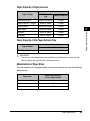
Paper Capacity of Paper Sources
Paper Source
Multi-Purpose
Tray
Manual Feed Slot
About 125 sheets
1 sheet
Heavy Paper 91 - 135 g/m
About 85 sheets
1 sheet
Transparencies
About 100 sheets
1 sheet
Label sheets
About 80 sheets
1 sheet
Postcards
About 45 sheets
1 sheet
Envelopes
About 7 sheets
1 sheet
Plain Paper 64 g/m2
2
2
Paper Input and Output
Type of Paper
Paper Capacity of the Paper Delivery Tray
Type of Paper
Paper Delivery Tray
Face-Down Delivery Tray
2
Plain Paper 64 g/m
About 50 sheets
IMPORTANT
The printer is not equipped with a face-up delivery tray. Remove each sheet from the
face-up delivery slot manually after it has been printed.
Abbreviations of Paper Sizes
The size indicators for the paper guides on the multi-purpose tray uses the following
abbreviations:
Paper Size
A4
Paper Size Indicators
for the Paper Guides
A4
Legal
LGL
Letter
LTR
Paper Requirements
2-3
Plain Paper
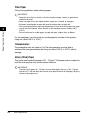
Follow these guidelines when selecting paper:
IMPORTANT
• Paper that is too thick or too thin, or that has irregular shapes, cutouts, or perforations
should not be used.
• Never use paper that is wet, highly textured, rough, torn, wrinkled, or damaged.
• Extremely smooth paper or paper with special coatings does not print well.
• The laser printing process uses high temperatures to fuse toner to the paper. Use paper
that will not melt, vaporize, offset, discolor, or emit dangerous fumes at about 190°C
(374°F).
• Do not use thermal or carbon paper, or paper with glue, staples, clips, or ribbons.
Paper Input and Output
2
For colored paper, use colors that are not damaged by the heat of the printer's
fixing unit (about 190°C or 374°F).
Transparencies
The acceptable sizes are Letter or A4. The transparencies must be able to
withstand the heat generated by the fixing unit (about 190°C or 374°F) without
damage.
Heavy (Thick) Paper
This printer can handle thick paper of 91 - 135 g/m2. Thick paper can be loaded into
both the multi-purpose tray and the manual feed slot.
IMPORTANT
The size of thick paper (91 - 135 g/m2) that can be loaded in the tray is 76.2 - 216 mm
wide and 127 - 356 mm long. You can load up to about 85 sheets of the paper (105 g/m2)
into the multi-purpose tray.
2-4
Paper Requirements
Label Sheets
Label sheets are paper with pressure-sensitive adhesive. Acceptable sizes are
Letter and A4. Follow these guidelines when choosing a label sheet:
Envelopes
Follow these guidelines when printing on envelopes:
IMPORTANT
• Envelopes must not have any fasteners, snaps, or windows, or be made of artificial
materials.
• Do not use envelopes that discolor or melt at about 190°C (374°F), envelopes which
might emit dangerous fumes when heated, or envelopes that seal with pressure-sensitive
adhesives.
• Do not use envelopes which are damaged, curled or wrinkled, or that have an irregular
shape.
• Do not use oversized envelopes, or envelopes with folds.
• Poorly manufactured envelopes are not recommended.
Postcards
Follow these guidelines when printing on postcards:
IMPORTANT
• Postcards should not be greater than 0.28 mm in thickness.
• Postcards should be free of glue, clips, and staples.
• Do not use postcards that are damaged or curled, or that have special coatings or an
irregular shape.
Paper Requirements
2-5
2
Paper Input and Output
IMPORTANT
• The label print face (top, or face sheet) must be made of ordinary, matte-finish paper
similar to copy paper.
• The paper backing must be able to withstand the heat generated by the fixing unit
(about190°C or 374°F). The backing must not be made of easily removable coated paper.
• Do not use labels with exposed adhesive, which may stick to the cartridge or the fixing
roller, causing the labels to peel off and serious paper jams to occur.
Paper You Cannot Use
To avoid problems such as paper jams and printer malfunctions, the following types
of paper should never be used.
IMPORTANT
• The following paper tends to cause paper jams. Paper that is:
- too thick or too thin.
- irregular shaped.
- wet or holding moisture.
- torn or damaged.
- rough, extremely smooth, or glossy.
- wrinkled.
- folded at corners.
- curled or creased.
- Paper that has holes for binding or perforations.
- Paper that has special coating on its surface (coated paper for ink jet printers, etc.).
- Adhesive labels with the base easily peeled.
- Paper that has been used once by the printer, copy machine or other laser printers.
(The back side of this paper is also unusable. However, note that you can use the
manual feed slot to perform manual duplex printing on the reverse side of a sheet of
paper that has already been printed on using this printer. You cannot print on the same
side of a sheet of paper that has already been printed on.)
• Paper that changes its quality at high temperature.
• Paper that uses ink that melts, burns, evaporates or emits harmful gases with the
temperature (about 190°C or 374°F) of the fixing unit.
- Heat-sensitive paper.
- Paper used for color printing with a processed surface.
- Paper with adhesive on its surface.
• Paper that causes failure or damage to the printer.
- Carbon paper.
- Paper with staples, clips, ribbons or tapes.
• Paper that is difficult for the toner to adhere to.
- Paper with rough surfaces.
- Paper containing thick fibers.
Paper Input and Output
2
2-6
Paper Requirements
Storing Paper
Handling and storing paper properly ensures high print quality, and prevents
potential paper jams. Using paper that is crumpled or exposed to moisture or direct
sunlight during improper storage or handling can contribute to poor print quality and
paper jams. Follow these guidelines when you store and handle paper:
Handling Paper
IMPORTANT
• Check the paper and make sure that it is not torn, folded or otherwise damaged.
• Leave unused paper in its wrapper.
• Never mix different types of paper when you load the multi-purpose tray.
• Always wait until the tray is empty before loading fresh paper. This helps to avoid paper
jams.
• If paper in the delivery slot is excessively curled, turn over the paper stack in the tray.
Paper Requirements
2-7
2
Paper Input and Output
IMPORTANT
• Choose an appropriate location for storage.
For best performance, keep the ambient storage and work area temperature to 20°C
(±3%) or 68°F (±5%). Keep the relative humidity at 45% (±5%).
• Guard against moisture.
Paper quality degrades in a moist environment. Store all unused paper in its wrapper.
Never store paper on the floor where water and moisture can collect. In areas of high
humidity, you may need to store paper in a specially designed storage box.
• Avoid direct sunlight.
Exposure to direct sunlight can dramatically degrade paper quality. Store paper away
from sunlight, and keep unused paper in its wrapper.
• Avoid sudden changes in temperature or humidity.
If paper is moved between locations that differ widely in temperature or humidity, it may
curl. If this situation cannot be avoided, store the paper in the work area by the printer for
at least one day to give the paper time to adjust to the new conditions.
• Avoid physical damage to stored paper.
Store paper on a flat surface to avoid creasing or curling. Never store paper on its end or
lean it against something.
Paper Delivery
This printer delivers the printed pages in two delivery methods, face-up delivery
and face-down delivery.
This section describes how to select the paper delivery methods.
2
Paper Input and Output
■ Paper Type and Paper Delivery
Refer to the list below to select the proper paper delivery method depending on the
type of paper.
Type of Paper
Paper Delivery
Paper Stack Capacity
Face-up
1 sheet (64 g/m2)
Face-down
About 50 sheets (64 g/
m2)
Transparencies
Face-up
1 sheet
Labels
Face-up
1 sheet
Postcards
Face-up
1 sheet
Envelopes
Face-up
1 sheet
Index cards
Face-up
1 sheet
Plain Paper
Selecting Paper Delivery
Use the paper delivery selector to select face-up or face-down delivery.
Face-down
Face-up
Paper Delivery Selector
IMPORTANT
Do not switch the paper delivery selector until the printout has completely come out of the
delivery slots. Switching the paper delivery selector while printing may cause a paper
jam.
2-8
Paper Delivery
Face-Down Delivery
Use face-down delivery for plain paper only. Printouts are stacked in order in the
face-down delivery slot (which can hold up to 50 sheets of plain paper 64 g/m2).
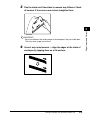
1
Move the paper delivery selector up to the face-down mark.
IMPORTANT
• Do not replace paper in the face-down delivery slot once it is removed from the slot.
This could result in damage to the flaps inside the slot.
• Never insert paper or other objects into the face-down delivery slot.
Face-Up Delivery
Use face-up delivery for envelopes and transparencies, as well as other special
paper including non-standard sized plain paper. Printouts come out from the
face-up delivery slot face up. This helps prevent paper curl.
Paper Delivery
2-9
Paper Input and Output
2
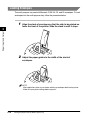
1
Push the paper delivery selector down to the face-up mark.
Paper Input and Output
2
Remove each sheet manually from the face-up delivery slot after it has been
printed.
IMPORTANT
• Do not pull out the printout while it is still emerging from the face-up delivery slot.
• Make sure that there is enough room at the front of the printer for paper to exit.
NOTE
The printer is not equipped with a face-up delivery tray. The delivered paper must
be removed manually.
2-10
Paper Delivery
Printing from the Multi-Purpose Tray
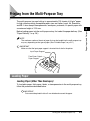
Before loading paper into the multi-purpose tray, first select the paper delivery. (See
"Paper Delivery," on p. 2-8.)
NOTE
The maximum number of sheets of paper that can be loaded into the multi-purpose tray
may vary depending on the type of paper. (See "Printable Paper," on p. 2-2.)
IMPORTANT
Make sure that the input paper support is inserted into its slot in the printer.
Input Paper Support
Face-Down Output
Paper Support
Loading Paper
Loading Paper (Other Than Envelopes)
To load plain paper, thick paper, labels, or transparencies in the multi-purpose tray,
follow the procedure described below.
IMPORTANT
Data cannot be printed inside a 5 mm wide border around the paper.
Printing from the Multi-Purpose Tray
2-11
2
Paper Input and Output
The multi-purpose tray can hold up to approximately 125 sheets of 64 g/m2 paper
for high volume printing. Acceptable paper sizes are Letter, Legal, A4, Executive,
and B5. It also accepts transparencies, envelopes, postcards, or special paper with
a maximum height of 12.5 mm.
1
Fan a stack of paper, then tap the stack of paper on a flat
surface to properly align the edges.
Paper Input and Output
2
IMPORTANT
• When fanning or aligning transparencies, always hold the edges, to avoid touching
the print side.
• Be sure to load a stack of transparencies after thoroughly fanning them. Not
fanning them properly may cause the transparencies to overlap, causing paper
jams.
• Take care not to mark/stain the print side of the transparencies with fingerprints,
dust, or oil. This may cause poor print quality.
• If the leading edge of the paper is bent or curled, straighten out the paper before
loading it into the tray.
2
Load the stack of paper into the multi-purpose tray as
illustration below.
IMPORTANT
• Do not force the paper into the printer.
• Do not load more than 125 sheets of 64 g/m2, or a stack of any paper higher than
12.5 mm.
2-12
Printing from the Multi-Purpose Tray
3
Adjust the paper guides to the width of the paper stack.
For A4-size or Letter/Legal-size paper, align the paper guides with the icons
inside the multi-purpose tray.
IMPORTANT
• Be sure to match the paper guides to the paper width. Misfeeds or paper jams may
occur if the paper guides are too loose or too tight.
• When reloading, be sure to remove any paper remaining in the multi-purpose tray.
Stack it together with the new sheets before loading.
Loading paper in the multi-purpose tray is complete.
Printing from the Multi-Purpose Tray
2-13
Paper Input and Output
2
Printing Envelopes from the Multi-Purpose Tray
Preparing Envelopes
Before you load envelopes in the multi-purpose tray, the following precautions
should be observed.
Paper Input and Output
2
1
2
2-14
Fan the stack of envelopes to make sure none of the
envelopes stick together.
Place the envelopes on a clean, flat surface ➞ press down on
all of the corners to flatten the envelopes.
Printing Envelopes from the Multi-Purpose Tray
3
Flex the stack on all four sides to remove any stiffness. Check
all corners. If the corners are curled, straighten them.
IMPORTANT
Be sure to flatten out the leading edges of the envelopes if they are curled down.
This may cause a paper jam to occur.
4
Correct any curled corners ➞ align the edges of the stack of
envelopes by tapping them on a flat surface.
Printing Envelopes from the Multi-Purpose Tray
2-15
Paper Input and Output
2
Loading Envelopes
The multi-purpose tray can hold Monarch, COM 10, C5, and DL envelopes. To load
envelopes into the multi-purpose tray, follow the procedure below.
1
Align the stack of envelopes so that the side to be printed on
faces the front of the printer. Slide the stack in until it stops.
Paper Input and Output
2
2
Adjust the paper guides to the width of the stack of
envelopes.
NOTE
Most applications allow you to choose which way envelopes feed into the printer.
Make sure your printer settings before you print.
2-16
Printing Envelopes from the Multi-Purpose Tray
When using C5-size envelopes, remove any stiffness by lightly flexing both
edges of the envelope.
Insert the envelopes one at a time into the multi-purpose tray, in the direction
shown in the illustration.
If the flap is along the long edge of the envelope, insert each envelope with the
flap at the back and on the right.
If the flap is along the short edge of the envelope, insert envelopes with the flap
at the bottom and at the back.
Printing Envelopes from the Multi-Purpose Tray
2-17
Paper Input and Output
2
NOTE
After you have loaded the envelopes into the multi-purpose tray, please check the
following items to avoid paper jams or misfeeds before printing.
- Is the stack of envelopes bending? The stack may bend if the paper guides are too
tight.
- Are the envelopes evenly stacked? If the paper guides are loose, the envelopes may
not stack evenly or feed properly.
- Is the stack straight? Do not place the stack of envelopes at an angle.
- Are the flaps of each of the envelopes separate? If the flaps of the envelopes overlap,
paper jams or misfeeds will occur.
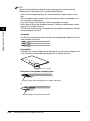
The illustrations below show the acceptable and unacceptable arrangement of the flaps
for the envelopes in the stack.
Paper Input and Output
2
Acceptable
The flap of each envelope should be separate, not overlapping the edges of any of the
other envelopes in the stack.
Unacceptable
If the flap of any of the envelopes overlap the edges of any of the other envelopes in the
stack, like those in the example below, paper jams or misfeeds will occur.
flaps overlapping
Examples of unacceptable overlapping flaps
top flap and other flaps overlapping the envelopes underneath
or
top flap overlaps the envelopes underneath
2-18
Printing Envelopes from the Multi-Purpose Tray
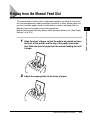
Printing from the Manual Feed Slot
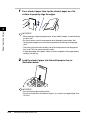
1
2
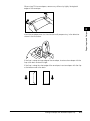
Align the sheet of paper so that the side to be printed on faces
the front of the printer and the top of the paper is inserted
first. Slide the sheet of paper into the manual feeding slot until
it stops.
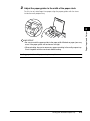
Adjust the paper guides to the sheet of paper.
Printing from the Manual Feed Slot
2-19
2
Paper Input and Output
The manual feed slot allows you to load paper manually, one sheet at a time. You
can load transparencies, labels, envelopes, postcards, or other special paper. You
can also load plain paper, which is useful when you want to use paper that is a
different size from the paper in the multi purpose tray.
Before loading paper manually, always select the paper delivery first. (See "Paper
Delivery," on p. 2-8.)
IMPORTANT
Be sure to match the paper guides to the paper width. Misfeeds or paper jams may
occur if the paper guides are too loose or too tight.
NOTE
• The manual feed has priority over the multi-purpose tray.
• Often applications will let you change the feeding direction of envelopes. Confirm
the feeding direction of envelopes before printing.
• If a postcard is not fed smoothly into the printer, gently push the top of the postcard
downwards until the roller inside the printer takes the card and feeds it into the
printer.
• When printing on postcards, the printing quality for non-characters (e. g. grayscale
illustrations) may deteriorate.
Paper Input and Output
2
Loading paper in the manual feed slot is complete.
2-20
Printing from the Manual Feed Slot
Using the Canon Advanced
Printing Technology
3
CHAPTER
This chapter describes how to install the printer driver, how to print and the functions of this
printer.
Installing the CAPT . . . . . . . . . . . . . . . . . . . . . . . . . . . . . . . . . . . . . . . . . . . . . . . . . . . . . . 3-3
For Windows 98/Me . . . . . . . . . . . . . . . . . . . . . . . . . . . . . . . . . . . . . . . . . . . . . . . . . . . . . . . . . . .3-3
For Windows 2000 . . . . . . . . . . . . . . . . . . . . . . . . . . . . . . . . . . . . . . . . . . . . . . . . . . . . . . . . . . .3-19
For Windows XP . . . . . . . . . . . . . . . . . . . . . . . . . . . . . . . . . . . . . . . . . . . . . . . . . . . . . . . . . . . . .3-29
Using the Printer on Your Network . . . . . . . . . . . . . . . . . . . . . . . . . . . . . . . . . . . . . . . . . 3-38
Connecting the LBP-1120 as a Network Printer. . . . . . . . . . . . . . . . . . . . . . . . . . . . . . . . . . . . .3-38
Connecting to the LBP-1120 Already on Your Network . . . . . . . . . . . . . . . . . . . . . . . . . . . . . . .3-42
Canon LASER SHOT LBP-1120 Group . . . . . . . . . . . . . . . . . . . . . . . . . . . . . . . . . . . . . 3-43
Uninstalling the CAPT. . . . . . . . . . . . . . . . . . . . . . . . . . . . . . . . . . . . . . . . . . . . . . . . . . . 3-45
Printing a Document . . . . . . . . . . . . . . . . . . . . . . . . . . . . . . . . . . . . . . . . . . . . . . . . . . . . 3-47
Cancel the Print Job . . . . . . . . . . . . . . . . . . . . . . . . . . . . . . . . . . . . . . . . . . . . . . . . . . . . 3-48
Accessing the Properties Dialog Box . . . . . . . . . . . . . . . . . . . . . . . . . . . . . . . . . . . . . . . 3-49
For Windows 98/Me . . . . . . . . . . . . . . . . . . . . . . . . . . . . . . . . . . . . . . . . . . . . . . . . . . . . . . . . . .3-49
For Windows 2000/XP . . . . . . . . . . . . . . . . . . . . . . . . . . . . . . . . . . . . . . . . . . . . . . . . . . . . . . . .3-49
Using the Printing Options . . . . . . . . . . . . . . . . . . . . . . . . . . . . . . . . . . . . . . . . . . . . . . . 3-51
For Windows 98/Me . . . . . . . . . . . . . . . . . . . . . . . . . . . . . . . . . . . . . . . . . . . . . . . . . . . . . . . . . .3-51
For Windows 2000/XP . . . . . . . . . . . . . . . . . . . . . . . . . . . . . . . . . . . . . . . . . . . . . . . . . . . . . . . .3-57
Printing Multiple Pages on One Sheet . . . . . . . . . . . . . . . . . . . . . . . . . . . . . . . . . . . . . . . . . . . .3-65
Scaling a Document . . . . . . . . . . . . . . . . . . . . . . . . . . . . . . . . . . . . . . . . . . . . . . . . . . . . . . . . . .3-67
Selecting the Custom Paper Size Setting. . . . . . . . . . . . . . . . . . . . . . . . . . . . . . . . . . . . . . . . . .3-69
Using the Overlay Printing . . . . . . . . . . . . . . . . . . . . . . . . . . . . . . . . . . . . . . . . . . . . . . . . . . . . .3-70
Specifying the Print Quality . . . . . . . . . . . . . . . . . . . . . . . . . . . . . . . . . . . . . . . . . . . . . . . . . . . .3-73
Specifying the Toner Density . . . . . . . . . . . . . . . . . . . . . . . . . . . . . . . . . . . . . . . . . . . . . . . . . . .3-74
Using the Automatic Image Refinement. . . . . . . . . . . . . . . . . . . . . . . . . . . . . . . . . . . . . . . . . . .3-76
Using Profiles for Printing . . . . . . . . . . . . . . . . . . . . . . . . . . . . . . . . . . . . . . . . . . . . . . . . . . . . . .3-77
Viewing the Printer Settings/Restoring the Default Settings. . . . . . . . . . . . . . . . . . . . . . . . . . . .3-80
Checking the Status of a Print Job . . . . . . . . . . . . . . . . . . . . . . . . . . . . . . . . . . . . . . . . . 3-81
Using the Status Window . . . . . . . . . . . . . . . . . . . . . . . . . . . . . . . . . . . . . . . . . . . . . . . . . . . . . .3-81
Opening the Status Window. . . . . . . . . . . . . . . . . . . . . . . . . . . . . . . . . . . . . . . . . . . . . . . . . . . .3-83
Closing the Status Window. . . . . . . . . . . . . . . . . . . . . . . . . . . . . . . . . . . . . . . . . . . . . . . . . . . . .3-83
3-1
Status Options. . . . . . . . . . . . . . . . . . . . . . . . . . . . . . . . . . . . . . . . . . . . . . . . . . . . . . . . . . . . . . 3-84
Network Printer Status. . . . . . . . . . . . . . . . . . . . . . . . . . . . . . . . . . . . . . . . . . . . . . . . . . . . . . . . 3-86
Using the Canon Advanced Printing Technology
3
3-2
Installing the CAPT
If you are using the LBP-1120 as a local printer (connected directly to your
computer), follow the procedure below to install the CAPT printing software. If the
LBP-1120 is already on your network, and you want to start using it, see
"Connecting to the LBP-1120 Already on Your Network," on p. 3-42. If you want to
install the LBP-1120 as a network printer, see "Connecting the LBP-1120 as a
Network Printer," on p. 3-38.
3
Using the Canon Advanced Printing Technology
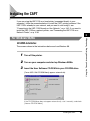
For Windows 98/Me
CD-ROM Installation
The screens shown in the instructions below are from Windows 98.
1
Turn off the printer.
2
Turn on your computer and start up Windows 98/Me.
3
Insert the User Software CD-ROM into your CD-ROM drive.
[Canon LBP-1120 CD-ROM Menu] appears automatically.
If the CD-ROM Menu does not appear automatically, start it manually, and check
[Autorun CD-ROM Menu].
Installing the CAPT
3-3
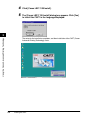
4
5
Click [Canon LBP-1120 Install].
The [Canon LBP-1120 Install] dialog box appears. Click [Yes]
to install the CAPT in the language displayed.
3
Using the Canon Advanced Printing Technology
The setup for the installation completes, and then installation of the CAPT (Canon
Advanced Printing Technology) starts.
3-4
Installing the CAPT
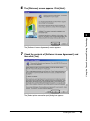
6
The [Welcome] screen appears. Click [Next].
Using the Canon Advanced Printing Technology
3
The [Software License Agreement] screen appears.
7
Check the contents of [Software License Agreement], and
then click [Yes].
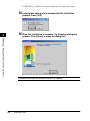
The [Select printer connection port] dialog box appears.
Installing the CAPT
3-5
8
If USB port cannot be found in the port list, click [USB Port
Setup].
Using the Canon Advanced Printing Technology
3
When the USB port can be found in the port list, go to step 13.
9
Click [Yes] to continue the setting up of the LBP-1120.
10 Connect the USB cable to the printer and your computer and
turn on the printer.
For detailed information, see the Getting Started Guide.
USB port is automatically detected and the USB driver will be installed.
3-6
Installing the CAPT
11 Click [Cancel] when the [Add New Hardware Wizard] dialog
box appears.
Using the Canon Advanced Printing Technology
3
Unless you cancel, see the procedure for "Plug & Play," on p. 3-9.
12 Click [Canon LBP-1120 Install]. Repeat the procedure from
step 5 to step 7.
13 Select a USB port, such as [USBPRN01] for Windows 98 or
[USB001] for Windows Me from the port list, and then click
[Next].
Installing the CAPT
3-7
If [USBPRN01] or [USB001] is not displayed in the list, repeat from step 8.
14 A dialog box asking you to proceed with the installation
appears. Press [Yes].
15 When the installation is complete, the following dialog box
3
Using the Canon Advanced Printing Technology
appears. Click [Finish] to close the dialog box.
Installation of the USB driver and the printer driver is complete.
3-8
Installing the CAPT
Plug & Play
The screens shown in the instructions below are from Windows 98.
IMPORTANT
Before you install the software, make sure that you do the following:
- Connect the printer to your computer. (See the Getting Started Guide.)
- Turn on the printer. (See "Turning the Printer ON/OFF," on p. 1-7.)
Turn on your computer and start up Windows 98/Me.
The USB port is automatically detected.
3
The [Add New Hardware Wizard] dialog box appears. Click [Next].
Using the Canon Advanced Printing Technology
1
Installing the CAPT
3-9
2
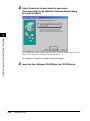
Select [Search for the best driver for your device.
(Recommended)] in the [Add New Hardware Wizard] dialog
box and click [Next].
Using the Canon Advanced Printing Technology
3
For Windows Me, select [Specify the location of the driver (Advanced)] and click
[Next] in the [Add New Hardware Wizard] dialog box.
The dialog box to specify the location of the driver appears.
3
3-10
Insert the User Software CD-ROM into the CD-ROM drive.
Installing the CAPT
4
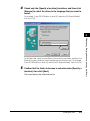
Check only the [Specify a location] check box, and then click
[Browse] to select the driver in the language that you want to
install.
For example, if your CD-ROM drive is drive [D], browse to [D:\English\Win98],
then click [OK].
For Windows Me, check only the [Specify the location] check box, and then click
[Browse] to select the driver in the language that you want to install. For example,
if your CD-ROM drive is drive [D], browse to [D:\English\WinMe], then click [OK].
5
Confirm that the folder to browse is selected under [Specify a
location], then click [Next].
The screen displays the selected driver file.
Installing the CAPT
3-11
Using the Canon Advanced Printing Technology
3
6
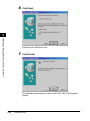
Click [Next].
Using the Canon Advanced Printing Technology
3
Installation of the USB driver starts.
7
Click [Finish].
The [Add New Hardware Wizard (Canon LASER SHOT LBP-1120)] dialog box
appears.
3-12
Installing the CAPT
8
Click [Next].
9
Using the Canon Advanced Printing Technology
3
Repeat the procedure from step 2 to step 5.
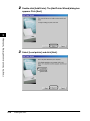
10 Click [Next].
Installation of the printer driver starts.
Installing the CAPT
3-13
11 Click [Finish] to accept the default printer name, or enter the
name you wish to use, then click [Finish].
Using the Canon Advanced Printing Technology
3
12 When the installation is complete, the following dialog box
appears. Click [OK] to close the dialog box.
3-14
Installing the CAPT
13 Click [Finish] in the [Add New Hardware Wizard] dialog box.
Using the Canon Advanced Printing Technology
3
Installation of the USB driver and the printer driver is complete.
Add Printer Wizard
The screens shown in the instructions below are from Windows 98.
1
Click [Start], point to [Settings], and then click [Printers].
The [Printers] folder appears.
Installing the CAPT
3-15
2
Double-click [Add Printer]. The [Add Printer Wizard] dialog box
appears. Click [Next].
Using the Canon Advanced Printing Technology
3
3
3-16
Select [Local printer] and click [Next].
Installing the CAPT
4
Click [Have Disk] in the [Manufacturers/Printers] dialog box.
The [Install From Disk] dialog box appears.
5
Use [Browse] to select the directory or enter the path name
that contains the CAPT, then click [OK].
For example, if you are using the CD-ROM to install the CAPT, and your CD-ROM
drive is drive [D], the path name would be [D:\English\Win98].
Installing the CAPT
3-17
Using the Canon Advanced Printing Technology
3
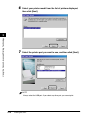
6
Select your printer model from the list of printers displayed,
then click [Next].
Using the Canon Advanced Printing Technology
3
7
Select the printer port you want to use, and then click [Next].
NOTE
Always select the USB port. If you select any other port, you cannot print.
3-18
Installing the CAPT
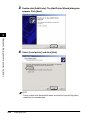
8
Click [Finish] to accept the default printer name, or enter the
name you wish to use, then click [Finish].
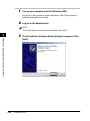
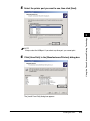
9
When the installation is complete, the following dialog box
appears. Click [OK] to close the dialog box.
Windows creates the [Canon LASER SHOT LBP-1120] group folder on the
Desktop, and the [Canon LASER SHOT LBP-1120] icon is added to the [Printers]
folder.
For Windows 2000
Plug & Play
IMPORTANT
Before you install the software, make sure you that do the following:
- Connect the printer to your computer. (See the Getting Started Guide.)
- Turn on the printer. (See "Turning the Printer ON/OFF," on p. 1-7.)
Installing the CAPT
3-19
Using the Canon Advanced Printing Technology
3
1
Turn on your computer and start Windows 2000.
Plug & Play is being carried out and the USB driver, [USB Printing Support] is
automatically detected and installed.
2
Log on as the Administrator.
NOTE
Full access rights are necessary for the installation of the CAPT.
3
Using the Canon Advanced Printing Technology
3
3-20
The [Found New Hardware Wizard] dialog box appears. Click
[Next].
Installing the CAPT
4
Select [Search for a suitable driver for my device
(recommended)] in the [Found New Hardware Wizard] dialog
box and click [Next].
Using the Canon Advanced Printing Technology
3
NOTE
[Unknown] may be displayed as the name of the device.
5
Check only the [Specify a location] check box and click
[Next].
Installing the CAPT
3-21
6
Insert the User Software CD-ROM into the CD-ROM drive and
click [Browse] to select the driver in the language that you
want to install.
For example, if your CD-ROM drive is drive [D], browse to [D:\English\Win2000],
then click [OK].
Using the Canon Advanced Printing Technology
3
7
Click [Next] on [Driver Files Search Results].
Click [Yes] if the [Digital Signature Not Found] dialog box appears.
8
3-22
When installation is complete, the following dialog box
appears. Click [OK] to close the dialog box.
Installing the CAPT
9
Click [Finish] on the [Found New Hardware Wizard] dialog
box.
Using the Canon Advanced Printing Technology
3
Installation of the USB driver and the printer driver is complete.
Add Printer Wizard
1
Log on as the Administrator.
NOTE
Full control access rights are necessary for the installation of the CAPT.
2
Click [Start], point to [Settings], and then click [Printers].
The [Printers] folder appears.
Installing the CAPT
3-23
3
Double-click [Add Printer]. The [Add Printer Wizard] dialog box
appears. Click [Next].
Using the Canon Advanced Printing Technology
3
4
Select [Local printer] and click [Next].
NOTE
Placing a check in the [Automatically detect and install my Plug and Play printer]
check box is not recommended.
3-24
Installing the CAPT
5
Select the printer port you want to use, then click [Next].
NOTE
Always select the USB port. If you select any other port, you cannot print.
6
Click [Have Disk] in the [Manufacturers/Printers] dialog box.
The [Install From Disk] dialog box appears.
Installing the CAPT
3-25
Using the Canon Advanced Printing Technology
3
7
Use [Browse] to select the directory or enter the path name
that contains the CAPT, then click [OK].
For example, if you are using the CD-ROM to install the CAPT, and your CD-ROM
drive is drive [D], the path name would be [D:\English\Win2000].
Using the Canon Advanced Printing Technology
3
8
3-26
Select your printer model from the list of printers displayed,
then click [Next].
Installing the CAPT
9
Click [Next] to accept the default printer name, or enter the
name you wish to use, then click [Next].
10 Select whether this printer is shared or not shared with other
computers. Click [Next].
11 Click [Yes] if you want to print a test page, or [No] if you do
not want to print a test page, then click [Next].
Installing the CAPT
3-27
Using the Canon Advanced Printing Technology
3
12 Click [Finish].
Click [Yes] if the [Digital Signature Not Found] dialog box appears.
Using the Canon Advanced Printing Technology
3
13 When the installation is complete, the following dialog box
appears. Click [OK] to close the dialog box.
Windows creates the [Canon LASER SHOT LBP-1120] group folder on the
Desktop, and the [Canon LASER SHOT LBP-1120] icon is added to the [Printers]
folder.
14 If you opted to print a test page, the page prints after
installation completes, and the following dialog box appears.
If the page printed correctly, click [OK].
3-28
Installing the CAPT
For Windows XP
Plug & Play
IMPORTANT
Before you install the software, make sure you do the following:
- Connect the printer to your computer. (See the Getting Started Guide.)
- Turn on the printer. (See "Turning the Printer ON/OFF," on p. 1-7.)
Turn on your computer and start Windows XP.
3
Plug & Play is being carried out and the USB driver, [USB Printing Support] is
automatically detected and installed.
2
Log on as the Administrator.
NOTE
Full access rights are necessary for the installation of the CAPT.
3
4
The [Found New Hardware Wizard] dialog box appears. Insert
the User Software CD-ROM into your CD-ROM drive.
Select [Install from a list or specific location (Advanced)] and
click [Next].
Installing the CAPT
3-29
Using the Canon Advanced Printing Technology
1
NOTE
[Unknown] may be displayed as the name of the device.
5
6
Uncheck [Search removable media (floppy, CD-ROM)].
Select [Include this location in the search], and click [Browse]
to select the driver in the language that you want to install.
For example, if your CD-ROM drive is drive [D], browse to [D:\English\WinXP],
then click [Next].
Using the Canon Advanced Printing Technology
3
Click [Continue Anyway] if the [Hardware Installation] dialog box appears.
7
3-30
When the installation is complete, the following dialog box
appears. Click [OK] to close the dialog box.
Installing the CAPT
8
Click [Finish] on the [Found New Hardware Wizard] dialog
box.
Using the Canon Advanced Printing Technology
3
Installation of the USB class driver and the printer driver is complete.
Add Printer Wizard
1
Log on as the Administrator.
NOTE
Full access rights are necessary for the installation of the CAPT.
2
From the [Start] menu, select [Printers and Faxes].
The [Printers and Faxes] folder appears.
Installing the CAPT
3-31
3
Double-click [Add a printer]. The [Add Printer Wizard] dialog
box appears. Click [Next].
Using the Canon Advanced Printing Technology
3
4
Select [Local printer attached to this computer], then click
[Next].
NOTE
Placing a check in the [Automatically detect and install my Plug and Play printer]
check box is not recommended.
3-32
Installing the CAPT
5
Confirm that [Use the following port] is selected and select
the printer port you want to use, then click [Next].
NOTE
Always select the USB port. If you select any other port, you cannot print.
6
Click [Have Disk] in the [Manufacturer/Printers] dialog box.
The [Install From Disk] dialog box appears.
Installing the CAPT
3-33
Using the Canon Advanced Printing Technology
3
7
Use [Browse] to select the directory or enter the path name
that contains the CAPT, then click [OK].
For example, if you are using the CD-ROM to install the CAPT, and your CD-ROM
drive is drive [D], the path name would be [D:\English\WinXP].
Using the Canon Advanced Printing Technology
3
8
3-34
Select your printer model from the list of printers displayed,
then click [Next].
Installing the CAPT
9
Click [Next] to accept the default printer name, or enter the
name you wish to use, then click [Next].
10 Select whether this printer is shared or not shared with other
computers. Click [Next].
Installing the CAPT
3-35
Using the Canon Advanced Printing Technology
3
11 Click [Yes] if you want to print a test page, or [No] if you do
not want to print a test page, then click [Next].
Using the Canon Advanced Printing Technology
3
12 Click [Finish].
Click [Continue Anyway] if the [Hardware Installation] dialog box appears.
Windows creates the [Canon LASER SHOT LBP-1120] group folder on the
Desktop, and the [Canon LASER SHOT LBP-1120] icon is added to the [Printers
and Faxes] folder.
3-36
Installing the CAPT
13 When the installation is complete, the following dialog box
appears. Click [OK] to close the dialog box.
14 If you opted to print a test page, the page prints after
3
Using the Canon Advanced Printing Technology
installation completes, and the following dialog box appears.
If the page printed correctly, click [OK].
Installing the CAPT
3-37
Using the Printer on Your Network
You can use the LBP-1120 as a network printer, which enables printing from the
computers over a network. The computer that is directly connected to the printer is
called "print server", and the computers that can use the printer over the network
are called "clients". The print server and clients do not need to use the same
operating system, and it is possible to print from a Windows 98/Me client to a
Windows 2000/XP printer server, or vice versa.
Using the Canon Advanced Printing Technology
3
IMPORTANT
Using the LBP-1120 on your network requires that both the print server and the client
devices are using Windows 98 or later.
NOTE
• Even if the server was not running when the client was started, you can start printing
simply by starting the server.
• If the server is running on Windows 2000/XP, you can print even if no one is logged into
the server. However there is no status display on the server when no one is logged in.
The display is shown on the client.
Connecting the LBP-1120 as a Network Printer
If you plan to share the LBP-1120 on a network, install the print server locally, then
make the following settings. For detailed information, see you print server system
documentation.
3-38
Using the Printer on Your Network
Windows 98/Me Server Settings
■ Network Settings
1
Double-click [Network] in [Control Panel].
2
Select the [Configuration] tab, and then click [Add].
3
Select [Service], and then click [Add].
4
5
6
Select [Microsoft] in the [Manufacturers] list box.
Select [File and printer sharing for Microsoft Networks] in the
[Network Services] box, and then click [OK].
Click [File and Print Sharing].
NOTE
Be sure there is a check in the [I want to be able to allow others to print to my
printer(s)] check box.
7
8
Select the [Access Control] tab and check either [Share-level
access control] or [User-level access control].
Click [OK], and then restart Windows.
Using the Printer on Your Network
3-39
Using the Canon Advanced Printing Technology
3
■ Printer Settings
■ Share-level Access Control
1
3
Open the [Canon LASER SHOT LBP-1120 Properties] dialog
box, then check [Shared As] in the [Sharing] tab.
2
Enter [Share Name], [Comment], and [Password] as needed.
3
Click [OK].
Using the Canon Advanced Printing Technology
■ User-level Access Control
1
Open the [Canon LASER SHOT LBP-1120 Properties] dialog
box, then check [Shared As] in the [Sharing] tab.
2
Enter [Share Name] and [Comment] as needed.
3
Click [Add], and select the users allowed to access the printer.
4
Click [OK] when you are done adding users.
5
Click [OK] again.
NOTE
Do not enter a space or special characters in [Share Name].
Windows 2000/XP Server Settings
■ Add Server Service (Windows 2000)
1
Click [Start], point to [Settings], and then click [Network and
Dial-up Connections].
The [Network and Dial-up Connections] folder appears.
3-40
Using the Printer on Your Network
2
Right-click [Local Area Connection], then select [Properties]
from the pop-up menu.
The [Local Area Connection Properties] dialog box appears.
3
Select [File and Printers Sharing for Microsoft Networks], then
click [OK].
■ Add Server Service (Windows XP)
Click [Network and Internet Connections] in [Control Panel].
2
Click [Network Connections].
3
Right-click [Local Area Connection], then select [Properties]
from the menu.
The [Local Area Connection Properties] dialog box appears.
4
5
6
7
If [File and Printer Sharing for Microsoft Networks] exists in
the list, click [OK]. Otherwise, click [Install].
Select [Service], then click [Add].
Select [File and Printer Sharing for Microsoft Networks] in the
[Network Services] box, then click [OK].
Click [Close].
Using the Printer on Your Network
3-41
3
Using the Canon Advanced Printing Technology
1
■ Printer Sharing Settings (Windows 2000/XP)
1
Open the [Canon LASER SHOT LBP-1120 Properties] dialog
box, then check [Shared as] in the [Sharing] tab.
2
Enter the share name as needed.
3
Click [OK].
The printer icon changes to indicate sharing.
Using the Canon Advanced Printing Technology
3
NOTE
Sharing settings may also be made during installation.
Connecting to the LBP-1120 Already on Your Network
If the LBP-1120 is already on your network, you can install it in two different ways.
The easiest way is using automatic network download. If network download is not
available, you can use the Add Printer Wizard.
NOTE
If you want to use the Add Printer Wizard to install the printer driver, perform the same
procedure as "CD-ROM Installation," on p. 3-3 or "Plug & Play," on p. 3-9.
Network Download
Windows 98/Me and Windows 2000/XP clients can download the drivers for the
LBP-1120 automatically.
1
2
3
Open [Explorer] and browse the network until you can see the
[Canon LASER SHOT LBP-1120] printer icon.
Double-click the printer icon, or drag the printer icon to your
[Printers] folder.
Follow the instructions on screen.
NOTE
Windows 2000/XP clients cannot download the driver from Windows 98/Me
servers.
3-42
Using the Printer on Your Network
Canon LASER SHOT LBP-1120 Group
When you install the CAPT, the [Canon LASER SHOT LBP-1120] icon is created in
the [Printers] folder, and the [Canon LASER SHOT LBP-1120] group folder is
created on the Desktop. The [Canon LASER SHOT LBP-1120] group is also added
in [Programs] of the [Start] menu.
When you double-click on the [Canon LASER SHOT LBP-1120] folder, the icons of
the [Canon LASER SHOT LBP-1120] group are displayed.
■ Canon LASER SHOT LBP-1120 Uninstallation
Starts the uninstall program for the CAPT. If the CAPT is not working properly, it
might help to uninstall and then install it again. (See "Uninstalling the CAPT," on p.
3-45.)
■ Canon LASER SHOT LBP-1120 Status Window
Printing status and the printer's status will be shown by animations and sound.
There are also functions that allow you to pause and delete printing. To open the
Status Window, click the Status Window icon on the Windows taskbar, and then
select [Canon LASER SHOT LBP-1120] from the pop-up menu displayed. (See
"Opening the Status Window," on p. 3-83.)
Canon LASER SHOT LBP-1120 Group
3-43
Using the Canon Advanced Printing Technology
3
■ Canon LASER SHOT LBP-1120 Trouble Shooter
Starts the Trouble Shooter program for the CAPT. It helps you solve printing
problems in Windows 98/Me or 2000/XP. (See "Using the Trouble Shooter," on p.
5-19.)
■ Canon LASER SHOT LBP-1120 Help
Selects the Canon LBP-1120 Help file for the CAPT.
Using the Canon Advanced Printing Technology
3
3-44
Canon LASER SHOT LBP-1120 Group
Uninstalling the CAPT
If the CAPT is not working properly, it might help to remove it and install it again.
Before you begin, be sure you have the installation software available for
installation.
To uninstall the CAPT, follow the procedure below.
IMPORTANT
Before uninstalling the CAPT, all running applications must be closed.
2
Using the Canon Advanced Printing Technology
1
3
Make sure that you close all running applications.
Open the [Canon LASER SHOT LBP-1120] folder on the
Desktop, and then double-click [Canon LASER SHOT
LBP-1120 Uninstallation].
The [Canon LASER SHOT LBP-1120 Uninstallation] dialog box appears.
3
Click [OK].
Uninstallation is carried out, and the dialog box to prompt you to restart Windows
appears when uninstallation is complete.
Uninstalling the CAPT
3-45
4
Click [OK].
Windows is restarted.
NOTE
• To remove the USB port, see the Getting Started Guide.
• When the software is not installed correctly and you need to reinstall it, uninstall
first, and then install it again.
• In Windows 2000/XP, you cannot uninstall the CAPT unless you have
administrative privileges.
Using the Canon Advanced Printing Technology
3
3-46
Uninstalling the CAPT
Printing a Document
To print a document, follow the procedure below.
1
In the application, with the document open, select [Print] to
print your document.
2
In the [Print] dialog box, select your printer name from
[Name], and then click [Properties].
The Properties dialog box opens.
3
Specify the various print settings in the Properties dialog box.
To switch between sheets, click the tabs for the [Page Setup],
[Finishing], and [Quality] sheets.
You can also specify the various print settings, by selecting a profile.
NOTE
For detailed information on using the print options, see "Using the Printing
Options," on p. 3-51 or the online help.
4
5
After all the print settings have been specified, click [OK] in
the Properties dialog box.
Click [OK] in the [Print] dialog box.
The document is printed under the settings you specified.
Printing a Document
3-47
Using the Canon Advanced Printing Technology
3
Cancel the Print Job
You can cancel the current print job on the Canon LBP-1120 Status Window. To
cancel the print job, follow the procedure below.
1
Start printing.
Using the Canon Advanced Printing Technology
3
The Status Window appears.
2
Click the
button on the toolbar.
You can perform other print job operations on the Status Window.
Temporarily halts printing the current document.
Continues printing after a pause.
3-48
Cancel the Print Job
Accessing the Properties Dialog Box
The Properties dialog box of the printer driver contains several sheets that enable
you to set up and control your printer. To access the Properties dialog box, follow
the procedure below for your version of Windows.
For Windows 98/Me
If you access the [Printer Properties] dialog box from the [Printers] folder, you can
set up the printer configuration or specify your printer driver settings for every print
job.
Accessing the Printer Properties Dialog Box from the Application
1
2
In the application, select [Print] to display the [Print] dialog
box.
Select your printer name from the drop-down list box, and
then click [Properties].
Accessing the Printer Properties Dialog Box from the Printers Folder
1
2
Click [Start], point to [Settings], and then click [Printers].
In the [Printers] folder, right-click the printer icon for your
printer, and then click [Properties].
For Windows 2000/XP
The CAPT for Windows 2000/XP has two main Properties dialog boxes: the [Printer
Properties] dialog box and [Printing Preferences] dialog box.
In the [Printing Preferences] dialog box, you can specify the printer driver settings.
In the [Printer Properties] dialog box, you can set up the printer configuration.
Accessing the Properties Dialog Box
3-49
3
Using the Canon Advanced Printing Technology
If you access the [Printer Properties] dialog box from the application, the specified
settings are available for the current print job.
Accessing the Printing Preferences Dialog Box from the Application
If you access the [Printing Preferences] dialog box from the application, the
specified settings are available for the current print job.
1
2
3
In the application, select [Print] to display the [Print] dialog
box.
Select your printer name from the drop-down list box, and
then click [Properties].
Using the Canon Advanced Printing Technology
Accessing the Printing Preferences Dialog Box from the Printers
Folder
If you access the [Printing Preferences] dialog box from the [Printers] folder, you
can specify the printer driver settings for every print job.
NOTE
To access the [Printing Preferences] dialog box from the [Printers] folder, you need full
access rights for the printer. If you cannot access the [Printing Preferences] dialog box
from the [Printers] folder, access it from the application.
1
2
Click [Start], point to [Settings], and then click [Printers].
In the [Printers] folder, right-click the printer icon for your
printer, and then click [Printing Preferences].
Accessing the Printer Properties Dialog Box from the Printers Folder
You can set up the printer configuration in the [Printer Properties] dialog box.
1
2
3-50
Click [Start], point to [Settings], and then click [Printers].
In the [Printers] folder, right-click the printer icon for your
printer, and then click [Properties].
Accessing the Properties Dialog Box
Using the Printing Options
You can specify a variety of printer settings in the Properties dialog box. When you
open the Properties dialog box, you will find several tabs. You can switch between
sheets by clicking the tabs, and then specify the settings inside the displayed sheet.
This section explains the printing options you can set up in the Properties dialog
box, and provides instructions for specifying the various settings for printing a
document.
NOTE
For more information about the following features, see the online help. To display the
online help, select the item you want more information about and press [F1], or click [?] in
the title bar and then select the item of interest.
For Windows 98/Me
Screens examples are Windows 98.
General Tab
Lets you print a test page or define separator pages. Refer to your operating
system documentation for further instructions.
Using the Printing Options
3-51
3
Using the Canon Advanced Printing Technology
NOTE
The number of tabs displayed in the Properties dialog box depends on how you have
your system set up.
Using the Canon Advanced Printing Technology
3
Details Tab
Specifies the printer port and time-out settings. Refer to your operating system
documentation for further instructions.
3-52
Using the Printing Options
Sharing Tab
Specifies the printer sharing-settings. This tab is available only when file and printer
sharing is turned on. Refer to your operating system documentation for further
instructions.
Using the Canon Advanced Printing Technology
3
Page Setup Tab
Specifies the printer settings described below.
Using the Printing Options
3-53
Profile
Lets you select the printer driver settings saved as profiles. (See "Using Profiles for
Printing," on p. 3-77.)
Page Size
Lets you select the paper size you are working with in your application. (Letter, Legal, A4,
B5, Executive, Envelope DL, Envelope #10, Envelope C5, Envelope Monarch, Index Card,
and 3 custom paper sizes. The names for custom paper sizes can be defined by users.)
Output Size
Lets you select the paper size to print on.
NOTE
• Select [Match Page Size], if you want to print in the paper size you are working with in
your application.
• If your output size is anything other than [Match Page Size], the image will be
automatically reduced or enlarged to fit on the page.
Using the Canon Advanced Printing Technology
3
Copies
Lets you specify the number of copies to be printed (1 - 999).
Orientation
Lets you select the direction of printing relative to the paper (Portrait, Landscape).
Page Layout
Lets you select the number of pages to print per sheet (1, 2, 4, 8, 9). When you select
more than1, the image may be reduced to fit on the selected output size. (See "Printing
Multiple Pages on One Sheet," on p. 3-65.)
Manual Scaling/Page Order
Lets you shrink or enlarge images. This option only appears when [1 Page per Sheet] is
selected as the page layout. (See "Scaling a Document," on p. 3-67.) When 2, 4, 8 or 9
per sheet is selected in [Page Layout], [Page Order] appears. You can specify the required
page order for printing multiple pages.
Paper Type
Displays the [Paper Type] pull-down menu and lets you select the appropriate paper type
to print on. The paper types you can select are as follows:
• Plain Paper: Transparencies, label sheets, and plain paper (64 - 90 g/m2)
• Heavy Paper: Plain paper (91 - 135 g/m2), and bond paper (90 g/m2)
• Heavy Paper High: Postcards, envelopes and custom paper with a width less than or
equal to182 mm
3-54
Using the Printing Options
NOTE
If you are using a postcard, envelope, or custom size paper with a width less than 182
mm, the driver will print it as [Heavy Paper High], even when [Plain Paper] or [Heavy
Paper] is specified.
View Settings
Displays the list of your current printer settings. (See "Viewing the Printer Settings," on p.
3-80.)
Custom Paper Size
Allows you to define custom paper sizes (forms) for quick selection. (See "Selecting the
Custom Paper Size Setting," on p. 3-69.)
Finishing Tab
Specifies whether final output is collated. Check the [Collate] check box to collate
the printouts.
Using the Printing Options
3-55
3
Using the Canon Advanced Printing Technology
Overlay
Allows you to add data you use often, such as a logo, to the print data from an application.
(See "Using the Overlay Printing," on p. 3-70.)
■ Preferences
[Preferences] on the [Finishing] sheet opens the [Preferences] dialog box as shown
below.
Execute printing even when Paper Size Mismatch detected
The check box lets you force pages to print, even when the paper size does not match. If
this is not checked, you will be asked to change paper when a paper size mismatch is
detected.
Using the Canon Advanced Printing Technology
3
Quality Tab
Specifies the resolution, halftoning method, brightness, and contrast settings.
Resolution
Lets you specify the printer's resolution in dots per inch (600, 300). (See "Specifying the
Print Quality," on p. 3-73.)
Halftoning
Lets you specify the halftoning methods (Pattern 1, Pattern 2, and Smooth). (See
"Specifying the Print Quality," on p. 3-73.)
3-56
Using the Printing Options
Brightness
Lets you specify the relative proportion of the light and dark areas of an image in the
range from -80% to +80%. (See "Specifying the Print Quality," on p. 3-73.)
Contrast
Adjusts the degree of difference between the lightest and darkest areas of an image. (See
"Specifying the Print Quality," on p. 3-73.)
More Options
Accesses the settings for [Toner Density], [Toner Saver], and [Automatic Image
Refinement]. (See "Specifying the Toner Density," on p. 3-74 and "Using the Automatic
Image Refinement," on p. 3-76.)
For Windows 2000/XP
Screens examples are Windows 2000.
General Tab
Lets you print a test page, or display the [Printing Preferences] dialog box to specify
the printer driver settings. Refer to your operating system documentation for further
instructions.
Using the Printing Options
3-57
Using the Canon Advanced Printing Technology
3
Sharing Tab
Specifies the printer sharing-settings. Refer to your operating system
documentation for further instructions.
Using the Canon Advanced Printing Technology
3
Ports Tab
Specifies the port to which the printer is attached. Refer to your operating system
documentation for further instructions.
3-58
Using the Printing Options
Advanced Tab
Lets you define print spool settings. Refer to your operating system documentation
for further instructions.
Security Tab
Lets you specify security settings. Refer to your operating system documentation
for further instructions.
Using the Printing Options
3-59
Using the Canon Advanced Printing Technology
3
Select Forms Tab
This printer driver supports three custom paper sizes. Using the custom forms
defined on the [Forms] tab in the print server's [Properties] dialog box, you can add
information about the custom paper sizes. Form definitions must conform to the
printer's specifications.
Using the Canon Advanced Printing Technology
3
Selected Forms
Shows the three form names.
Change Forms
Opens the [Change Forms] dialog box. This dialog box contains a listing of the available
forms, and their definitions (Available Forms have Height: 12.70 - 35.56 cm and Width:
7.62 - 21.59 cm) that were set in the [Forms] tab in the print server's Properties dialog
box. Only forms that conform to the printer's specifications are listed as available. When
you choose a form in the list and then click [OK], the form information is copied to the
selected form in the [Selected Forms] list on the [Select Forms] sheet.
3-60
Using the Printing Options
Page Setup Tab
Specifies the printer settings described below.
Profile
Lets you select the printer driver settings saved as profiles. (See "Using Profiles for
Printing," on p. 3-77.)
Page Size
Lets you select the paper size you are working with in your application. (Letter, Legal, A4,
B5, Executive, Envelope DL, Envelope #10, Envelope C5, Envelope Monarch, Index Card,
and 3 custom paper sizes. The names for custom paper sizes can be defined by users.)
Output Size
Lets you select the paper size to print on.
NOTE
• Select [Match Page Size], if you want to print in the paper size you are working with in
your application.
• If your output size is anything other than [Match Page Size], the image will be
automatically reduced or enlarged to fit on the page.
Copies
Lets you specify the number of copies to be printed (1 - 999).
Orientation
Lets you select the direction of printing relative to the paper (Portrait, Landscape).
Using the Printing Options
3-61
Using the Canon Advanced Printing Technology
3
Page Layout
Lets you select the number of pages to print per sheet (1, 2, 4, 8, 9). When you select
more than1, the image may be reduced to fit on the selected output size. (See "Printing
Multiple Pages on One Sheet," on p. 3-65.)
Manual Scaling/Page Order
Lets you shrink or enlarge images. This option only appears when [1 Page per Sheet] is
selected as the page layout. (See "Scaling a Document," on p. 3-67.) When 2, 4, 8 or 9
per sheet is selected in [Page Layout], [Page Order] appears. You can specify the required
page order for printing multiple pages.
Using the Canon Advanced Printing Technology
3
Paper Type
Displays the [Paper Type] pull-down menu and lets you select the appropriate paper type
to print on. The paper types you can select are as follows:
• Plain Paper: Transparencies, label sheets, and plain paper (64 - 90 g/m2)
• Heavy Paper: Plain paper (91 - 135 g/m2), and bond paper (90 g/m2)
• Heavy Paper High: Postcards, envelopes and custom paper with a width less than or
equal to182 mm
NOTE
If you are using a postcard, envelope, or custom size paper with a width less than 182
mm, the driver will print it as [Heavy Paper High], even when [Plain Paper] or [Heavy
Paper] is specified.
View Settings
Displays the list of your current printer settings. (See "Viewing the Printer Settings," on p.
3-80.)
Overlay
Allows you to add data you use often, such as a logo, to the print data from an application.
(See "Using the Overlay Printing," on p. 3-70.)
3-62
Using the Printing Options
Finishing Tab
Specifies whether final output is collated. Check the [Collate] check box to collate
the printouts.
■ Preferences
[Preferences] on the [Finishing] sheet opens the [Preferences] dialog box shown
below.
Execute printing even when Paper Size Mismatch detected
The check box lets you force pages to print, even when the paper size does not match. If
this is not checked, you will be asked to change paper when a paper size mismatch is
detected.
EMF Spooling
The check box sets the spool file format. If there is a check in the check box, it is spooled
in metafile format. If there is no check in the check box, it is spooled in RAW format.
If you have the printer set up as a network printer, it is set to spool in RAW format.
Using the Printing Options
3-63
Using the Canon Advanced Printing Technology
3
Quality Tab
Specifies the resolution, halftoning method, brightness, and contrast settings.
Using the Canon Advanced Printing Technology
3
Resolution
Lets you specify the printer's resolution in dots per inch (600, 300). (See "Specifying the
Print Quality," on p. 3-73.)
Halftoning
Lets you specify the halftoning methods (Pattern 1, Pattern 2, and Smooth). (See
"Specifying the Print Quality," on p. 3-73.)
Brightness
Lets you specify the relative proportion of the light and dark areas of an image in the
range from -80% to +80%. (See "Specifying the Print Quality," on p. 3-73.)
Contrast
Adjusts the degree of difference between the lightest and darkest areas of an image. (See
"Specifying the Print Quality," on p. 3-73.)
More Options
Accesses the settings for [Toner Density], [Toner Saver], and [Automatic Image
Refinement]. (See "Specifying the Toner Density," on p. 3-74 and "Using the Automatic
Image Refinement," on p. 3-76.)
3-64
Using the Printing Options
Printing Multiple Pages on One Sheet
Multiple pages can be printed on one sheet of paper. The number of document
pages which can be printed on one sheet of paper is 2, 4, 8, or 9.
Display the [Page Setup] sheet.
3
Using the Canon Advanced Printing Technology
1
Using the Printing Options
3-65
2
Select the required page layout from [Page Layout].
3
Select the required page order from [Page Order].
4
Click [OK].
Using the Canon Advanced Printing Technology
3
3-66
Using the Printing Options
Scaling a Document
There are two methods for scaling a document: select the output size of the
document to scale it automatically, or specify the scaling value manually.
Scaling a Document Automatically
1
Display the [Page Setup] sheet.
2
Select the page size from [Page Size].
If this driver setting is inaccessible from the application, click [Printer Settings] or
[Page Settings] (depending on the application) on the [File] menu to specify the
page size.
3
Select the actual paper size to print on from [Output Size].
4
Click [OK].
The scaling is set automatically according to the sizes specified in [Page Size] and
[Output Size].
Using the Printing Options
3-67
Using the Canon Advanced Printing Technology
3
Scaling a Document Manually
1
Display the [Page Setup] sheet.
2
Select the page size from [Page Size].
Using the Canon Advanced Printing Technology
3
If this driver setting is inaccessible from the application, click [Printer Settings] or
[Page Settings] (depending on the application) on the [File] menu to specify the
page size.
3
4
5
3-68
Select the actual paper size to print on from [Output Size].
Select [Manual Scaling], and then specify the desired scaling
value from 10% to 200%.
Click [OK].
Using the Printing Options
Selecting the Custom Paper Size Setting
To define the custom paper sizes, follow the procedure below.
1
Display the [Page Setup] sheet, and then click [Custom Paper
Size].
The [Custom Paper Size Setting] dialog box appears.
2
Select a paper size form from [Custom Paper List], and then
specify the height and width of the paper to be used.
Using the Printing Options
3-69
Using the Canon Advanced Printing Technology
3
3
If you wish, enter a custom paper name in [Name].
[Form1], [Form 2], and [Form 3] have been set as default.
4
Click [OK].
The display returns to the [Page Setup] sheet. The name for the custom form you
have defined is displayed in the list of [Page Size] and [Output Size].
Using the Overlay Printing
An overlay allows you to add data you use often, such as a logo, to the print data
from an application. For example, when using an overlay you can automatically
print your logo on letters you create. To perform overlay printing you must create a
file in an application, and then register and store in your computer as form file for
overlay printing.
Using the Canon Advanced Printing Technology
3
You can use only the following two file types as form file for overlay printing.
• Windows
metafile
• Windows
bitmap
IMPORTANT
Form files created in LIPS format cannot be used.
■ Creating the Form File
Form files can be created with software bundled with Windows 98/Me/2000/XP, or other
software sold separately.
• Windows
Metafile
- A file format that can be created using illustration software. Save images as
Metafile (.wmf).
• Windows BMP
- A file format that can be created using the software that handles image. It is easy
to create file format. You can create BMP files using paint software bundled with
Windows 98/Me/2000/XP, and other software sold separately, such as "Corel
PhotoPaint." Save images as a BMP file (.bmp).
3-70
Using the Printing Options
Printing with an Overlay
To perform overlay printing using a form file stored in your computer, follow the
procedure below.
2
In the application, select [Print], and then click [Properties] in
the [Print] dialog box.
Display the [Page Setup] sheet, and then click [Overlay].
3
Using the Canon Advanced Printing Technology
1
The [Overlay] dialog box appears
Using the Printing Options
3-71
3
Click [Browse], and then select the name of a form file, and
then click [OK].
The name of a form file is displayed in [File Name].
Using the Canon Advanced Printing Technology
3
4
Specify the overlay settings as needed.
You can specify the following items for overlay printing.
Overlay Placement: Background
If you want the overlay to appear in back of the application data, check the
[Background] check box.
Overlay Placement: Foreground
If you want the overlay to appear in front of the application data, check the
[Foreground] check box.
Position: Left/Top
Specifies the position of the overlay based on its distance from paper's left and top
edges (0 - 42 cm).
Size: Width/Height
Specifies the size of the overlay form (0 - 42 cm).
Units
Selects the units of measurement (centimeters or inches).
3-72
Using the Printing Options
5
Click [OK] in the [Overlay] dialog box.
6
Click [OK] in the [Page Setup] sheet.
7
Click [OK] in the [Print] dialog box.
The document is printed with the selected form file overlaid.
Specifying the Print Quality
1
2
In the application, select [Print], and then click [Properties] in
the [Print] dialog box.
Display the [Quality] sheet.
Using the Printing Options
3-73
Using the Canon Advanced Printing Technology
3
The [Quality] sheet enable you to specify print quality settings. Follow the
procedure below to specify the print quality settings.
3
4
Specify the required resolution in [Resolution].
Specify the halftoning method that is suitable for the image
you print in [Halftoning].
The halftoning methods you can specify are as follows:
Pattern 1 (Default)
Suitable for printing general document.
Pattern 2
Images with distinct outlines, such as letters and figures, are printed with a higher
resolution.
Using the Canon Advanced Printing Technology
3
Smooth
For printing at near-photographic quality.
5
6
7
Move the slide bar left and right to change the brightness and
the contrast.
Make sure that all the settings have been specified and click
[OK] in the [Quality] sheet.
Click [OK] in the [Print] dialog box.
The document is printed under the print quality settings you have specified.
Specifying the Toner Density
When printout is too dark or too light, you need to adjust the toner density. To
specify the toner density setting according to your need, follow the procedure
below.
3-74
Using the Printing Options
1
2
In the application, select [Print], and then click [Properties] in
the [Print] dialog box.
Display the [Quality] sheet, and then click [More Options].
The [More Options] dialog box appears.
3
Move the slide bar left and right to change the toner density.
If you check the [Toner Save] check box, you can print only alternate data bits so
that toner consumption is reduced.
Using the Printing Options
3-75
Using the Canon Advanced Printing Technology
3
4
Click [OK] in the [More Options] dialog box.
5
Click [OK] in the [Quality] sheet.
6
Click [OK] in the [Print] dialog box.
The document is printed under the toner density setting you have specified.
Using the Automatic Image Refinement
3
Using the Canon Advanced Printing Technology
Automatic Image Refinement is a printer technology from Canon, with which the
printer automatically senses and refines the jagged edges and ragged curves of
characters and graphics.
To use the Automatic Image Refinement, follow the procedure below.
1
Display the [Quality] sheet, and then click [More Options].
The [More Options] dialog box appears.
3-76
Using the Printing Options
Check the [Automatic Image Refinement] check box.
3
Click [OK] in the [More Options] dialog box.
4
Click [OK] in the [Quality] sheet.
3
The [Automatic Image Refinement] becomes available for printing.
Using Profiles for Printing
This section explains what a profile is, how to select a profile, and how to add or
edit profiles.
What Is a Profile?
Various printer driver settings are saved as profiles. You can also save printer driver
settings that you frequently use as profiles. When you select a profile, the document
is printed under the saved settings. You can save up to 50 profiles.
Selecting a Profile for Printing
When you select a profile, the document is printed under the settings of the
selected profile.
Using the Printing Options
3-77
Using the Canon Advanced Printing Technology
2
1
Display either the [Page Setup], [Finishing], or [Quality] sheet.
2
Select the profile you want from [Profile].
3
Click [OK].
Using the Canon Advanced Printing Technology
3
3-78
Using the Printing Options
Adding or Editing Profiles
You can add your own profiles, or edit the name and icon of, or comment on the
customized profiles. To add or edit profiles, follow the procedure below.
1
2
Specify the printer driver settings for the customized profile in
the [Page Setup], [Finishing], and [Quality] sheets.
Click [Add] or [Edit] at the right of [Profile].
The [Add Profile] or [Edit Profile] dialog box opens.
3
Specify the name and icon of, and comment on the profile,
and then click [OK].
For detailed information on adding or editing a profile, right-click the item of
interest to display the pop-up help.
NOTE
• If you change the name assigned to your printer, you cannot retrieve any profiles
saved for that printer. To retrieve the profiles, rename the printer to its original
name.
• Profiles are not erased even when the printer driver is uninstalled.
• Overlay history information is not stored in profiles.
• The profiles saved in Windows 98/Me cannot be used in Windows 2000/XP.
Using the Printing Options
3-79
Using the Canon Advanced Printing Technology
3
Viewing the Printer Settings/Restoring the Default
Settings
Viewing the Printer Settings
When you want to check the current printer settings, follow the procedure below.
Using the Canon Advanced Printing Technology
3
1
Display either the [Page Setup], [Finishing], or [Quality] sheet.
2
Click [View Settings].
The [View Settings] dialog box appears.
Click the tabs in the [View Settings] dialog box to view the settings for each
sheet.
3
Click [OK].
The display returns to either the [Page Setup], [Finishing], or [Quality] sheet.
You can check the print image on the preview window in each sheet.
Restoring the Default Settings
To restore the default settings, click [Restore Defaults], which is located on the
[Page Setup], [Finishing], or [Quality] sheet.
Only the settings inside the displayed sheet will be returned to defaults when you
click [Restore Defaults]. The [Page Setup], [Finishing] and [Quality] settings will not
be restored to default settings all at once.
3-80
Using the Printing Options
Checking the Status of a Print Job
You can track and control your print jobs using the Canon LASER SHOT LBP-1120
Status Window. The Status Window tells you the current printing job status and the
printer's status by animations, sounds and icons.
Using the Status Window
For detailed information on the functions of the Status Window, see the online help.
Menu Bar
Printer Icon
Printer Status
Message Area
Animation Area
Error Message
Area
Progress Bar
Toolbar
Tab Window
Job Information
Area
Status Bar
■ Using the Menu Bar
• Job
Menu
- Performs a print job operation (pause, resume, and delete). When the job status
that you have no access right is displayed, these menus are grayed out.
• Options Menu
- Changes the settings for the Status Window, and print the cleaning page.
Checking the Status of a Print Job
3-81
Using the Canon Advanced Printing Technology
3
The Status Window function is the same in both Windows 98/Me and Windows
2000/XP. The screens shown in the instructions below are from Windows 98.
• Help
Menu
- Displays the online help.
■ Other Functions
• Printer Icon
- Displays the current printing status and error conditions.
• Printer Status Message Area
- Displays the current status of the printer.
• Error Message Area
- Gives a descriptions of situations requiring action.
• Animation Area
- Shows an animated graphic indicating the current printer status. The graphic
background changes from blue (normal) to orange when user action is required,
or to red when a warning is issued.
• Tab Window
- Displays print job information on [Printing Job], [Printed Job] and [Waiting Job]
sheets by clicking each tab.
• Progress Bar
- Indicates the progress of the current printing job.
• Toolbar
- Performs a print job operation (pause, resume, and delete).
Using the Canon Advanced Printing Technology
3
• Job
Information Area
- Displays information related to print jobs. The type of information displayed
changes with the selected tab.
• Status Bar
- Displays the name of the printer port and describes menu options as you move
your mouse over them.
NOTE
If you want to hear the sound messages, you need to have a sound card and install the
sound card driver.
3-82
Checking the Status of a Print Job
Opening the Status Window
You can open the Status Window by clicking on the Status Window icon in the
Windows taskbar and selecting [Canon LASER SHOT LBP-1120]. If multiple
LBP-1120 printers are connected, select a printer from the list. The Status Window
opens and displays information for the selected printer.
Closing the Status Window
You can close the Status Window by right-clicking the Status Window icon in the
Windows taskbar and selecting [Exits all printers' Printer Status Windows]. The
Status Window is closed and the Status Window icon also disappears from the
taskbar.
Checking the Status of a Print Job
3-83
3
Using the Canon Advanced Printing Technology
The Status Window opens automatically when you start printing and an error
occurs during job processing. If [Displays Printer Status Window while printing] is
not selected in the [Status Options] dialog box, the Status Window does not open
when you start printing. (See "Status Options," on p. 3-84.)
Status Options
This dialog box lets you define when and how you want the LBP-1120 Status
Window to display. You can also set up sounds that play when there are errors.
Using the Canon Advanced Printing Technology
3
■ Status Window
• Display
Printer Status Window while printing
- The Status Window opens automatically each time you print.
• Only display Printer Status Window for errors
- The Status Window opens only when an error occurs.
■ Sounds
• Play
all sounds
- A sound plays whenever there is printer activity.
• Only play warning sounds
- A sound plays only when there is a printer error.
• Do not play any sounds
- Sounds do not play.
3-84
Checking the Status of a Print Job
■ Status check
• Always watches over status
- The Status Window is continually monitoring the printer.
• Watches over the status only while status window is displaying
- The Status Window is monitoring the printer status only while the Status Window
is being displayed.
• Watches over the status only while printing
- The Status Window is monitoring the printer only when printing a job.
■ Always On Top
Places the Status Window on top of all windows on the Desktop.
1
Using the Canon Advanced Printing Technology
3
Select [Status Options] from the [Options] menu.
The [Status Options] dialog box appears.
2
After all the Status Window settings have been specified, click
[OK].
NOTE
For detailed information on operations for the Status Window, see the online help.
Checking the Status of a Print Job
3-85
Network Printer Status
The status of a network printer can be viewed on the print server as well as the
client.
If you open the Status Window when the print server is not running, it will connect
automatically when the print server is running.
• Print
Server Status
- Displays the status of the local print job and the client print job.
- You can perform the print job operation on the [Printing Job] sheet and the
[Waiting Job] sheet.
- Plays the sound messages.
- If the print server is Windows 2000/XP, the status is not displayed if no one is
logged on.
• Client's Status
- You can perform the client print job operation on the [Printing Job] sheet.
- Clients cannot perform the print job operation on the [Waiting Job] sheet.
- Only users or computers with the same name as the client can play sound
messages.
Using the Canon Advanced Printing Technology
3
NOTE
• Status display requires status exchanges between the print server and client using TCP/
IP or NetBEUI protocols.
• Status display is not supported if IPX/SPX is the only protocol used.
3-86
Checking the Status of a Print Job
Maintenance
4
CHAPTER
This chapter explains how to perform routine maintenance, such as replacing the toner
cartridge and cleaning procedures.
Replacing the Toner Cartridge . . . . . . . . . . . . . . . . . . . . . . . . . . . . . . . . . . . . . . . . . . . . . 4-2
Before Replacing the Toner Cartridge . . . . . . . . . . . . . . . . . . . . . . . . . . . . . . . . . . . . . . . . . . . . .4-3
Replacing the Toner Cartridge . . . . . . . . . . . . . . . . . . . . . . . . . . . . . . . . . . . . . . . . . . . . . . . . . . .4-6
Cleaning . . . . . . . . . . . . . . . . . . . . . . . . . . . . . . . . . . . . . . . . . . . . . . . . . . . . . . . . . . . . . . . . . . .4-10
Handling Toner Cartridges . . . . . . . . . . . . . . . . . . . . . . . . . . . . . . . . . . . . . . . . . . . . . . . . . . . . .4-11
Storing Toner Cartridges . . . . . . . . . . . . . . . . . . . . . . . . . . . . . . . . . . . . . . . . . . . . . . . . . . . . . .4-13
Cleaning and Handling the Printer . . . . . . . . . . . . . . . . . . . . . . . . . . . . . . . . . . . . . . . . . 4-14
Cleaning the Printer . . . . . . . . . . . . . . . . . . . . . . . . . . . . . . . . . . . . . . . . . . . . . . . . . . . . . . . . . .4-14
Handling the Printer . . . . . . . . . . . . . . . . . . . . . . . . . . . . . . . . . . . . . . . . . . . . . . . . . . . . . . . . . .4-16
4-1
Replacing the Toner Cartridge
Toner cartridges are consumable products. When a cartridge is almost out of toner,
printed text becomes faded or streaked with white. When you find such a print
quality problem, try the following procedure. Then replace the toner cartridge with a
new one.
When you replace the toner cartridges, be sure to use the right one for this printer:
a Canon EP-22 cartridge.
WARNING
4
Maintenance
The fixing assembly inside the printer gets extremely hot. Be careful not to
touch any of the parts inside the cover except those specified in this manual.
Doing so may result in personal injury, or burns.
IMPORTANT
Never touch the high-voltage contact points inside the front cover. This could damage the
printer.
NOTE
• The EP-22 cartridge typically lasts for about 2,500 prints of Letter or A4-size paper. This
assumes that the printer is used for standard word processing documents printed at the
default density, and at 4% dot ratio (equivalent to print coverage of approximately 5%).
• The life of your cartridge may vary depending on how it is used. If your average
document contains a lot of graphics, shading or bold printing, or when you print on
A5-size paper or smaller, then the life of the toner cartridge is shorter.
4-2
Replacing the Toner Cartridge
Before Replacing the Toner Cartridge
You can use the following simple procedure to extend the life of the toner cartridge:
WARNING
If you get loose toner powder on your hands or clothing, wash it off with cold
water immediately.
NOTE
If the printed text is still streaked or faded, it is time to replace the toner cartridge. Follow
the procedure in the next section to replace the toner cartridge.
Grasp the top of the front cover on both sides, then gently pull
the cover until it is fully open.
4
Maintenance
1
2
Grasp the cartridge by its handle and lift it out of the printer.
IMPORTANT
• Be sure to handle the toner cartridge correctly. Never stand the toner cartridge on its end
or turn it upside down.
Replacing the Toner Cartridge
4-3
• Do not open the drum's protective shutter on the cartridge.
Maintenance
4
• Do not touch the drum's protective shutter. Avoid holding the cartridge in such a way that
your hand is touching the drum's protective shutter.
3
Hold the cartridge, then gently rock it from side to side five or
six times to distribute the toner evenly inside the cartridge.
Rock the toner cartridge gently, taking care not to spill the toner.
4-4
Replacing the Toner Cartridge
IMPORTANT
If the toner is not evenly distributed inside the cartridge, it can cause streaking or
fading on the printed page.
4
Insert the toner cartridge back into the printer.
5
Close the front cover immediately after inserting a cartridge.
IMPORTANT
• If the toner cartridge is not correctly installed, the front cover cannot be closed
completely. Do not try to force the front cover shut, as this may damage it. If you
cannot close the front cover completely, open it and check the installation of the
toner cartridge.
• Do not leave the front cover open for a long time after installing the toner cartridge.
Replacing the Toner Cartridge
4-5
Maintenance
4
Replacing the Toner Cartridge
Follow the instructions below to replace the toner cartridge.
WARNING
To avoid a fire or personal injury, never attempt to incinerate a used toner
cartridge. Toner residue inside the cartridge is flammable.
CAUTION
• If you get loose toner powder on your hands or clothing, wash it off with cold
water immediately.
• Do not put your hand inside the front cover immediately after the printer has
been used as the fixing assembly inside the printer gets extremely hot. Be
careful not to touch any of the parts inside the cover except those specified in
this manual. Doing so may result in personal injury or burns.
Maintenance
4
1
2
4-6
Grasp the top of the front cover on both sides, then gently pull
the cover until it is fully open.
Grasp the cartridge by its handle and lift it out of the printer.
Replacing the Toner Cartridge
Remove the new toner cartridge from its protective bag.
IMPORTANT
• Before you install the cartridge, ensure it has adjusted to room temperature
especially if the toner cartridge has been moved from a cold to a warm location. If a
cold cartridge is installed in the printer, condensation may form inside the cartridge
and cause a reduction in print quality.
• Before you install the cartridge, check the expiration date printed on the box. Old
toner cartridges can cause poor print quality. Always use a cartridge before its
expiration date.
• Save the protective bag. You may need it later if you have to remove the toner
cartridge from the printer.
4
Hold the cartridge, then gently rock it from side to side five or
six times to distribute the toner evenly inside the cartridge.
Rock the toner cartridge gently, taking care not to spill the toner.
IMPORTANT
If the toner is not evenly distributed inside the cartridge, it can cause streaking or
fading on the printed page.
Replacing the Toner Cartridge
4-7
4
Maintenance
3
5
4
Maintenance
6
Place the cartridge on a sturdy surface. Snap the tab at the
end of the cartridge backwards and fold it back and forth until
it is loose.
While holding the cartridge firmly with one hand, pull the
sealing tape in the direction indicated in the illustration below.
Sealing Tape
Pull in this direction
Pull within this angle
IMPORTANT
• To avoid breaking the tape, do not pull the tape out at an upwards or downwards
angle.
• If the tab breaks off the tape, pull the tape out by pulling on the end of the tape
where the tab was originally attached.
• Do not stop pulling out the sealing tape. If you stop pulling it, loose toner can
scatter, causing a reduction in print quality.
• Dispose of the sealing tape properly.
• If you get loose toner powder on your hands or clothing, wash it off with cold water
immediately.
4-8
Replacing the Toner Cartridge
7
Close the front cover immediately after inserting a cartridge.
4
Maintenance
8
Insert the cartridge into the printer along the guides. Make
sure that the cartridge slides all the way inside the printer.
IMPORTANT
• If the toner cartridge is not correctly installed, the front cover cannot close
completely. Do not try to force the cover shut, as this may damage it. If you cannot
close the front cover completely, open it and check the installation of the toner
cartridge.
• Do not leave the front cover open for a long time after installing the toner cartridge.
Replacement of the toner cartridge is complete. After you install a new toner cartridge,
you must clean the printer by using the cleaning function of the CAPT. Refer to the
procedure in the next section to use the cleaning function.
Replacing the Toner Cartridge
4-9
Recycling Toner Cartridges
Canon supports the collection of used toner cartridges for recycling.
Toner cartridge recycling cannot succeed without your help. We would
like to encourage you to support the Canon Cartridge Recycling
Program and bring your used cartridge to the CANON distributor from
where you have purchased the cartridge, or to your nearest CANON
dealer.
Cleaning
When you replace the toner cartridge, or printing quality is poor, you need to use
the cleaning function of the CAPT. Follow the procedure below to use the cleaning
function.
Maintenance
4
1
2
3
Place Letter or A4-size paper in the multi-purpose tray.
Click on the Status Window icon in the Windows taskbar to
open the Status Window.
Select [Cleaning] from the [Options] menu.
A cleaning sheet starts printing.
4-10
Replacing the Toner Cartridge
When printing starts, the Status Windows message area displays [Cleaning] and
when printing completes, it returns to normal.
IMPORTANT
While cleaning is in progress, you cannot pause the printing or changing paper
setting.
Handling Toner Cartridges
Toner cartridges consist of light-sensitive parts and precision parts. Rough handling
of the toner cartridge can cause the cartridge to break or reduce the print quality.
Follow the precautions in this section when installing or removing the toner
cartridge:
WARNING
To avoid a fire or personal injury, never attempt to incinerate a used toner
cartridge. Toner residue inside the cartridge is flammable.
IMPORTANT
• If you get loose toner powder on your hands or clothing, wash it off with cold water
immediately.
• Be sure to handle the toner cartridge correctly. Never stand the toner cartridge on end, or
turn it upside down.
Replacing the Toner Cartridge
4-11
Maintenance
4
• Do not open the drum's protective shutter on the cartridge.
Maintenance
4
• Do not touch the drum's protective shutter. Avoid holding the cartridge in such a way that
your hand is touching the drum's protective shutter.
• Do not leave or place the cartridge where it is exposed to direct sunlight.
• Keep the toner cartridge away from your computer screen, disk drives, and floppy
disks—the magnets in the toner cartridge can erase valuable data.
• Never attempt to disassemble a toner cartridge.
• Condensation may form on a toner cartridge if it is subjected to extreme changes in
temperature and/or humidity, adversely affecting print quality. If you move the cartridge to
a location that is warmer or has higher humidity, let it sit out of the box for about an hour.
This allows it to slowly adjust to the new temperature, preventing condensation from
forming.
• Before you install the cartridge, check the expiration date printed on the box. Old toner
cartridges can cause poor print quality. Always use a cartridge before its expiration date.
• Never store the toner cartridge in salty air or where there are corrosive gases (e.g. from
aerosol sprays).
4-12
Replacing the Toner Cartridge
Storing Toner Cartridges
Follow the instructions below to store replacement toner cartridges or cartridges
removed from the printer for repair, or cartridges that have been taken out of the
printer for moving purposes.
Preventing Condensation
Condensation may form in a toner cartridge if it is subject to extreme changes in
temperature and/or humidity, which can adversely affect print quality. If you move the
cartridge to a location that is warmer or has higher humidity, let it sit out of the box for
about an hour. This allows it to slowly adjust to the new temperature, preventing
condensation from forming.
Replacing the Toner Cartridge
4-13
4
Maintenance
IMPORTANT
• Store the toner cartridge in its protective bag. Do not open the bag until you are ready to
install the new toner cartridge in the printer.
• When you remove the toner cartridge from the printer, store it in its original protective
bag, or wrap a sheet of paper around the cartridge to prevent dust from accumulating on
the drum. Then wrap the cartridge in a piece of thick cloth.
• Always store toner cartridges laying flat. Never stand the cartridge on end or turn it
upside down.
• Do not store the cartridge where it is exposed to direct sunlight.
• Never store a toner cartridge in areas with high temperatures or humidity, or where the
temperature or humidity can change suddenly.
• The applicable temperature range for storage: 0° - 35°C (32° - 95°F).
• The applicable humidity range for storage: 35% - 85% RH (relative humidity), with no
condensation.
• Never store the toner cartridge in salty air, or where there are corrosive gases (e.g. from
aerosol sprays).
• Store the toner cartridge in a clean, dry location.
• Keep the toner cartridge away from devices that emit a magnetic field, such as the
display or main unit of your computer.
• Keep the toner cartridge away from your computer screen, disk drives, and floppy
disks—the magnets in the toner cartridge can erase valuable data.
• Keep the toner cartridge out of the reach of children.
Cleaning and Handling the Printer
This section describes how to care for and maintain your printer. Regular care and
maintenance helps keep your printer in good working order.
Cleaning the Printer
Follow the instructions below to regularly clean the printer, so it remains in top
operating condition, and continues to deliver high quality performance.
4
CAUTION
Maintenance
• Turn OFF the power switch and disconnect the power cord to clean the printer.
Not doing so may cause a fire or electrical shock.
• Never use flammable solvent such as alcohol, benzene, and paint thinner for
cleaning. If a flammable solvent adheres to electrical parts inside the printer, it
may result in a fire or electrical shock.
IMPORTANT
• Never use any cleaning solvent other than water or a water-diluted neutral detergent to
prevent deterioration or cracks in the plastic parts of the printer.
• Be sure to dilute neutral detergent with water.
• Never attempt to lubricate the front cover, or mechanism inside the printer. The printer
does not require lubrication.
1
4-14
Turn the power switch to OFF ("
power cord from the AC outlet.
Cleaning and Handling the Printer
" side) ➞ disconnect the
Moisten a soft cloth with water, or water-diluted neutral
detergent. Squeeze the water or detergent out of the cloth ➞
wipe the printer with the cloth to remove stains.
If you use a neutral detergent for cleaning, wipe off the neutral detergent
remaining on the printer with a soft cloth, moistened with water.
3
4
4
After removing stains, wipe the printer with a soft, dry cloth to
remove the remaining moisture.
Connect the power cord to the AC outlet after the body
surface has dried completely.
Cleaning and Handling the Printer
4-15
Maintenance
2
Handling the Printer
Follow the precautions in this section when handling the printer:
IMPORTANT
• Do not place any heavy objects on the printer.
• Do not insert paper or other objects into the face-down delivery slot.
• When the printer is printing, do not rock or move the printer, and do not open the front
cover. If you do, the printer might be damaged.
• Do not subject the multi-purpose tray and the manual feed slot area to direct sunlight or
other strong light.
• After unplugging it from the AC outlet, wait until the printer has cooled off completely
before covering it with a dust cover.
• If you are not going to use the printer for an extended period of time, unplug it from the
AC outlet.
• Never attempt to disassemble the printer.
Maintenance
4
4-16
Cleaning and Handling the Printer
Troubleshooting
5
CHAPTER
This chapter describes printing problems that can be solved by following a few simple
procedures. Do not attempt to solve problems other than those described in this chapter. If you
cannot solve a problem, call your local authorized Canon dealer.
When You Have Trouble Printing. . . . . . . . . . . . . . . . . . . . . . . . . . . . . . . . . . . . . . . . . . . . 5-2
Problems and Solutions Without Messages . . . . . . . . . . . . . . . . . . . . . . . . . . . . . . . . . . . 5-4
Print Quality Problems . . . . . . . . . . . . . . . . . . . . . . . . . . . . . . . . . . . . . . . . . . . . . . . . . . . . . . . . .5-4
Printer Problems . . . . . . . . . . . . . . . . . . . . . . . . . . . . . . . . . . . . . . . . . . . . . . . . . . . . . . . . . . . . . .5-5
CAPT Problems . . . . . . . . . . . . . . . . . . . . . . . . . . . . . . . . . . . . . . . . . . . . . . . . . . . . . . . . . . . . . .5-7
Clearing Paper Jams . . . . . . . . . . . . . . . . . . . . . . . . . . . . . . . . . . . . . . . . . . . . . . . . . . . . 5-9
Before Removing Paper Jams Inside the Printer . . . . . . . . . . . . . . . . . . . . . . . . . . . . . . . . . . . .5-12
Paper Jam in the Paper Feed Area . . . . . . . . . . . . . . . . . . . . . . . . . . . . . . . . . . . . . . . . . . . . . .5-13
Paper Jams Near the Imaging Area. . . . . . . . . . . . . . . . . . . . . . . . . . . . . . . . . . . . . . . . . . . . . .5-15
Paper Jam in the Face-Down Delivery Area . . . . . . . . . . . . . . . . . . . . . . . . . . . . . . . . . . . . . . .5-17
Paper Jam in the Face-Up Delivery Area. . . . . . . . . . . . . . . . . . . . . . . . . . . . . . . . . . . . . . . . . .5-18
Using the Trouble Shooter . . . . . . . . . . . . . . . . . . . . . . . . . . . . . . . . . . . . . . . . . . . . . . . 5-19
Features of the Trouble Shooter . . . . . . . . . . . . . . . . . . . . . . . . . . . . . . . . . . . . . . . . . . . . . . . . .5-19
Starting the Trouble Shooter . . . . . . . . . . . . . . . . . . . . . . . . . . . . . . . . . . . . . . . . . . . . . . . . . . . .5-19
Responding to Error Messages . . . . . . . . . . . . . . . . . . . . . . . . . . . . . . . . . . . . . . . . . . . 5-21
5-1
When You Have Trouble Printing
If your printer is unable to print or you have problems with the printer or print quality,
use this map to find the appropriate page for help.
Printer is
unable to print
Yes
Power cord is not
connected to the AC
outlet. Power switch of
the printer is turned off.
No
(See "Turning the Printer
ON/OFF," on p. 1-7.)
5
Troubleshooting
Yes
Error message
displayed on the
Status Window
Yes
No
5-2
When You Have Trouble Printing
Follow the
instructions
displayed on the
Status Window.
(See "Checking the
Status of a Print Job,"
on p. 3-81.)
Follow the
instructions
described in the
online help.
The printer is not
connected to your
computer.
(See the Getting Started Guide.)
The printer is not
connected to the USB
port.
The toner cartridge
is almost out of
toner.
Print quality
problems
Yes
(See "Replacing the
Toner Cartridge,"
on p. 4-2.)
No
Yes
Toner density is set
to [Light].
(See "Specifying the
Toner Density,"
on p. 3-74.)
The printer location
is not appropriate.
(See the Getting Started
Guide.)
Cannot print
correctly
Yes
Use the Trouble
Shooter to check
an error.
(See "Using the Trouble
Shooter," on p. 5-19.)
(See the Getting Started Guide.)
The printer driver is not
installed correctly.
(See "Uninstalling the CAPT,"
on p. 3-45.)
(See "Installing the CAPT,"
on p. 3-3.)
5
The USB class driver is
not installed correctly.
Troubleshooting
Yes
(See "Uninstalling the CAPT,"
on p. 3-45.)
(See "Installing the CAPT,"
on p. 3-3.)
Printing stops midway
during a job processing.
(See "Printer Problems,"
on p. 5-5.)
When You Have Trouble Printing
5-3
Problems and Solutions Without Messages
Use the following procedures to solve problems that do not cause the Status
Window to display a message.
IMPORTANT
• Refer to "Responding to Error Messages," on p. 5-21 when messages are displayed.
• If symptoms not specified in this section occur, a problem persists even after following
these procedures, or the cause cannot be figured out at all, contact your local authorized
Canon dealer.
Print Quality Problems
5
Troubleshooting
Printout has vertical white streaks.
Cause
Toner is low or unevenly distributed inside the cartridge.
Remedy
Remove the toner cartridge from the printer. Rock the cartridge gently from side
to side five or six times to evenly distribute the toner inside, and then insert it
back into the printer. If the problem persists, replace the toner cartridge with a
new one. (See "Replacing the Toner Cartridge," on p. 4-6.)
Printout has black specks.
Cause
Toner powder adheres to the pressure roller.
Remedy
Use the cleaning function of the CAPT to clean the pressure roller. (See
"Cleaning," on p. 4-10.) If there are no black specks on the cleaning page, the
pressure roller is clean. If there are black specks on the cleaning page, repeat
cleaning until there are no black specks on it. You can repeat cleaning several
times with no adverse effect on the printer.
Printout is too light.
5-4
Cause 1
[Toner Density] is set to [Light].
Remedy
Increase the toner density. (See "Specifying the Toner Density," on p. 3-74.)
Problems and Solutions Without Messages
Cause 2
The printer is used for high volume printing in a hot environment.
Remedy
Adjust the toner density. If there is no effect, replace the toner cartridge with a
new one. (See "Replacing the Toner Cartridge," on p. 4-6.) After you replace the
cartridge, use the printer in a cooler environment.
Printout is too dark.
Cause 1
[Toner Density] is set to [Dark].
Remedy
Make sure that the density adjustment is correct. If not, adjust the density. (See
"Specifying the Toner Density," on p. 3-74)
Cause 2
There is a strong light source near the printer.
Remedy
Make sure that there is no strong light source near the printer. If there is, move
the printer or the light source.
Printer Problems
Troubleshooting
5
Printer does not print.
Cause 1
Paper may not be loaded.
Remedy
Make sure that paper is loaded.
Cause 2
Print jobs may be stalled.
Remedy
Check the Status Window for stalled jobs.
Cause 3
The toner cartridge may not be installed correctly.
Remedy
Make sure that the cartridge is installed correctly. See the Getting Started
Guide.
Cause 4
Your BIOS port setting needs to be modified.
Remedy
Refer to your computer's documentation concerning available ports.
Cause 5
Your computer may not be working properly.
Remedy
Check your computer, make sure that it is turned on and working properly.
Cause 6
Your software may be sending the wrong codes.
Remedy
Check the software you are using. It may have sent a stop code or similar
command to the printer. Make sure that the correct printer is selected in the
[Printers] folder.
Problems and Solutions Without Messages
5-5
No power is supplied.
Cause 1
Power code may not be plugged in.
Remedy
Make sure that the power cord is securely plugged in to both the printer and the
AC outlet.
Cause 2
AC outlet may not be supplying power.
Remedy
Make sure that the AC outlet is supplying power; try another outlet if necessary.
Cause 3
AC voltage may not match the printer.
Remedy
Make sure that the voltage of the AC outlet matches the ratings on the printer.
Cause 1
Your interface cable may be loose.
5
Remedy
Check your computer and your cable.
Troubleshooting
Printer stops printing.
Cause 2
You may be working on an application in the foreground, in which case printing
performance may slow down.
Remedy
Printer performance improves if you give your print job priority.
Printout is wrong.
Cause
There may be a communications problem between the printer and your
computer.
Remedy
Make sure that your cable connections are secure. Make sure that you are not
using a switch box. Check that you have selected the correct printer driver in
Windows.
Printer locks up system.
Cause
There may be a problem with your system setup.
Remedy 1 Make sure that you have a high-quality shielded interface cable.
Remedy 2 There may be a problem with your BIOS. Verify that your BIOS setup is correct.
For detailed information, see your computer's documentation.
Remedy 3 Make sure that your physical memory is working correctly.
Remedy 4 If you have a Toshiba laptop, change this line in your CONFIG.SYS file:
c:\winutils\mxtime.exe to: REM c:\winutils\mxtime.exe.
5-6
Problems and Solutions Without Messages
Computer indicates a device time-out.
Cause 1
Your computer is sending data to the printer but the printer is not responding.
The printer may be turned off, offline, or not connected to the computer.
Remedy 1 Make sure that the printer is not paused.
Remedy 2 Make sure that the printer's interface cable is securely connected to both the
printer and the computer.
Remedy 3 Reset the printer and computer, then try printing again.
Cause 2
Paper may not be loaded in the paper tray correctly.
Remedy
Make sure that paper is properly loaded in the paper tray.
Cause 3
There may be a problem with your interface cable.
Remedy
Try a different cable.
5
Troubleshooting
CAPT Problems
CAPT is not working properly.
Cause 1
The CAPT for LBP-1120 is not selected as the default printer driver.
Remedy
Specify the CAPT for the LBP-1120 as the default driver.
Cause 2
The software may not be installed properly.
Remedy 1 Launch the Trouble Shooter to detect a problems. See "Using the Trouble
Shooter," on p. 5-19.
Remedy 2 To make sure that the CAPT is installed correctly, try printing a page from an
application. If the print fails, the CAPT is not installed correctly. Remove the
CAPT and install it again. See "Uninstalling the CAPT," on p. 3-45, and
"Installing the CAPT," on p. 3-3.
Adobe Type Manager (ATM) font cannot be used.
Cause
You may be using the wrong version of Adobe Type Manager.
Remedy
Use Adobe Type Manager ver. 2.51 or later.
Problems and Solutions Without Messages
5-7
CD-ROM Menu does not appear automatically.
Cause 1
[Autorun CD-ROM Menu] is unchecked in the CD-ROM menu.
Remedy
Start CD-ROM menu manually, and check the [Autorun CD-ROM Menu] check
box.
Cause 2
[Auto insert notification] is unchecked.
Remedy
From [Device Manager] make sure that [Auto insert notification] is checked in
the CD-ROM drive propperties dialog box. For detailed information, refer to
Windows Help.
[File not found on CD-ROM] error occurs when starting the CD-ROM menu.
The program is loaded from the hard disk drive.
Remedy
Remove the CAP3MNU.EXE file from your hard disk drive and restart the
CD-ROM Menu program from the compact disk labeled "User Software."
Troubleshooting
5
Cause
5-8
Problems and Solutions Without Messages
Clearing Paper Jams
When a paper jam occurs during printing due to some reason, the Status Window
automatically opens and displays the error message <PAPER JAM>. When a paper
jam occurs, remove the jammed paper in the printer following the steps of
procedure described below and resume printing. If the message remains after
removing the jammed paper according to the prescribed procedure, broken pieces
of the jammed paper may still remain in the printer. In this case, check various
sections of the printer again to remove all pieces of the paper from inside the
printer.
a Paper feed area (See "Paper Jam in the Paper Feed Area," on p. 5-13.)
b Image area (See "Paper Jams Near the Imaging Area," on p. 5-15.)
c Face-down delivery area (See "Paper Jam in the Face-Down Delivery Area," on
p. 5-17.)
d Face-up delivery area (See "Paper Jam in the Face-Up Delivery Area," on p.
5-18.)
1
3
2
4
Clearing Paper Jams
5-9
5
Troubleshooting
Paper jams can occur in several locations along the print path. Refer to the diagram
below to help you locate paper jams. Locate the area where the paper jam has
occurred and follow the instructions for removing jams in that area. Be sure to
check all areas before resuming printing.
After you replace the cartridge and close the front cover, the printer should be
ready for printing. If the printer returns to the ready state for printing,
troubleshooting has been successful. If the printer does not return to the ready
state for printing, paper may still be jammed in the printer.
CAUTION
• Remove watches and any bracelets or rings when touching the inside of the
printer. These items may be damaged if they come into contact with parts inside
the printer.
• The fixing assembly inside the printer gets extremely hot. Be careful not to
touch any of the parts inside the cover except those specified in this manual.
Doing so may result in a personal injury or burns.
Troubleshooting
5
• Never touch the high-voltage contact points inside the front cover. This could
damage the printer.
IMPORTANT
• Be careful when handling the paper behind the fixing assembly. The toner is not fixed to
the paper and can easily dislodge.
• If you get loose toner powder on your hands or clothing, wash it off with cold water
immediately.
• To avoid possible damage to the printer, do not touch the pins near the right end of the
transfer roller.
• Remove the jammed paper with the power to the printer still on. If you turn the power off,
the data being printing will be erased.
5-10
Clearing Paper Jams
• When you have opened the front cover, take care not to touch the transfer roller located
inside the cover.
Transfer roller
• If you attempt to remove the jammed paper forcibly, the paper may be torn or the inside
NOTE
While removing the jammed paper, some toner may stain the inside of the printer which
will make the first few printouts dirty when printing resumes.
Clearing Paper Jams
5-11
5
Troubleshooting
device may be damaged. Pull out the jammed paper in the correct direction according to
the location at which the paper is jammed.
• When the jammed paper has torn, find the scrap pieces of the paper remaining inside the
printer and remove them.
• To avoid damaging the printer, check that the pressure release levers (black) were
released when the front cover was opened. If the pressure release levers were not
released, close the front cover and then open it again. This should automatically release
the pressure release levers. If the levers were not released automatically, release them
manually by pulling the levers at either end of the pressure bar slightly forwards with your
fingers, so they release the bar.
Before Removing Paper Jams Inside the Printer
When a paper jam occurs, follow the procedure below before removing the jammed
paper from the affected area.
1
Remove the paper from the multi-purpose tray.
2
Open the front cover with both hands until it stops.
Troubleshooting
5
3
Remove the cartridge by grasping the cartridge's handle and
lifting it out of the printer.
IMPORTANT
Do not expose the cartridge to light for more than 5 minutes. If necessary, put the
cartridge in its original protective bag or wrap it with a thick cloth to prevent
exposure to light.
5-12
Clearing Paper Jams
Paper Jam in the Paper Feed Area
■ If only a small portion of the paper has moved into the printer
1
Use both hands to carefully pull the jammed paper straight up
and out from the multi-purpose tray.
IMPORTANT
• Use both hands to remove jammed paper from the printer.
• Be careful not to tear the paper when pulling. If the paper is torn, remove the paper
scraps from the printer.
■ If the paper has moved completely into the printer
1
2
Remove the toner cartridge from the printer. (See "Before
Removing Paper Jams Inside the Printer," on p. 5-12.)
Remove any paper from the input area by gently pulling it
forward.
IMPORTANT
Use both hands to remove jammed paper from the printer.
Clearing Paper Jams
5-13
Troubleshooting
5
3
4
Roll the edge of the paper inwards so that the printed surface
is on the inside of the roll.
Gently pull the rolled up paper out of the printer.
Troubleshooting
5
If the leading edge of the paper is visible but has not entered the imaging area,
pull the paper forwards and roll it inwards.
Do not pull the paper upwards from the paper input slot, as this may damage the
printer. Gently pull the paper out of the printer.
5-14
Clearing Paper Jams
IMPORTANT
Do not remove jammed paper at a sharp upwards angle. The toner on the paper
will stain the printer and cause a permanent reduction in print quality.
5
Replace the cartridge and close the front cover.
The paper release levers automatically return to their original positions.
5
1
2
Troubleshooting
Paper Jams Near the Imaging Area
Remove the toner cartridge from the printer. (See "Before
Removing Paper Jams Inside the Printer," on p. 5-12.)
Roll the paper inwards from the rear edge, so that the printed
surface is on the inside of the roll and the paper is pulled back
out from the imaging area.
If you cannot see the rear edge of the paper, hold both seides of the paper, and
gently pull the paper until you can see the edge of the paper.
IMPORTANT
Use both hands to remove jammed paper from the printer.
Clearing Paper Jams
5-15
3
Gently pull the rolled paper out of the printer.
4
Replace the cartridge and close the front cover.
The paper release levers automatically return to their original positions.
Troubleshooting
5
5-16
Clearing Paper Jams
Paper Jam in the Face-Down Delivery Area
1
2
Remove the toner cartridge from the printer. (See "Before
Removing Paper Jams Inside the Printer," on p. 5-12.)
Gently pull the jammed paper between the face-down delivery
rollers until the leading edge emerges from the printer.
IMPORTANT
Use both hands to remove jammed paper from the printer.
3
Carefully pull the jammed paper through the rollers and out of
the printer.
IMPORTANT
Never pull the paper out of the printer by pulling it forwards if the paper is behind
the face-down delivery rollers. This could result in damage to the face-down
delivery rollers.
Clearing Paper Jams
5-17
Troubleshooting
5
4
Replace the cartridge and close the front cover.
The paper release levers automatically return to their original positions.
Paper Jam in the Face-Up Delivery Area
1
2
Remove the toner cartridge from the printer. ("Before
Removing Paper Jams Inside the Printer," on p. 5-12.)
While holding the printer steady, carefully pull the jammed
paper out as illustrated below.
Troubleshooting
5
IMPORTANT
Use both hands to remove jammed paper from the printer.
If the jammed paper is badly folded, similar to the folds of an accordion, ease the
jammed paper loose and then pull it out of the printer.
3
Replace the cartridge and close the front cover.
The paper release levers automatically return to their original positions.
5-18
Clearing Paper Jams
Using the Trouble Shooter
The Trouble Shooter is a utility for solving printing problems in Windows 98/Me or
2000/XP. This section describes the features of the Trouble Shooter and how to use
it.
Features of the Trouble Shooter
The Trouble Shooter checks for system configuration setting errors, and if possible,
makes automatic corrections. However the Trouble Shooter does not detect
problems related to hardware, such as printer cable problems or USB port failure.
The Trouble Shooter checks the following and corrects any problems:
printer port (The Trouble Shooter checks to see if usable.)
• Installed files
• Free disk space in the drive containing the \Windows directory and free memory
• Registries
• Printer Properties settings
• Language monitor
• Printer Driver
• Status Window
• Canon
LASER SHOT LBP-1120 program folder
• Network (If the Trouble Shooter is used on a network, it performs network-related
checks.)
Starting the Trouble Shooter
1
Click [Start] ➞ point to [Programs].
2
Point to [Canon LASER SHOT LBP-1120] ➞ click [Canon
LASER SHOT LBP-1120 Trouble Shooter].
The [Trouble Shooter] dialog box appears.
The Trouble Shooter can be launched by double-clicking [Canon LASER SHOT
LBP-1120 Trouble Shooter] in the [Canon LASER SHOT LBP-1120] group folder
on the Desktop.
Using the Trouble Shooter
5-19
5
Troubleshooting
• Selected
3
Select the printer that troubleshooting will be carried out for
➞ click [Yes].
The Trouble Shooter checks your file.
4
If a problem is found, messages are displayed on the screen.
Follow the instructions on the screen to solve the problem.
Troubleshooting
5
5
When the Trouble Shooter is done checking your files, a
dialog box as shown below appears. Click [OK].
The [Windows Restart] dialog box appears.
If a problem is not found, the display returns to Windows.
NOTE
Check the [Save Result] check box, if you want to save the results as a text file.
6
Click [Windows Restart].
You must restart Windows for corrections made by the Trouble Shooter to take
effect.
Troubleshooting is complete.
5-20
Using the Trouble Shooter
Responding to Error Messages
If printing is disabled during a print job for some reason, the Status Window will
open and display an error message. Error messages identify problems that must be
corrected before printing can continue. When any of these messages appear on the
Status Window, follow one of the remedies listed to respond to the message.
Add Paper
Cause
The printer is out of paper.
Remedy
Add paper to the tray. When you add paper, the Status Window displays
<Printer Ready> automatically.
Cause
The paper in the printer and the specified paper are not the same size.
Remedy
Replace the paper so that it matches the specified paper size, or use the
[Resume Job] menu option in the Status Window to start printing on the paper
in the printer.
Check Printer/Cable
Cause
Your computer and printer are not communicating. The printer power shuts off,
or the cable is disconnected.
Remedy
Connect the printer cable or power cord securely.
Check Toner Cartridge
Cause
There is not toner cartridge in the printer.
Remedy
Install the toner cartridge. For detailed information, see the Getting Started
Guide.
Responding to Error Messages
5-21
Troubleshooting
5
Change paper to...
Clear Paper Jam
Cause 1
Paper is jammed in the printer while printing.
Remedy
Clear the paper jam. Printing starts automatically when the paper jam is
cleared. See "Clearing Paper Jams," on p. 5-9.
Cause 2
The front cover was left open or the toner cartridge was not properly replaced
after clearing a paper jam.
Remedy
Close the front cover securely.
Close Printer Cover
Cause
The front cover is open.
Remedy
Close the front cover to resume printing.
Insufficient Memory
5
Troubleshooting
Cause
The print job was too complex for available memory.
Remedy 1 Close other applications while printing this job.
Remedy 2 Print the job in smaller sections.
Remedy 3 Try reprinting the job with a lower resolution, such as 300 dpi.
Remedy 4 Reformat the most complicated pages in the print job to reduce graphics and
other complex formatting.
Port Busy
Cause
The printer port is being used by other equipment.
Remedy
Wait a while until the printer port being used becomes available.
Printing Failed
Cause
The print job was too complex for available memory.
Remedy 1 Try reprinting the job with a lower resolution, such as 300 dpi.
Remedy 2 Reformat the most complicated pages in the print job to reduce graphics and
other complex formatting.
Remedy 3 Try reprinting only the page on which the error has occurred.
5-22
Responding to Error Messages
Service Error
Cause
The Canon Advanced Printing Technology has detected an internal problem in
the LBP-1120 engine.
Remedy
Follow the procedure described below to solve the problem:
Turn off and unplug the printer.
Open the front cover and remove the toner cartridge.
Plug in and turn on your printer.
If the error persists, contact your authorized Canon representative.
5
Troubleshooting
1.
2.
3.
4.
Responding to Error Messages
5-23
Troubleshooting
5
5-24
Responding to Error Messages
Appendix
6
CHAPTER
This chapter summarizes and contains the index and glossary for this manual, and the
specifications of the printer.
Specifications . . . . . . . . . . . . . . . . . . . . . . . . . . . . . . . . . . . . . . . . . . . . . . . . . . . . . . . . . . 6-2
Glossary . . . . . . . . . . . . . . . . . . . . . . . . . . . . . . . . . . . . . . . . . . . . . . . . . . . . . . . . . . . . . . 6-4
Index . . . . . . . . . . . . . . . . . . . . . . . . . . . . . . . . . . . . . . . . . . . . . . . . . . . . . . . . . . . . . . . . 6-14
6-1
Specifications
Specifications are subject to change without notice for product improvement or
future release.
■ Hardware Specification
Desktop page printer
Printing Process
Electrophotographic printing using laser beam scanning
Printing Speed
10 pages per minute (A4-size paper)
Warm-up Time
0 second (Less than 8 seconds when the printer is turned on)
First Print Output
Time
Face-down delivery: Less than 18 seconds*
Face-up delivery: Less than 17 seconds*
*Note: printing on A4-size paper using the multi-purpose tray at 20°C
(68°F)
Paper Sizes
Multi-purpose tray
Plain paper (Legal, A4, Letter, Executive, B5)
Maximum capacity: approximately 125 sheets of 64 g/m2
Special paper (transparency films, labels, envelopes, postcards,
index cards, colored paper)
Maximum capacity: 12.5 mm stack height (except for envelopes)
Envelope capacity: 6 to 10 envelopes
Manual feed slot
Plain paper (Legal, A4, Letter, Executive, B5), Special paper
(transparency films, labels, envelopes, postcards, index cards,
colored paper)
Maximum capacity: 1 sheet
Paper Delivery
Method
Face-down
Face-up
Paper Delivery
Tray Capacity
Face-down delivery tray: approximately 50 sheets of 64 g/m2 plain
paper
Appendix
6
Type
6-2
Specifications
Environmental
requirements for
operation
Operating temperature:
Humidity:
10 to 32.5°C (50 to 90.5°F)
20 to 80% RH (no condensation)
Environmental
requirements for
storage
Storage temperature:
Humidity:
0 to 35°C (32 to 95°F)
10 to 80% RH (no condensation)
Power Source
100 - 127 V (±10%) 50/60 Hz (±2 Hz)
220 - 240 V (-10%, +6%) 50 Hz (± 2Hz)
Power
Consumption
(20°C or 68°F)
100 - 127 V
During printing: approximately 250 W (Average)
During standby: approximately 5 W
220 - 240 V
During printing: approximately 250 W (Average)
During standby: approximately 5 W
Mass
Printer body:
EP-22 cartridge:
6
Appendix
Noise Level
Sound Power Level
During printing: Max. 6.2 Bels*
During standby: Background noise level
Sound Pressure Level (Bystander positions)
During printing: Max. 53 dB (A)*
During standby: Background noise level
*Note: Declared noise emissions in accordance with ISO 9296.
Approximately 6.0 kg (13.2 lb.)
Approximately 730 g (1-5/81 lb.)
■ Software Specifications
Printing Software
CAPT (Canon Advanced Printing Technology)
Printable Area
Data cannot be printed inside a 5 mm wide border around the paper.
(Data cannot be printed inside a 10 mm wide border around the
envelopes.)
Specifications
6-3
Glossary
A
AC
Alternating Current. The type of electrical current typically available from household
wall outlets.
Alert
A message displayed in the Printer Status Window when a problem or condition
caused the Canon Advanced Printing Technology to pause printing. You must follow
the on-screen instructions before printing resumes.
Attributes
The characteristics of a font. These include symbol set, orientation, pitch, point size,
spacing, weight, and height. See also Font.
6
Appendix
Audio messages
Audio messages notify the user of the printer operations shown in the Status Window.
Automatic Image Refinement
A printer technology from Canon, with which the printer automatically senses and
refines the jagged edges and ragged curves of characters and graphics.
B
Bi-directional communications
Allows information to pass back and forth between the Canon Advanced Printing
Technology software and a local printer.
Bold
A characteristic of a printed character that indicates wider, darker representation.
Also referred to as emphasized or double-strike printing.
Brightness
The relative proportion of light and dark areas. Decreasing brightness darkens the
overall image; increasing brightness lightens it.
6-4
Glossary
C
Canon Advanced Printing Technology (CAPT)
Software that extends the power of the Windows operating system to a printer to
speed up and simplify printing. The Canon Advanced Printing Technology provides
more printing control and bi-directional communication between the printer and a
computer running a Windows application.
Client
A computer that is connected to the printer over a network. A client does not control
the printer directly. It interacts with the printer through a server. See also Server.
Collate
To print multiple copies of a multi-page document in sequential page order.
Command
An instruction that tells the printer to perform a certain function. Commands are sent
from the computer to the printer via the interface cable when the printer is ready.
Contrast
Control Panels
The set of Windows programs you can use to change system, hardware, software,
and Windows settings.
D
Default setting
A setting that is automatically used if no other setting is specified.
Desktop
The entire Windows screen that represents your work area in Windows. Icons,
windows, and the taskbar are displayed on the Windows Desktop.
dpi
Dots per inch. A unit of measurement for indicating a printer's resolution. The
LBP-1120 prints at a resolution of 600 dpi.
Glossary
6-5
6
Appendix
The degree of difference between the lightest and darkest areas of an image.
Decreasing contrast lightens the dark areas and darkens the light areas; increasing it
darkens the dark areas and lightens the light areas.
Driver
A program that controls how the computer and an external device interact. The printer
driver supplies Windows with information such as descriptions of the fonts and
features of the installed printer. When you print with the Canon Advanced Printing
Technology, you are using its printer driver.
F
Fixing assembly
The device used during the print process to fix the toner onto the paper (or other
media) through applying heat and pressure. The assembly, located inside the printer,
gets extremely hot (374˚F/190˚C) during operation.
Folder
A container in which documents, program files, and other folders are stored on your
disks. Formerly referred to as a directory.
Font
A complete set of characters of the same size and style, for example, 12-point Courier
bold.
6
Appendix
Form
A custom paper size, with width and height defined by the user.
G
Grayscale image
A bitmap image that stores data for each dot as a shade of gray, rather than as black
or white.
H
Halftone
The process of converting a grayscale image to black dots and white (unprinted) dots
that simulate the gray shades in the original image.
I
Interface
The connection between two devices through which they communicate with each
other. The LBP-1120 printer features USB interface, which makes it compatible with
IBM and similar personal computers.
6-6
Glossary
Interface cable
The cable, with bi-directional capability, used to create the interface between a printer
and a computer.
Interface port
The port through which the printer communicates with the computer. The LBP-1120
has a USB port located on the back of the printer. See also USB interface.
Italic
A font style distinguished by slanted characters (the upright strokes of the characters
are at an angle to the vertical axis).
J
Jam
A situation created when paper becomes caught along the paper path. You must
remove jammed paper before you can continue printing.
K
6
Appendix
Kilobyte (KB)
A unit of measurement, representing the binary number 1024, used to describe
printer or computer memory size in thousand-byte units.
L
Landscape
The printing of text and graphics along the length of the page.
Local printer
A printer that is directly connected to your computer, using a USB cable.
M
Megabyte (MB)
A unit of measurement, representing one million bytes, used to describe printer or
computer memory size.
My Computer
The Windows program that you can use to browse through your computer's filing
system, and to open drives, folders, and files. You can also use My Computer to
manage your files and your filing system, by moving, copying, renaming, and deleting
items.
Glossary
6-7
N
Network
A group of computers connected by cables or other means and using software that
enables them to share equipment (such as printers) and exchange information.
O
Orientation
The printing of text either along the width (portrait) or length (landscape) of the page.
Overlay
Refers to printing in which data that is common to all the pages, such as a logo, titles
or table structure, is overlaid with the print data from the application.
P
Paper feed
The act of guiding a sheet of paper into the printer's paper path.
6
Appendix
Paper jam
A situation created when paper becomes caught along the paper path. You must
remove jammed paper before you can continue printing.
Paper path
The route that paper travels through the printer.
PDF
Stands for Portable Document Format. A widely used format for transmitting and
viewing documents on computers. PDF documents can be read or printed out with
Adobe's Acrobat Reader program.
Peer-to-peer connection
A network connection between a computer and a printer (or other device) that does
not go through a server. See also Server, Client.
Physical RAM
Random access memory (RAM) that is physically present in the computer in the form
of memory chips, as opposed to virtual memory. See also Virtual Memory.
Point size
Character height is defined in points: one point is 1/72 of an inch.
6-8
Glossary
Portrait
The printing of text along the width (short edge) of the page.
Print job
A document that a Windows application has processed and sent to the Spooler to be
added to the print queue or directly to the printer.
Print queue
A list of files that are either waiting to be printed or are currently printing. Once a file
has been printed, it is removed from the print queue.
Printer driver
A program that controls how the computer and printer interact. The printer driver
supplies Windows with information such as descriptions of fonts and features of the
installed printer. When you print with the Canon Advanced Printing Technology, you
are using its printer driver.
Printers folder
The container in which your printer information is stored.
A profile is a file that stores the printer's settings, so those settings can be recreated
simply by selecting the profile from a menu.
Progress bar
In the Status Window or its icon, a horizontal bar that graphically indicates the
percentage of the print job that has actually printed.
Properties dialog box
The dialog box that contains information about a particular device, such as your
printer.
Proportional spacing
The spacing of characters according to the width of each character. This variable
spacing between each character closes up awkward space and makes text easier to
read.
Q
Queue
A list of files that are either waiting to be printed or are currently printing. Once a file
has been printed, it is removed from the print queue.
Glossary
6-9
6
Appendix
Profile
R
Random Access Memory (RAM)
The working memory of the computer in which programs and data are temporarily
stored while you use them. Resetting or shutting off the computer clears all
information from RAM. Printing very complicated documents might require closing
other running programs or adding more RAM to the computer. See also Physical
RAM, Virtual memory.
Resolution
The density of dots for any given output device, expressed in terms of dots per inch
(dpi). Low resolution causes font characters and graphics to have a jagged
appearance, but prints faster than higher resolutions. Higher resolution provides
smoother curves and angles as well as a better match to traditional typeface designs,
but prints more slowly. This printer can produce output with 300 or 600 dpi resolution.
Resolution values are represented by horizontal data and vertical data, for example,
600 x 600 dpi.
S
6
Scalable fonts
Appendix
Scalable fonts allow characters to be printed in various sizes and rotation angles. This
is different from bitmap fonts, which are printed in fixed sizes and angles.
Scaling
Enlarging or reducing the printed image.
SCoA
ScoA is an original Canon print data compressor and forwarding technology, which
utilizes the full potential of your computer to make CAPT high speed printing a reality.
Further, as compression and forwarding are efficient, only a small amount of memory
is used, and regardless of how much data you send, you do not need to increase
RAM.
Separator page
Optional pages printed at the beginning of each document to help separate one print
job from another.
Server
A network computer that is directly attached to the printer. The server controls the
printer and handles print jobs sent from the clients. See also Client.
6-10
Glossary
Shielded
A type of cable that contains a metallic sheath over the conductor material to protect
the data passing through the cable from electromagnetic interference. You need to
use a high-quality shielded interface cable with this printer.
Sound file
A file containing audio information that can be played by a sound driver. The Canon
Advanced Printing Technology includes sound files that play to indicate printing
conditions.
Spooling
A process by which an application sends a document to the Spooler, rather than
directly to the printer, thus freeing the computer and application for other tasks.
Spooled documents are printed in the order they are received.
Start menu
The menu that presents commands that are a starting point for all work you do on
your computer, such as starting a program, opening a document, finding a file, and
getting help. You open the Start menu by clicking the Start button displayed on the
Desktop.
6
Appendix
Status options
Settings which determine when the Printer Status Window opens and whether
sounds play with messages.
Status Window
A window that the Canon Advanced Printing Technology uses to display messages
about the current print job, as well as to graphically show the print job's progress from
computer to printer.
T
Title bar
The horizontal bar that contains the title of a window or dialog box. On many windows,
the title bar contains the Control menu box and Maximize and Minimize buttons.
Toner
A black, resin-coated powder contained in the EP-22 cartridge. The printer applies the
toner to the surface of the photosensitive drum inside the printer via an
electrophotographic mechanism.
Toner saver
Because only alternate data bits are printed, toner consumption is reduced.
Glossary
6-11
Toolbar
In the Status Window, the area in the tab window that includes buttons for pausing,
resuming, and deleting the current print job.
Transfer roller
Presses the paper against the drum, to aid the transfer of toner to the paper.
Trouble Shooter
A program that helps you solve printing problems. The Trouble Shooter checks the
Windows configuration settings, and if possible corrects any errors that it finds.
TrueType fonts
Scalable fonts used for both screen display and printing. TrueType fonts can be sized
to any height, and print exactly as they appear on the screen, but with higher
resolution. See also Scalable font.
U
Universal Serial Bus (USB) interface
These are new serial interface standards. This bus automatically recognizes
connections (Plug & Play) to allow plugging and unplugging connectors with the
power still turned on to the PC or peripheral equipment.
Appendix
6
V
Virtual Memory
Space on the hard disk that Windows uses for temporary data storage as if it were
actually random access memory (RAM). Windows does this by means of a swap file.
This provides Windows with more usable memory, but reduces speed of access to it
when the swap file must be used. See also Physical RAM.
W
Weight
Refers to the thickness of a font: light, medium, or bold. Also refers to the thickness of
paper.
Windows Explorer
The Windows program you can use to browse through, open, and manage the disk
drives, folders, and files on your computer in a network system. You can also use
Windows Explorer to view and open shared folders on other computers on the
network. You can use Windows Explorer to manage your files by moving, copying,
renaming, and deleting files.
6-12
Glossary
WYSIWYG
Pronounced wizzy-wig, an acronym for "what you see is what you get." For example,
when you format a paragraph, the line breaks that appear on the printed page are
exactly the same as they are on the screen.
Appendix
6
Glossary
6-13
Index
A
Add Paper
Message, 5-21
Add Printer Wizard
For Windows 2000, 3-23
For Windows 98/Me, 3-15
For Windows XP, 3-31
Automatic Image Refinement
Using, 3-76
Appendix
Canon LASER SHOT LBP-1120 Group
Described, 3-43
Help, 3-44
Status Window, 3-43
Trouble Shooter, 3-44
Uninstallation, 3-43
CAPT(Canon Advanced Printing Technology)
Installing, 3-3
CD-ROM Installation, 3-3
Change paper to...
Message, 5-21
Check Printer/Cable
Message, 5-21
Check Toner Cartridge
Message, 5-21
Cleaning Function
Described, 4-10
Clear Paper Jam
Message, 5-22
Close Printer Cover
Message, 5-22
Collate, 3-63
Colored Paper
Requirements, 2-4
Condensation
6-14
D
Density
Toner, 3-74
E
C
6
Preventing, 4-13
Custom Paper Size
Selecting, 3-69
Index
Envelopes
Loading in Multi-Purpose Tray, 2-16
Requirements, 2-5
Error Messages, 5-21
F
Face-Down Delivery Slot
Described, 1-4
Face-Down Output Paper Support
Described, 1-4
Face-Up Delivery Slot
Described, 1-4
Finishing Tab
EMF Spooling, 3-63
Preferences, 3-56, 3-63
Fixing Unit
Described, 1-6
Front Cover
Described, 1-4
G
Glossary, 6-4
H
I
Input Paper Support
Described, 1-4
Installing
For Windows 2000, 3-19
For Windows 98/Me, 3-3
For Windows XP, 3-29
Insufficient Memory
Message, 5-22
J
Job Menu
Described, 3-81
L
Label Sheets
Requirements, 2-5
Landscape
Orientation, 3-54, 3-61
List of Terms
Glossary, 6-4
M
Manual Feed Slot
Described, 1-4
Printing from, 2-19
Messages
List of, 5-21
Multi-Purpose Tray
N
Network
Connecting to, 3-38
Network Printer
Connecting through print server, 3-42
Status, 3-86
O
Options Menu
Described, 3-81
Overlay
Overview, 3-70
Printing with, 3-71
6
Appendix
Hardware Specifications, 6-2
Heavy or Thick Paper
Requirements, 2-4
Help Menu
Described, 3-82
Described, 1-4
Loading, 2-11
P
Page Setup Tab
Copies, 3-54, 3-61
Custom Paper Size, 3-55
Manual Scaling, 3-54, 3-62
Orientation, 3-54, 3-61
Output Size, 3-54, 3-61
Overlay, 3-55, 3-62
Page Layout, 3-54, 3-62
Page Order, 3-54, 3-62
Page Size, 3-54, 3-61
Paper Type, 3-54, 3-62
Profile, 3-54, 3-61
View Settings, 3-55, 3-62
Paper
Handling, 2-7
Inappropriate, 2-6
Specification, 2-2
Storing, 2-7
Paper Capacity
Paper Delivery Tray, 2-3
Paper Source, 2-3
Index
6-15
Appendix
6
Paper Stack, 2-8
Paper Delivery
Face-down, 2-9
Face-up, 2-9
Selecting, 2-8
Paper Delivery Selector
Described, 1-4
Paper Guides
Described, 1-4
Paper Jam
Before Removing, 5-12
Clearing, 5-9
In paper feed area, 5-13
In the face-down delivery area, 5-17
In the face-up delivery area, 5-18
Near the imaging area, 5-15
Paper Size
Abbreviations, 2-3
Plain Paper
Requirements, 2-4
Plug & Play
For Windows 2000, 3-19
For Windows 98/Me, 3-9
For Windows XP, 3-29
Port Busy
Message, 5-22
Portrait
Orientation, 3-54, 3-61
Postcards
Requirements, 2-5
Power Lamp
Discribed, 1-4
Power Socket
Described, 1-5
Power Switch
Described, 1-5
Print Job
Delete, 3-81
Pause, 3-81
Resume, 3-81
Print Quality
Selecting, 3-73
Printer
Cleaning, 4-14
Handling, 4-16
Turning OFF, 1-8
6-16
Index
Turning ON, 1-7
Using on network, 3-38
Printer Properties
Accessing for Windows 2000/XP, 3-49
Accessing for Windows 98/Me, 3-49
Advanced Tab, 3-59
Details Tab, 3-52
Finishing Tab, 3-55
General Tab, 3-51, 3-57
Page Setup Tab, 3-53
Ports Tab, 3-58
Quality Tab, 3-56
Security Tab, 3-59
Select Forms Tab, 3-60
Sharing Tab, 3-53, 3-58
Printing
Canceling, 3-48
Document, 3-47
Multiple pages on one sheet, 3-65
Printing Failed
Message, 5-22
Printing Options
For Windows 2000/XP, 3-57
For Windows 98/Me, 3-51
Restoring defaults, 3-80
Using, 3-51
View setting, 3-80
Printing Preference
Accessing, 3-50
Finishing Tab, 3-63
Page Setup Tab, 3-61
Quality Tab, 3-64
Problems
CAPT, 5-7
Print Quality, 5-4
Printer, 5-5
Problems and Solutions Without Messages, 5-4
Profiles
Adding, 3-79
Editing, 3-79
Overview, 3-77
Selecting, 3-77
Q
T
Quality Tab
Brightness, 3-57, 3-64
Contrast, 3-57, 3-64
Halftoning, 3-56, 3-64
More Options, 3-57, 3-64
Resolution, 3-56, 3-64
Terminology
Glossary, 6-4
Toner Cartridge
Before replacing, 4-3
Handling, 4-11
Recycling, 4-10
Replacing, 4-2, 4-6
Storing, 4-13
Toner Density
Adjusting, 3-74
Transfer Roller
Described, 1-6
Transparencies
Requirements, 2-4
Trouble Shooter
Features, 5-19
Starting, 5-19
Rating Label
Described, 1-5
S
Scaling
Automatically, 3-67
Manually, 3-68
Select Forms Tab
Change Forms, 3-60
Selected Forms, 3-60
Service Error
Message, 5-23
Specifications
Hardware, 6-2
Software, 6-3
Status Options
Selecting, 3-84
Status Window
Animation Area, 3-82
Closing, 3-83
Error Message Area, 3-82
Job Information Area, 3-82
Menu bar, 3-81
Opening, 3-83
Printer Icon, 3-82
Printer Status Message Area, 3-82
Progress Bar, 3-82
Status Bar, 3-82
Tab Window, 3-82
Toolbar, 3-82
6
U
Appendix
R
Uninstalling
CAPT, 3-45
USB Port Interface Connector
Described, 1-5
V
Ventilation Slots
Described, 1-5
Index
6-17
Appendix
6
6-18
Index
CANON INC.
30-2, Shimomaruko 3-chome, Ohta-ku, Tokyo 146-8501, Japan
CANON U.S.A., INC.
One Canon Plaza, Lake Success, NY 11042, U.S.A.
CANON CANADA INC.
6390 Dixie Road Mississauga, Ontario L5T 1P7, Canada
CANON EUROPA N.V.
Bovenkerkerweg 59-61 P.O. Box 2262, 1180 EG Amstelveen, The Netherlands
CANON COMMUNICATION & IMAGE FRANCE S.A.
102, avenue du Général de Gaulle 92257 La Garenne-Colombes Cedex, France
CANON (U.K.) LTD.
Woodhatch, Reigate, Surrey, RH2 8BF, United Kingdom
CANON DEUTSCHLAND GmbH
Europark Fichtenhain A10, 47807 Krefeld, Germany
CANON ITALIA S.p.A.
Palazzo L Strada 6 20089 Milanofiori Rozzano (MI) Italy
CANON LATIN AMERICA, INC.
703 Waterford Way Suite 400 Miami, Florida 33126 U.S.A.
CANON AUSTRALIA PTY. LTD
1 Thomas Holt Drive, North Ryde, Sydney, N.S.W. 2113, Australia
CANON SINGAPORE PTE. LTD.
79 Anson Road #09-01/06, Singapore 079906
CANON HONGKONG CO., LTD
9/F, The Hong Kong Club Building, 3A Chater Road, Central, Hong Kong
XX2001SZXXC CANON INC. 2002
MADE IN JAPAN