1
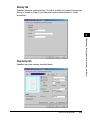
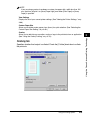
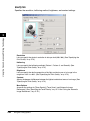
Page Layout
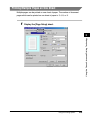
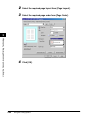
Lets you select the number of pages to print per sheet (1, 2, 4, 8, 9). When you select
more than1, the image may be reduced to fit on the selected output size. (See "Printing
Multiple Pages on One Sheet," on p. 3-65.)
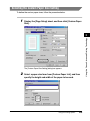
Manual Scaling/Page Order
Lets you shrink or enlarge images. This option only appears when [1 Page per Sheet] is
selected as the page layout. (See "Scaling a Document," on p. 3-67.) When 2, 4, 8 or 9
per sheet is selected in [Page Layout], [Page Order] appears. You can specify the required
page order for printing multiple pages.
Using the Canon Advanced Printing Technology
3
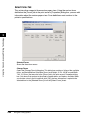
Paper Type
Displays the [Paper Type] pull-down menu and lets you select the appropriate paper type
to print on. The paper types you can select are as follows:
• Plain Paper: Transparencies, label sheets, and plain paper (64 - 90 g/m2)
• Heavy Paper: Plain paper (91 - 135 g/m2), and bond paper (90 g/m2)
• Heavy Paper High: Postcards, envelopes and custom paper with a width less than or
equal to182 mm
NOTE
If you are using a postcard, envelope, or custom size paper with a width less than 182
mm, the driver will print it as [Heavy Paper High], even when [Plain Paper] or [Heavy
Paper] is specified.
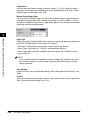
View Settings
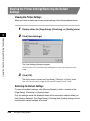
Displays the list of your current printer settings. (See "Viewing the Printer Settings," on p.
3-80.)
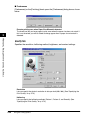
Overlay
Allows you to add data you use often, such as a logo, to the print data from an application.
(See "Using the Overlay Printing," on p. 3-70.)
3-62
Using the Printing Options