1
Home > Scanning Your Originals
Starting Epson Scan
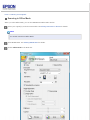
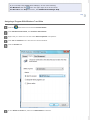
Using the Scanner Buttons
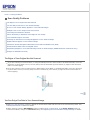
Using EPSON Scan
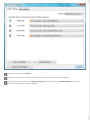
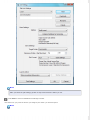
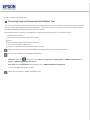
Using Another Scanning Program
Using the Scanner Buttons
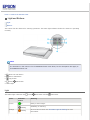
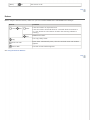
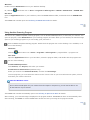
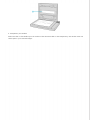
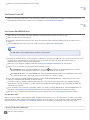
a.
Scan to E-mail button
b.
Scan to PDF button
c.
Copy button
d.
Power/
Start button
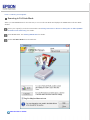
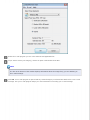
Start button on the scanner. The EPSON Scan window automatically
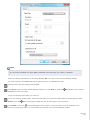
You can start EPSON Scan just by pressing the
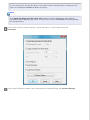
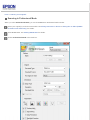
opens. See Selecting an EPSON Scan Mode for details on selecting an EPSON Scan mode.
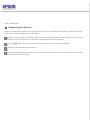
You can also start scanning by pressing the following buttons on the scanner:
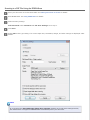
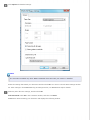
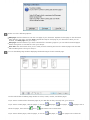
Scan to PDF button lets you scan multiple originals and save them as one PDF file on your computer. See
Scanning to a PDF File for details.
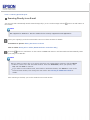
Scan to E-mail button lets you scan and attach the image file to an e-mail message. See Scanning Directly to
an E-mail for details.
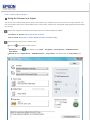
Copy button lets you use your scanner along with a printer connected to your computer just like you would
use a copy machine. See Using the Scanner as a Copier for details.
Top
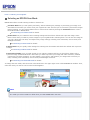
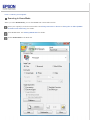
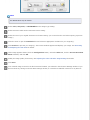
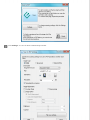
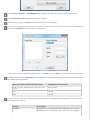
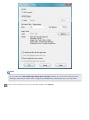
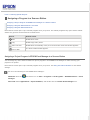
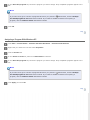
Using EPSON Scan
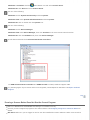
You can start EPSON Scan by double-clicking the EPSON Scan icon.