1
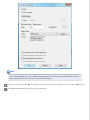
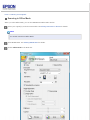
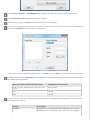
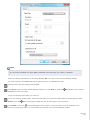
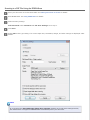
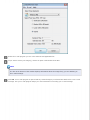
Select one of the following options:
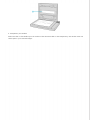
Add page: Click this button to scan the next page of your document. Replace the first page on the document
table with the next page, and click Scan. Repeat this step for each page in your document. When you are
finished, click Edit page and go to step 9.
Edit page: Click this button if you have scanned all the necessary pages so you can edit the scanned pages
before saving them in one PDF file. Then go to step 9.
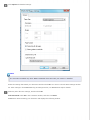
Save File: Click this button when you are ready to finish scanning and save the scanned pages into one PDF
without editing them. Then go to step 11.
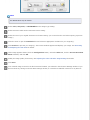
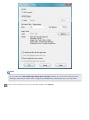
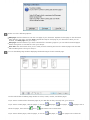
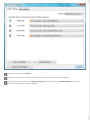
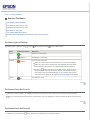
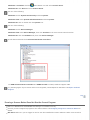
You see the Editing Page window displaying thumbnail images of each scanned page.
Use the tools below the Editing Page window to select, rotate, reorder, and delete pages.
If you want to include all the document pages in your PDF files as they currently look, go to step 13.
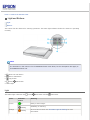
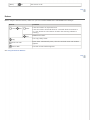
If you want to rotate pages, click the pages, or use the
select the pages, then click the
left or
odd pages,
even pages, or
all pages icon to
right rotate icon to rotate them.
If you want to delete pages, click the pages, or use the
odd pages, or
even pages icon to select the