1
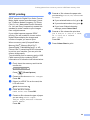
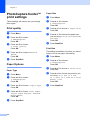
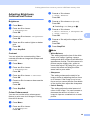
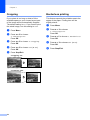
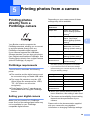
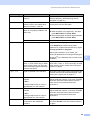
5 Printing photos from a camera Printing photos directly from a PictBridge camera 5 Depending on your camera some of these settings may not be available. 5 Camera Menu Selections Options Paper Size Letter, A4, 10x15 cm, Printer Settings (Default setting) 2 Paper Type Plain Paper, Glossy Paper, Inkjet Paper, Printer Settings (Default 5 setting) 2 Your Brother machine supports the PictBridge standard, allowing you to connect to and print photos directly from any PictBridge compatible digital camera. Layout Settings (Default setting) 2 If your camera supports the USB Mass Storage standard, you can also print photos from a digital camera without PictBridge. See Printing photos directly from a digital camera (without PictBridge) on page 41. PictBridge requirements Borderless: On, Borderless: Off, Printer DPOF setting 1 - Print Quality Normal, Fine, Printer Settings (Default setting) 2 Color Enhancement 5 To avoid errors, remember the following points: On, Off, Printer Settings (Default setting) 2 1 See DPOF printing on page 40 for more details. 2 If your camera is set to use the Printer Settings (Default setting), the machine will print your photo using the following settings. The machine and the digital camera must be connected using a suitable USB cable. Settings Options Paper Size 10x15 cm The image file extension must be .JPG (Other image file extensions like .JPEG, .TIF, .GIF and so on will not be recognized). Paper Type Glossy Paper Layout Borderless: On Print Quality Fine Color Enhancement Off PhotoCapture Center™ operations are not available when using the PictBridge feature. Setting your digital camera Make sure your camera is in PictBridge mode. Some of the settings listed below may not be available for your PictBridge compatible digital camera. When your camera does not have any menu selections, this setting is also used. The names and availability of each setting depends on the specification of your camera. Please refer to the documentation supplied with your camera for more detailed information on changing PictBridge settings. 39