1
Chapter 6: Running the Program
101
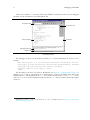
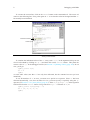
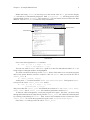
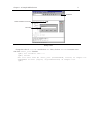
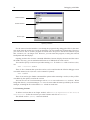
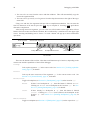
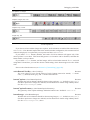
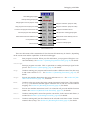
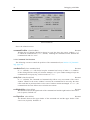
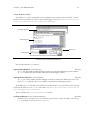
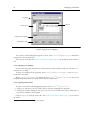
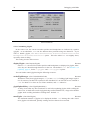
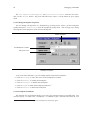
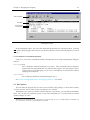
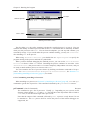
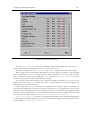
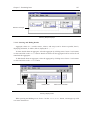
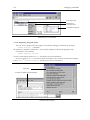
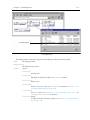
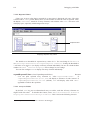
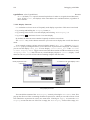
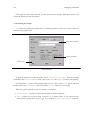
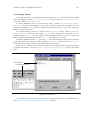
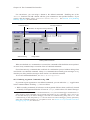
GDB Signal Handling Panel (Excerpt)
The entry ‘All Signals’ is special. Changing a setting here affects all signals at once—
except those used by the debugger, typically SIGTRAP and SIGINT.
To undo any changes, use ‘Edit ⇒ Undo’. The ‘Reset’ button restores the saved settings.
When a signal stops your program, the signal is not visible until you continue. Your program
sees the signal then, if ‘Pass’ is in effect for the signal in question at that time. In other words,
after gdb reports a signal, you can change the ‘Pass’ setting in ‘Status ⇒ Signals’ to control
whether your program sees that signal when you continue.
You can also cause your program to see a signal it normally would not see, or to give it any
signal at any time. The ‘Send’ button will resume execution where your program stopped, but
immediately give it the signal shown.
On the other hand, you can also prevent your program from seeing a signal. For example, if
your program stopped due to some sort of memory reference error, you might store correct values
into the erroneous variables and continue, hoping to see more execution; but your program would
probably terminate immediately as a result of the fatal signal once it saw the signal. To prevent this,
you can resume execution using ‘Commands ⇒ Continue Without Signal’.
‘Edit ⇒ Save Options’ does not save changed signal settings, since changed signal settings
are normally useful within specific projects only. Instead, signal settings are saved with the current
session, using ‘File ⇒ Save Session As’.