1
WORKING WITH LOOPS & PHRASES
Tempo
When you choose Tempo in the Loop Sync menu, the loop or phrase will play at
the tempo indicated by UVI Workstation’s BPM setting (or your host software if the
Sync to Host option is enabled). In Tempo mode, the loop or phrase always starts
at the beginning (or at the location determined by the Sample start setting).
> A good rule of thumb is: if it works from your computer desktop, it should work
from UVI Workstation.
In addition, the loop or phrase will play at the instant it is triggered, so it is up to you
to trigger the sound “on the beat”.
> If you trigger the loop or phrase between beats, it will play in tempo, but offset
from the beat (relative to where the loop was triggered).
Position
The Position sync setting only affects loops, but only when they are in Slice mode
(without mapping). When a loop is in Slice mode with Position sync, it might be
helpful to think of the loop as looping indefinitely, whether you are actually playing
the loop or not.
Conforming audio to the host tempo
If the Sync to Host option is enabled, when you drag and drop a loop or phrase
to an audio track in your host application, the loop or phrase will snap to the
host’s tempo and will conform to the host’s timeline.
When you play a note to “trigger” the loop, you are actually just “unmuting” it, and
it begins to play at the position in the loop that currently matches the tempo and
meter of your UVI Workstation session.
> If your host software has the ability to “snap” the drag and drop operation to
measures and/or beats in your session, you can produce rhythmically accurate
results quickly.
> For example, if the loop is two bars long, and you trigger it at the second measure
of your music, then the loop plays starting at bar 2 of the loop.
> If Sync to Host is disabled, the loop or phrase retains its original tempo when
placed in the track.
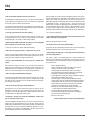
Loop Sync summary
Dragging MIDI data
Putting a loop into Slice mode and choosing Position sync gives you the highest
degree of tempo synchronization because the loop will not only play in tempo, but
its beats and barlines will always match the beats and barlines prescribed by the
tempo.
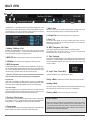
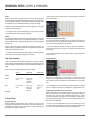
Here’s a summary of the different loop modes and sync settings:
Sync off
Sample _
Tempo sync
Position sync
_ _
Stretch Plays at original tempo Follows tempo _
but does not automatically align beats. Slice
Plays at original tempo Slice+map _
Follows tempo but does not automatically align beats.
_
Follows tempo
and aligns
beats.
_
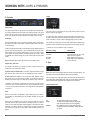
4. Drag & Drop
Dragging audio data
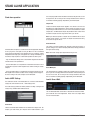
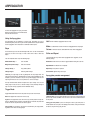
When the audio data (audio waveform) icon is showing, this means that you
are dragging a standard mono or stereo audio clip. You can drag and drop the
audio loop (phrase) anywhere in your host software that accepts audio clips via
drag & drop. For example, an audio track.
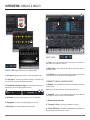
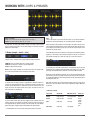
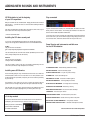
When you see the MIDI data icon (shown above), this means that you are
dragging a sliced, mapped loop in the form of MIDI data. Therefore, you should
find a destination in your host software that accepts MIDI data, such as a MIDI
track.
> Your host application may also provide other possible destinations for mapped
loops. For example, a MIDI loop can be dragged into a clipping window in DP.
Triggering UVI Workstation slices from the host
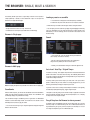
When a mapped MIDI loop is dropped into a MIDI track, it looks similar to the
MIDI data shown above (in the example graphic). Each MIDI pitch triggers a
different loop slice. If you play notes chromatically upwards from C3, you will
recreate the original loop. If you play the notes rhythmically in a different order,
you’ll play the individual loop slices but the result will sound quite different from
(but similar to) the original loop.
> In order to hear the dragged MIDI loop, be sure that the MIDI output of the
host software MIDI track (the MIDI track where you dragged the mapped loop)
is routed to the UVI Workstation part that contains the mapped loop.
19