1
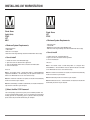
INSTALLING UVI WORKSTATION
Stand Alone
Audio Units
RTAS
VST
MAS
Stand Alone
VST
RTAS
> Minimum System Requirements
- Core duo or faster
- 1 GB of RAM
- Windows XP SP2 or higher version, Windows Vista
- Hard Drive: when using Streaming, faster drive will allow more voices to play
- MacIntel processors
- 2 GB of RAM
- MAC OS X 10.5 or higher
- Hard Drive: when using Streaming, faster drive will allow more voices to play
> How to install
1. Double-click the file: “UVI Workstation.mpkg”.
2. Agree to the terms of software license agreement.
3. Select the destination volume where to install the UVI Workstation.
4. Click the Install button.
That’s all!
Note 1: The installer creates a sound library folder at “/Library/Application
Support/UVISoundBanks/”. All sound library must be copied or aliased to this
folder so UVI Workstation can access to the contents easily.
Note 2: As PACE iLok extensions are required, the installer will automatically
install the extensions to your computer.
Note 3: As a REX library is needed to read REX files, the installer will automatically install the extensions to your computer.
> Minimum System Requirements
> How to install
1. Double-click the file: “UVI Workstation.exe”.
2. Agree to the terms of software license agreement.
3. Click the install button.
That’s all !
Note 1: The installer creates a sound library folder at “C:/Program Files/
UVISoundBanks/”. All sound libraries must be copied or aliased to this folder
so UVI Workstation can access to the contents easily.
Note 2: As PACE iLok extensions are required, the installer will automatically
install the extensions to your computer.
Note 3: Automatically install the extensions to your computer.
Note 4: As Microsoft Visual C++ Runtime libraries are required, the installer will
automatically install them to your computer.
(!) About the Mac OS X Password:
Your OSX operating system will ask you for your OSX Admin password. This
is not the UVI Workstation password.. This is the password you created when
installing your Mac OS X operating system. If you don’t know this password,
please contact the person who administrates your computer.
5