1
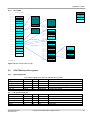
Application Note 218
Using the Cortex-M3 on the
Microcontroller Prototyping
System
Document number: ARM DAI0218A
Issued: February 2009
Copyright ARM Limited 2009
Application Note 218
Using the Cortex-M3 on the Microcontroller Prototyping System
Copyright © 2009 ARM Limited. All rights reserved.
Release information
The following changes have been made to this Application Note.
Change history
Date
Issue
Change
February 2009
A
First release
Version controlled by Domino.Doc DS158-GENC-009371 2.3
References
Document
Issuer
[1]
User Manual for HMALC-AS3-52
Gleichmann Industries
[2]
HPE_Desk-Basic Online Help
Gleichmann Industries
[3]
Altera Double Data Rate I/O Megafunctions User
Guide
Altera Corporation
[4]
The Definitive Guide to the ARM Cortex-M3
ISBN: 978-0-7506-8534-4
ARM Ltd (by Joseph Yiu)
[5]
PrimeCell® Synchronous Serial Port (PL022)
Technical Reference Manual
ARM Ltd.
[6]
Cortex™-M3 User Guide ARM DUI 0450A
ARM Ltd.
[7]
CH7303 HDTV / DVI Transmitter (CH7303) Data
Sheet
Chrontel
[8]
ARM Dual-Timer Module (SP804) Technical
Reference Manual
ARM Ltd.
[9]
PrimeCell® Real Time Clock (PL031) Technical
Reference Manual
ARM Ltd.
[10]
ARM Watchdog Module (SP805) Technical
Reference Manual
ARM Ltd.
[11]
PrimeCell® UART (PL011) Technical Reference
Manual (Revision: r1p5)
ARM Ltd.
[12]
PrimeCell® Advanced Audio CODEC Interface
(PL041) Technical Reference Manual
ARM Ltd.
[13]
ARM PrimeCell Multimedia Card Interface
(PL181) Technical Reference Manual
ARM Ltd.
[14]
ISP1761 Hi-Speed Universal Serial Bus On-TheGo controller. Rev. 05 — 13 March 2008 Product
data sheet.
ST-NXP Wireless
ii
Copyright © 2009 ARM Limited. All rights reserved.
Application Note 218
ARM DAI0218A
Proprietary notice
ARM, the ARM Powered logo, Thumb and StrongARM are registered trademarks of ARM Limited.
The ARM logo, AMBA, Angel, ARMulator, EmbeddedICE, ModelGen, Multi-ICE, ARM7TDMI, ARM9TDMI, TDMI and
STRONG are trademarks of ARM Limited.
All other products, or services, mentioned herein may be trademarks of their respective owners.
Confidentiality status
This document is Open Access. This document has no restriction on distribution.
Feedback on this Application Note
If you have any comments on this Application Note, please send email to [email protected] giving:
• the document title
•
the document number
•
the page number(s) to which your comments refer
• an explanation of your comments.
General suggestions for additions and improvements are also welcome.
ARM web address
http://www.arm.com
Application Note 218
ARM DAI 0125A
Copyright © 2006 ARM Limited. All rights reserved.
iii
Table of Contents
1
INTRODUCTION .................................................................................................................. 1
1.1
Purpose of this application note.................................................................................................................................... 1
1.2
Overview of the hardware platform............................................................................................................................. 1
2
GETTING STARTED............................................................................................................ 3
2.1
Switch settings ................................................................................................................................................................ 3
2.2
Software download to MPS........................................................................................................................................... 3
2.3
FPGA Image download to MPS.................................................................................................................................... 3
2.4
Clock control of MPS..................................................................................................................................................... 4
2.5
Rebuilding the DUT FPGA ........................................................................................................................................... 4
3
ARCHITECTURE ................................................................................................................. 5
3.1
Block Diagram................................................................................................................................................................ 5
3.2
Clock architecture........................................................................................................................................................ 10
3.3
Interrupt architecture ................................................................................................................................................. 13
3.4
Debug architecture....................................................................................................................................................... 13
3.5
Processor Implementation Architecture. ................................................................................................................... 13
4
4.1
5
HARDWARE DESCRIPTION ............................................................................................. 14
Top Level ...................................................................................................................................................................... 15
PROGRAMMER’S MODEL................................................................................................ 16
5.1
Memory map ................................................................................................................................................................ 16
5.2
CPU FPGA specific registers ...................................................................................................................................... 17
5.3
Customer DUT FPGA Specific Registers .................................................................................................................. 19
5.4
Boot operation .............................................................................................................................................................. 25
6
RTL..................................................................................................................................... 26
6.1
Directory structure ...................................................................................................................................................... 26
6.2
The fpga_dut Directory ............................................................................................................................................... 27
6.3
The peripherals Directory........................................................................................................................................... 27
iv
Copyright © 2009 ARM Limited. All rights reserved.
Application Note 218
ARM DAI0218A
6.4
7
7.1
Building the application note ...................................................................................................................................... 28
FUNCTIONAL TESTING.................................................................................................... 29
Self-test.......................................................................................................................................................................... 29
8
CLOCK FREQUENCY SETTINGS..................................................................................... 31
9
EXAMPLE SOFTWARE..................................................................................................... 32
9.1
Boot Monitor User Interface....................................................................................................................................... 32
9.2
Peripheral Support ...................................................................................................................................................... 36
9.3
Hardware Requirements ............................................................................................................................................. 38
9.4
Endianness.................................................................................................................................................................... 38
9.5
Multiprocessing............................................................................................................................................................ 39
9.6
System Boot .................................................................................................................................................................. 39
9.7
Platform Library Initialization................................................................................................................................... 39
9.8
Memory Management & Caches ................................................................................................................................ 39
9.9
Building the Firmware ................................................................................................................................................ 39
10
SIGNAL ASSIGNMENTS ................................................................................................ 40
10.1
Interface between the CPU and DUT FPGAs ........................................................................................................... 40
Application Note 218
ARM DAI 0125A
Copyright © 2006 ARM Limited. All rights reserved.
v
Introduction
1
Introduction
1.1
Purpose of this application note
This application note covers the operation of the Hpe®_midiv2 with the HM-ALC-AS3
from Gleichmann Electronics Research. It describes the contents of the FPGAs on the
HMALC-AS3-52, the system interconnect, the clock structure, and specifics of the
programmer’s model relevant to Customer FPGA’s operation.
After reading this Application Note the user should be in a position to make changes to
the customer FPGA design provided or introduce their own AHB based peripherals.
1.2
Overview of the hardware platform
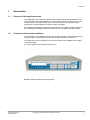
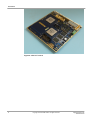
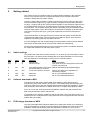
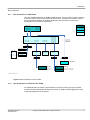
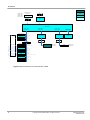
This application note is designed to work on the Microcontroller Prototyping System (as
shown in Figure 1) fitted with the ARM Hpe®_module (as shown in Figure 2).
This application note is intended for the processor FPGA to be installed with the ARM
Cortex-M3 image.
For further details on this system please see [1].
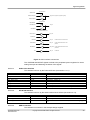
Figure 1: Microcontroller Prototyping System
Application Note 218
ARM DAI0218A
Copyright © 2009 ARM Limited. All rights reserved.
1
Introduction
Figure 2: ARM HPE Module
2
Copyright © 2009 ARM Limited. All rights reserved.
Application Note 218
ARM DAI0218A
Getting started
2
Getting started
The system comes pre-configured with an example design installed on the customer
FPGA. The processor FPGA is configured and ready for use and the bootmonitor
software is loaded into the system memory.
Connect a serial cable to RS232-4 (UART port3 above the power connector) and use a
terminal emulation program (e.g. HyperTerminal) configured as 38,400 baud, 8bit data,
no parity, 1 stop bit and no flow control to talk to the MPS. Insert the power cable and turn
on the PWR switch at the back. This will bring up the system and the bootmonitor will
start execution. The character display will show the Firmware (F/W) and Hardware (H/W)
versions of the system. This is also output to the serial port for display on the terminal if
connected. The CPU LEDs (0 to 7) will cycle a lighted bit to show the bootmonitor is
running.
The three blue LEDs on the right will be lit to indicate that the system and FPGAs are
configured with valid images. The four green Power LEDs will light to show all power
supplies are functioning properly and within tolerance.
If a FAN LED lights then the corresponding FPGA temperature is above the pre-defined
limit (if fans are fitted then the fan for that FPGA will become operational).
Pressing the recessed reset button on the front panel will perform a hardware reset and
the system will restart as if it had been power cycled.
2.1
Switch settings
The bootmonitor reads the processor switches 1-3 on power up and uses these to select
the boot option. On delivery all the switches are set to ON and defaults to no boot script
with auto detection of semihosting or UART port3 for console interface.
SW1
ON
OFF
SW2
X
X
SW3
X
X
X
ON
ON
X
ON
OFF
X
X
OFF
OFF
ON
OFF
2.2
Function
Normal boot
Run boot Script
Note
Use this as default
This needs to be pre configured from the boot
monitor command line
Auto Select between UART port3 Detects semihosting supported debugger
and Semihosting for Console
Force UART port3 for Console
Always use UART port3 regardless of
semihosting support
Reserved
Do not use, undefined behaviour
Reserved
Do not use, undefined behaviour
Software download to MPS
The MPS comes with a Keil ULINK2 USB JTAG adaptor to allow download and
programming of the Flash memory from µVision. The ULINK2 plugs into the 20way IDC
connector at the back of the unit. Example software and projects are supplied for µVision.
See the µVision documentation for details about how to compile and program the flash.
If you do not use the JTAG download it is possible to transfer files and write them into
flash using bootmonitor and the SD-card slot.
It is possible to fit a SDCard or MMC into the SD-Card slot in the back and access it as a
standard FAT16 8.3 filename device (long filenames are not supported and the maximum
usable card size is 2GB).
2.3
FPGA Image download to MPS
The HPE_Desk application (Windows based) from Gleichmann allows you to download
new FPGA images for the DUT FPGA and updates from ARM for the CPU FPGA (when
available). Please see the Hpe®_desk documentation for details on how to do this.
Application Note 218
ARM DAI0218A
Copyright © 2009 ARM Limited. All rights reserved.
3
Getting started
2.4
Clock control of MPS
HPE_Desk allows you to select which clock sources are routed to which clock inputs of
the FPGAs (clock factory) so you can change the operation frequency of both the CPU
and DUT FPGAs. The Clocks to the clock factory are driven from the DUT and CPU
FPGAs. the CPU FPGA clocks are fixed by the design and not alterable by the customer.
The DUT FPGA clocks are alterable by the user by reconfiguring the PLL used to
generate them. Refer to the Altera Stratix III documentation for details on configuration of
the PLL.
2.5
Rebuilding the DUT FPGA
To rebuild the DUT FPGA and configuring the MPS please see section 6.4.
4
Copyright © 2009 ARM Limited. All rights reserved.
Application Note 218
ARM DAI0218A
Architecture
3
Architecture
This application note implements an AHB (AMBA 2.0) based system on the
Microcontroller Prototyping System. This board contains two FPGAs on which the system
is implemented:
3.1
•
The CPU FPGA: One instance of the ARM Cortex M-3 processor with ETM, two
memory controllers to operate interfaces to the noBLRAM and FLASH NOR RAM
on the board, Touchscreen and I2C peripherals and a configuration register block.
This FPGA has a dedicated interface to
•
The DUT FPGA: Containing an example system including timers, display drivers,
an audio interface and an MCI/SD card interface.
Block Diagram
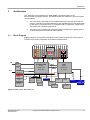
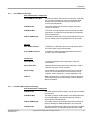
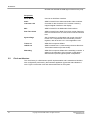
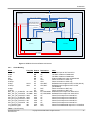
Figure 3 shows a conceptual block diagram of the system consisting of a CPU FPGA, a
Customer DUT FPGA, peripherals and a Human Interface Block.
Human
Interface
LED
LED Push
button
LCD
connector
1
2
DIP
DIP
3
4
12V
Power
Supply
DIP
CPU
L14
Customer DUT
Stratix3
EP3SL50-C2
Stratix3
EP3SL50-C2
Reset
To PC
RES
126(182)
780 pin fpBGA
780 pin fpBGA
ALTERA
USB Blaster
FCP
256 bit AES encrypted data stream for IP
Clock
Factory
top
FLASH
Handler
Hpe_child
Connector
Common
Conf FLASH
bottom
DDR2 possible
Hpe_module
Connector
Hpe_module
Connector
31
L4
SSRAM
1Mb*36
SEmulator
SSRAM
1Mb*36
L4
SEmulator
JTAG
10 pin flat ribbon
RS232
10 pin flat ribbon
RS232
10 pin flat ribbon
MICTOR
FLASH
128 Mb*32
Figure 3: MPB System Block Diagram
Application Note 218
ARM DAI0218A
Copyright © 2009 ARM Limited. All rights reserved.
5
Architecture
Implemented
Not Implemented
BaseBoard
I/O
I/O
UART Switches LEDs
Processorboard
Ethernet
Switches LEDs 7SEG
Char
LCD
Ethernet
I/O
CAN Flexray
Lin
Trace/JTAG
Trace
Debug
Interrupts
CPU FPGA
AHB Lite
DUT FPGA
Video
SMB
SMB
SSRAM
SSRAM
NOR
Video
DMB
SMB
DDR
USB
Video I/F
UARTS AC97 SD/MMC I2C
SPI
I/O
MPB-M3 Block Diagram I/O
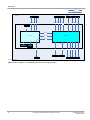
Figure 4: Block diagram of the ARM Microcontroller Prototyping System.
6
Copyright © 2009 ARM Limited. All rights reserved.
Application Note 218
ARM DAI0218A
Architecture
Bus architecture
3.1.1
Bus Architecture of CPU FPGA
The CPU FPGA implements an AHB bus infrastructure. The bus matrix is used to give the
processor access to the local FLASH and ZBT memory. An APB bus is used to connect
PrimeCell APB peripherals. A separate AHB interconnect exists for access to the
peripherals on the Customer DUT FPGA.
External Device
0xE000_0000
0xE00F_FFFF
M3
0x0000_0000
0x1FFF_FFFF
I
0x2000_0000
0xDFFF_FFFF
0xE010_0000
0xFFFF_FFFF
D
Private Peripheral
Bus
DUT FPGA
S
CPU FPGA
AHB Lite mux
0x1F00_0000
0x1F00_FFFF
0x1000_0000
0x103F_FFFF
0x1EFF_0000
0x1EFF_FFFF
SMC1
RAM FPGA
0x0000_0000
0x03FF_FFFF
0x1040_0000
0x107F_FFFF
0x1800_0000
0x1BFF_FFFF
0x2000_0000
0xDFFF_FFFF
0xE010_0000
0xFFFF_FFFF
AHB to APB
APB Config registers
I/O PADS
PL011 (3)
SMC0
PL022 (0)
I2C (0)
I/O PADS
I/O PADS
I/O PADS
DUT FPGA
CS0 SSRAM1
0x1000_0000
0x103F_FFFF
And remaped to
0x0000_0000
CS1 SSRAM0
CS0 FLASH
AHB Interface to
DUT FPGA
0x1040_0000
0x107F_FFFF
0x0000_0000 And aliased to
0x03FF_FFFF 0x1800_0000
MPB-M3 Processor FPGA
Figure 5: Bus Architecture of CPU FPGA
3.1.2
Bus Architecture of Customer DUT FPGA
An additional AHB-Lite matrix is implemented in the DUT FPGA to give the processor
access to all the AHB peripherals within the FPGA. An AHB to APB bridge gives access
to the APB peripherals in the system.
Application Note 218
ARM DAI0218A
Copyright © 2009 ARM Limited. All rights reserved.
7
Architecture
External Device
AHB Interface from
CPU FPGA
0x2000_0000
0xDFFF_FFFF
0xE010_0000
0xFFFF_FFFF
Private Peripheral
Bus
I/O PADS
CPU FPGA
DUT FPGA
I/O PADS
CPU FPGA
Video
AHB Lite mux
0x4000_0000
0x5FFF_FFFF
Video config reg
0xA000_0000
0xDFFF_FFFF
0x6000_0000
0x9FFF_FFFF
0xE010_0000
0xFFFF_FFFF
Video
Ethernet
Ethernet
Reserved
LIN
Reserved
CAN
Reserved
Flexray
DMC (DDR I/II)
User Supplied
SMC
I/O PADS
I/O PADS
System
AHB to APB
I/O PADS
DMC config reg
DDR I/II
SMC config reg
SRAM/NOR
DUT Char LCD
Character LCD
I2C (1)
AACI/AC97
PL011 (2)
UART (2)
PL011 (1)
UART (1)
PL011 (0)
UART (0)
DUT Config Regs
0xA000_0000
0xA03F_FFFF
Switches/LEDs config
Timer[3:2]
SP804 (0)
Timer[1:0]
SP805 (0)
USB
SD/MMC
SP804 (1)
PL031
0x6000_0000
0x9FFF_FFFF
I2C
PL041
PL181
External memory
RTC
WatchDog
Figure 6: Bus Architecture of Customer DUT FPGA
8
Copyright © 2009 ARM Limited. All rights reserved.
Application Note 218
ARM DAI0218A
Architecture
3.1.3
CPU FPGA functionality
Bus Infrastructure components
32-bit AHB 2x1 Bus Mux
Provides the bulk of the interconnect structure. It handles
the contention between the Instruction and Data AHB
busses of the processor when they access the local
memory and peripherals.
AHB Decoder
This block implements the memory map for the CPU
FPGA bus structure.
AHB Data Mux
This block connects the Bus matrix to the AHB and APB
peripherals. It handles the returning data and responses
from the peripherals
AHB to APB Bridge
The bridge contains the muxing and decoding scheme for
the bus, allowing the APB peripherals to be connected.
Memory
ZBT RAM Controller
Controller for a ZBT (zero-bus-turnaround) RAM. Allows
the CPU access to the local fast RAM.
Flash RAM Controller
Controller for Samsung Flash NOR RAM. Allows CPU
access to the local Flash RAM.
Peripherals
Serial Bus I/F
Controls the detection and configuration of the DVI
transmitter IC.
Sync Serial Port
ARM Primecell PL022 Synchronous Serial Port. Used to
interface to a touch screen controller.
System Regs
Set of registers for configuration and control of the CPU
FPGA. For a complete list of the functionality of these
registers, refer to section 5.2.1 of this application note.
UART 3
3.1.4
ARM PrimeCell PL011 Universal Asynchronous ReceiverTransmitter interfaces (RS-232 serial). Used by the Boot
Monitor as default.
Customer DUT FPGA functionality
Bus Infrastructure components
Application Note 218
ARM DAI0218A
AHB Decoder
This block implements the memory map for the DUT FPGA
bus structure.
AHB Data Mux
This block connects the Bus matrix to the AHB peripherals
and the APB bridge. It handles the returning data and
responses from the peripherals
AHB to APB Bridge
The bridge contains the muxing and decoding scheme for
the bus, allowing the APB peripherals to be connected.
APB Decoder
This block implements the memory map for the DUT FPGA
APB bus structure. This decoder assumes that the AHB
Copyright © 2009 ARM Limited. All rights reserved.
9
Architecture
decoder has selected the APB region of the memory map.
Peripherals
3.2
Serial Bus I/F
Used as an ADC/DAC interface.
AACI
ARM Primecell PL041 Advanced Audio Codec Interface.
Character LCD
Controller for the Character LCD. Provides a memorymapped register interface to the display.
MCI
ARM Primecell PL181 Multimedia Card Interface.
Real Time Clock
ARM Primecell PL031 Real Time Clock module. Real time
refers to total time from an event, and not actual real world
time.
System Regs
Set of registers for configuration and control of the DUT
FPGA. For a complete list of the functionality of these
registers, refer to section 5.3.1 of this application note.
Timers 0-1
ARM ADK component SP804
UARTs 0-2
ARM PrimeCell PL011 Universal Asynchronous ReceiverTransmitter interfaces (RS-232 serial).
Watchdog
ARM ADK component SP805 is the watchdog controller. It
allows for the generation of an interrupt or reset after a
defined time to prevent against system lockup/failure.
Clock architecture
The clock factory is a Gleichmann specific implementation and is treated as a blackbox
with configuration performed by their software application [2] and the Altera Quartus II
tools. Figure 7 shows the clock and reset architecture for the system.
10
Copyright © 2009 ARM Limited. All rights reserved.
Application Note 218
ARM DAI0218A
Architecture
BaseBoard
MCB0_1/33/65/66
CLK0/1/Ext/MOD
Processorboard
CPU_PLL_R2/L2_CLKOUT0
DUT_PLL_R2_CLKOUT0
CPU_PLL_T1/B1_CLKOUT3
DUT_PLL_T1/B1_CLKOUT3
MCB0_B58/PWR_RESET#
MCB0_B60/USER_RESET#
100MHz Osc
Clock Factory
MCB0_B62/HPE_RESET#
CLK5p/15p
CLK4p/13p
CLK100M
CLK1p/10p (matched lengths)
DUT_PLL_T1/B1_CLKOUT3
MCB0_B34/B2
PLL
PLL
L14_CPUCLK_Diff
L14_DUTCLK_Diff
CPU FPGA
DUT FPGA
USER_RESET#
HPE_RESET#
Figure 7: MPB-M3 Clock and Reset Architecture
3.2.1
Clock Routing
Name
CLK100M
CLK0
CLK1
EXT
CLK5p
CLK15p
CLK1p
CLK10p
CLK4p
CLK13p
DUT_PLL_T1_CLKOUT3
DUT_PLL_B1_CLKOUT3
DUT_PLL_R2_CLKOUT0
CPU_PLL_L2_CLKOUT0
CPU_PLL_R2_CLKOUT0
CPU_PLL_B2_CLKOUT3
CPU_PLL_T2_CLKOUT3
L14_CPUCLK_Diff
L14_DUTCLK_Diff
Freq (Hz) Source Destination
100M
Osc
CF,DUT,CPU
BB
CF
BB
CF
BB
CF
CF
CPU
CF
CPU
HCLK
CF
CPU,DUT
25M
CF
CPU,DUT
25.175M
12.288M
25M
50M
25M
0M
0M
0M
0M
CF
CF
DUT
DUT
DUT
CPU
CPU
CPU
CPU
CPU
DUT
DUT
DUT
CF,CPU,MCB0
CF,CPU,MCB0
CF
CF
CF
CF
CF
DUT
CPU
Note
Buffered output to DUT and CPU
Oscillator module on Baseboard
Oscillator module on Baseboard
External SMB clock input on Baseboard
Direct connection to CPU only
Direct connection to CPU only
Buffered match lengths to DUT & CPU (HCLK)
Buffered match lengths to DUT & CPU
(CLK25MHz)
Direct connection to DUT only
Direct connection to DUT only
Buffered FPGA output from internal PLL
Buffered FPGA output from internal PLL
Direct FPGA output from internal PLL
Direct FPGA output from internal PLL
Direct FPGA output from internal PLL
Direct FPGA output from internal PLL
Direct FPGA output from internal PLL
Direct FPGA differential output for L14 interface
Direct FPGA differential output for L14 interface
Table 1: Clock Routing
Application Note 218
ARM DAI0218A
Copyright © 2009 ARM Limited. All rights reserved.
11
Architecture
3.2.2
Reset Routing
Name
PWR_RESET#
USER_RESET#
HPE_RESET#
Source
BB
All
CF
Destination
CF
CF,CPU,DUT
BB, DUT
Note
O/D output from supply monitor (internal use)
Push button on Processor board O/D
Driven by USER_RESET# and PWR_RESET#
Table 2: Reset Routing
Notes:
BB: BaseBoard
CF: Clock Factory
CPU: CPU FPGA
DUT: DUT FPGA
OSC: Crystal Oscillator module.
The System only uses the USER_RESET# signal and this drives all internal resets
(nPOR, nHRESET etc). The design ignores PWR_RESET# and HPE_RESET#.
The CPU FPGA drives the nHRESET signal between the CPU and DUT FPGA to create
a synchronous reset (with respect to HCLK) in the DUT FPGA. The DUT FPGA uses this
to resynchronise resets to all other clock domains within the FPGA.
3.2.3
Clock and Reset Destinations
Device
CPU
AHB/APB infrastructure
SMC (ZBT & NOR)
UART
SPI
I2C
VIDEO
AC97
SD/MMC
Character LCD
7SEG Display
Timer
Real Time Clock
Watch Dog
USB
Static Memory
Clock Freq
HCLK
HCLK
HCLK
25MHz
25MHz
HCLK
23.75MHz
12.288MHz
25MHz
HCLK
HCLK
1MHz
1Hz
1Hz
HCLK
HCLK
Clock ref
CLK1p
CLK1p
CLK1p
CLK10p
CLK10p
CLK1p
CLK4p
CLK13p
CLK10p
CLK1p
CLK1p
CLK10p
CLK10p
CLK10p
CLK1p
CLK1p
Reset ref
HRESETn
HRESETn
HRESETn
HRESETn
HRESETn
HRESETn
HRESETn
HRESETn
HRESETn
HRESETn
HRESETn
HRESETn
HRESETn
HRESETn
HRESETn
HRESETn
Note
Runs as CPU frequency
CPU FPGA memory controllers and I/F to USB IC
PL011
PL022
DS702
Video/LCD controller pixel clock
PL041
PL181
DS700
TBD
SP804
PL031
SP805
External IC ISP1761
Memory controller on DUT FPGA
Table 3: Clock and Reset Destinations
All the peripherals that have an AHB or APB interface have that interface running at
CLK1p.
CLK100M is used to derive all peripheral clocks where appropriate since this is a non
variable clock and ideal for timers, watchdogs etc.
The Reset column refers to the reset signal that is re-synchronised to the respective clock
domain.
12
Copyright © 2009 ARM Limited. All rights reserved.
Application Note 218
ARM DAI0218A
Architecture
3.3
Interrupt architecture
The interrupt controller for the Cortex-M3 implementation is integrated into the processor,
but the mapping of peripheral to interrupt is irrespective of the controller implementation.
Figure 8 describes which interrupt is driven by each peripheral.
Cortex-M3 has an NMI input so INT[0] from the following interrupt table (driven by the
watchdog timer peripheral) is also routed to NMI on the Cortex-M3 processor.
External Device
[31]
PL022
[30]
[29]
[28]
SPI touchscreen
[63]
[95]
PL011 (3)
UART (3)
[62]
[94]
Reserved
Ext touchscreen
[61]
[93]
Reserved
I2C DVI
[60]
[92]
[59]
[91]
[58]
[90]
[57]
[89]
[24]
[56]
[88]
[23]
[55]
[87]
[54]
[86]
[53]
[85]
[52]
[84]
Private Peripheral
Bus
DUT FPGA
[27]
CPU FPGA
[26]
[25]
Reserved
[22]
[21]
Reserved
[20]
[19]
Reserved
I2C ADC/DAC
[51]
[83]
[18]
Reserved
LIN
[50]
[82]
[17]
Reserved
CAN
[49]
[16]
Reserved
Flexray
[48]
[15]
Char LCD
Character LCD
[47]
[79]
[14]
USB
USB HC
[46]
[78]
[13]
USB
USB DC
[45]
[77]
[12]
Ethernet
Ethernet
[44]
[76]
[11]
PL111
CLCD combined Int
[43]
[75]
[10]
PL041
AACI/AC97
[42]
[74]
[09]
Reserved
[41]
[73]
[08]
PL011 (2)
UART (2)
[40]
[72]
[07]
PL011 (1)
UART (1)
[39]
[71]
[06]
PL011 (0)
UART (0)
[38]
[70]
[05]
PL181
MCIb
[37]
[69]
[04]
PL181
MCIa
[36]
[68]
[03]
SP804 (1)
Timer[3:2]
[35]
[67]
[02]
SP804 (0)
Timer[1:0]
[34]
[66]
[01]
PL031
RTC
[33]
[65]
[00]
SP805 (0)
WatchDog
[32]
[64]
NMI
SP805 (0)
WatchDog
[81]
[80]
Reserved
Reserved
MPB-M3 Interrupt
Figure 8: Interrupt Allocation Table
This interrupt structure is in addition to the 16 internal CPU interrupts on the Cortex-M3.
3.4
Debug architecture
The example design provided with this Application Note is based on a simple JTAG
debug architecture.
For the JTAG chain routing please refer to the Module User Guide [1].
The Cortex-M3 implementation contains an ETM which is connected directly to the trace
MICTOR connector on the FPGA Module.
3.5
Processor Implementation Architecture.
The Cortex-M3 processor has been implemented with the following functionality.
Application Note 218
ARM DAI0218A
Function
Implemented
MPU
Yes
Interrupts
yes
Details
32 external IRQ’s (Error! Bookmark not
Copyright © 2009 ARM Limited. All rights reserved.
13
Architecture
defined.)
Priority
Yes
3 bits 8 levels
Trace
yes
Full debug including data matching
JTAG & SWD
Yes
Both JTAG and Single wire debug present
Clock gating
No
No architectural clock gating implemented in
design
All registers reset
No
Not all registers are reset after system reset
Internal observability
No
No internal observability implemented
WIC
No
No WIC implemented
SYSTICK
Yes
100kHz reference clock implemented with
divider to 10ms.
Power Management
No
The Sleep modes do not perform any clock
stopping, but will allow the WFI type
functionality.
Multiprocessor
Communication
No
No support for multiprocessor communication
is implemented.
Table 4: Cortex-M3 Configuration
14
Copyright © 2009 ARM Limited. All rights reserved.
Application Note 218
ARM DAI0218A
Hardware description
4
Hardware description
4.1
Top Level
The top level of the DUT FGPA is fpga_dut.v
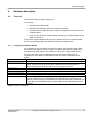
This top level:
•
Handles all the static tie offs,
•
Maps the internal design signals to the board connections,
•
Includes/calls the header file which contains the configuration information for the
example system.
•
Instances any special IO cells the design requires (e.g., the DDR registers for the
Video connections).
The top level module instantiates the dut_logic,v module which in turn instances all the
blocks in the example system and defines the interconnect between them.
4.1.1
Configuring the Example System
As an example of how to prototype a system too large for the Customer System FPGA,
the definitions file (fpga_dut_defs.v) contains four defines which allow the system to be
built without significant portions of the design to reduce size or improve performance.
By default, the audio codec and MMC/SD card interfaces are included but by uncommenting or commenting out the following lines, the system configuration can be
altered.
Define
Effect
`define INCLUDE_CLCD
This includes the Colour LCD and Video controller block (user supplied). Without this
define, the pixel clock is not driven and the data and control lines are tied to ‘0’.
Which means that the video bus will not drive any data or clock at all.
Implement the VGA Pattern Generator 640x480 if no CLCD present
Implement the VGA Pattern Generator 800x600 if no CLCD present
Implement the VGA Pattern Generator 1024x768 if no CLCD present
This includes the Primecell PL041 (Audio Codec interface).
This includes the Primecell PL181 (MMC/SD interface).
This includes the DDR memory interface (user supplied).
If these components are not included then the video and LCD controller does not
have any route to memory so the address out of the video and LCD controller block is
connected to the read data bus giving a static image on any screen attached to that
interface.
`define
`define
`define
`define
`define
`define
VGA
SVGA
XVGA
INCLUDE_AACI
INCLUDE_MCI
INCLUDE_DMC
Table 5: System Configuration
Application Note 218
ARM DAI0218A
Copyright © 2009 ARM Limited. All rights reserved.
15
Programmer’s model
5
Programmer’s model
5.1
Memory map
5.1.1
CPU FPGA
External Device
M3 memory area function
0x10000_0000
Private Peripheral
Bus
System Bus
0xF000_0000
0xE010_0000
System Bus
0xE000_0000
Int M3 PPB
DUT FPGA
CPU FPGA
Ext Periph non Exec
0xD000_0000
Ext Periph non Exec
0xC000_0000
Ext Periph non Exec
0xB000_0000
Ext Periph non Exec
0xA000_0000
0x2000_0000
Ext RAM Exec
0x9000_0000
Reserved
≈
0x2000_0000
Ext RAM Exec
0x8000_0000
Config Regs
0x1F00_0000
Config Regs
RAM FPGA (64k)
0x1EFF_0000
Ext RAM Exec
0x7000_0000
≈
Reserved
0x1C00_0000
≈
0x1F00_4000
≈
Reserved
0x6000_0000
Periph non Exec
≈
Flash (64M alias)
≈
0x1F00_0FFC
≈
Reserved
≈
≈
PL022 (TouchScrn)
0x4000_0000
≈
Reserved
RAM B (4M)
RAM B (4M)
0x1000_0000
RAM A (4M)
RAM A (4M)
ALIAS = 1
ALIAS = 0
Int RAM B Exec
0x3000_0000
≈
≈
I2C (DVI)
0x1F00_2000
Reserved (SMC)
0x1F00_1000
Reserved (SMC)
0x1F00_0010
TS Status
0x1F00_0000
CPU Sys Regs
0x1F00_000C
CPU LEDs
0x1F00_0008
CPU Switches
0x1F00_0004
Remap/Alias
0x1F00_0000
System ID
≈
0x1080_0000
0x1040_0000
Reserved
≈
0x1F00_3000
0x1800_0000
Periph non Exec
0x1F00_1000
PL011 (3)
0x1F00_5000
RAM FPGA (64k)
≈
Ext RAM Exec
0x5000_0000
≈
0x1F00_6000
0x1F00_0014
Int RAM A Exec
0x2000_0000
0x1000_0000
Int ROM Exec
0x1000_0000
≈
Int ROM Exec
Reserved
≈
≈
Reserved
≈
0x0000_0000
0x0400_0000
Flash (60M)
0x0040_0000
0x0000_0000
MPB-M3 Processor FPGA
Flash (64M)
RAM A (4M)
REMAP = 1
REMAP = 0
Figure 9: CPU FPGA memory map
16
Copyright © 2009 ARM Limited. All rights reserved.
Application Note 218
ARM DAI0218A
Programmer’s model
5.1.2
DUT FPGA
External Device
M3 memory area function
0x10000_0000
0xC000_0000
Private Peripheral
Bus
System Bus
0xF000_0000
0xE010_0000
System Bus
0xE000_0000
Int M3 PPB
DUT FPGA
0xA400_0000
≈
≈
SMC Reserved
0xA3FF_0000
CPU FPGA
Ext Periph non Exec
≈
0xD000_0000
Reserved
≈
0xA400_0000
Ext Periph non Exec
0xC000_0000
0xA000_0000
SMC Peripheral 0
0xA002_0000
USB (128kB)
0xA000_0000
Ext Periph non Exec
0xB000_0000
0x5000_0000
Ext Periph non Exec
0xA000_0000
0x4FFF_0000
Video
0x4FFE_0000
Ethernet
DMC (DDRII)
Ext RAM Exec
0x9000_0000
0x4FFD_0000
LIN
0x4FFC_0000
CAN
0x4FFB_0000
Flexray
Ext RAM Exec
0x8000_0000
0x4FFA_0000
Ext RAM Exec
≈
0x7000_0000
Reserved
≈
Reserved
≈
0x4FF0_0000
Ext RAM Exec
16x 64kB AHB peripherals
0x6000_0000
0x4001_0000
0x4000_F000 ≈
Periph non Exec
0x5000_0000
0x4000_E000
16x 4kB APB peripherals
Reserved (SMC cfg)
0x4000_C000
DUT Char LCD
0x4000_B000
I2C (ADCDAC)
Int RAM B Exec
0x3000_0000
≈
Reserved
PL041
Reserved
0x4000_8000
PL011 (2)
0x4000_4018
Counter100Hz
0x4000_7000
PL011 (1)
0x4000_4014
Counter25MHz
0x4000_6000
PL011 (0)
0x4000_4010
DUT 7Seg Display
0x4000_5000
PL181
0x4000_400C
DUT LEDs
0x4000_4000
DUT Sys Regs
0x4000_4008
DUT Switches
0x4000_3000
SP804 (1)
0x4000_4004
Periph Cfg
0x4000_2000
SP804 (0)
0x4000_4000
System ID
0x4000_1000
PL031
0x4000_0000
SP805 (0)
Int ROM Exec
0x0000_0000
0x4000_5000
0x4000_9000
Int ROM Exec
0x1000_0000
≈
0x4000_A000
Int RAM A Exec
0x2000_0000
≈
0x4000_D000
Periph non Exec
0x4000_0000
Reserved (DMC cfg)
≈
0x4000_401C
MPB-M3 DUT FPGA
Figure 10: DUT FPGA memory map
5.2
CPU FPGA specific registers
5.2.1
System Registers
The system registers are based at address 0x1F00_0000.
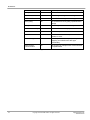
Register
SYS_ID
SYS_MEMCFG
SYS_SW
SYS_LED
SYS_TS
Offset
‘h0000
‘h0004
‘h0008
‘h000C
‘h0010
Access
RO
RW
RO
RW
RO
Reset
‘h102304xx
‘h00000000
‘h000000xx
‘h00000000
‘h00000000
Note
Board and FPGA identifier.
Controls memory Remap and Alias
Indicates user switch settings
Sets LED outputs.
TouchScreen register
5.2.1.1 ID register (SYS_ID)
Name
Bits
REV
31:28
BOARD
27:16
VARIANT
15:12
ARCH
11:8
BUILD
7:0
Access
RO
RO
RO
RO
RO
Reset
‘h1
‘h023
‘h0
‘h4
‘hxx
Note
Board Revision B
HBI Board number
Build Variant of board
Bus Architecture (4 AHB, 5 AXI)
FPGA build
Application Note 218
ARM DAI0218A
Copyright © 2009 ARM Limited. All rights reserved.
17
Programmer’s model
5.2.1.2 Memory Configuration (SYS_MEMCFG)
Name
Bits
Access Power On
Reset
Reserved
31:3
SWDPEN
2
RW
‘b0
ALIAS
REMAP
1
0
RW
RW
‘b1
‘b0
Note
Single Wire Debug Port Enable. 1 is SWD 0
JTAG. Not used in Cortex-M3 implementation as
this autodetects serial or JTAG.
Alias FLASH. 1 is Aliased on 0 Aliased off
Remap SSRAM. 1 is Remap on 0 Remap off
Default memory mapping is Flash Aliased and SSRAM not remapped. The register is
reset at power on to this state, but any debug reset or system reset will not change the
values stored. This allows the SRAM to be programmed placed and address
0x0000_0000 and execute after generating a system reset.
5.2.1.3 Switches (SYS_SW)
Name
Bits
Reserved
31:8
USER_SWITCH
7:0
5.2.1.4 LEDs (SYS_LED)
Name
Bits
Reserved
31:8
LED
7:0
5.2.1.5 TouchScreen (SYS_TS)
Name
Bits
Reserved
31:2
TS_INT
1
TS_BUSY
0
5.2.2
Access Reset
Note
RO
Always returns value of user switches
‘h--
Access Reset
Note
RW
Returns value in register. 1 is LED on 0 LED off
‘h00
Access Reset
Note
RO
RO
External Interrupt from Touchscreen
External Busy signal from Touchscreen
‘b‘b-
Video (I2C for DVI)
The DS702 peripheral is used for the interface and implements a bit banging method for
the I2C interface. The base address for this interface is 0x1F00_3000.
Register
SB_CONTROL
SB_CONTROLS
SB_CONTROLC
Offset
‘h0000
‘h0000
‘h0004
Access
R
W
WO
Reset
‘b0‘b00
‘b00
5.2.2.1 SB Status register (SB_CONTROL)
Name
Bits
Access Reset
Reserved
31:2
SB_SDA
1
RO
‘b0
SB_SCL
0
RO
‘b0
5.2.2.2 SB Set register (SB_CONTROLS)
Name
Bits
Access Reset
Reserved
31:2
SB_nSDAOUTEN
1
W
‘b0
SB_SCLOUT
0
W
‘b0
5.2.2.3 SB Clear register (SB_CONTROLC)
Name
Bits
Access Reset
Reserved
31:2
18
Note
Status Register of I/O signals
Set Output bits
Clear Output bits
Note
Level of SDA signal
Level of SCL signal
Note
Sets SDA line when 1
Sets SCL line when 1
Note
Copyright © 2009 ARM Limited. All rights reserved.
Application Note 218
ARM DAI0218A
Programmer’s model
SB_nSDAOUTEN
SB_SCLOUT
1
0
W
W
‘b0
‘b0
Clears SDA line when 1
Clears SCL line when 1
5.2.2.4 Basic Timing
The basic I2C timing diagram is shown below. The ACK is a returned value from the
target device (responding to a data burst being received).
CB_SDA
MSB
LSB
ACK
CB_SCL
Stop
Start
Figure 11: I2C Timing Diagram
5.2.3
Touchscreen
The Primecell PL022 is used to drive the touchscreen interface. This interface has a base
address of 0x1F00_4000. [5]
5.3
Customer DUT FPGA Specific Registers
5.3.1
System Registers
The DUT specific registers are mapped to a 16KB area at 0x4000_4000. The addresses
in this section are all relative to this base address.
Register
SYS_ID
SYS_PERCFG
SYS_SW
SYS_LED
SYS_7SEG
SYS_CNT25MHz
SYS_CNT100Hz
Offset
‘h0000
‘h0004
‘h0008
‘h000C
‘h0010
‘h0014
‘h0018
Access
RO
RW
RO
RW
RW
RO
RO
Reset
‘h102304xx
‘h00000000
‘h000000xx
‘h00000000
‘h00000000
‘h00000000
‘h00000000
Note
Board and FPGA identifier.
Peripheral control signals
Indicates user switch settings
Sets LED outputs.
Sets LED outputs.
Free running counter incrementing at 25MHz
Free running counter incrementing at 100Hz
5.3.1.1 ID register (SYS_ID)
Name
Bits
REV
31:28
BOARD
27:16
VARIANT
15:12
ARCH
11:8
BUILD
7:0
Access
RO
RO
RO
RO
RO
Reset
‘h1
‘h023
‘h0
‘h4
‘hxx
Note
Board Revision B
HBI Board number
Build Variant of board
Bus Architecture (4 AHB)
FPGA build
5.3.1.2 Peripheral configuration (SYS_PERCFG)
Name
Bits
Access Reset
Reserved
31:12
USB_FORCE_SLOW 11
RW
‘b0
HUMI_MODE
10:8
RW
‘b000
USB_HC_WAKE
7
RO
‘bUSB_DC_WAKE
6
RO
‘bReserved
Reserved
Reserved
Application Note 218
ARM DAI0218A
5
4
3
RO
RW
RW
Note
Forces the USB interface to operate slowly
Operation mode of HUMI multiplexer (see table)
Status of USB Host Controller Wake/Suspend signal
Status of USB Device Controller Wake/Suspend
signal
‘b0
‘b0
‘b0
Copyright © 2009 ARM Limited. All rights reserved.
19
Programmer’s model
Reserved
WPROT
CARDIN
2
1
0
RO
RO
RO
‘b0
‘b0
‘b0
Status of MCI WPROT bit, 1 write protected
Status of MCI card Present, 1 card inserted
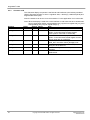
The HUMI Mode bits define how the scheduler selects the different display components
on the system. This can be used for system debug.
Mode
Scheduler
LEDs
7Segment 0
7Segment 1
7Segment 2
7Segment 3
Character LCD
Reserved
Bit value
000
001
010
011
100
101
110
111
5.3.1.3 Switches (SYS_SW)
Name
Bits
Reserved
31:8
USER_BUT[3:0]
7:4
USER_SW[3:0]
3:0
5.3.1.4 LED’s (SYS_LED)
Name
Bits
Reserved
31:8
LED
7:0
Note
Round robin schedule to all HUMI devices
HUMI LEDs only output
HUMI 7Segment display 0 only output
HUMI 7Segment display 1 only output
HUMI 7Segment display 2 only output
HUMI 7Segment display 3 only output
HUMI character LCD only output
Reserved - Do Not Use
Access Reset
Note
RO
RO
Always returns value of user buttons
Always returns value of user switches
‘h‘h-
Access Reset
Note
RW
Returns value in register. 1 is LED on 0 LED off
‘h00
5.3.1.5
20
Copyright © 2009 ARM Limited. All rights reserved.
Application Note 218
ARM DAI0218A
Programmer’s model
5.3.1.6 Display output (SYS_7SEG)
Name
Bits
Access
DISP3
31:24
RW
DISP2
23:16
RW
DISP1
15:8
RW
DISP0
7:0
RW
Reset
‘h00
‘h00
‘h00
‘h00
Note
Segments for display 3
Segments for display 2
Segments for display 1
Segments for display 0
Disp3
Disp2
Disp1
Disp0
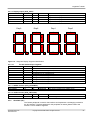
A
A
A
A
F
B
F
G
E
B
F
G
C
E
D
P
D
B
F
G
C
D
E
D
P
B
G
C
D
E
D
P
C
D
D
P
Figure 12: 7 Segment Display Segment Identification
5.3.1.6.1
The bit relationship to segment.
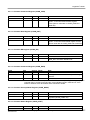
Name
DP
G
F
E
D
C
B
A
Bit
7
6
5
4
3
2
1
0
Note
1 is Decimal Point on, 0 is Decimal Point off.
1 is segment on, 0 is segment off.
1 is segment on, 0 is segment off.
1 is segment on, 0 is segment off.
1 is segment on, 0 is segment off.
1 is segment on, 0 is segment off.
1 is segment on, 0 is segment off.
1 is segment on, 0 is segment off.
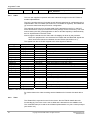
5.3.1.7 25MHz Counter (SYS_CNT25MHz)
Name
Bits
Access Reset
Count25MHz
31:0
RO
‘h00000000
Note
Free running counter from 25MHz clock
5.3.1.8 100Hz Counter (SYS_CNT100Hz)
Name
Bits
Access Reset
Count100Hz
31:0
RO
‘h00000000
Note
Free running counter from 100Hz clock
5.3.2
ADC/DAC (I2C)
The DS702 peripheral is used for the interface and implements a bit banging method for
the I2C interface. The base address for this peripheral is 0x4000_B000. Please see
section 5.2.2 for details of registers.
Application Note 218
ARM DAI0218A
Copyright © 2009 ARM Limited. All rights reserved.
21
Programmer’s model
5.3.3
Character LCD
The Character display component is the DS700 and interfaces to the industry standard
Hitachi HD44780 controller. It uses 11 signals 8 data, 1 strobe (E), read/write (RnW) and
Register/data select (RS).
Note: the interface can be a 4-bit or 8-bit interface. For this application it is in 8-bit mode.
Note: When the display is used with a 4-bit interface an 8-bit value has to be written/read
as two consecutive nibbles, writing/reading bits [7:4] first into register bits [7:4], then
writing/reading bits [3:0] into register bits [7:4].
Register
Offset
Access Reset
Note
CHAR_COM
‘h0000
RW
‘h00000000
CHAR_DAT
‘h0004
RW
‘h00000000
CHAR_RD
‘h0008
RO
‘h00000000
CHAR_RAW
‘h000C
RW
‘h00000000
CHAR_MASK
‘h0010
RW
‘h00000000
CHAR_STAT
‘h0014
RO
‘h00000000
A write will write to the display controller command
register. A read will initiate a status register
access (returns value later in CHAR-RD).
A write will write to the display controller data
register. A read will initiate a data register access
(returns value later in CHAR-RD).
Contains data from last CHAR_COM or
CHAR_DAT read when CHAR_RAW[8] is set.
Reading bit 8 indicates if access is complete.
Writing 0 to bit 8 clears bit.
Set bit 0 to 1 will generate interrupt when access
completes.
Returns status of Access Complete ANDed with
CHAR MASK.
22
Copyright © 2009 ARM Limited. All rights reserved.
Application Note 218
ARM DAI0218A
Programmer’s model
5.3.3.1 Character Command Register (CHAR_COM)
Name
Reserved
COMMAND
Bits
31:8
7:0
Access Reset
RW
‘h00000000
RW
‘h00000000
Note
A write will write to the display controller command
register. A read will initiate a status register
access (returns value later in CHAR_RAW and
CHAR-RD).
5.3.3.2 Character Data Register (CHAR_DAT)
Name
Reserved
DATA
Bits
31:8
7:0
Access Reset
RW
‘h00000000
RW
‘h00000000
Note
A write will write to the display controller data
register. A read will initiate a data register access
(returns value later in CHAR_RAW and CHAR-RD
5.3.3.3 Character RD Register (CHAR_RD)
Name
Reserved
READ
Bits
31:8
7:0
Access Reset
RO
‘h00000000
RO
‘h00000000
Note
Contains data from last CHAR_COM or
CHAR_DAT read when DONE is set.
5.3.3.4 Character Command Register (CHAR_RAW)
Name
Reserved
DONE
Bits
31:9
8
Access Reset
RW
‘h0000000
RW
‘b0
Reserved
7:0
RW
Note
Reading indicates if access is complete. Writing 0
clears bit.
‘h00
Note: If a transaction is attempted before DONE is asserted (CHAR_RAW register) by the
controller then it maybe ignored and the command/data transfer could be lost. Once
DONE is asserted it can be cleared and a transaction started.
5.3.3.5 Character Interrupt Mask Register (CHAR_MASK)
Name
Reserved
MASKINT
Bits
31:1
0
Access Reset
RW
‘h00000000
RW
‘b0
Note
Set to 1 will generate interrupt when access
completes (CHAR_DONE set)
5.3.3.6 Character Status Register (CHAR_STAT)
Name
Reserved
Application Note 218
ARM DAI0218A
Bits
31:1
Access Reset
RW
‘h00000000
Note
Copyright © 2009 ARM Limited. All rights reserved.
23
Programmer’s model
STATINT
5.3.4
0
RW
‘b0
Returns status of CHAR_DONE ANDed with
CHAR_MASKINT.
Video
This is a user supplied component with basic interfaces brought into the DUT FPGA to
enable implementation.
The DVI-I controller device [7] includes an I2C (DS702) serial bus for configuration this is
implemented in the CPU FPGA (see section 5.2.2 for details of registers). The Datasheet
[7] covers the data format and process for configuration.
The example clock source for the video pixel clock is derived from the PLL in the DUT
FPGA and drives a clock input of the DUT FPGA (CLK4p) via the clock factory. The clock
source isset by the HPE_Desk application on the PC and the frequency is determined by
the PLL implemented in the DUT FPGA.
Note: though the interface to the Video and LCD displays is driven by the processor
FPGA, the peripheral is in the Customer DUT FPGA and the video/LCD signals are
driven across the interconnect between the two FPGAs (see section 10.1).
The signals from the CLCD are mapped to the video signals as follows.
PL111 [6] Name
CLCP
CLPOWER
CLLP
CLFP
CLAC
CLLE
CLD[19:16]
CLD[15:8]
CLD[7:0]
CLD[23:20]
CLD[23:0]
CLD[7:2]
CLD[15:10]
CLD[23:18]
-
LCD name
LCD_R_SHFCLK
LCD_R_HSYNC
LCD_R_VSYNC
LCD_R_M_DE
LCD_TTL_R[5:0]
LCD_TTL_G[5:0]
LCD_TTL_B[5:0]
-
Video Name
VIDEOCLK
VIDEOHSYNC
VIDEOVSYNC
VIDEODE
VIDEO[11:8]
VIDEO[7:0]
VIDEO[11:4]
VIDEO[3:0]
VIDEO[11:0]
VIDEORESET#
VIDEOHPINT
VIDEOMODE
VIDEO_I2C_SC
L
VIDEO_I2C_SD
A
-
LCD_BLON
LCD_VDON
Note
Pixel Clock
Not Used
Horizontal Sync
Vertical Sync
Data Enable
Not Used
Green Data DDR encoded rising edge
Blue Data DDR encoded rising edge
Red Data DDR encoded falling edge
Green Data DDR encoded falling edge
RGB colour Data DDR encoded falling edge
Red Data MSB’s
Green Data MSB’s
Blue Data MSB’s
Reset synchronised to pixel clock
Hot Plug interrupt (Not Used)
Video Mode GPIO pin of video chip (Not Used)
Video Chip configuration bus
Video Chip configuration bus
Back Light On (output tied to 1)
LCD Power On (output tied to 1)
Table 6: Video and LCD Connections
For further data on the video encoding see the Datasheet for Chrontel CH7303A device
[7].
5.3.5
Timer
The SP804 ADK component is used for the timers. See the TRM for details about its
functionality [8]. The Timer clock is set at 1MHz and is derived from the 100MHz clock.
The combined interrupt is used so each SP804 implementation only has 1 interrupt output
(see section 3.3).
24
Copyright © 2009 ARM Limited. All rights reserved.
Application Note 218
ARM DAI0218A
Programmer’s model
5.3.6
RTC
The PL031 PrimeCell is used as the RTC. See the TRM for details about its
functionality[9]. The RTC clock is feed from the RTCCLK signal and is 1Hz and is derived
from the 100MHz clock.
5.3.7
WatchDog
The SP805 ADK component is used for the watchdog. See the TRM for details about its
functionality[10]. The clock is set at 1Hz and is derived from the 100MHz clock.
5.3.8
Dynamic Memory Controller
This is a user supplied component with basic interfaces brought into the DUT FPGA to
enable implementation.
5.3.9
Static Memory Controller
The Static memory interface implemented in the design is specifically to allow
communication to the ISP1761 USB device [14]. Configuration and use of this is outside
the scope of this Application Note
5.3.10 UARTs
The PL011 PrimeCell is used as the UART. See the TRM for details about its functionality
[11].
The clock source is divided down and is derived from the 100MHz clock.
5.3.11 Audio (AACI/AC97)
The PL041 PrimeCell is used as the AACI. See the TRM for details about its functionality
[12]. The AACI is a modification of the PrimeCell with increased FIFO depth to help
improve transfer performance in FPGA.
The clock source is derived from the baseboard and drives a clock input of the DUT
FPGA (CLK13p). The FPGA can also drive the AC_EXT_CLK to set the clock, but this
option is not implemented.
5.3.12 MMC/SD (MMCI)
The PL181 PrimeCell is used as the MMC/SD card controller. See the TRM for details
about its functionality [13]. The MMCI uses the bits in the system registers to identify the
write protection and card inserted status (see section 5.3.1 for details).
5.4
Boot operation
This system should normally boot from the board NOR Flash (the default configuration
switches in the up position). The NOR Flash is preprogrammed with the boot monitor.
The user can also program custom boot software in NOR Flash, but note that any
software configurable devices such as the UARTs etc will not work until properly
configured.
Application Note 218
ARM DAI0218A
Copyright © 2009 ARM Limited. All rights reserved.
25
RTL
6
RTL
All of the RTL for this design is provided as Verilog or precompiled netlists. Example files
are provided to allow the system to be rebuilt with the Altera Quartus II tools. The readme
files provided with the application note show the version of the tools used to build the
design.
6.1
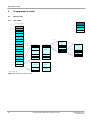
Directory structure
MPS
M3
docs
fpga_cpu
fpga_dut
software
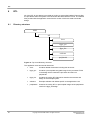
peripherals
Figure 13: Top Level Directory Structure
The application note has several directories:
26
•
docs:
Contains related documents including this document
•
fpga_cpu:
Contains a precompiled encrypted image for the processor FPGA
in the design which contains the processor and the local
peripherals.
•
fpga_dut:
Contains the verilog RTL files which describe the structure and
design of the example system.
•
software:
Example software and utilities specific to the application note
•
peripherals : Contains the verilog RTL or precompiled images of the peripherals
used in the fpga_dut design.
Copyright © 2009 ARM Limited. All rights reserved.
Application Note 218
ARM DAI0218A
RTL
6.2
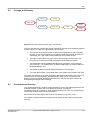
The fpga_dut Directory
logical
verilog
fpga_dut
scripts
physical
mpb_dut
altera
netlist
Figure 14: Directory Structure within fpgu_dut Directory
The fpga_dut directory contains the Verilog required for top-level of the example customer
system. This is in the directory logical/verilog and includes:
•
The top level of the system which contains the IO instantiations and clock/reset
sources. This is also a wrapper for the main/top-level logic module. This block is
called fpga_dut.v and is the module called from the synthesis scripts.
•
The logic module (called dut_logic.v) which describes the structure of the top
level logic and instances the AHB peripherals and the APB sub-system.
•
The associated AHB and APB peripherals which are specific to the Customer
DUT FPGA (e.g., an AHB decoder, an AHB to APB bridge, an AHB-Lite Slave-toMaster Multiplexer, etc.).
•
The system registers and their default settings are in this directory.
•
The main defines which control what parts of the system are included in the build.
Also within this directory is the script for building the bit-file to download to the FPGA. The
synthesis script is in physical/mpb_dut/altera/scripts and produces a routed, placed
design in the physical/mpb_dut/altera/netlist directory. See the HPE Desk manuals for
downloading this image to the FPGA [2].
6.3
The peripherals Directory
The peripherals directory contains verilog required for most of the ARM peripherals in the
example customer system, with some blocks as pre built .vqm files (in
/peripherals/physical /<peripheral_name>/synplify/netlist) to be read in by the build script.
The function of each block is shown in section 3.
Each Primecell or other large IP block has its own directory (e.g. pl011_uart).
The netlists in these directories are pulled into the design by the scripts in the fpga_dut
directory.
Application Note 218
ARM DAI0218A
Copyright © 2009 ARM Limited. All rights reserved.
27
RTL
logical
peripherals
ds700_charlcd
verilog
ds702_i2c
verilog
pl011_uart
verilog
pl022_ssp
verilog
pl031_rtc
verilog
sp804_timer
verilog
sp805_watchdog
verilog
pl041_aaci
synplify
netlist
pl181_mmci
synplify
netlist
physical
Figure 15: Directory Structure within peripherals Directory
6.4
Building the application note
Building the Application Note requires the running of a single batch script. This script
invokes the Altera Quartus tools to perform both synthesis and place and route functions.
Once this script has completed, the .sof can be download into the DUT FPGA.
The script for creating the new image is found in the MPS directory
fpga_dut\physical\mpb_dut\altera\scripts\build.bat
This will recreate the existing DUT FPGA design. The resulting .sof file will be in
fpga_dut\physical\mpb_dut\altera\netlist\fpga_dut.sof
This is the file to be programmed into the FPGA by the Hpe®_desk application. See the
Hpe®_desk user Guide for details on downloading and configuring.
Note, you require the Altera Quartus II 8.0sp1 Web Edition or later to rebuild this image
for the FPGA.
28
Copyright © 2009 ARM Limited. All rights reserved.
Application Note 218
ARM DAI0218A
Functional testing
7
Functional testing
7.1
Self-test
The selftest code allows the user to confirm the functionality of their Microcontroller
Prototyping System, and provides a starting point for writing end code to make use of the
MPB peripherals.
7.1.1
Functionality
Selftest is a piece of diagnostic code for testing the following peripherals: AACI, MMCI,
USB, UARTs, character LCD, LEDs, switches, SRAM memory, RTC and system
clocks/interrupts.
Selftest is designed to run on the Keil Software Development System that is delivered
with the Microcontroller Prototyping System. The user can interact with the software
operation via the debugger’s console window.
The user interface displays a menu and prompts the user on how to operate each test.
For more information on exactly how each test is working, refer to the provided code
source, and readme files.
7.1.2
Compilation notes
A MicroVision project file is shipped as part of the selftest suite. This project file can be
used to rebuild the code with MicroVision. A makefile is also provided, so that automated
builds can be run.
7.1.3
Description
The selftest directory contains a suite of register level software tests for testing each of
the MPB peripherals. The code fragments used may also prove useful in developing
demonstration code or OS driver ports.
The project and executable files for these tests can be found under the
\selftest\build\Build_Keil directory. To complete the tests it is necessary to connect a
number of loopback cables to the board (see note below).
After connecting the test harness and loading the program image into the debugger
(selftest_mpb.axf) each of the MPB peripherals may be tested individually, or altogether
using ‘Run all tests’. The tests perform register level and basic functional tests on the
MPB hardware reporting any errors found.
The source code for the tests are brought together in a single project file
\build\Build_Keil\selftest_mpb.Uv2.
The source code for each peripheral test is split into separate directories for example
\apaaci\ contains apaaci.c and apaaci.h for testing the AACI peripheral. The \main\ folder
contains main.c and common.c which provide the user menu and functions that are
common to all peripheral tests.
Note: If the default install directory is not used, then the project will have to be rebuilt in
order for the debugger to display the source code automatically.
7.1.4
Selftest test harness
The MPB test code requires three separate cable assemblies to be connected to the
board for complete testing. Note these cables are not supplied with the MPB but details of
their connections are given here.
Application Note 218
ARM DAI0218A
Copyright © 2009 ARM Limited. All rights reserved.
29
Functional testing
7.1.4.1 The AACI cable
The AACI test performs a loopback test from Line Level Out to Line Level In. This
requires two 3.5mm stereo jack plugs which must all be wired as follows:
Connector A
Connector B
Tip
Tip
Ring
Ring
Screen
Screen
Connect the cable between the line in and line out sockets on the MPB (back panel).
7.1.4.2 UART loopback cable
The two UART cables have female 9-pin D-sub connectors on either end with
connections as follows:
Pin
Connector A
Connector B
1
N/C
N/C
2
RX
TX
3
TX
RX
4
DTR
DSR
5
GND
GND
6
DSR
DTR
7
RTS
CTS
8
CTS
RTS
9
N/C
N/C
Connect one cable between the top two UART connectors and another between the
bottom two UART connectors on the MPB (back panel).
7.1.4.3 USB OTG and USB Host cable
The external interconnect is not tested as part of self test so no cable is required. Selftest
only ensures the registers can be read and written.
30
Copyright © 2009 ARM Limited. All rights reserved.
Application Note 218
ARM DAI0218A
Clock frequency settings
8
Clock frequency settings
Please see section 3.2 for the intended clock frequencies of the design.
Please use the online help of the HPE_Desk software for details on programming the
clocks [2].
Application Note 218
ARM DAI0218A
Copyright © 2009 ARM Limited. All rights reserved.
31
Example software
9
Example software
The example software components of the firmware are:
•
Platform Library – This handles the system initialization and retargets the C
Library. To achieve this it provides a basic I/O subsystem that
supports simple device drivers. Included with the platform
library there is a simple terminal driver, UART, PS/2 keyboard
and LCD drivers and support for semihosting I/O.
•
Boot Monitor – This is the normal application that runs when the system is
booted. It is built with the platform library and it is the platform
library which handles the initial system initialization therefore any
application that is built with the platform library (or handles it own
initialization) could replace the boot monitor. It supports the
following functions.
General file operations.
Programming images into flash.
Loading and running another application.
Board configuration.
9.1
•
A semihost server that with handle standard ARM semihosting SWI’s.
•
Flash Support – The code that is used by the boot monitor and NFU to program
flash can be incorporated into a user application and is supplied
in source form.
•
MMC FAT support.
Boot Monitor User Interface
The Boot Monitor command interpreter accepts user commands from the debugger
console window or an attached terminal and carries out actions to complete the
commands.
9.1.1
Boot Monitor Main Menu Commands
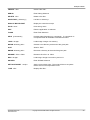
Command Format
Note
ALIAS <alias> <command string>
Create an alias command <alias> for the string of commands
in <command string>.
CD <directory path>
Change directory to the one specified in <directory path>.
CLEAR BOOTSCRIPT
Clear the current boot script. If no boot script is set then the
boot monitor will always prompt for input no matter what the
state of the 'run boot script' switch.
CONFIGURE
Enter Configure Submenu
CONVERT BINARY <binary-file>
LOAD_ADDRESS <address>
[ENTRY_POINT <address>]
Adds information required by the RUN command to execute
a binary file. The command will produce a file with the same
name as the specified binary file but with the '.exe' file
extension.
COPY <file1> <file2>
Copies file <file1> to <file2>.
32
Copyright © 2009 ARM Limited. All rights reserved.
Application Note 218
ARM DAI0218A
Example software
CREATE <file>
Create a file <file>.
DEBUG
Enter Debug Submenu
DELETE <file>
Delete a file <file>.
DIRECTORY [<directory>]
List files in <directory>.
DISPLAY BOOTSCRIPT
Display the current boot script
ECHO <text>
Prints string <text>.
EXIT
Exits the application or submenu.
FLASH
Enter Flash Submenu
HELP [<command>]
Provides help information on <command>. If <command> is
not specified then all available commands are listed.
LOAD <image>
Loads image <image> into memory.
MKDIR <directory path>
Creates a new directory at the end of the given path
QUIT
Alias for ‘EXIT’
RMDIR <directory path>
Removes a directory at the end of the given path
RENAME <file1> <file2>
Renames file <file1> to <file2>
RUN <image>
Load image <image> into memory and run it.
SDCARD
Enter SDCard Submenu
SET BOOTSCRIPT <script>
Set the current boot script. This script will be run at system
reset if the run boot script switch is set.
TYPE <file>
Displays file <file>.
Application Note 218
ARM DAI0218A
Copyright © 2009 ARM Limited. All rights reserved.
33
Example software
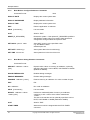
9.1.2
Boot Monitor Configure Submenu Commands
Command Format
Note
DISPLAY DATE
Displays the current system date.
DISPLAY HARDWARE
Display hardware information
DISPLAY TIME
Displays the current system time.
EXIT
Exits the application or submenu.
HELP [<command>]
List commands
QUIT
Alias for ‘EXIT’
RESET [IF_REQUIRED]
Resets this system. If the optional IF_REQUIRED qualifier is
specified the system will only be reset if there has been a
configuration change made that requires a reset.
SET BAUD <port #> <rate>
Sets UART <port #> to the specified <rate>.
e.g. SET BAUD 0 9600
available ports 0-4
SET DATE <dd/mm/yy>
Sets system date in the form dd/mm/yy.
SET TIME <hh:mm:ss>
Sets system time in the form hh:mm:ss
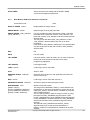
9.1.3
Boot Monitor Debug Submenu Commands
Command Format
Note
DEPOSIT <address> <value>
[size]
Deposit value <value> to memory at <address>, optionally
specifying the [size], it can be BYTE, HALFWORD or WORD
(defaults to WORD).
DISABLE MESSAGES
Disables debug messages
ENABLE MESSAGES
Enables debug messages
EXAMINE <address> [<size>]
Examine memory at <address> for <size> number of bytes.
EXIT
Exit
GO <address>
Run code at <address>.
HELP [<command>]
List commands
MODIFY <address> <value>
<mask> [size]
Performs a read/modify/write of memory at <address>,
combining in with <value> which will be masked with
<mask>.
The size of the transfer can be optionally specified it can be
BYTE, HALFWORD or WORD (defaults to WORD).
QUIT
Alias for 'EXIT'
START TIMER
Starts a timer which is stopped with the STOP TIMER
command.
34
Copyright © 2009 ARM Limited. All rights reserved.
Application Note 218
ARM DAI0218A
Example software
STOP TIMER
9.1.4
Stop a timer pervious started with the START TIMER
command and displays elapsed time.
Boot Monitor NOR Flash Submenu Commands
Command Format
Note
DISPLAY IMAGE <name>
Display details of image <name>
ERASE IMAGE <name>
Erases image (or binary file) from flash.
ERASE RANGE <start_address>
[<end_address>]
It is only possible to erase entire blocks of flash. Therefore
the entire block of flash that contains <start_address>, the
block that contains <end_address> and all intervening blocks
will be erased.
This may mean that data before <start_address> or after
<end_address> will be erased if they are not on block
boundaries.
If the optional <end_address> parameter is not specified then
only the single block of flash that contains <start_address>
will be erased.
EXIT
Exit
HELP
List commands
LIST AREAS
List areas of flash, where an area is one or more contiguous
blocks that are of the same size and use the same
programming algorithms.
LIST IMAGES
List images in flash
LOAD <name>
Load image <name> from flash.
QUIT
Alias for 'EXIT'
RESERVE SPACE <address>
<size>
Reserves space in flash for user applications that the boot
monitor will not use.
RUN <name>
Load image <name> from flash and run it.
UNRESERVE SPACE <address>
Unreserves pervious reserved space in flash.
WRITE BINARY <file>
[NAME <name>]
[FLASH_ADDRESS <address>]
[LOAD_ADDRESS <address>]
[ENTRY_POINT <address>]
Writes a binary file to flash.
The image will be identified in flash by a name derived from
the filename, for example t:/images/boot_monitor.bin will be
called boot_monitor, and this can be overridden by using the
option NAME argument.
You can specify where in flash the image is written by using
the optional FLASH_ADDRESS argument (Note: if both
FLASH_ADDRESS and LOAD_ADDRESS are specified and
LOAD_ADDRESS is located in flash then LOAD_ADDRESS
will be used and the FLASH_ADDRESS argument will be
ignored).
The optional LOAD_ADDRESS and ENTRY_POINT
arguments allow you to specify these parameters, if
ENTRY_POINT is not specified then to defaults to the load
address.
Application Note 218
ARM DAI0218A
Copyright © 2009 ARM Limited. All rights reserved.
35
Example software
WRITE IMAGE <file>
[NAME <name>]
[FLASH_ADDRESS <address>]
9.1.5
Writes an ELF image file to flash.
The image will be identified in flash by a name derived from
the file name, for example t:/images/boot_monitor.axf will be
called boot_monitor, and this can be overridden by using the
option NAME argument.
You can specify where in flash the image is written by using
the optional FLASH_ADDRESS argument (Note: if the image
is linked to run from flash then this address will be used and
the FLASH_ADDRESS argument will be ignored).
Boot Monitor SDCard Submenu Commands
Command Format
Note
FORMAT [QUICK]
[VOLUME <label>]
Formats the SDCard/MMC as FAT16 with 8.3 filenames
QUICK: performs a quick format with only the FAT and
bootsector updated.
VOLUME <label> will add a Volume label to the disk as
specified in the field <label>.
INFORM
Display details SD/MMC Card
INITIALISE
If the card has been changed use this command to re
initialise it to determine it’s features before using any other
commands.
EXIT
Exit
HELP
List commands
9.2
Peripheral Support
9.2.1
NVIC
Support for the Cortex-M3 Nested Vectored Interrupt Controller is provided by the
following functions in the platform library:-
_irq_enable
_irq_disable
9.2.2
nVIC interrupt enable routine
nVIC interrupt disable routine
DMC
No support is provided for the Dynamic Memory controller.
9.2.3
SMC
Initialisation of static memory controller is provided in the initial boot code with no
additional functions provided.
9.2.4
Video/LCD
No support is provided for the video/LCD controller.
36
Copyright © 2009 ARM Limited. All rights reserved.
Application Note 218
ARM DAI0218A
Example software
9.2.5
UART
Support for the PL011 UART is provided by the following functions in the platform library:-
_platform_uart_entry
9.2.6
Handles all channel operations for the UART channels,
reading characters, writing characters and opening the
channel.
Character LCD
Support for the character display is provided by the following functions in the platform
library:-
_platform_charlcd_entry
9.2.7
Handles all channel operations for the debug lcd
channel, writing characters and opening the channel.
Timer
Support for the SP804 timer is provided by the following functions in the platform library:-
timer_enable
timer_disable
timer_interrupt_clear
9.2.8
Enables a timer with a given period and mode
Disables the defined timer
Clears the timer interrupt
RTC
Support for the real time clock is provided by the command line interface commands SET
DATE , SET TIME and by the following functions in the platform library:-
time
9.2.9
Reads the current time from the Real Time Clock.
Ethernet
No support is provided for the Ethernet controller.
9.2.10 SSP
No support is provided for the SSP controller.
9.2.11 MMCI
Support for FAT16 file system 8.3 filenames 2GB max card size.
9.2.12 USB
No support is provided for the USB controller.
9.2.13
AACI
No support is provided for the AACI controller.
Application Note 218
ARM DAI0218A
Copyright © 2009 ARM Limited. All rights reserved.
37
Example software
9.3
Hardware Requirements
The firmware depends on various hardware facilities to be available to be able to provide
its functionality.
9.3.1
Platform Library
The following items are basic requirements of the platform library without which a
complete implementation would be difficult.
•
UART – The default output for the C libraries standard I/O will normally be the
first UART in the system. This UART is also use to output error messages when
it is not possible to output them to the selected standard output device.
•
100Hz Counter – This is used to provide the clock function in the C library, having
this counter removes the need to use a general purpose timer and allows a basic
library to function without the need for interrupts.
•
PrimeCell Real Time Clock (RTC) – This is used to provide the time function in
the C library.
•
The RTC during system initialization will be set to zero.
•
25MHz Counter – This is used to implement a general purpose delay routine
which is used by a number of components within the firmware.
The following items enhance the functionality of the platform library but are not
requirements, in fact in the case of the LCD and keyboard the platform library can be built
without this support.
9.3.2
•
LEDs – The firmware cycles the CPU LED’s when running standalone to show
that the board is running correctly.
•
The following items are only used by the platform library as a means to an end,
therefore support is only required if needed.
•
I2C – not used or implemented.
•
Although not used by the platform library drivers are provided for the following.
•
Character LCD – Support is provided for outputting messages to the character
LCD using standard C library functions.
•
Additional UARTs – Any additional UART can be accessed using C library
standard functions.
Boot Monitor
The boot monitor requires the following hardware support.
9.4
•
FAT file system – The boot monitor has several file related commands to copy,
load, run etc. It also supports the use of script files which are stored in a FAT file
system.
•
Switches – The boot monitor uses one switch to select whether it will run a script
when the system boots or not. This is user switch 1.
•
Configuration and Informational – The boot monitor obtain information such as
hardware revisions directly from the hardware register. The boot monitor can
also configure system clocks by via hardware registers.
Endianness
The platform will only supports Little Endian (LE).
38
Copyright © 2009 ARM Limited. All rights reserved.
Application Note 218
ARM DAI0218A
Example software
9.5
Multiprocessing
The platform library will not support multiprocessing and therefore any image that is built
with the platform library will only run on a single core.
9.6
System Boot
There are bootable devices on the board: NOR Flash or SSRAM.
9.6.1
Boot from Flash
When the system boots the first instructions executed will be from memory at address 0.
This memory is read only. If the code within this memory requires read/write memory it is
expected that it will initialize and use SSRAM. The type of memory visible at address 0
on system boot is determined by the configuration register settings, the default setting is
to boot from flash. At system boot this memory will be visible in two locations, at address
zero and at a fixed location in the memory map. It is expected that the code within this
memory will branch to the copy at the fixed location. The code will detect if the core is a
secondary master and if so enter a safe mode. Only the primary master will continue
initialization and copy the code to SSRAM before performing a remap operation to
remove the copy at address zero.
9.7
Platform Library Initialization
The implementation is very similar to the existing ARM hardware platforms, therefore the
initialization of the platform library will be basically the same. The differences are handled
with different include files and conditional compilation.
9.8
Memory Management & Caches
No cache or memory management is implemented in the processor so no additional
support is required.
9.9
Building the Firmware
9.9.1
Development Environment
Currently, only a Windows development environment is supported. The firmware can be
built using CodeWarrior and RVCT v3.1.
Application Note 218
ARM DAI0218A
Copyright © 2009 ARM Limited. All rights reserved.
39
Signal assignments
10
Signal assignments
This section shows the interfaces available on the Customer DUT FPGA.
The direction of the signals is shown from the point of view of the DUT FPGA, so an O
signal goes from the DUT FPGA to the CPU FPGA (for example).
10.1
1
Interface between the CPU and DUT FPGAs
Bus
Function
Direction
Bus
Function
Direction
FPGA_IC[0]
FPGA_IC[1]
FPGA_IC[2]
FPGA_IC[3]
FPGA_IC[4]
FPGA_IC[5]
FPGA_IC[6]
FPGA_IC[7]
FPGA_IC[8]
FPGA_IC[9]
FPGA_IC[10]
FPGA_IC[11]
FPGA_IC[12]
FPGA_IC[13]
FPGA_IC[14]
FPGA_IC[15]
FPGA_IC[16]
FPGA_IC[17]
FPGA_IC[18]
FPGA_IC[19]
FPGA_IC[20]
FPGA_IC[21]
FPGA_IC[22]
FPGA_IC[23]
FPGA_IC[24]
FPGA_IC[25]
FPGA_IC[26]
FPGA_IC[27]
FPGA_IC[28]
FPGA_IC[29]
FPGA_IC[30]
FPGA_IC[31]
FPGA_IC[32]
FPGA_IC[33]
FPGA_IC[34]
FPGA_IC[35]
FPGA_IC[36]
FPGA_IC[37]
FPGA_IC[38]
FPGA_IC[39]
FPGA_IC[40]
FPGA_IC[41]
FPGA_IC[42]
FPGA_IC[43]
FPGA_IC[44]
FPGA_IC[45]
FPGA_IC[46]
FPGA_IC[47]
FPGA_IC[48]
FPGA_IC[49]
FPGA_IC[50]
FPGA_IC[51]
FPGA_IC[52]
FPGA_IC[53]
FPGA_IC[54]
FPGA_IC[55]
FPGA_IC[56]
FPGA_IC[57]
HWDATA0
HWDATA1
HWDATA2
HWDATA3
HWDATA4
HWDATA5
HWDATA6
HWDATA7
HWDATA8
HWDATA9
HWDATA10
HWDATA11
HWDATA12
HWDATA13
HWDATA14
HWDATA15
HWDATA16
HWDATA17
HWDATA18
HWDATA19
HWDATA20
HWDATA21
HWDATA22
HWDATA23
HWDATA24
HWDATA25
HWDATA26
HWDATA27
HWDATA28
HWDATA29
HWDATA30
HWDATA31
HWRITE
HBURST0
HBURST1
HBURST2
HMASTLOCK
HPROT0
HPROT1
HPROT2
HPROT3
HSIZE0
HSIZE1
HSIZE2
HTRANS0
HTRANS1
HSEL
HADDR0
HADDR1
HADDR2
HADDR3
HADDR4
HADDR5
HADDR6
HADDR7
HADDR8
HADDR9
HADDR10
M
M
M
M
M
M
M
M
M
M
M
M
M
M
M
M
M
M
M
M
M
M
M
M
M
M
M
M
M
M
M
M
M
M
M
M
M
M
M
M
M
M
M
M
M
M
M
M
M
M
M
M
M
M
M
M
M
M
FPGA_IC[90]
FPGA_IC[91]
FPGA_IC[92]
FPGA_IC[93]
FPGA_IC[94]
FPGA_IC[95]
FPGA_IC[96]
FPGA_IC[97]
FPGA_IC[98]
FPGA_IC[99]
FPGA_IC[100]
FPGA_IC[101]
FPGA_IC[102]
FPGA_IC[103]
FPGA_IC[104]
FPGA_IC[105]
FPGA_IC[106]
FPGA_IC[107]
FPGA_IC[108]
FPGA_IC[109]
FPGA_IC[110]
FPGA_IC[111]
FPGA_IC[112]
FPGA_IC[113]
FPGA_IC[114]
FPGA_IC[115]
FPGA_IC[116]
FPGA_IC[117]
FPGA_IC[118]
FPGA_IC[119]
FPGA_IC[120]
FPGA_IC[121]
FPGA_IC[122]
FPGA_IC[123]
FPGA_IC[124]
FPGA_IC[125]
L14_DUTOUT_DN[0]
L14_DUTOUT_DN[1]
L14_DUTOUT_DN[2]
L14_DUTOUT_DN[3]
L14_DUTOUT_DN[4]
L14_DUTOUT_DN[5]
L14_DUTOUT_DN[6]
L14_DUTOUT_DN[7]
L14_DUTOUT_DN[8]
L14_DUTOUT_DN[9]
L14_DUTOUT_DN[10]
L14_DUTOUT_DN[11]
L14_DUTOUT_DN[12]
L14_DUTOUT_CLK
L14_DUTOUT_DP[0]
L14_DUTOUT_DP[1]
L14_DUTOUT_DP[2]
L14_DUTOUT_DP[3]
L14_DUTOUT_DP[4]
L14_DUTOUT_DP[5]
L14_DUTOUT_DP[6]
L14_DUTOUT_DP[7]
HRDATA11
HRDATA12
HRDATA13
HRDATA14
HRDATA15
HRDATA16
HRDATA17
HRDATA18
HRDATA19
HRDATA20
HRDATA21
HRDATA22
HRDATA23
HRDATA24
HRDATA25
HRDATA26
HRDATA27
HRDATA28
HRDATA29
HRDATA30
HRDATA31
HRESP
HREADY
HRESETn
INT0
INT1
INT2
INT3
INT4
INT5
INT6
INT7
INT8
INT9
INT10
INT11
INT12
INT13
INT14
INT15
INT16
INT17
INT18
INT19
INT20
INT21
INT22
INT23
NMI
VIDEOCLK (CLK)
(1)
VIDEO0
( )
VIDEO1 1
( )
VIDEO2 1
( )
VIDEO3 1
( )
VIDEO4 1
( )
VIDEO5 1
( )
VIDEO6 1
( )
VIDEO7 1
S -> M
S -> M
S -> M
S -> M
S -> M
S -> M
S -> M
S -> M
S -> M
S -> M
S -> M
S -> M
S -> M
S -> M
S -> M
S -> M
S -> M
S -> M
S -> M
S -> M
S -> M
S -> M
S -> M
M -> S
DUT ->
DUT ->
DUT ->
DUT ->
DUT ->
DUT ->
DUT ->
DUT ->
DUT ->
DUT ->
DUT ->
DUT ->
DUT ->
DUT ->
DUT ->
DUT ->
DUT ->
DUT ->
DUT ->
DUT ->
DUT ->
DUT ->
DUT ->
DUT ->
DUT ->
DUT ->
DUT ->
DUT ->
DUT ->
DUT ->
DUT ->
DUT ->
DUT ->
DUT ->
->
->
->
->
->
->
->
->
->
->
->
->
->
->
->
->
->
->
->
->
->
->
->
->
->
->
->
->
->
->
->
->
->
->
->
->
->
->
->
->
->
->
->
->
->
->
->
->
->
->
->
->
->
->
->
->
->
->
S
S
S
S
S
S
S
S
S
S
S
S
S
S
S
S
S
S
S
S
S
S
S
S
S
S
S
S
S
S
S
S
S
S
S
S
S
S
S
S
S
S
S
S
S
S
S
S
S
S
S
S
S
S
S
S
S
S
Proc
Proc
Proc
Proc
Proc
Proc
Proc
Proc
Proc
Proc
Proc
Proc
Proc
Proc
Proc
Proc
Proc
Proc
Proc
Proc
Proc
Proc
Proc
Proc
Proc
Proc
Proc
Proc
Proc
Proc
Proc
Proc
Proc
Proc
These signals are driven by DDR registers clocked by VIDEOCLK and are arranged in the same way as the signals are
driven off the CPU FPGA.
40
Copyright © 2009 ARM Limited. All rights reserved.
Application Note 218
ARM DAI0218A
Signal assignments
FPGA_IC[58]
FPGA_IC[59]
FPGA_IC[60]
FPGA_IC[61]
FPGA_IC[62]
FPGA_IC[63]
FPGA_IC[64]
FPGA_IC[65]
FPGA_IC[66]
FPGA_IC[67]
FPGA_IC[68]
FPGA_IC[69]
FPGA_IC[70]
FPGA_IC[71]
FPGA_IC[72]
FPGA_IC[73]
FPGA_IC[74]
FPGA_IC[75]
FPGA_IC[76]
FPGA_IC[77]
FPGA_IC[78]
FPGA_IC[79]
FPGA_IC[80]
FPGA_IC[81]
FPGA_IC[82]
FPGA_IC[83]
FPGA_IC[84]
FPGA_IC[85]
FPGA_IC[86]
FPGA_IC[87]
FPGA_IC[88]
FPGA_IC[89]
HADDR11
HADDR12
HADDR13
HADDR14
HADDR15
HADDR16
HADDR17
HADDR18
HADDR19
HADDR20
HADDR21
HADDR22
HADDR23
HADDR24
HADDR25
HADDR26
HADDR27
HADDR28
HADDR29
HADDR30
HADDR31
HRDATA0
HRDATA1
HRDATA2
HRDATA3
HRDATA4
HRDATA5
HRDATA6
HRDATA7
HRDATA8
HRDATA9
HRDATA10
M
M
M
M
M
M
M
M
M
M
M
M
M
M
M
M
M
M
M
M
M
S
S
S
S
S
S
S
S
S
S
S
->
->
->
->
->
->
->
->
->
->
->
->
->
->
->
->
->
->
->
->
->
->
->
->
->
->
->
->
->
->
->
->
S
S
S
S
S
S
S
S
S
S
S
S
S
S
S
S
S
S
S
S
S
M
M
M
M
M
M
M
M
M
M
M
L14_DUTOUT_DP[8]
L14_DUTOUT_DP[9]
L14_DUTOUT_DP[10]
L14_DUTOUT_DP[11]
L14_DUTOUT_DP[12]
L14_CPUOUT_CLK
L14_CPUOUT_DP[0]
L14_CPUOUT_DP[1]
L14_CPUOUT_DP[2]
L14_CPUOUT_DP[3]
L14_CPUOUT_DP[4]
L14_CPUOUT_DP[5]
L14_CPUOUT_DP[6]
L14_CPUOUT_DP[7]
L14_CPUOUT_DP[8]
L14_CPUOUT_DP[9]
L14_CPUOUT_DP[10]
L14_CPUOUT_DP[11]
L14_CPUOUT_DP[12]
L14_CPUOUT_DN[0]
L14_CPUOUT_DN[1]
L14_CPUOUT_DN[2]
L14_CPUOUT_DN[3]
L14_CPUOUT_DN[4]
L14_CPUOUT_DN[5]
L14_CPUOUT_DN[6]
L14_CPUOUT_DN[7]
L14_CPUOUT_DN[8]
L14_CPUOUT_DN[9]
L14_CPUOUT_DN[10]
L14_CPUOUT_DN[11]
L14_CPUOUT_DN[12]
(
)
VIDEO8 1
( )
VIDEO9 1
( )
VIDEO10 1
( )
VIDEO11 1
VIDEORESET#
DUT
DUT
DUT
DUT
DUT
DUT
->
->
->
->
->
->
Proc
Proc
Proc
Proc
Proc
Proc
VIDEOVSYNC
VIDEOHSYNC
VIDEODE
DUT -> Proc
DUT -> Proc
DUT -> Proc
Table 7: FPGA Interconnect Signal Assignments
(1) These signals are driven by DDR registers clocked by VIDEOCLK and are arranged
in the same way as the signals are driven off the CPU FPGA.
10.1.1 Other CPU FPGA Interfaces
10.1.1.1
Signal
Resets
CPU_PORSEL
USER_RESETn
10.1.1.2
Signal
Comments
input
input
Power on reset
User reset
Clocks from Clock Factory
Direction [Width]
CPU_CLK1
CPU_CLK5
CPU_CLK10
CPU_CLK15
CPU_CLK100M
10.1.1.3
Signal
Direction [Width]
input
input
input
input
input
Clocks to Clock Factory
Direction [Width]
CPU_PLL_L2_CLKOUT0
CPU_PLL_R2_CLKOUT0
CPU_PLL_B1_CLKOUT3
DUT_PLL_T1_CLKOUT3_CPU
DUT_PLL_B1_CLKOUT3_CPU
Application Note 218
ARM DAI0218A
output
output
output
output
output
Comments
AHB system clock input
Not used.
Peripheral reference clock input
Not used.
100MHz reference clock
Comments
AHB and Processor frequency from FPGA PLL
Peripheral reference clock from FPGA PLL
Not used.
Not used.
Not used.
Copyright © 2009 ARM Limited. All rights reserved.
41
Signal assignments
10.1.1.4
Signal
LCD
LCD_BLON
LCD_R_HSYNC
LCD_R_M_DE
LCD_R_SHFCLK
LCD_R_VSYNC
LCD_SPARE
LCD_TTL_B
LCD_TTL_G
LCD_TTL_R
LCD_VDON
10.1.1.5
Signal
output
output
output
output
output
output
output[5:0]
output[5:0]
output[5:0]
output
Tied to ‘1’.
Driven from Video controller CLLP – Horizontal Sync signal.
Driven from Video controller CLAC – Data Enable.
Driven from Video controller Pixel Clock (CLCP) – Pixel Clock.
Driven from Video controller CLFP – Vertical Sync signal.
Not Connected.
Driven from Video controller CLD[7:2] – Red Data MSBs.
Driven from Video controller CLD[15:10] – Green Data MSBs.
Driven from Video controller CLD[32:18] – Blue Data MSBs.
Tied to ‘1’.
input
output
output
input
output
input
VGA/DVI Controller
Direction [Width]
VIDEO_CLK
VIDEO_D
VIDEO_DATA_EN
VIDEO_HPINT
VIDEO_HSYNC
VIDEO_I2C_SCL
VIDEO_I2C_SDA
VIDEO_MODE
VIDEO_RESET#
VIDEO_SPARE
VIDEO_VSYNC
42
Comments
Touch Screen Interface
Direction [Width]
TOUCH_SPI_BUSY
TOUCH_SPI_CS#
TOUCH_SPI_DCLK
TOUCH_SPI_DIN
TOUCH_SPI_DOUT
TOUCH_SPI_IRQ#
10.1.1.6
Signal
Direction [Width]
output
output[11:0]
output
input
output
output
bi-dir
input
output
output
output
Comments
Connects to TS_BUSY
Driven by TS_FSSOUT
Driven by TS_CLK
Connects to TS_DIN
Driven by TS_DOUT
Connects to TS_INTn
Comments
Driven by Pixel Clock from Video (PL111) from DUT.
Driven by DDR registers (see table below).
Driven from Video (PL111) CLAC – Data Enable.
Not Connected (Hot Plug Interrupt).
Driven from Video (PL111) CLLP – Horizontal Sync signal.
Clock driven by DS702 peripheral in CPU FPGA (Figure 16).
Data driven by/to DS702 peripheral in CPU FPGA (Figure 16).
Not Connected (Video mode)
Driven by reset synchronized to Pixel Clock.
Not Connected.
Driven from Video (PL111) CLFP – Vertical Sync signal.
Copyright © 2009 ARM Limited. All rights reserved.
Application Note 218
ARM DAI0218A
Signal assignments
nSDAOUTEN
1'b0
VIDEO_I2C_SDA
Tri-stated driver
VIDEO_I2C_SCL
Driver
SDA
SCL
Figure 16: Video I2C Connections
10.1.1.6.1
Video DDR Assignment
On Pixel Clock Rising Edge
On Pixel Clock Falling Edge
10.1.1.7
Signal
SEMULATOR Connector
Direction [Width]
SECPU_L4_RX1
SECPU_L4_RX2
SECPU_L4_RX3
SECPU_L4_RXCLK
SECPU_L4_TX1
SECPU_L4_TX2
SECPU_L4_TX3
SECPU_L4_TXCLK
SECPU_RESETn
10.1.1.8
Signal
Comments
Not Connected.
Not Connected.
Not Connected.
Not Connected.
Not Connected.
Not Connected.
Not Connected.
Not Connected.
Not Connected.
input [7:0]
output [7:0]
CPUFCP Interface
Direction [Width]
CPUFCP_CLK
CPUFCP_DATA
CPUFCP_PLTXT_RDY
10.1.1.10
Signal
input
input
input
input
input
input
input
input
input
0
Blue– CLD[15:8]
4 3
0
Green MSBs – CLD[23:20]
Human Interface (Switches and LEDs)
Direction [Width]
Comments
CPU_DSW
CPU_LED
10.1.1.9
Signal
11
8 7
Green LSBs – CLD[19:16]
11
Red– CLD[7:0]
input
input
input
JTAG Connector (CPU)
Direction [Width]
Application Note 218
ARM DAI0218A
Read via System register SYS_SW.
Set via System Register SYS_LED.
Comments
Not Connected.
Not Connected.
Not Connected.
Comments
Copyright © 2009 ARM Limited. All rights reserved.
43
Signal assignments
FTSH_GNDDET
bi-dir
FTSH_TMS
bi-dir
FTSH_TCK
FTSH_TDO
FTSH_TDI
FTSH_TRST
bi-dir
bi-dir
bi-dir
bi-dir
10.1.1.11
Signal
JTAG Connector (Shared)
Direction [Width]
INTCPU_TDI
INTCPU_TDO
INTCPU_TCK
INTCPU_TMS
input
bi-dir
input
input
INTCPU_TRSTn
INTCPU_SRSTn
INTCPU_RTCK
INTCPU_DBGRQ
INTCPU_DBGACK
input
input
output
input
output
10.1.1.12
Signal
MICTOR.Connections
Direction [Width]
MICTOR_PIPESTAT0
MICTOR_PIPESTAT1
MICTOR_PIPESTAT2
MICTOR_EXTTRIG
MICTOR_TRACEPKT
output
output
output
output
output[15:0]
MICTOR_TRACESYNC
MICTOR_TRACECLK
output
output
10.1.1.13
Signal
SSRAM Shared Connections
Direction [Width]
SSRAM_CLK
10.1.1.14
output
Connector Detect. Weak pull-up on FPGA which is pulled
low by the connector to indicate a connection.
Input to SWDIOTMS on processor. Also used as Data Out for
Serial Wire Debug.
JTAG Clock to processor.
JTAG Data Out from processor.
JTAG Data In to processor.
JTAG Reset. This is an active low signal.
Comments
JTAG Data In to processor.
JTAG Data Out from processor.
JTAG Clock to processor.
Input to TMS on processor. This is not connected to the Serial
Wire Debug Data Out.
JTAG Reset. This is an active low signal.
Factored into CPU reset.
Not connected.
Not connected.
Not connected.
Comments
Tied to ‘0’.
Tied to ‘0’.
Tied to ‘0’.
Tied to ‘0’.
Bits [3:0] carry the TRACEDATA port from the processor.
Bits [15:4] are tied to ‘0’.
Not connected.
Connects to processor TRACECLK port.
Comments
Driven by processor bus clock.
SSRAM 0 Connections
This port is driven by a dedicated interface control block which is not configurable and is
transparent to the system.
Signal
Direction [Width]
Comments
SSRAM0_A
SSRAM0_DQA
SSRAM0_DQB
SSRAM0_DQC
SSRAM0_DQD
SSRAM0_BWAn
SSRAM0_BWBn
SSRAM0_BWCn
output [19:0]
bi-dir [7:0]
bi-dir [7:0]
bi-dir [7:0]
bi-dir [7:0]
output
output
output
Address to SSRAM.
Data lines [7:0]. Byte lane 0.
Data lines [15:8]. Byte lane 1.
Data lines [23:16]. Byte lane 2.
Data lines [31:24]. Byte lane 3.
Write byte lane 0. Active low signal.
Write byte lane 1. Active low signal.
Write byte lane 2. Active low signal.
44
Copyright © 2009 ARM Limited. All rights reserved.
Application Note 218
ARM DAI0218A
Signal assignments
SSRAM0_BWDn
SSRAM0_DQPA
SSRAM0_DQPB
SSRAM0_DQPC
SSRAM0_DQPD
SSRAM0_CS1n
SSRAM0_CS2
SSRAM0_CS3n
SSRAM0_WEn
SSRAM0_CKEn
SSRAM0_OEn
SSRAM0_LBOn
SSRAM0_ADV
SSRAM0_ZZ
10.1.1.15
output
bi-dir
bi-dir
bi-dir
bi-dir
output
output
output
output
output
output
output
output
output
Write byte lane 3. Active low signal.
Byte lane 0 parity signal.
Byte lane 1 parity signal.
Byte lane 2 parity signal.
Byte lane 3 parity signal.
Chip select 1. Active low signal.
Chip select 2. Active high signal.
Chip select 3. Active low signal.
Write enable. Active low signal.
Clock enable signal. Active low signal.
Output enable. Active low signal.
Burst Mode Control. Active low signal. Tied to ‘0’.
Address Advance. Tied to ‘0’.
Sleep request. Tied to ‘0’.
Common SSRAM1 and FLASH Connections
The lines shared between these devices are controlled by a multiplexer which is
controlled by the interface controller for the FLASH RAM.
Signal
Direction [Width]
Comments
SSRAMFLASH_A
SSRAMFLASH_DQA
SSRAMFLASH_DQB
SSRAMFLASH_DQC
SSRAMFLASH_DQD
output [23:0]
bi-dir [7:0]
bi-dir [7:0]
bi-dir [7:0]
bi-dir [7:0]
Address to SSRAM/FLASH.
Data lines [7:0]. Byte lane 0.
Data lines [15:8]. Byte lane 1.
Data lines [23:16]. Byte lane 2.
Data lines [31:24]. Byte lane 3.
10.1.1.16
SSRAM1 Connections
This port is driven by a dedicated interface control block which is not configurable and is
transparent to the system.
Signal
Direction [Width]
Comments
SSRAM1_BWAn
SSRAM1_BWBn
SSRAM1_BWCn
SSRAM1_BWDn
SSRAM1_DQPA
SSRAM1_DQPB
SSRAM1_DQPC
SSRAM1_DQPD
SSRAM1_CS1n
SSRAM1_CS2
SSRAM1_CS3n
SSRAM1_WEn
SSRAM1_CKEn
SSRAM1_OEn
SSRAM1_LBOn
SSRAM1_ADV
SSRAM1_ZZ
output
output
output
output
bi-dir
bi-dir
bi-dir
bi-dir
output
output
output
output
output
output
output
output
output
Write byte lane 0. Active low signal.
Write byte lane 1. Active low signal.
Write byte lane 2. Active low signal.
Write byte lane 3. Active low signal.
Byte lane 0 parity signal.
Byte lane 1 parity signal.
Byte lane 2 parity signal.
Byte lane 3 parity signal.
Chip select 1. Active low signal.
Chip select 2. Active high signal.
Chip select 3. Active low signal.
Write enable. Active low signal.
Clock enable signal. Active low signal.
Output enable. Active low signal.
Burst Mode Control. Active low signal. Tied to ‘0’.
Address Advance. Tied to ‘0’.
Sleep request. Tied to ‘0’.
10.1.1.17
FLASH connections
This port is driven by a dedicated interface control block which is not configurable and is
transparent to the system. This block is responsible for controlling the multiplexing of the
shared data and address lines for these devices.
Application Note 218
ARM DAI0218A
Copyright © 2009 ARM Limited. All rights reserved.
45
Signal assignments
Signal
Direction [Width]
Comments
FLASH_WEn
FLASH_RESETn
FLASH_CEn
FLASH_OEn
FLASH_WPn_ACC
output
output
output
output
output
FLASH_RD_BYn
input
Write enable. Active low signal.
Memory reset. Active low signal.
Chip select. Active low signal.
Output enable. Active low signal.
Not Write Protect/Access signal. Tied to ‘1’. No write
protection is available on this interface.
Ready/ Not Busy input. Not connected.
10.1.1.18
RS232 connection
These interface is driven by the Primecell PL011. (see section 5.3.10). There is one
UART in the example system connected to the CPU FPGA. Interface RS1 connects to
UART 0.
Signal
Direction [Width]
RS1_RXD_LVTTL
RS1_TXD_LVTTL
input
output
Comments
10.1.2 Other DUT FPGA interfaces
10.1.2.1
Clocks and Resets
(see section 3.2)
Signal
Direction [Width]
Comments
USER_RESETn
HPE_RESETn
DUT_CLK1
DUT_CLK4
DUT_CLK10
DUT_CLK13
DUT_CLK100M
DUT_PLL_B1_CLKOUT3
DUT_PLL_R2_CLKOUT0
DUT_PLL_T1_CLKOUT3
input
input
input
input
input
input
input
output
output
output
AHB system clock input
Video Pixel Clock input
Peripheral reference clock input
AACI bit clock input
Reference 100MHz input
25MHz reference clock from FPGA PLL
AACI 24.576MHz bit clock x2 from FPGA PLL
Video Pixel Clock from FPGA PLL
10.1.2.2
LED and switch connections
Please refer to section 5.3 for details on driving this interface. The buttons and switches
can be read via the register SYS_SW (see section 5.3.1.3).
The values held in the SYS_LED and SYS_7SEG registers (see sections 5.3.1.4 and
5.3.1.5) are driven onto this interface based upon the value held in the HUMI_MODE field
in the SYS_PERCFG register (see section 5.3.1.2).
The scheduler runs at a preset rate of 500Hz and selects a new driver for the data lines
(DUT_HUMI_{A-G,DP}n) every 2 ms if the HUMI_MODE field is set to Scheduler
(3’b000). The order of the cycle is:
46
- LEDs selected
the scheduler drives DUT_HUMI_LEDn low.
- Segment 0
the scheduler drives DUT_HUMI_SEGn to 4’b1110.
- Segment 1
the scheduler drives DUT_HUMI_SEGn to 4’b1101.
- Segment 2
the scheduler drives DUT_HUMI_SEGn to 4’b1011.
- Segment 3
the scheduler drives DUT_HUMI_SEGn to 4’b0111.
Copyright © 2009 ARM Limited. All rights reserved.
Application Note 218
ARM DAI0218A
Signal assignments
- Character LCD
the scheduler drives DUT_HUMI_SEGn to 4’b1110 and
DUT_HUMI_LEDn high and enables the DUT_LCD_* interface
control lines.
Should any operation be in progress when the scheduler wishes
to switch back to the LED, then change is halted whilst the
operation completes and any new operation is prevented from
starting (the CharLCD driver appears busy to the processor).
Signal
Direction [Width]
BUTTON
DUT_DSW
DUT_HUMI_An
DUT_HUMI_Bn
DUT_HUMI_Cn
DUT_HUMI_Dn
DUT_HUMI_En
DUT_HUMI_Fn
DUT_HUMI_Gn
DUT_HUMI_DPn
DUT_HUMI_SEGn
DUT_HUMI_LEDn
DUT_LCD_REGSEL
DUT_LCD_RW
DUT_LCD_ENABLE
input[4]
input[4]
bi-dir
bi-dir
bi-dir
bi-dir
bi-dir
bi-dir
bi-dir
bi-dir
output[4]
output
output
output
output
Comments
10.1.2.3
FPGA Configuration connections
These connector is not used by the design, but for FPGA configuration only.
Signal
Direction [Width]
DUTFCP_CLK
DUTFCP_DATA
DUTFCP_PLTXT_RDY
input
input
input
10.1.2.4
Comments
SEMULATOR connections
The SEmulator connector is not used by this design. For further details please refer to the MPB User Guide [1].
Signal
Direction [Width]
SEDUT_L4_RXN
SEDUT_L4_RXP
SEDUT_L4_RXCLKN
SEDUT_L4_RXCLKP
SEDUT_L4_TXN
SEDUT_L4_TXP
SEDUT_L4_TXCLKN
SEDUT_L4_TXCLKP
SEDUT_RESETn
input[4]
input[4]
input
input
input[4]
input[4]
input
input
input
Application Note 218
ARM DAI0218A
Comments
Copyright © 2009 ARM Limited. All rights reserved.
47
Signal assignments
10.1.2.5
USB Interface
This interface is driven by a dedicated interface driver which is designed to drive the NXP
ISP1761 USB controller [14]. The interface driver is not configurable and is transparent to
the rest of the system.
Signal
Direction [Width]
Comments
USB_A
USB_CSn
USB_RDn
USB_WRn
USB_D
USB_DC_DACK
USB_DC_DREQ
USB_DC_IRQ
USB_DC_WAKEUPn
USB_HC_DACK
USB_HC_DREQ
USB_HC_IRQ
USB_HC_WAKEUPn
output[17]
output
output
output
bi-dir[16]
bi-dir
bi-dir
bi-dir
bi-dir
bi-dir
bi-dir
bi-dir
bi-dir
Not connected in this design.
Not connected in this design.
Used as input only. See interrupt table.
Not connected in this design.
Not connected in this design.
Not connected in this design.
Used as input only. See interrupt table.
Not connected in this design.
10.1.2.6
Multi-Media/SD Card Interface
This interface is driven by the Primecell PL181 (see section 5.3.12).
Signal
Direction [Width]
Comments
SD_SCLK
SD_CD
SD_WRP
SD_CT
SD_IRQ
SD_CSn
SD_DAT
SD_DI
SD_DO
output
input
input
output
bi-dir
bi-dir
bi-dir
bi-dir
bi-dir
Driven by MCICLKOUT.
See Figure 17
See Figure 17
Pulled low to enable SD_CD and SD_WRP inputs
See Figure 17
See Figure 17
See Figure 17
See Figure 17
See Figure 17
48
Copyright © 2009 ARM Limited. All rights reserved.
Application Note 218
ARM DAI0218A
Signal assignments
Tri-stated driver
nMCIDATEN
{SD_CSn, SD_DAT, SD_IRQ, SD_DO}
MCIDATOUT[3:0]
MCIDATIN[3:0]
Tri-stated driver
nMCICMDEN
MCICMDOUT
SD_DI
MCICMDIN
Open Collector/Drain driver
MCICLKOUT
O/C
SD_CLK
MCIFBCLK
MCIPWR
SD_Vcc
Power FET driver to smart Card
MCICARDIN
SD_CD
PullUp, Pulled down when card
present
MCIWPROT
SD_WRP
PullUp, Pulled down when Write
protected
SD_CT
Pulled low.
1'b0
Figure 17: MCI interface connections
The nCARDIN and WPROT signals are feed to the peripheral system registers for use as
setting interrupts and detecting the status of the signals.
10.1.2.7
Audio AC97 Interface
This interface is driven by the Primecell PL041 (see section 5.3.11).
Signal
Direction [Width]
Comments
AC_BITCLK
AC_EAPD
AC_EXT_CLK
AC_SDATAIN
AC_SDATAOUT
AC_RESETn
AC_SYNC
bi-dir
bi-dir
bi-dir
input
output
output
bi-dir
Not connected.
Tied to ‘1’.
Not used – Tied to ‘0’.
Drives AACISDATAIN.
Driven by AACISDATAOUT.
Driven by AACIRESET.
Driven by AACISYNC – used as an output.
10.1.2.8
A/D & D/A Interface
This interface is driven by the serial interface block DS702 (see section 5.3.2).
Signal
Direction [Width]
Comments
ADDA_CLK
ADDA_DATA
bi-dir
bi-dir
Driven by SCL.
Drives SDAin and is driven to ‘0’ by nSDAOUTEN going to
‘0’
10.1.2.9
DDR1/2 Interface
This interface is not driven in the example design supplied.
Application Note 218
ARM DAI0218A
Copyright © 2009 ARM Limited. All rights reserved.
49
Signal assignments
Signal
Direction [Width]
Comments
MEM_DDR2_ADDR
MEM_DDR2_BA
MEM_DDR2_CASn
MEM_DDR2_RASn
MEM_DDR2_WEn
MEM_DDR2_CSn
MEM_DDR2_ODT
MEM_DDR2_CKE
MEM_DDR2_CLKP
MEM_DDR2_CLKN
MEM_DDR2_DM
MEM_DDR2_DQSN
MEM_DDR2_DQSP
MEM_DDR2_DQ
MEM_VAR
output[15:0]
output[2:0]
output
output
output
output[1:0]
output[1:0]
output[1:0]
output[1:0]
output[1:0]
output[3:0]
bi-dir[3:0]
bi-dir[3:0]
bi-dir[31:0]
bi-dir[23:0]
Not connected in this design.
10.1.2.10
Ethernet Phy Interface
This interface is not driven in the example design supplied.
Signal
Direction [Width]
ETH_COL
ETH_CRS
ETH_MDC
ETH_MDINTRn
ETH_RESETn
ETH_RXCLK
ETH_RXD
ETH_RXDV
ETH_RXER
ETH_TXCLK
ETH_TXD
ETH_TXEN
ETH_TXER
bi-dir
bi-dir
bi-dir
bi-dir
bi-dir
bi-dir
bi-dir[3:0]
bi-dir
bi-dir
bi-dir
bi-dir[3:0]
bi-dir
bi-dir
10.1.2.11
Comments
CAN Interface
This interface is not driven in the example design supplied.
Signal
Direction [Width]
CAN_RXD
CAN_TXD
CAN_STB
bi-dir
bi-dir
bi-dir
10.1.2.12
Comments
Flexray Interface
This interface is not driven in the example design supplied.
Signal
Direction [Width]
FLEX_BGE
FLEX_EN
FLEX_ERRn
FLEX_RXD
FLEX_RXEN
FLEX_STBn
FLEX_TXD
FLEX_TXEN
bi-dir
bi-dir
bi-dir
bi-dir
bi-dir
bi-dir
bi-dir
bi-dir
50
Comments
Copyright © 2009 ARM Limited. All rights reserved.
Application Note 218
ARM DAI0218A
Signal assignments
FLEX_WAKE
10.1.2.13
bi-dir
LIN Interface
This interface is not driven in the example design supplied.
Signal
Direction [Width]
LIN_RXD
LIN_TXD
LIN_SLPn
LIN_ACTIVE
bi-dir
bi-dir
bi-dir
bi-dir
10.1.2.14
Comments
RS232 connections
These interfaces are driven by the Primecell PL011. (see section 5.3.10). There are three
UARTs in the example system connected to the DUT FPGA. Interface RS0 connects to
UART 1, UARTS 2 and 3 are connected to the UART ports RS232-1 and RS232-2 on the
baseboard respectively (RS0_xxx_MIDI and RS1_xxx_MIDI).
Signal
Direction [Width]
RS0_RXD_LVTTL
RS0_TXD_LVTTL
RS0_CTS_LVTTL
RS0_RTS_LVTTL
RS0_RXD_MIDI
RS0_TXD_MIDI
RS1_RXD_MIDI
RS1_TXD_MIDI
input
output
input
output
input
output
input
output
Application Note 218
ARM DAI0218A
Comments
Copyright © 2009 ARM Limited. All rights reserved.
51