1
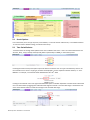
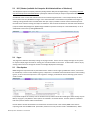
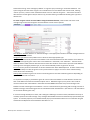
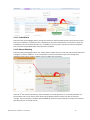
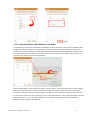
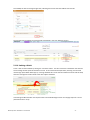
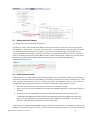
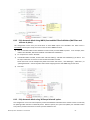
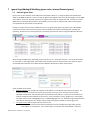
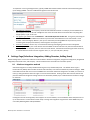
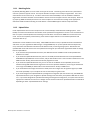
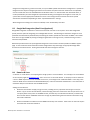
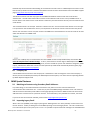
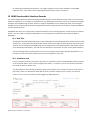
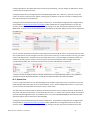
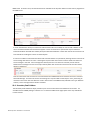
8.1.1 Matching Rules By default, Matching Rules are set to match to all types of records. Unchecking a box will tell our system NOT to match to a particular type of record. This may be desired if an object is not used by an organization. This is also where Email-to-Case can be set up. In order to use Email-to-Case with MME, it must be enabled in Salesforce Organization and there should be an email address used to receive new support cases for the company. When set up properly, MME can identify the Case # in an email’s subject line and match the message to the appropriate Salesforce Case# instead of matching on email address. Contact MME support staff for setup information. 8.1.2 Upload Rules Under Upload Rules there is access to options such as Team DeDupe, and attachment handling options. Team Dedupe is a feature that allows the Cloud Admin to set up Salesforce Integration for all Users in an email domain so that our system can de-duplicate email matching to records when more than one MME User receives the same email. Due to the complexity of this feature, please contact support staff for a more details explanation and assistance with set up. Attachments can be handled in several ways. When MME matches an email, it uploads the email into Salesforce and stores it in your organizations Data storage. If using MultiMatch, our system uploads the email object only once, and creates links between matched records and that email, conserving storage space. Attachments are uploaded with email and stored in the more plentiful File storage of your Salesforce organization based on settings found in Upload Rules: If you uncheck the Upload Attachments box, then NO attachments and ONLY email will be uploaded into Salesforce on match. If you check the Upload Attachments box, but set it for 0 MB, actual attachments will not be uploaded but LINKS WILL be uploaded with email on match, and you will be able to click a link to view the attachment in the MME cloud for 45 days, after which email will be purged from cloud. If you check the Upload Attachment box, you can set the size in MB that can be uploaded; the limit into Salesforce being 5MB. Attachments larger than limit will not upload to Salesforce, but as long as attachments aren’t larger than 30MB you will be able to view attachment for 45 days in MME cloud. If you check Block Inline Images and leave it at 10 KB, then inline images such as signature logos up to 10KB will not be uploaded, or you can adjust this size incrementally using the arrows. If you check Google Drive uploads AND set up Google Drive integration (See next section 8.2), then MME will upload attachments to your Google Drive (based on Google size limitations) and upload a LINK with the email to it. If you check Google Drive uploads but do NOT grant Google Drive Integration, our system does not have appropriate credentials to access User’s Google account and will continue to upload attachments to Salesforce depending on other “Upload Attachments” settings. Match My Email MultiMatch – User Manual - 28 -