1
Lesson 3 Integration
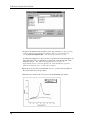
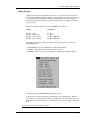
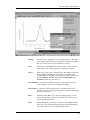
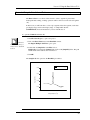
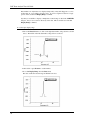
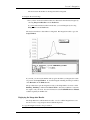
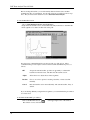
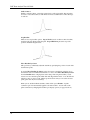
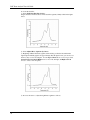
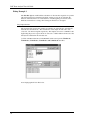
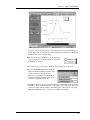
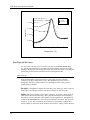
The area between the markers is the range that will be integrated.
To integrate the selected range
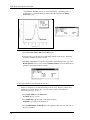
· Since you have created a baseline but have not subtracted it from the data, integrate by
choosing Integ from Baseline from the Peak Menu.
If you had subtracted the baseline from the data, you would integrate by choosing
Integ from 0 from the Peak menu.
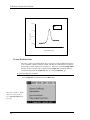
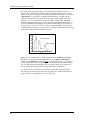
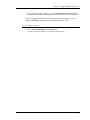
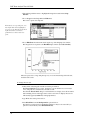
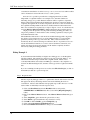
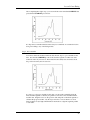
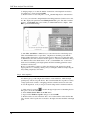
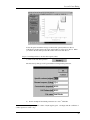
The area between the two data markers is integrated. The integration results copy to the
Script Window.
If you wish, you can reset the markers and try again. Each time you integrate, the results
are pasted to the Script Window. To clear the integration shading from the plot window,
select Refresh from the Window menu.
The procedure that copies the integration results to the Script Window is a macro called
EndInteg. EndInteg is defined in the DSC.CNF file, and can be redefined to customize
the output to suit your needs. For more information see the LabTalk Reference Manual,
available separately from MicroCal.
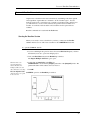
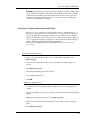
Displaying the Integration Results
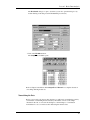
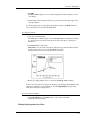
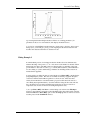
The Script Window is a full-featured text editor. Use it to edit the integration text, save
the text to a file, or copy and paste the text with the clipboard.
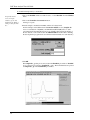
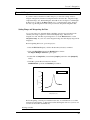
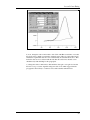
To copy the integration results to the plot window
31