1
DSC Data Analysis Tutorial Guide
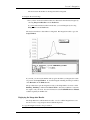
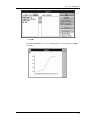
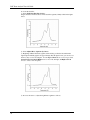
The integration area data is saved (as a function of X, which is temperature for
calorimetric data) into a data set named _integ_area. The leading underscore signifies
that _integ_area is a temporary data set which will be deleted whenever memory is
running low. To access the worksheet of _integ_area data, or use it for any other
purpose, you should first copy _integ_area to a permanent data set.
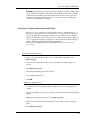
To copy the integration area data to a new data set
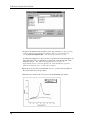
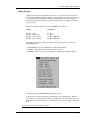
· Click on the Edit menu in the Script Window menu bar. Note that the Script
Execution command is checkmarked, which means you can currently execute
LabTalk scripts directly from the Script Window.
· On a new line, type the following script exactly as it appears. Be sure to include the
single space before _integ_area and also before my_test: Please note that the data
set name must consist of two parts separated by the underscore character. The first
part will be the worksheet name (in this case the worksheet will be named my) the
second part will be the column name of the data set.
copy _integ_area my_test
· Press Return.
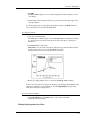
Origin should append a semicolon " ; " to the text you just entered. This indicates that
the script was executed. For more information about the Lab-Talk scripting language,
please refer to the LabTalk manual or select the online Help:LabTalk menu option.
My_test is now an Origin data set that can be plotted and manipulated like any other
data set.
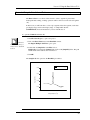
To plot the my_test integration area data
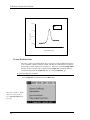
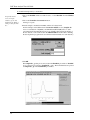
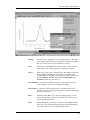
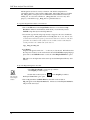
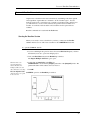
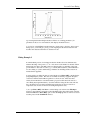
· Select File:New:Graph to open a new plot window.
The Graph1 plot window opens.
Shortcut:
Click on the
New Graph
button
34
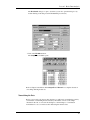
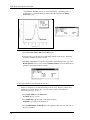
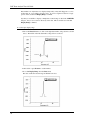
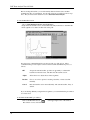
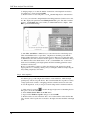
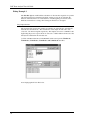
· Double-click on the layer icon
The Layer Control dialog box opens.
in the Graph1 plot window.
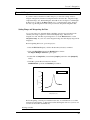
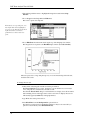
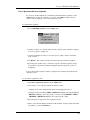
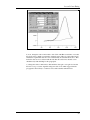
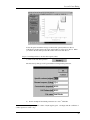
· Click on my_test in the Available Data list, then click on the => button.
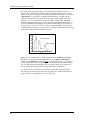
My_test appears in the Layer Contents list. All data sets in the Layer Contents list
will plot in the active layer.