1
9. Appendix
Appendix H:
Inserting New Software Chips For Software Updates.
HOW TO PHYSICALLY CHANGE YOUR SOFTWARE CHIP:
Tools Needed: 1 medium flat screwdriver.
1) First, remove the AC adaptor plug from the back of the trapKATI
2) Find a smooth, clean, flat surface and place your trapKAT upside
down on it, the jacks facing away from you.
3) Remove back cover of the trapKAT (16 screws).
4) When the trapKAT is opened, you will see one large circuit board
towards the back.
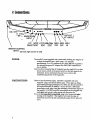
On the front right of the printed circuit board is a large chip with a
white paper label that says something like "trapKAT 1.0". The
chip with the white label is your Software Chip, the code that
runs your trapKAT - its Operating System.
Before you take the old software chip out, note how it is oriented in
the socket. Specifically notice that the "notch" on the end of the
chip is away from you.
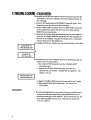
5) The chip is at the top end of the circuit board. To remove an old
chip, you will use your flat screwdriver. You will pry the chip out
of its socket. Look at the Upgrade chip you received and you will
be able to tell what is the chip and what is the socket. You want to
insert the screwdriver between the chip and the socket so as to pry
up the chip but not the socket. As you start to pry up the chip insert
the screwdriver further under the chip and pry up more, then insert
screwdriver even further and then pry up more until the chip comes
out of the socket.
Don't be scared - just pry a little bit and then push the screwdriver
in further, until the chip is out. Take your time, don't be in a hurry.
Make sure you insert the screwdriver behueen the chip and the
socket before you start to pry each time. (Instead of between the
socket and the circuit board.)
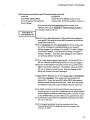
6) After you have the chip out, place the new chip in its socket, being
careful to orient it in the same way that the old chip was
(remember the "notch"?). Take a little care to align the legs of the
chip into the holes in the pins of the socket. Then push down
evenly on the chip. It should push down snugly into the socket.
Visually check to see that none of the legs got squished and are
smashed under the chip.
7) Replace the back cover of your trapKAT and reinsert the 16 screws.
8) Turn your trapKAT back over, and reinsert the AC adaptor plug into
the trapKAT. Now rum your trapKAT back on. If the display is
working, you are OK.
If the display is rioi working then:
a) Remove the AC adaptor plug again.
b) Turn the trapKAT over again and remove the 16 screws.
c) Take the back cover off again.
d) Try reinserting the chip (pry it out again to make sure that
the legs didn't get bent under the chip).
e) Put the back cover on, turn the trapKAT back over, reinsert
the AC adaptor plug, and turn the power back on.
f) If this still fails, put your OLD software back in and give us
a call @ 413-594-7466.
9) After you have had the new software in and used it for several days,
please send the old chip back to us. They are reusable.
45