1
Appendix B: Communications Troubleshooting
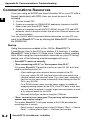
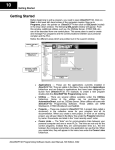
(3) In the left column under Utilities, double-click DS400.ini (or
DS500.ini, or DS600.ini). This will open the file in NotePad
text editor.
(4) Make the edits; save the file and exit.
A
(5) Restart DSLaunch (or DirectSOFT).
B
• Another option to try if the steps above do not work:
3
(1) Close DirectSOFT.
(2) Click Start button.
D
(3) In the Search programs and files box, type in DS400.ini (or
DS500.ini, or DS600.ini).
5
(4) Click on the search result and edit that file; save the file and
6
exit.
(5) Restart DSLaunch (or DirectSOFT).
7
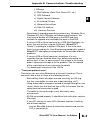
Windows Vista
8
Windows Vista has some extra protection features, so the above
9
procedures may not work depending on its settings. Windows
Vista has a feature called UAC (User Access Control) that is, by
0
default, turned on. However, it is possible to turn this feature off,
and this dramatically affects the editing of the .INI file.
1
To modify the UAC setting:
(1) Use the Windows Start button: Start -->Control Panel.
2
(2) Click on User Accounts.
3
(3) Click on Turn UAC ON/OFF. This will tell you if this feature is
ON or OFF. Depending on this setting go to the proper section
4
below (UAC=ON or UAC=OFF).
UAC = ON
A
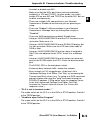
With UAC=ON, the security measures of Windows Vista create a
B
virtual store copy of your .INI file and redirect DirectSOFT to use
this copy instead of the one that is normally stored in the
C
C:\Windows folder.
• If you have DirectSOFT v3, v4, v5.0 or v5.1 then you will have to
D
find this file manually and edit it:
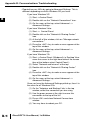
(1) Close DirectSOFT and DSLaunch.
(2) Use Windows Explorer to browse to:
c:\Users\<username>\AppData\Local\VirtualStore\Windows\
(3) Find the DS300 (or DS400, or DS500, or DS600.INI) file and
open it with NotePad.
DirectSOFT 6 User Manual, 1st Edition
B-11