1
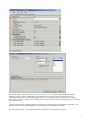
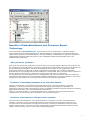
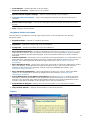
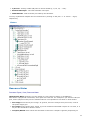
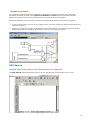
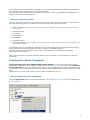
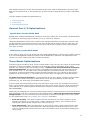
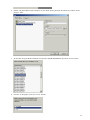
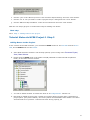
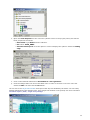
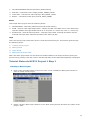
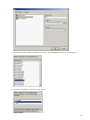
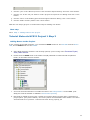
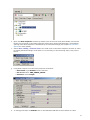
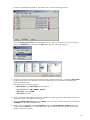
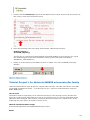
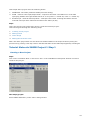
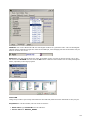
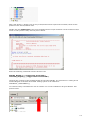
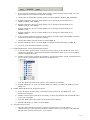
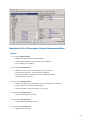
Select the Customize this bean template item to open the Bean Inspector. You may then make
some changes before saving the current bean in a template:
l
set default values of properties,
l
set default values of methods or events (whether it has be generated or not generated),
l
rename methods (by double clicking on method name),
l
l
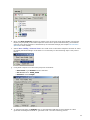
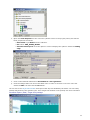
set feature of properties, methods or events as Read Only (user can't edit default values for
properties or change features such as generate/not generate of methods or events) or
Changeable (user can edit default values of properties or change features generate/not
generate of methods or events) by double clicking in the first column in Bean Inspector. The
icon shows the status:
¡
- feature is ReadOnly.
¡
- feature is Changeable.
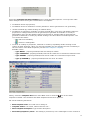
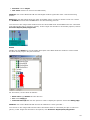
set level of visibility of properties, methods or events by repeatedly double clicking in last
column in Bean Inspector. When you use the template you may change the level of visibility in
the View menu in the Bean Inspector (see the Bean Inspector chapter).
Possible values:
¡
Type: BASIC - property/method/event will always be visible.
¡
Type: ADVANCED - property/method/event will be visible if it is selected in Advanced view.
¡
Type: EXPERT - property/method/event will be visible if it is selected in Expert view.
¡
Type: @ HIDDEN @ - property/method/event will never be visible.
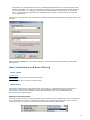
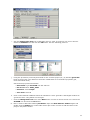
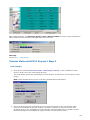
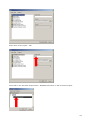
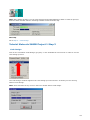
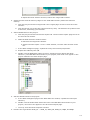
Finally, select the Template-Save item of the Bean menu or click the
icon on the bean
inspector's toolbar. The Customize this bean template window then appears.
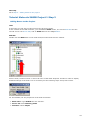
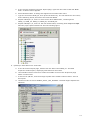
Fill out the following edit boxes:
l
Bean template name: You need not to change it.
l
Template author: Your name, name of the firm etc...
l
Short template description: Type a short description.
l
Associated peripheral / Mode - This setting is present only if it is meaningful. If user chooses a
75