1
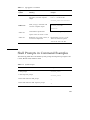
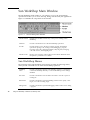
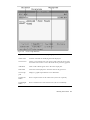
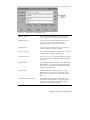
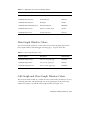
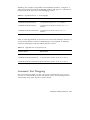
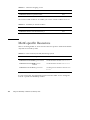
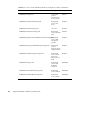
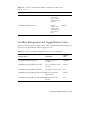
Analyzer button
Opens the Sampling Analyzer window and the Analyzer Load
Experiment dialog box allowing you to analyze application performance
data.
LoopTool button
Opens the LoopTool window, where you can analyze multithreaded
applications (available with Sun Visual WorkShop C++ and Sun
Performance WorkShop Fortran)
Merging button
Opens the Merging window and a dialog box to select text files to
compare and merge.
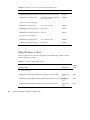
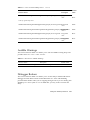
TeamWare
button
Opens the Sun WorkShop TeamWare source code management tool,
where you can access the TeamWare tools (available with Sun Visual
WorkShop C++ and Sun Performance WorkShop Fortran)
Visual button
Opens the Visual window for you to design visual applications (available
with the Sun Visual WorkShop C++)
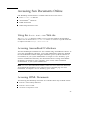
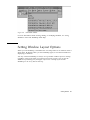
Selecting and Using Text Editors
Unless you have previously set your EDITOR environment variable to GNU Emacs
or XEmacs, Sun WorkShop uses the vi editor (For information on how to set your
EDITOR environment variable, see the man page for your command shell). To use
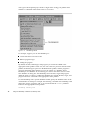
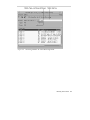
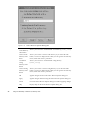
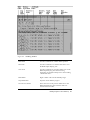
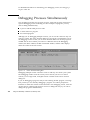
the integrated GNU Emacs or XEmacs editors, you must use the Text Editor Options
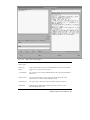
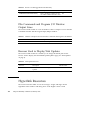
dialog box shown in Figure 2–3.
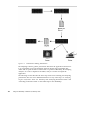
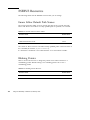
Figure 2–3
Text Editor Options Dialog Box
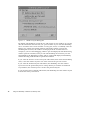
The editor you choose will remain the default editor for subsequent sessions of Sun
WorkShop. To change editors, choose Options > Text Editor Options from the Sun
WorkShop main window and select a new default editor in the Text Editor Options
dialog box.
The Sun WorkShop implementation of vi includes a Re-usable button. If the button is
enabled, subsequently opened files are displayed in the original Vi window. If the
button is disabled and you open a new vi file, the new file is displayed in a new Vi
12
Using Sun WorkShop ♦ Revision A, February 1999