1
Impatica for PowerPoint User’s Manual
discouraged since the entire remainder of the presentation must stream
in order for the last slide to be displayed.
The better alternative is to separate the presentation into multiple
presentations and use the “Hyperlink to Other PowerPoint Presentation”
feature to allow the user to navigate through blocks of slides. To find
out more, refer to Section 10, Tips and Tricks.
For enhanced navigation capabilities, Impatica for PowerPoint
optionally provides playback controls which allow the viewer to
navigate to the previous slide, next slide, beginning of the presentation,
as well as to pause/play the presentation. See Section 6.5.1, Slide
Show, for details on how to enable playback controls.
8.3.2
Navigating Between Presentations
Impatica for PowerPoint supports hyperlinks to other PowerPoint
presentations and to Impatica files. The ability to hyperlink to Impatica
files allows for the integration of content created with Impatica for
Director and Impatica for PowerPoint.
In each case, the target presentation must be translated independently of
the presentation containing the hyperlink. When using the hyperlink to
other PowerPoint presentation method, the target presentation must be
translated with the default save name.
It is also necessary that relative paths be preserved. If presentation1.ppt
contains a hyperlink to presentation2.ppt, the location of
presentation2.imp relative to presentation1.imp must be the same as the
location of presentation2.ppt relative to presentation1.ppt. The same is
true of Impatica files to which a PowerPoint presentation hyperlinks.
Due to Java security features, applets have access only to the contents
of the folder in which they are stored and its sub-folders. This is to
prevent applets from navigating upwards through the contents of a
server. The Impatica applet is no exception; therefore, it can only play
Impatica files stored in the folder that contains it and that folder’s
subfolders.
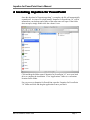
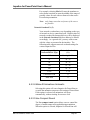
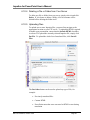
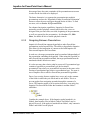
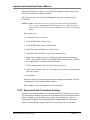
Consider the example above. If the Impatica applet launched is in
folder0, then Impatica files in folder0, folder1 and folder2 may be
played. However, if the applet is launched from folder1, only content in
folder1 and folder2 can be played.
Mac OS X Edition, Version 3.0.0
Page 50