1
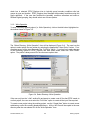
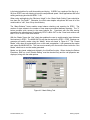
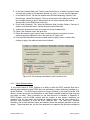
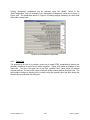
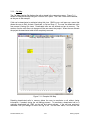
previously activated EFDC_Explorer looks to the immediately adjacent active cells to try to set
the appropriate cell dimensions, depth, rotation, etc. Because EFDC_Explorer is using adjacent
cells to assign properties, the user should add cells in a manner that has the most active cells
adjacent to the cell being activated. The cell properties are displayed to allow the user the
opportunity to make adjustments to the cell properties before accepting the activation.
If cells are activated near the edge of the IJ space, EFDC_Explorer adds to the appropriate
dimension and shifts the model to reflect the new IJ’s.
7.6.3. Bottom Elev
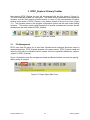
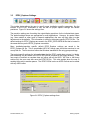
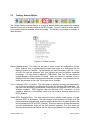
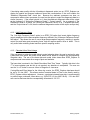
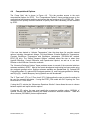
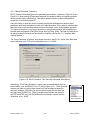
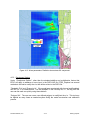
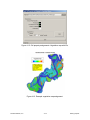
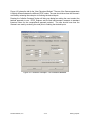
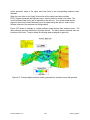
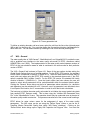
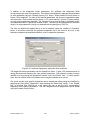
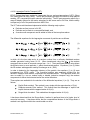
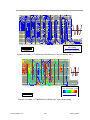
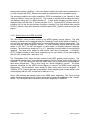
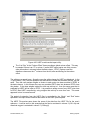
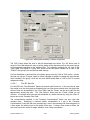
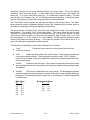
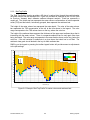
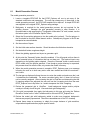
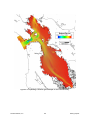
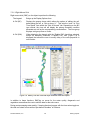
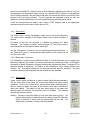
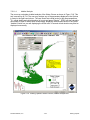
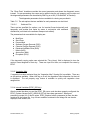
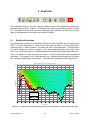
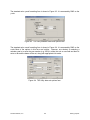
The “Bottom Elev” Viewing Opt displays a plan view of the model bathymetry.
The scales can be changed in the Display Option form to show resolution, if
desired.
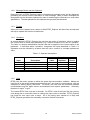
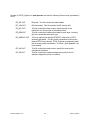
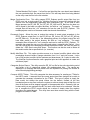
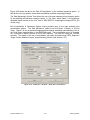
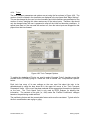
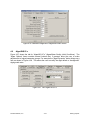
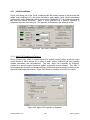
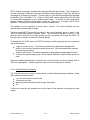
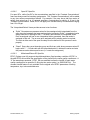
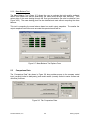
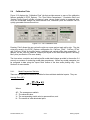
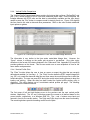
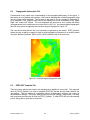
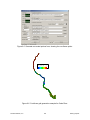
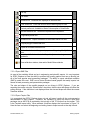
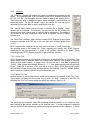
An option to shift the cell centroids is available by pressing the “Move
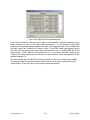
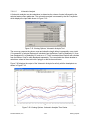
Centroids”. The “Volume evaluation” button displays a XY plot of the volumearea relationship and the area-elevation relationship.
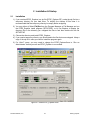
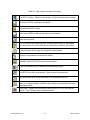
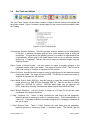
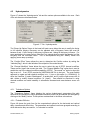
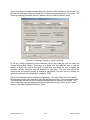
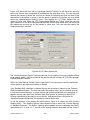
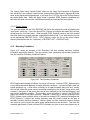
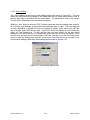
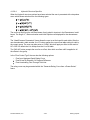
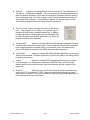
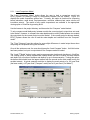
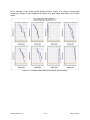
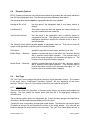
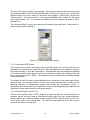
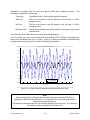
Use the “Transparent” function to view an underlying georeferenced bitmap. If
the “Show Grid” option is not checked the grid outlines will be colored but the
cells will not be filled.
7.6.3.1 Bathymetry Comparison
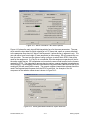
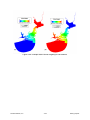
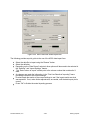
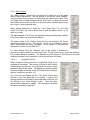
If a “Comparison” model has been loaded (see Sect. 5.3) alt-M allows the user to compare the
bathymetry between two models, the current model and the Comparison model. Alt-M toggles
the display of Model Comparison allowing the bathymetry differences (Base - Compare) to be
displayed instead of elevations. This feature is also available for other Viewing Options (see
Section 7.2.6). The volume differences can be computed with the Alt-V keystroke. The total
cut/fill/net volumes will be displayed and then placed onto the clipboard.
7.6.4. Water Levels
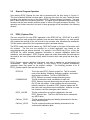
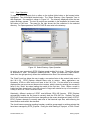
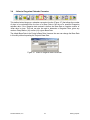
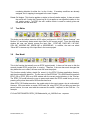
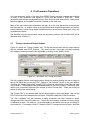
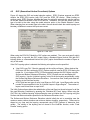
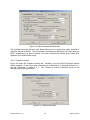
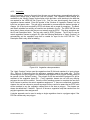
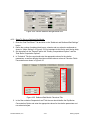
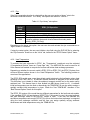
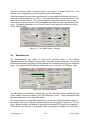
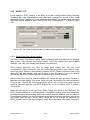
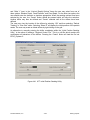
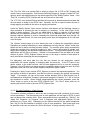
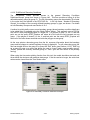
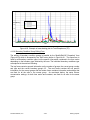
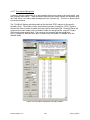
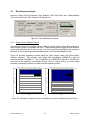
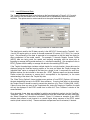
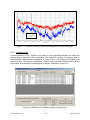
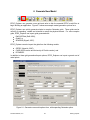
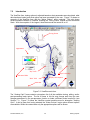
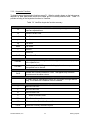
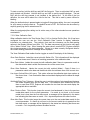
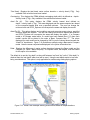
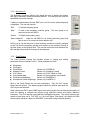
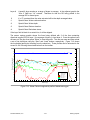
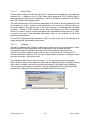
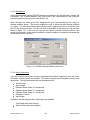
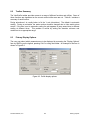
“Water Levels” option provides for a range of water depth derived parameters.
The two main uses of this option are to plot water depths and water surface
elevations. Some of the functions only use the water depths and bathymetry,
which is always available, but some of the functions also require velocities to
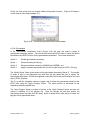
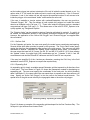
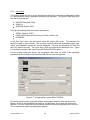
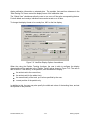
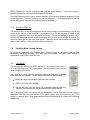
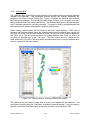
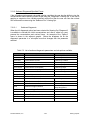
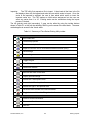
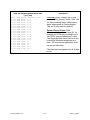
have been loaded. The graphic to the right shows some of the water level
options grayed out because the velocities were not available. The following
summarizes the other options:
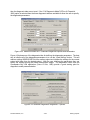
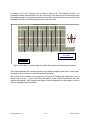
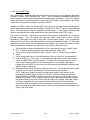
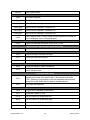
Wet/Dry: Provides a two color display for wet cells (blue) and dry (gray). The
wet/dry determination is made using the dry depth unless the “Use Wet”
option is checked, in which case the wetting depth will be used. The
areas and the numbers of wet/dry cells are reported.
DS-International, LLC.
7-22
EFDC_Explorer