1
Tutorial 1b: Speedy Entry
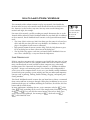
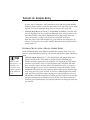
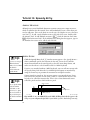
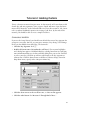
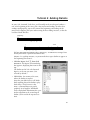
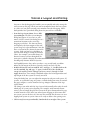
You can modify the triplet you made in Measure 3, too.
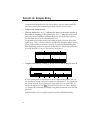
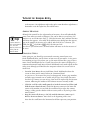
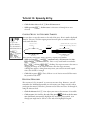
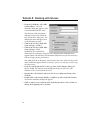
• Click the first note of the triplet in measure 3. The tuplet handles appear.
• Drag the handles until the triplet appears the way you want it to.
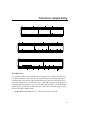
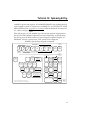
You can create tuplets within tuplets, too. It doesn’t matter whether you begin
by creating the inner or outer tuplet.
INSERTING NOTES OR RESTS
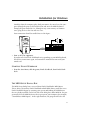
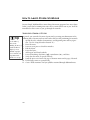
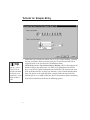
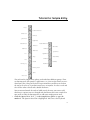
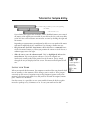
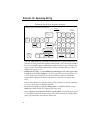
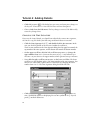
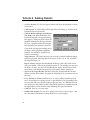
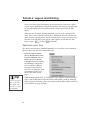
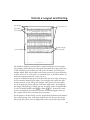
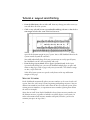
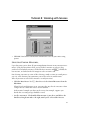
• Click the Speedy Entry Tool a.
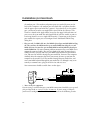
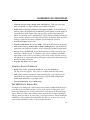
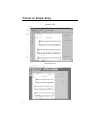
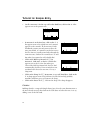
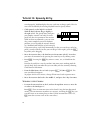
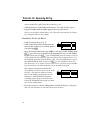
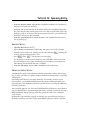
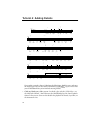
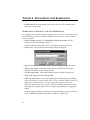
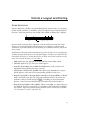
• Click on the first measure and position the
insertion bar on the two-note chord. Remove
it by pressing k.
&c œ
œ
œ
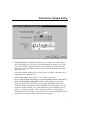
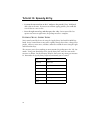
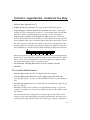
• Move the insertion bar back to the middle C note again. While holding down
d, press the 6 key located above the main keyboard, not on the number
keypad. When you press d, you tell Workbook you want to insert a note or
rest just before the insertion bar. You pressed the 6 key to add a half rest—6 is
the keyboard equivalent of the half note value. (If you had held down a key on
your MIDI keyboard while you pressed d-6, you would have inserted a
note instead of a rest.) Again, to insert a note or rest, you must use the number
keys located above the main keyboard, not on the numeric keypad.
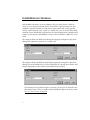
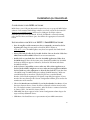
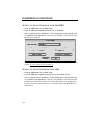
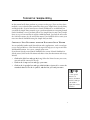
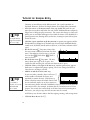
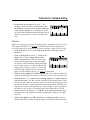
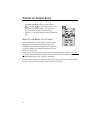
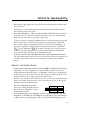
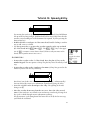
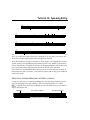
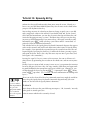
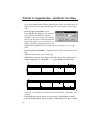
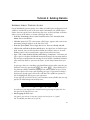
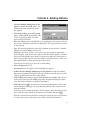
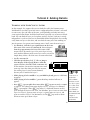
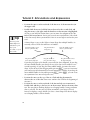
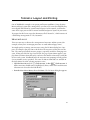
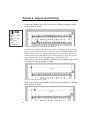
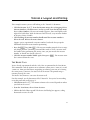
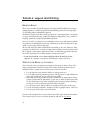
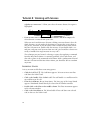
Your example should now look like this:
The problem is that there are five beats in the
measure —the half rest and three quarter
notes (even though you might not see the
third note). With Workbook’s rhythmicwatchdog feature (Jump to Next Measure)
turned off, Workbook won’t notify you until
you exit the editing frame.
&c Ó
œ
œ
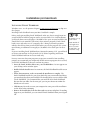
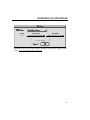
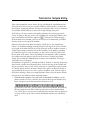
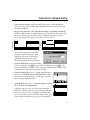
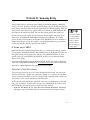
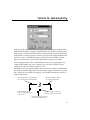
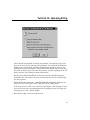
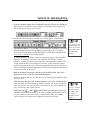
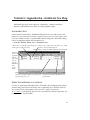
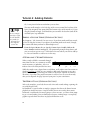
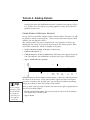
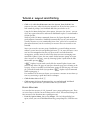
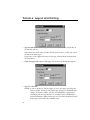
• Press the zero key to exit the editing frame. Workbook displays a dialog box
that tells you that there are too many beats in the measure.
28