1
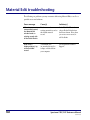
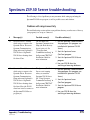
SLIP printer troubleshooting
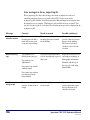
The following is a list of problems you may encounter while using the SLIP printer, as
well as possible causes and solutions.
First, you should make sure the SLIP printer is plugged in, turned on, and the cable is
securely connected to the printer and the computer.
Then, check the options selected in the SLIP Printer Setup. As necessary, select the
options for "Print receipt after checkouts" (in the Checkouts tab), "Print receipt after fine
payment" (in the Fines tab), and so on. Check to be sure that checkout slips, fine receipts,
and fine notices are set up to show the information that you want.
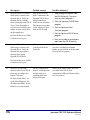
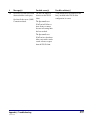
If your slips still don’t print correctly, look at the following possible causes and solutions.
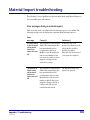
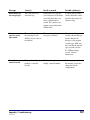
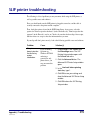
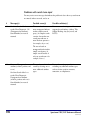
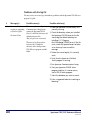
Problem
Cause
Solution(s)
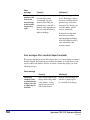
The printer
doesn’t print the
first line of my
receipt
information.
If you’re running
Spectrum on
Windows NT/2000
and using a
generic/text only
printer driver, you
may encounter this
problem.
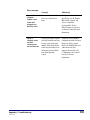
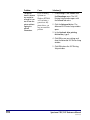
1 Choose Setup > SLIP Printer from
the Winnebago menu. The SLIP
Printing Setup window opens with
the General tab active.
2 Click the Advanced button. The
Advanced SLIP Printer Setup window
opens.
3 In the Linefeeds before printing
starts box, type 1.
4 Click OK to save your settings and
close the Advanced SLIP Printer Setup
window.
5 Click OK to close the SLIP Printing
Setup window.
Appendix J: Troubleshooting
SCC5rm1200kn
593