1
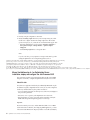
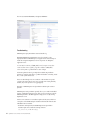
– Enter com.ibm.db2.jcc.DB2Driver for the JDBC Driver Class, and for the
Driver JAR select the required JAR files. For example, select
com.ibm.db2/db2jcc/9.5/jar and com.ibm.db2/db2jcc_license_cu/9.5/
jar. You can use the shift key and mouse to select multiple items.
– Enter the username and password for your database.
– Click Next.
– Enter for JDBC Connect URL:jdbc:db2://server:port/
DB:progressiveStreaming=2; using appropriate values for your server,
port and DB instance.
– Select Local for the Transaction Type.
– You can then click Test Connection to validate your entry.
– If your connection is successful, you will obtain a Connected to DB Test
Result.
– If there is a Connection Error displayed in the Test Result, click Edit
Settings to modify your entries and return to the previous step.
v For other databases enter the appropriate connection information and select
Local for the Transaction Type.
6. Click Deploy.
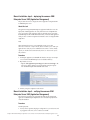
7. After deployment you can see a list of available database pools displayed.
Select OptimizationServerDB in the Use DataSource list .In the SQL
Command/s pane, paste the script content of the XXX-create-tables.sql file
appropriate for your database and click Run SQL. For example, for DB2, the
file db2-create-tables.sql, is located in <ODME_HOME>Developer\server\
databases and contains SQL code for creating tables which you can copy from
and paste into this pane.
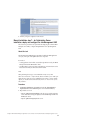
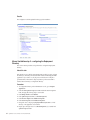
8. Select Services>JMS Resources, and click For ActiveMQ in the section Create a
new JMS resource group. In the Resource Group Name field, enter odme as
the name and keep all of the default options. Click Next.
9. Click Add Connection Factory Create the following JMS resources by first
selecting the appropriate item from the JMS Factory Type list and clicking
Next. You can then enter the Connection Factory Name.
v Queue Connection Factory named
OptimizationServerQueueConnectionFactory
v Topic Connection Factory named
OptimizationServerTopicConnectionFactory
10. Click Add Destination. Create the following JMS resource by first selecting
the appropriate item from the JMS Destination Typelist and clicking Next.
You can then enter the Message Destination Name
v Topic destination named OptimizationServerTopic
11. Click Deploy Now.
12. Select Applications>Deployer, browse and install each enterprise archive
located in the ears folder of your server installation directory.
v odme-application-mgmt-ear
v optimserver-mgmt-ear, optimserver-processor-ear and
cplexserver-processor-ear for Optimization Server
v odme-data-mgmt-ear for Data Server
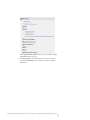
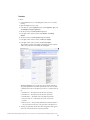
13. Select Applications>Application EARs. ODM Enterprise modules are listed in
the Component Name section of the Installed Application EARs window.
48
Optimization Server and Data Server Installation Guide