1
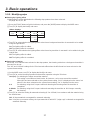
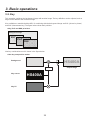
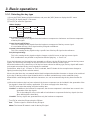
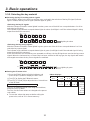
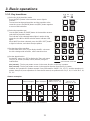
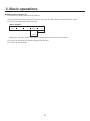
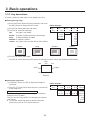
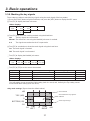
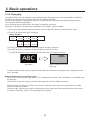
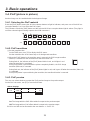
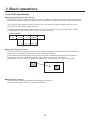
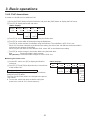
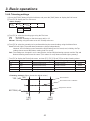
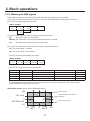
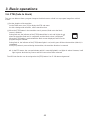
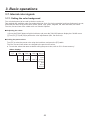
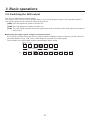
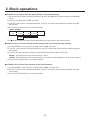
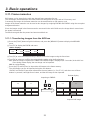
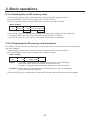
3. Basic operations 3-5-3. DSK transitions 1Set the duration of the transition. On the TIME menu, turn [F1] to display the DSK sub menu. As with a background transition, set the transition time. 2When the [DSK] button in the transition area is pressed, the DSK image is combined (fade-in) for the transition time which was set. During fade-in, the indicator of the [DSK] button blinks in red, and it lights in red when the transition (fade-in) is completed. If the [DSK] button is pressed with the picture completely faded in, the DSK image DSK transition (fade-out) is executed. During fade-out, the indicator of the [DSK] button lights in red, and it goes off when the transition is completed. If the [DSK] button is pressed during the transition, the transition direction is reversed. 3-5-4. DSK preview The user can select whether to output the DSK preview image to the preview output. On the DSK sub menu, turn [F5] to set the PVW item. On:The image with the DSK effect added is output to the preview output. Off:The image with no DSK effect added is output to the preview output. PVW On and Off can be allocated to the user buttons. See 5-3-1. 3-5-5. DSK adjustments The DSK definition can be adjusted. 1Press the [FUNC] button to light its indicator, and press the [DSK] button to display the DSK menu. 2Turn [F1] to display the Adjust sub menu. <Menu display> Adjust 2/7 Clip 0.0 Gain Density Invert 100.0 100.0 Off 3Turn [F2], [F3] and [F4] to adjust the DSK (downstream key) definition. Operation Parameter Description of setting Setting range F2 Clip Reference level for generating key signals 0.0 to 108.0 F3 Gain Key amplitude 0.0 to 200.0 F4 Density Key density 0.0 to 100.0 F5 Invert Key signal inversion On, Off 45