1
Linux Thin Client User Guide
Introduction
Contents
Startup and
Configuration
System
Preferences
System
Administration
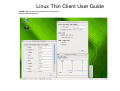
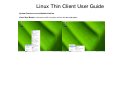
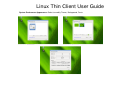
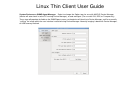
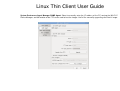
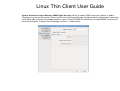
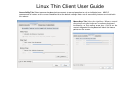
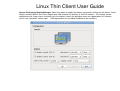
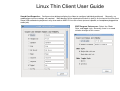
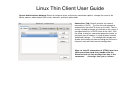
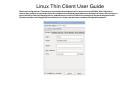
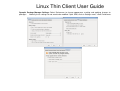
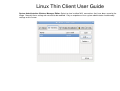
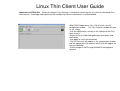
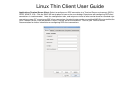
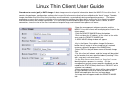
Keyboard Shortcuts (hot-keys): Powerful and easy to configure UI lets a user set the keyboard shortcuts to quickly
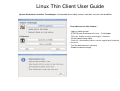
toggle (accelerate) MAPLE Linux to the desired mode. Click START/SYSTEM/PREFERENCES/KEYBOARD SHORTCUTS to
launch the Keyboard Shortcuts UI. Simply scroll to the shortcut to be modified, click on it to highlight it, and type in the
new accelerator. Press Backspace key to reset to DISABLED mode.
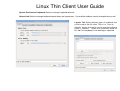
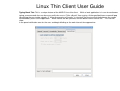
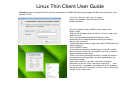
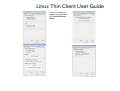
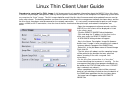
Procedure to change default values: For
toggle open applications that may be in “full
screen” mode back to Linux desktop.
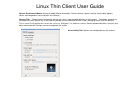
-Open the Keyboard Shortcuts UI, scroll to the
bottom of Window Management
-Click on “Hide all windows and focus desktop”
selection
-Now “New accelerator” is shown in blue
-Press ALT D and the default of CTRL + ALT +
D is now changed to ALT + D.
-Click CLOSE button and the new shortcut
becomes available immediately
Places
Local Sys
File Viewer
Management
Software
3-12