1
118
Graphical User Interface
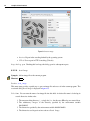
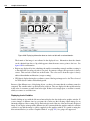
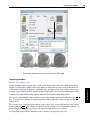
2 OCR Training File Browser
Synopsis: Browse OCR training files.
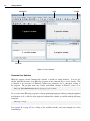
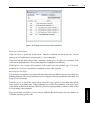
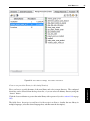
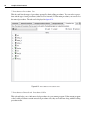
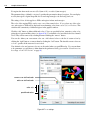
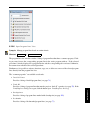
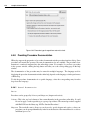
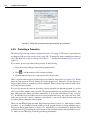
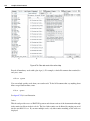
Shortcut: Ctrl+Shift+O,T or Ctrl+Shift+O,Ctrl+Shift+T Selecting this entry opens a useful tool for inspecting and modifying training files. Using the OCR Training File Browser is especially useful to eliminate errors made during the teaching process by checking
if the samples are assigned the correct classes. This tool can be used within any OCR application and
also in combination with the OCR Assistant (page 312). The OCR Training File Browser is described in
section “OCR Training File Browser” on page 215.
6.2.4.22 Save Window...
Synopsis: Save the contents of the active graphics window to an image file.
Shortcut: Ctrl+Shift+G,S or Ctrl+Shift+G,Ctrl+Shift+S See also: dump_window.
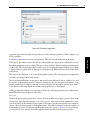
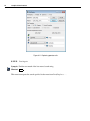
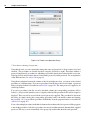
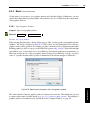
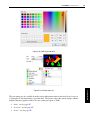
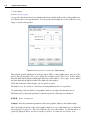
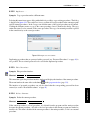
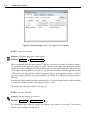
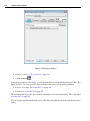
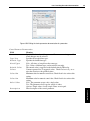
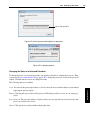
The graphics window is saved ‘as is’ (including displayed regions and XLDs). A file dialog pops up.
Select the destination directory, enter a file name, and select the output format (TIFF, BMP, JPEG, PNG,
or PostScript). Afterwards, click Save to actually save the image file, or Cancel to abort.
6.2.5
Menu Procedures
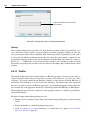
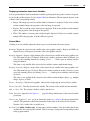
The menu Procedures contains all functionality that is needed to create, modify, copy, or delete HDevelop procedures. To save procedures, refer to the Menu File menu (page 54).
6.2.5.1 Create New Procedure
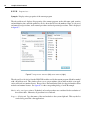
Synopsis: Create a new internal or external procedure.
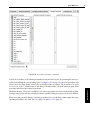
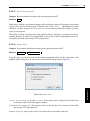
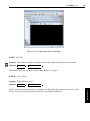
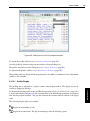
Shortcut: Ctrl+Shift+P,C or Ctrl+Shift+P,Ctrl+Shift+C Selecting this item opens the procedure interface dialog (page 150) window. The procedure interface
dialog and the mechanism of creating procedures are described in section “Creating Procedures” on
page 150.