1
6.6.1 Iconic Variables
173
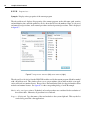
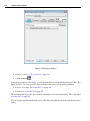
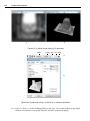
case the full content of a variable can be displayed in an inspection window by double-clicking the value
list. See also the following sections.
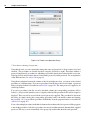
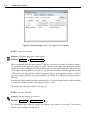
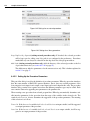
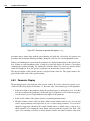
Switching Between Horizontal and Vertical Layout
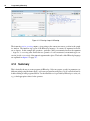
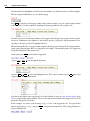
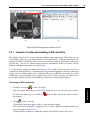
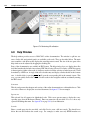
You can toggle the orientation of the two parts of the variable window. To do this, double-click the
dividing line between both parts. You can also drag that line to resize the parts.
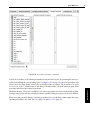
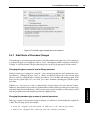
Managing Variables
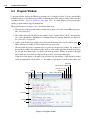
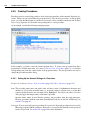
In large programs the variable window can become quite cluttered, which makes watching selected
variables difficult. Therefore, you can customize the selection of displayed variables. At the bottom of
the variable window, the following tabs are available:
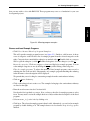
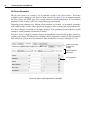
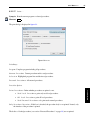
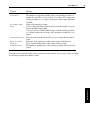
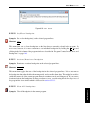
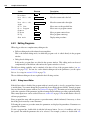
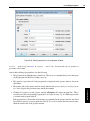
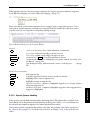
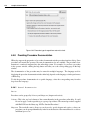
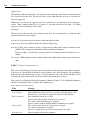
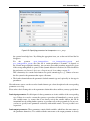
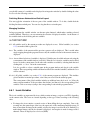
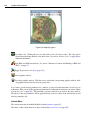
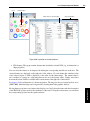
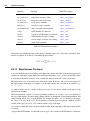
All All variables used by the current procedure are displayed at once. Global variables (see section
8.3.1) are marked with a globe icon.
Auto The variables of the current and the previous operator call are displayed. This is useful when
single-stepping through the program, because only the variables relevant to the current context are
displayed.
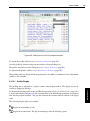
User A user-defined selection of variables is displayed. Variables may be added and removed using the
context menu of the variable window (see below). If the tab User is active, variables may be added
from a list in the context menu. In the other tabs variables are added by selecting them first and
clicking Add to User Tab in the context menu.
It is also possible to select a variable name in the program window and drag it to the variable
window. The corresponding variable will then be added to the watched variables, and the tab User
will be activated.
Global All global variables (see section 8.3.1) of the current program are displayed. This includes
global variables in external procedures, even if they are not used in the current program.
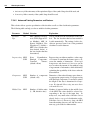
6.6.1
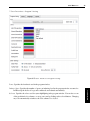
Iconic Variables
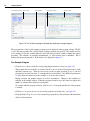
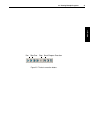
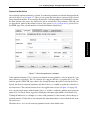
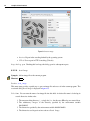
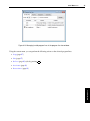
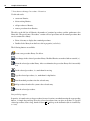
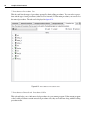
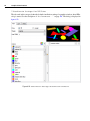
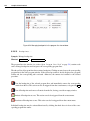
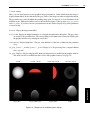
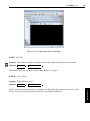
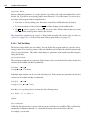
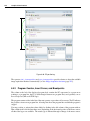
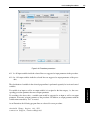
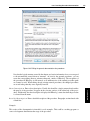
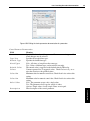
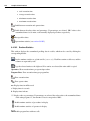
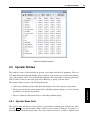
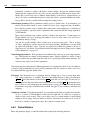
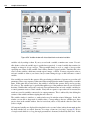
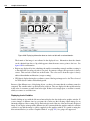
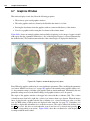
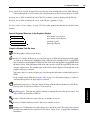
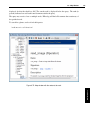
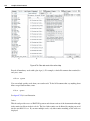
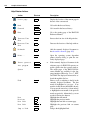
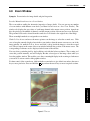
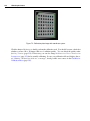
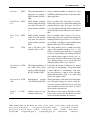
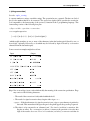
The iconic variables are represented by icons, which contain an image, a region or an XLD, depending
on the current value. The icons are created depending on the type of data according to the following
rules:
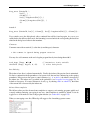
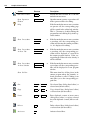
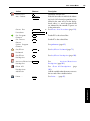
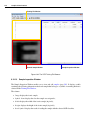
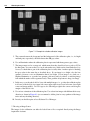
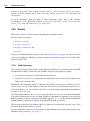
• For images the icon contains a zoomed version of them, filling the icon completely. Due to the
zooming onto the square shape of the icon, the aspect ratio of the small image might be wrong. If
there is more than one image in the variable, only the first image is used for the icon. Similarly, for
multi-channel images only the first channel is displayed. An exception is made for images with 3
channels: These are displayed as color icons (RGB).
GUI Reference
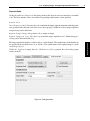
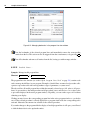
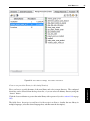
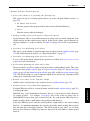
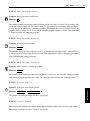
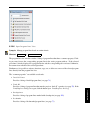
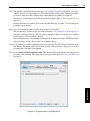
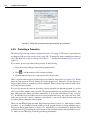
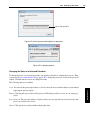
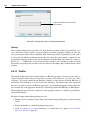
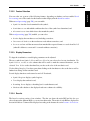
The context menu of the global variables includes an additional entry Declared in. It lists the
names and line numbers of the procedures that declare (and thus use) the corresponding global
variable. Click on an entry to jump to the corresponding location in the program window.