1
256
HDevelop Assistants
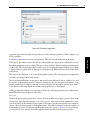
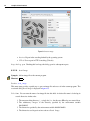
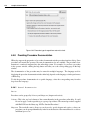
• Load one or more test images (page 253) via the menu item Usage . Test Images . Load Test
Images (page 281) or via the button Load inside the dialog Test Images in the tab Usage. Alternatively, you can also choose the Image Acquisition Assistant (page 225) as source of your test
images by activating the corresponding checkbox under Test Image Source.
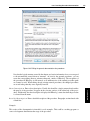
• Specify standard search parameter values via the menu item Usage . Standard Model Use
Parameters (page 284), which opens the corresponding dialog in the tab Usage. Especially the
number of object instances (page 285) to search for in an image should be specified. If the number
of object instances varies from test image to test image, you can specify the number of visible objects (page 283) for each test image separately; in this case the search parameter mentioned above
should be set to 0 or to the maximum number of visible objects. Use the button Detect All (page
282) to detect all matches and automatically set the maximum number of matches if it has not been
set previously (i.e. was set to 0).
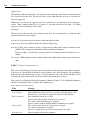
• Select a reference image (page 282) with Set Reference if you want to perform an alignment.
The position of the match in this image is then used as reference. If no reference image is chosen,
the model image (page 253) will be used as basis for alignment (page 253) and rectification (page
253).
• Assure that all objects are found (page 283) in all test images by comparing the number of existing
models with the number of found models or simply determine the recognition rate (page 290).
Now, you can optimize the speed of the matching process by tuning the parameters.
7.3.2.4
Optimizing the Parameters
After you configured the matching (page 252) process such that the search is successful in all test images,
you can start to optimize the parameters on the tabs Parameters and Usage to speed up the matching
as far as possible.
For the four matching methods, different parameters are especially useful to improve speed:
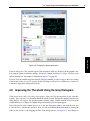
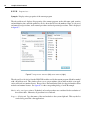
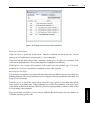
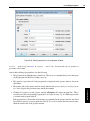
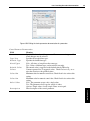
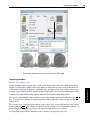
• To support this process for shape-based matching and deformable matching, the Matching Assistant allows to optimize the search parameters Minimum Score (page 284) and Greediness
(page 286) on the tab Usage.
• For correlation-based matching the parameter Minimum Score (page 284) on the tab Usage
should be set to a value larger than 0.0 but preferably below 0.1 to reduce the number of points
considered for further calculations.
• For descriptor-based matching the model parameters Fern Number (page 275) and Fern Depth
(page 275) on the tab Parameters have to be adjusted. Few ferns with a large depth enable a fast
online matching which, however, requires more memory.
Search Parameters can also be automatically improved via the menu item Use Model . Optimize
Recognition Speed (page 289), which can be accessed also via the tab Usage.
If the reached recognition speed is not sufficient, you can try to modify parameters manually. However,
please be aware that such a modification may result in a lower accuracy of the calculated position, orientation, or scale, or even prevent the Matching Assistant from finding the object! Therefore, we recommend
to check whether the matching still succeeds in all test images (page 253) after each modification.