1
5.
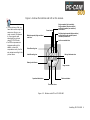
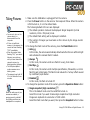
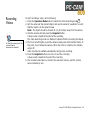
• The counter value
normally increases by one
after a picture is taken.
• Depending on the quality of
the picture, the counter
value may also inrease by
two, or not at all.
6.
7.
8.
9.
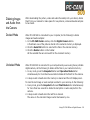
❑ Self-timer single snapshot (normal resolution)
Select this mode if you want a normal resolution snapshot to be taken after a
delay of ten seconds.
You can use this feature to take pictures of yourself.
Press the Snapshot button to take a delayed snapshot. The front LED light will
blink with increasing speed and then proceed to take a snapshot in the Single
snapshot mode.
The default delay time is ten seconds.
Note: You can cancel the snapshot while the camera is counting down by
pressing the Snapshot button again.
❑ Multiple snapshot
Select this mode if you want to take a series of five successive snapshots at
high resolution.
Press the Snapshot button once to take the snapshots. The front red LED will
light up and the camera-ready green LED blinks, indicating that the images are
being stored to memory.
The flash is automatically disabled in this mode.
The image counter displays that the total number of snapshots has increased
by five.
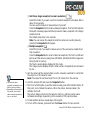
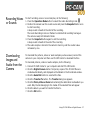
Aim the camera at the desired object, use the camera’s viewfinder to verify that
the object is in the camera’s view.
Note: The object should be at least 75 cm (30 inches) from the camera.
Hold the camera still and press the Snapshot button.
The front red LED lights up and the camera-ready green LED indicator blinks. At
this point, do not shake the camera. When the picture has been taken, the
indicator turns off.
The picture taken is stored in the camera’s memory, and the counter value
increases accordingly, depending on the resolution of the picture taken.
To take another picture, repeat steps 4 through 6.
To turn off the camera, press and hold the Power button for two seconds.
Using PC-CAM 600 as a Digital Camera
24