1
INSTALLING THE SOFTWARE
CUSTOM INSTALLATION
If you wish to install the display font or specify the machine's IP address when installing the printer
driver, select "Custom installation".
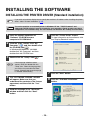
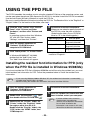
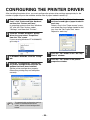
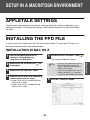
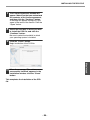
1
Insert the network expansion kit
"Software" CD-ROM into your
computer's CD-ROM drive.
2
Click the "start" button, click "My
Computer" (
), and then double-click
the CD-ROM icon ( ).
In Windows 95/98/Me/NT 4.0/2000,
double-click "My Computer" and then
double-click the CD-ROM icon.
3
Double-click the "setup" icon (
Click the "Next" button.
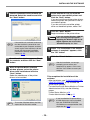
8
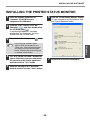
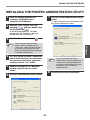
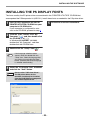
Click the "Custom installation" button.
9
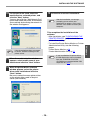
Select "LPR Direct Print" and click the
"Next" button.
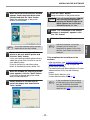
10
Printers connected to the network are
detected. Select the machine and click
the "Next" button.
).
If the language selection screen
appears after you double click the
"setup" icon, select the language that
you wish to use and click the "Next"
button. (Normally the correct language
is selected automatically.)
4
The "SOFTWARE LICENSE" window will
appear. Make sure that you understand
the contents of the license agreement,
and then click the "Yes" button.
5
Read the message in the "Welcome"
window and then click the "Next" button.
6
Click the "Printer Driver" button.
To view information on the software, click
the "Display Readme" button.
If you wish to specify the IP address, click
the "Specify address" button, enter the IP
address, and click the "Search" button.
11
- 16 -
A confirmation window appears. Check
the contents and then click the "Next"
button.
Windows
Note
7




![2 Fare clic sul pulsante [start]](http://vs1.manualzilla.com/store/data/006118559_1-173242b46b2c9da737019e0375b2825a-150x150.png)