1
USING THE PPD FILE
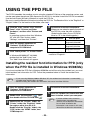
The PPD file enables the machine to print using the standard PS driver of the operating system, and
can be used when the optional PS3 expansion kit AR-PK1 is installed. Install the PPD file as needed.
Use the Add Printer Wizard in Windows to install the PPD file.
Be sure to read the Readme file before installing the PPD file. The Readme file is in the "EnglishA" or
"English" folder. For the location of the folder, see step 4.
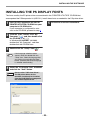
1
2
Follow the on-screen instructions.
When you are asked to specify the path of
the PPD file, enter the path as follows.
(Substitute the letter of your CD-ROM
drive for "R" in the following paths.)
Operating system
Windows 95/98/Me
Insert the network expansion kit
"Software" CD-ROM into your
computer's CD-ROM drive.
Windows NT 4.0
Windows 2000/XP
Click "Add a printer" in "Printer Tasks".
PPD file path
R:\Drivers\Printer
\EnglishA\PPD\9XME
R:\Drivers\Printer
\EnglishA\PPD\NT40
R:\Drivers\Printer
\EnglishA\PPD\2KXP
* In regions other than the U.S., enter "English"
instead of "EnglishA".
In Windows 95/98/Me/NT 4.0/2000,
double-click the "Add Printer" icon.
The "Add Printer Wizard" will appear.
Installing the resident font information for PPD (only
when the PPD file is installed in Windows 95/98/Me)
If you have installed the PPD file in Windows 95/98/Me and will be using the resident font, you must
install resident font information for PPD. Follow the procedure below to install the resident fonts
information.
Note
• If you are using Windows 2000 or Windows XP, the resident font information is automatically
installed when the PPD file is installed.
• Before installing the resident font information, be sure to install the PPD file.
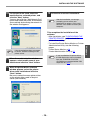
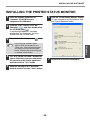
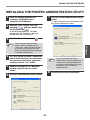
1
Insert the network expansion kit
"Software" CD-ROM into your
computer's CD-ROM drive.
2
Double-click "My Computer" ( ), and
then double-click the CD-ROM icon ( ).
3
4
Follow the on-screen instructions.
5
After the resident font information has
been installed, restart your computer.
Note
Double-click the "Drivers" folder, the
"Printer" folder, the "EnglishA" folder
(for regions other than the U.S.,
double-click the "English" folder), the
"PPD" folder, the "9XME" folder, and
"PFMSetup.exe".
- 23 -
If printer resident fonts cannot be
specified from the application
software, the resident font information
has not been installed or the
information is not correct. In this case,
reinstall the resident font information.
Windows
3
4
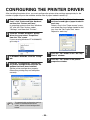
Click the "start" button, click "Control
Panel", click "Printers and Other
Hardware", and then click "Printers and
Faxes".
In operating systems other than Windows
XP, click the "Start" button, select
"Settings", and then click "Printers".




![2 Fare clic sul pulsante [start]](http://vs1.manualzilla.com/store/data/006118559_1-173242b46b2c9da737019e0375b2825a-150x150.png)