1
Using the Converter function
The Converter function consists of two converters: the Currency converter, and the
Metric converter.
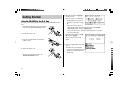
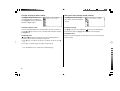
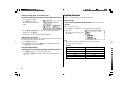
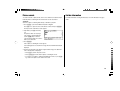
3. Use the { } keys to place the cursor at the desired input field, then input the
currency name and its rate. In this example, press } and input ‘0.7’.
• The currency name field of currency converter is temporarily pre-defined, as
seen in the above example.
Currency converter
• When inputting the desired currency name, press b to clear the input field
and use no more than four letters. Use the [ ] keys to set the cursor on
the left/right of the currently selected input field.
Setting a currency rate
• In the left input field, enter the base currency name. In the input field on the
right, place the currency name of which you wish to set the conversion rate.
One conversion rate can be set.
<Example>
• Up to 10 digits (excluding the decimal point) can be entered in the currency
rate input field.
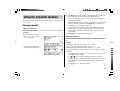
Set the following rate: £1 = =C 0.7
4. Press e. The currency name and its rate are set.
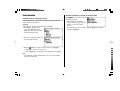
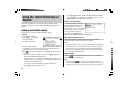
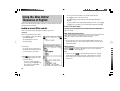
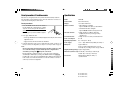
1. Press k 1 to access the
Currency converter.
Converting currencies
The conversion calculation can be performed using the previously set conversion
rate.
<Example>
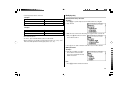
Convert =C 175 to pounds (£) when setting the rate: £1 = =C 0.7.
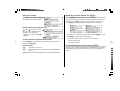
2. Press <. The input fields for the
currency name and rate appear.
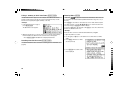
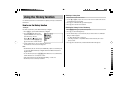
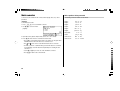
1. Press k 1 to display the currency converter.
2. Input ‘175’. You may input a simple formula, such as ‘35 × 5 =’, instead.
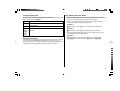
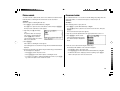
3. Press [ to execute the conversion from =C to £. The converted value of £250 is
displayed.
• Pressing ] executes a pound-to-euro conversion. In this case, the converted
value of =C 122.5 will be displayed.
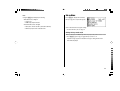
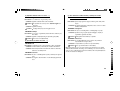
• The
and
arrows on the screen indicate the direction of conversion.
• To initiate conversion of a different value, just enter the value to be converted,
or press ! to clear the value in the input field prior to entering the new
conversion.
• Press f to return to the Converter menu.
23