1
eCopy ShareScan® Installation and Setup Guide | 149
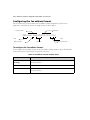
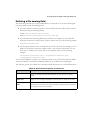
Configuring the Display properties
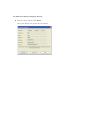
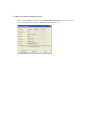
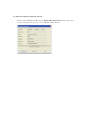
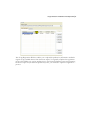
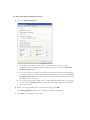
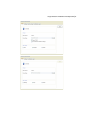
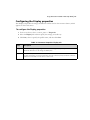
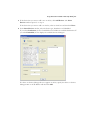
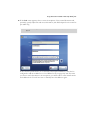
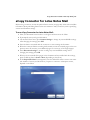
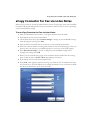
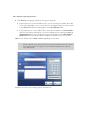
The Display tab specifies the image and label that will be used on the connector button, which
appears on the touch screen.
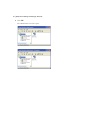
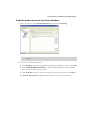
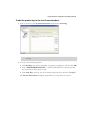
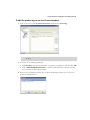
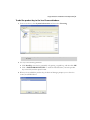
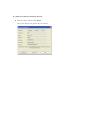
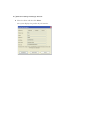
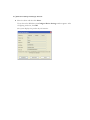
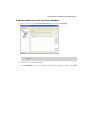
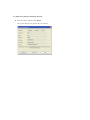
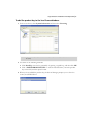
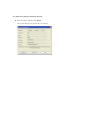
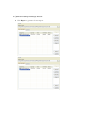
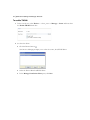
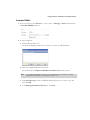
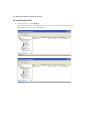
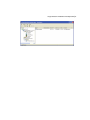
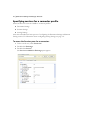
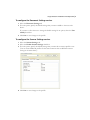
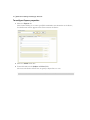
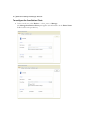
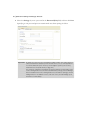
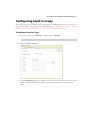
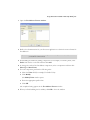
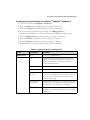
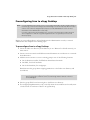
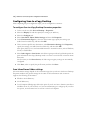
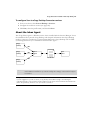
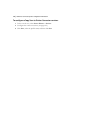
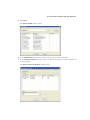
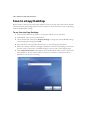
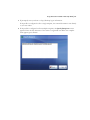
To configure the Display properties:
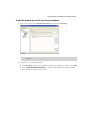
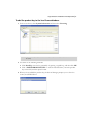
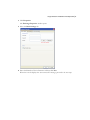
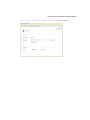
In the console tree, select <connector_name> > Properties.
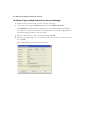
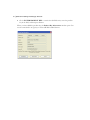
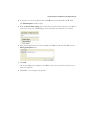
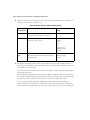
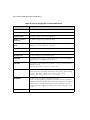
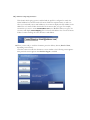
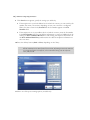
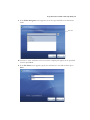
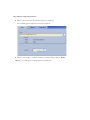
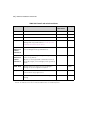
2 Select the Display tab and then specify the settings (see Table 14).
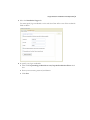
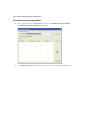
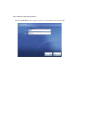
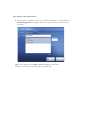
3 Click Save, select or specify the profile name, and then click Save.
1
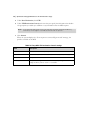
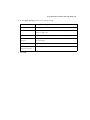
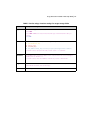
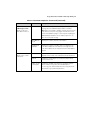
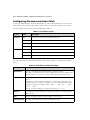
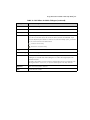
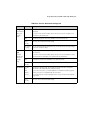
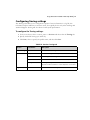
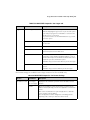
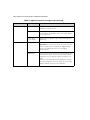
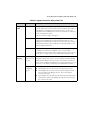
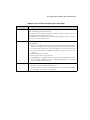
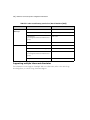
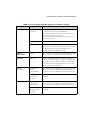
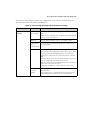
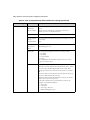
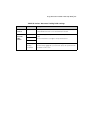
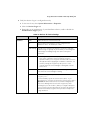
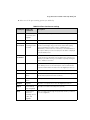
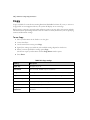
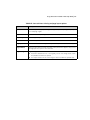
TABLE 14. Connector Properties: Display tab
Field
Description
Image
Used to select a .gif or .jpg file. .gif files have the advantage of transparency.
Maximum dimensions for the image are 64x64 pixels.
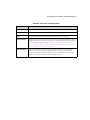
Label
Used to enter up to three short lines of text. Press ENTER between each line.
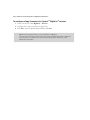
To make sure the lines of text fit on the button, save the connector profile, activate the connector,
and then view the button on the device’s touch screen.